

6 Signs Your GPU Is About To Fail
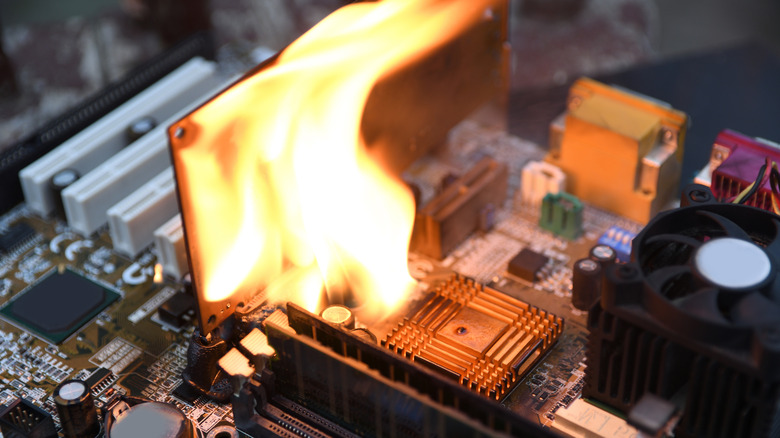
There's a good chance that the most expensive component in your laptop or desktop PC is the graphics processing unit, or GPU, and it's the processor that makes the pictures, video, and gaming possible on your computer screen. The thing is, a GPU has to work pretty hard to make this possible and they are incredibly complex devices, and that it can go wrong in many different ways, whether your card being from a major graphics card brand or a cheap, no-name brand. It's one of the reasons we've said that a GPU is one of the PC parts you should never buy used.
A lot of the time, when a GPU fails, it's sudden and without warning, but in some cases, you can see (or hear) the signs in advance. Knowing these signs could give you a chance to start saving for a new one and back up your drive to prevent total data loss. We're going to cover some of the most common warning signs, why they happen, and ultimately whether you can do anything about them.
Graphical artifacts are showing up on your screen

Anyone who has tried to speed up aging graphics cards through overclocking will tell you that an overheated and stressed GPU can behave in some strange ways. The same is true for a graphics card that's on its way out, and if you see one of these signs, it could be a sign that something's not right.
- Random blocks and lines of various colors.
- Flickering textures.
- A checkerboard pattern.
- Screen tearing in apps that are not video games (where this is common and normal).
- Corrupted UI elements like text or overlays.
The are various components on your GPU that could be responsible for these glitches, but the most common culprits are the GPU chip itself or the VRAM (the video memory), which can suffer corruption that shows up as errors in the frames sent to your monitor. If you ever see glitches on the screen, then it's almost certainly a hardware issue, but there are some things you can do to troubleshoot these problems, which we'll cover a little later. If you're lucky, it might actually be something that can be fixed.
Your games and apps are suddenly crashing all the time

In a way, seeing clear graphical artifacts mentioned above is almost a blessing when it comes to knowing if your GPU is about to fail. There's not much ambiguity there, but more often than not, the very early signs aren't that clear-cut. Software instability is one such example.
Crashing under load is a common sign that there's something wrong with your GPU. It's perfectly happy to run your Windows desktop all day, let you watch videos, do your homework, or browse the web. However, as soon as you boot up a video game or try to export your video editing project, there's some sort of error and the program crashes. You might get an error message like "Display driver stopped responding" or the program will just close with no errors. There may be more drastic results, such as your PC rebooting itself or the screen going black and things only coming back after you manually turn the computer off and then on again.
The problem can be unrelated to your GPU hardware as it could be a corrupt display driver, an issue with your power supply, or instability with your system RAM. So, while this is generally a clear-cut sign of potential issues looming, it isn't always an obvious indication of what's going wrong. The fact that things go wrong just when you put the hammer down on your computer is a strong clue that your GPU may be suspect.
Temperatures are getting out of control and your frame rates have mysteriously tanked
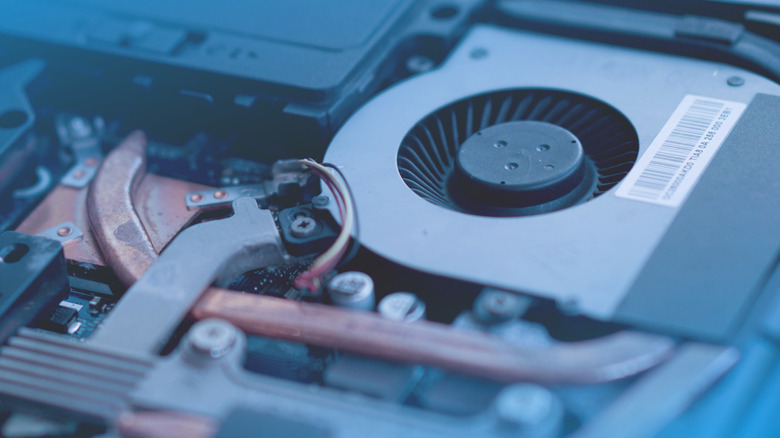
Modern GPUs, by design, run hot. They'll push right up to the safe margins and stay there to give you the best performance, unless you've tweaked them to run more conservatively. There's a difference, though, between running at the safe temperature limit and constantly overheating. So how can you tell if your GPU is actually overheating? The first step is looking up what the normal maximum operating temperature is for your GPU model. You should then also take into account what the GPU's normal frequency range is. Modern GPUs have a base clock and a boost clock, and the GPU will only hit its boost clock if power and cooling allow.
When a GPU's temperature goes above the safe level, it will cut down its clock speeds to cool down. If your card used to hit maximum boost but no longer does, that could indicate that something's changed about its cooling or power. And if your card is throttling below its base clock number and your frame rates are in the basement, then something serious has gone wrong.
You start seeing the Blue Screen of Death
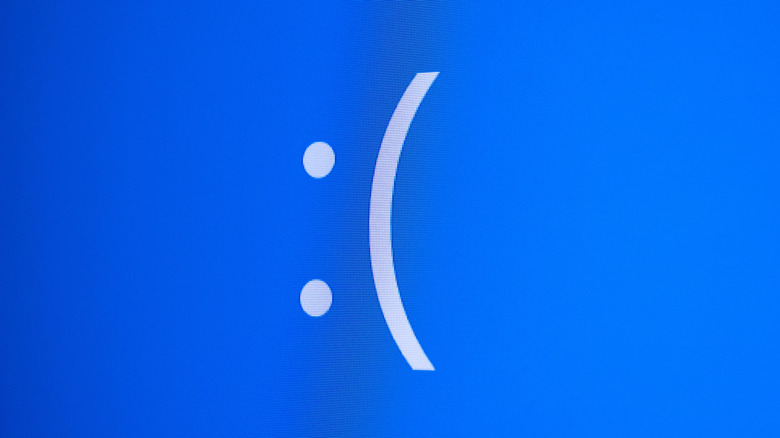
While an app or game crashing to the desktop can be a sign that there's something wrong with the hardware of your GPU, a Blue Screen of Death (BSoD) in Windows can be much more indicative of a hardware problem. Incidentally, while we still call them BSoDs, Windows 11 is finally killing the Blue Screen of Death after trying to move away from it for years. But a rose by any other name still stings the same — a faulty GPU is frustrating and expensive to deal with.
If it happens once or twice, you probably have nothing to worry about, but a frequest BSoD is an indication that your computer probably needs a technician to look at it. There are specialized diagnostic tools that can, for example, pin down if specific memory chip is faulty, or if particular components of the power distribution system have failed or malfunctioned. While BSoDs are not always caused by hardware issues, things have to go pretty badly for Windows to completely stop, unable to recover. So, prepare yourself for a decent troubleshooting trip.
The fans sound wrong or stop working entirely
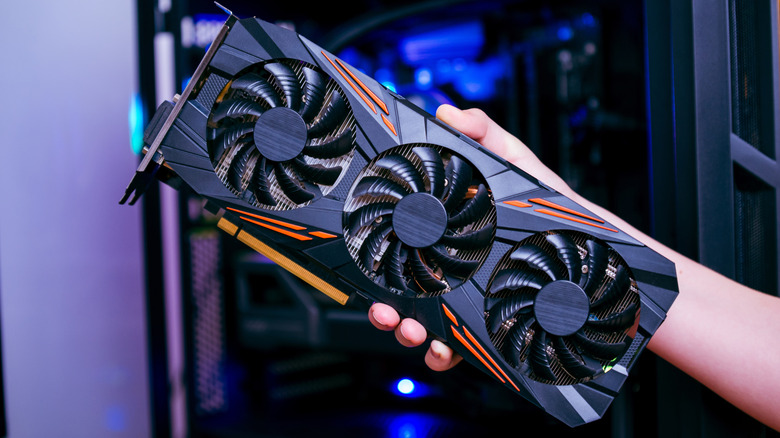
GPUs and graphics cards are often cooled by a fan attached to a heatsink. Like a radiator, the device uses the heatsink fins to dissipate heat, and this hot air is exhausted from the computer using the electric fans. The fan is connected to the GPU using thermal interface material, such as thermal paste. It's why we consider changing your thermal paste one of the essential tips for maintaining your PC.
While it's nice to have GPU fans that are silent, when you're asking your GPU to work hard, you'll hear those fans kick in with a vengeance. How those fans sound while doing their job can be an important clue that your cooling system is about to fail. The first weird sound is, ironically, no sound at all. While lots of modern cards can turn their fans off when idle or under very low loads (e.g. watching a movie or desktop browsing), they should be making some noise when you start a game or run a GPU-accelerated task. If the fans have stopped, that means you need to find out why and fix it. Likewise, grinding, clicking, buzzing, and rattling are all not good signs. You may just need to clean your computer, but fan bearings and motors will eventually fail. It's just physics.
Your computer won't detect the GPU anymore

There are two instances in which your PC can't "detect" your GPU. The first, and less serious one, your GPU works and you get a picture on the screen, but the operating system you're running won't detect the processor. The OS falls back on a safe generic driver, and it won't accept the real driver from the manufacturer. In this instance, it could just be a software issue of some kind.
A more serious issue would be if your GPU disappears completely from the Device Manager screen. This is an indication of a more severe problem, and it's worth having someone look at the card itself after eliminating other possibilities. If your card just seems to be dead, and there's no picture at all, especially if it was working before, you might have a card that's given up the ghost. Before springing for a new unit, first check to make sure that the monitor cable is plugged into the correct port on the motherboard.
Can you save it?
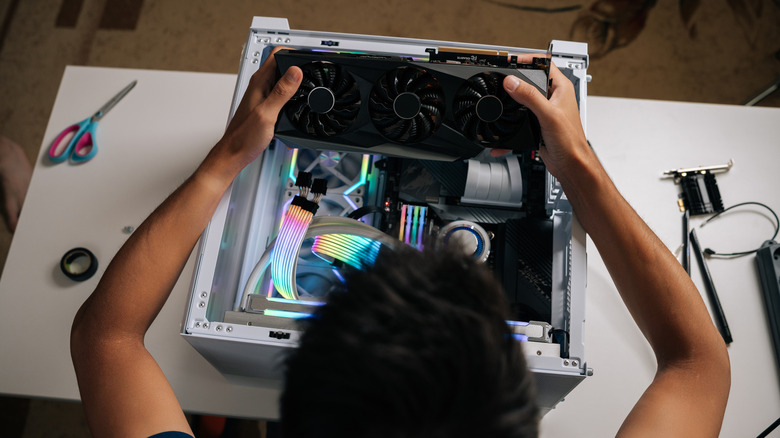
Just because your GPU might be on the road to failure, doesn't mean you can't save it. The biggest question is whether it's worth the expense of saving the GPU. In the hands of the right technician, you can repair a GPU that might seem like it can't be salvaged, but before you send the processor off to a tech-wizard, you need to do some basic troubleshooting.
The most important thing you need to do is make sure it's actually the GPU at fault. The easiest way to do this is by putting the card into another computer that you know works. If the troubles follow the GPU to the other PC, then it's obviously a failed GPU. You can also inspect the fans, check that the thermal paste is still good and making contact, and make sure your case is getting proper airflow. But if the problems go beyond temperature or the symptoms are serious, get an opinion from an expert or get a new GPU.