

5 Clever Siri Commands You Should Be Using While Cooking

Siri has become arguably more useful since the iOS 27 update, so much so that it can easily be integrated into different areas of your daily life. For one, you can use it for work-related tasks, such as setting a reminder for a meeting or drafting a response to an email from your boss. It also comes in handy when you're traveling. It can give you directions to the nearest hotel, pull up your flight details from your emails, and translate foreign text into your local language.
Unsurprisingly, Siri has its place in the kitchen too. It's especially convenient when you're doing all the cooking yourself and your hands are too busy to reach for your phone. Rather than repeatedly washing your hands just to do a task, you can just ask your hands-free assistant for help. If you're looking to put Siri to work in your kitchen, here are five particularly common Siri commands every home cook should know.
Siri, set a timer.
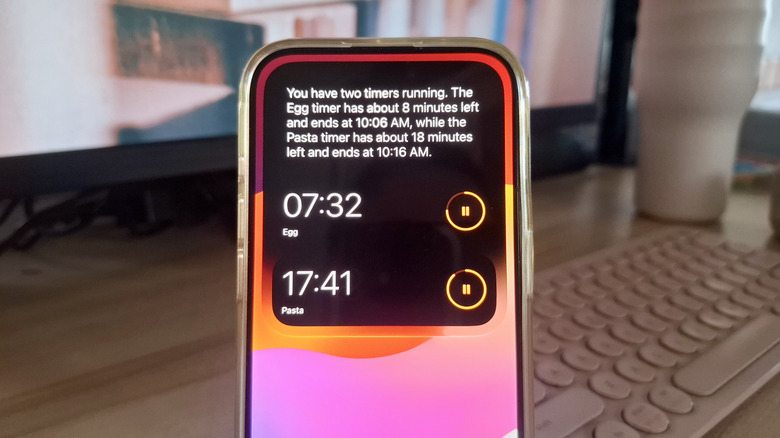
The most basic but easily the most useful Siri command you can use while cooking is setting a timer. You'll almost always need at least one to make sure your meals turn out exactly as expected. To start a single timer, say, "Siri, set a timer for 15 minutes." Siri will then run your timer and keep it visible on the Siri panel and Lock Screen so that you can check on it later. Once the timer is up, it will ring as normal.
If you'll be using multiple timers during your cooking session, you can either ask Siri in a single command or create each one as you go. Setting timers in a single command is useful when you have different things cooking at the same time. Otherwise, you can set them individually, and Siri will start each new timer without messing with your other active timers. If you do use multiple timers, though, it's best to name each one to avoid confusion. Say, "Siri, start a 30-minute timer called chicken," or "Siri, set an egg timer for seven minutes." The timer names will appear on the Lock Screen and Siri panel, and when one goes off, you'll see its name at the top of the screen.
Besides starting a timer, you can also ask Siri for updates. For instance, you can ask, "How much time is left on my pasta timer?" to check on a specific one. Or you can say, "Show all my timers," or "What timers do I have running?" to view the active timers and their remaining time. You can also stop or pause one or all timers anytime using Siri.
Siri, what's the next step after...?
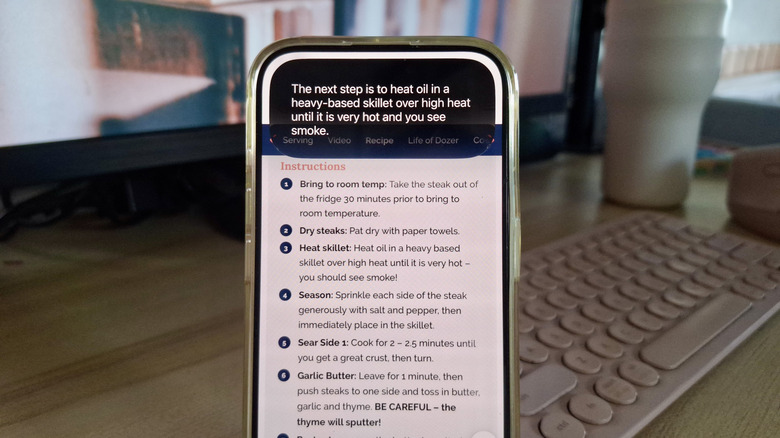
Following a recipe on your phone while cooking can be tricky. Most of the time, you have to squint to see the instructions, and if that doesn't work, you have to set what you're doing aside to pick up your phone with messy hands. But there's actually a much easier alternative: Siri and its on-screen awareness. Siri's on-screen awareness feature has several nifty uses, but in the kitchen, you can use it to read the displayed recipe for you.
To set this up, open the recipe website in Safari and scroll to the instructions. If you have a picture of the recipe, you can show that too. Then, read and do the first step. When you're finished and ready for the next step, simply say, "Siri, for this recipe, what's the next step after...?" Siri will read what's on the screen, then walk you through what to do next. The Siri panel stays on the screen until you exit it. This means you can always call for Siri again and just ask, "What's next?" without repeating the step you just did. Rinse and repeat until you're done cooking.
However, this Siri command has a limitation. Since on-screen awareness only knows what's currently displayed on your phone, Siri can no longer tell you the next step if it's further down the page. You need to scroll first before asking the question again. You won't have issues using this on short, single-page recipes, though.
Siri, convert [unit] to [unit].
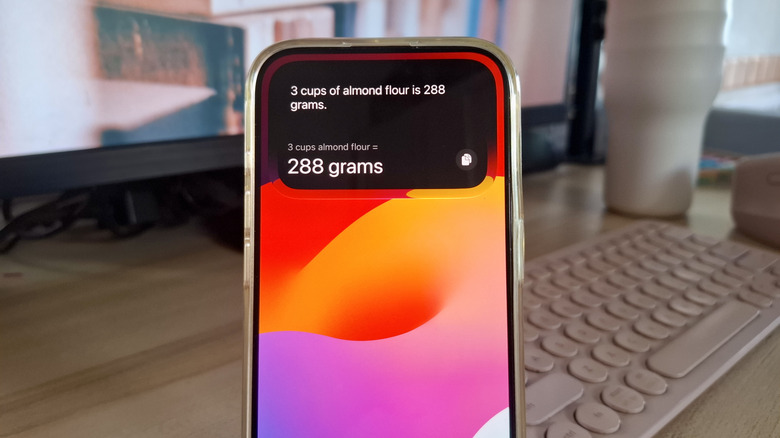
Cooking often means working with different units of measurement. Sometimes, this can be a problem when you don't have the right measuring tools or your devices aren't set to use a particular unit. Sure, you can always do a quick unit conversion on your phone browser. But that's too inconvenient when you're in the middle of a task. To avoid the hassle, let Siri perform the conversions for you. Just issue a voice command, and you'll get the measurement you need in a jiffy — hands-free!
Here are some Siri commands you can use to convert measurements while cooking:
- What is 175 degrees Celsius in Fahrenheit?
- How many tablespoons are in one-half cup of butter?
- Convert 500 grams of almond flour to cups.
- Tell me how many ounces there are in a pint of lemon juice.
When issuing a voice command, mention the specific ingredient for the most accurate results. This matters because different ingredients have different properties, so a generic conversion won't work. For instance, a cup of all-purpose flour equals 120 grams, but a cup of almond flour equals only 96 grams. So simply saying "convert one cup to grams" won't give you a useful answer.
Siri, what can I use instead of [ingredient]?
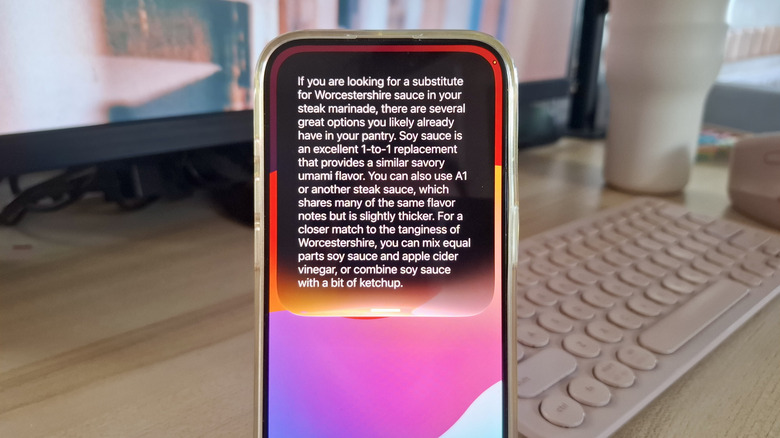
One of the most practical features of the new Siri AI is broad world knowledge. That means it essentially works like your browser but hands-free. You can use it every time you need to look up the meaning of an unfamiliar word or fact-check a detail about a historical event. When cooking, though, Siri's broad world knowledge comes in handy for one important task: ingredient substitution. Using Siri, you won't have to stop what you're doing to type "What can I use instead of [ingredient] for [meal]?" into your browser. Just ask Siri.
If you ran out of cocoa powder while making brownies, say, "Siri, I'm baking brownies. What's a good substitute for cocoa powder?" Or if you forgot to buy some Worcestershire sauce for your steak marinade but have soy sauce in your pantry, you could say, "Siri, can I use soy sauce instead of Worcestershire sauce for marinating steak?" After Siri replies, you should follow up by asking whether you can keep the amount the same or adjust the measurement as needed.
Siri, add [item] to grocery list.
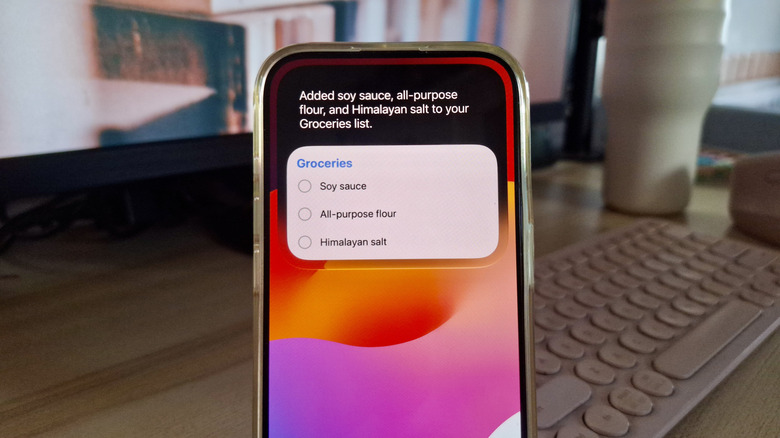
It's always when you're cooking that you realize that your pantry is missing a few staples. Unfortunately, that's also the most inconvenient time, as you likely have your hands full and can't immediately grab your phone to write down the ingredients. Instead of just taking a mental note and forgetting about it later, you can let Siri do the work for you.
All you have to say is, "Siri, add [item] to groceries." Siri will automatically add the item to the pre-built Groceries list in the Reminders app, where items are conveniently sorted by category (e.g., baking items, refrigerated, produce). If your Reminders app doesn't include the Groceries list, you can easily create one before using the Siri command. Follow these steps:
- In the Reminders app, tap the new list icon at the top.
- Type Groceries as the List Name.
- Change the List Type to Groceries.
- Choose a color and icon for the list.
Siri should now be able to find the Groceries list and add items to it.