

Your PC Can Run More Apps At Once - Here's How
If you've noticed that your PC is getting sluggish after opening several apps, like Chrome, Slack, Trello, and Microsoft Excel, it's struggling to manage system resources. The most likely culprit is RAM, as this is where it stores the temporary data and instructions the apps need to run smoothly. You're more likely to run into high RAM utilization if your computer or laptop has 8GB of RAM or less because modern workflows demand 16GB or more. This is ideal for giving the apps more headroom to run. So this boils down to targeting certain apps to reduce their impact on RAM.
If this were a few years ago, the simple answer would have been to get more RAM. However, RAM prices have skyrocketed due to shortages caused by the increased demand in AI. They have gotten so high that a YouTuber who goes by Dr. Semiconductor is making their own RAM. Not to mention, if you're using a mini PC or an ultrabook, the RAM is soldered in, so you can't upgrade it. You might just need to learn to work with what you have, and it's very much doable, even if you have 8GB of RAM or less.
For instance, you can uninstall any apps you don't need, which can have the added benefit of reducing the number of apps working in the background, utilizing more memory. Disabling apps that load when your PC boots up and enabling memory-saver mode in your web browser also frees up RAM.
Freeing up RAM leaves room for more apps to run
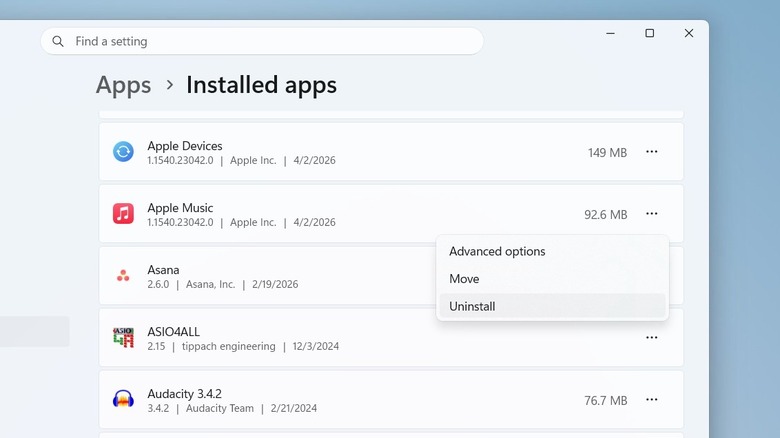
You should start by closing the apps you're not using. You should also uninstall the ones you don't need. Some of them can increase background activity, causing more RAM utilization. Uninstalling common Windows apps also clears storage. Here's how:
-
Open Settings.
-
Select Apps.
-
Select Installed Apps.
-
Next to the app you want to uninstall, click More options.
-
Select Uninstall.
If you want to keep these apps but decrease their impact on RAM while they're inactive, you can just disable their background activity. This is only available for apps that support background activity. Follow the steps below:
-
Open Settings.
-
Select Apps.
-
Select Installed Apps.
-
Next to the app, click More options > Advanced options.
-
Set Let this app run in the background to Never.
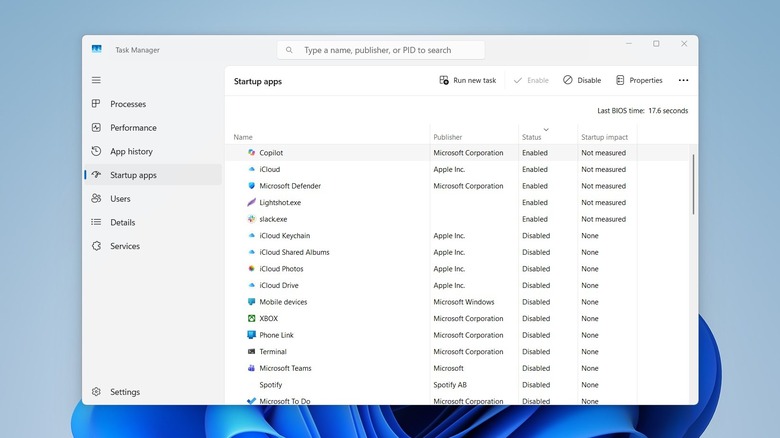
You should disable startup apps, as these will load the moment your computer boots up, decreasing the amount of available RAM from the beginning:
-
Open Task Manager.
-
Select the Startup apps tab.
-
Right-click on an app.
-
Select Disable.
-
If the app is still running in the System Tray, right-click it.
-
Select Exit, Quit, or Stop.
Browsers can chew up a lot of memory if you open too many tabs. The best option is to enable memory-saver mode, which is available in major browsers like Chrome, Edge, and Firefox. In Chrome, for example, you need to:
-
Click the three-dot icon in the top-right corner.
-
Select Settings.
-
Click Performance.
-
Toggle on Memory Saver.
Freeing up internal storage also helps
Having enough internal storage space is also important because when RAM is full, Windows will try to move some of the temporary data the apps need to virtual memory. In that sense, your computer's drive becomes an extension of the RAM. It's a process called paging, where inactive or less frequently accessed pages in RAM are moved into virtual memory. This leaves only the active pages, boosting memory efficiency. When pages in virtual memory are needed again, it loads them back into physical memory. It's a slow process, but it prevents the computer's performance from becoming unstable. That's why a full drive can also be a problem.
For your drive to have enough memory for efficient paging, try to delete large files first. Start by going into folders that usually hold large files, such as the Downloads and Videos folders. Click inside the Search bar in the top-right corner and type size:>1GB to only show files that are larger than 1GB. You can replace 1GB in the search filter with 2GB, 3GB, and so on. If you have an external drive or have space in your cloud storage, you can move the files there if you don't want to get rid of them.
You also need to get rid of temporary files through Storage Sense (Windows' disk cleanup automation tool), as those can accumulate over time. Here's how:
-
Open Settings.
-
Select System.
-
Select Storage.
-
Select Storage Sense.
-
Click Run Storage Sense now.