

How To Fix The 5 Most Common Problems With Google Home Automations
Among the new features Google Home added in 2026 were improvements to automations. Some of the new automation options include features for managing your home's security, lighting, media, and more. Many people have developed their favorite ways to use these features with Google Home, doing things like turning on a heater for a pickup truck's engine block at a certain time each morning and providing daily reminders for kids about starting homework.
However, these extra automation features might generate complexities when running them. You may find yourself needing to troubleshoot certain commands and features because they aren't working quite like you expected. Some of the most common problems that people are experiencing with Google Home automations include automations not starting when you arrive at or leave from home, routines not running for certain people in your household, automations still trying to run even after you deleted the associated third-party app, routines failing to start when expected, and errors in custom, advanced home automations created with the script editor.
It's worth noting that some issues that appear to relate to automations may actually result from common problems with Google Home devices. If you're struggling to make a particular feature work, always check the status of the hardware device. Additionally, Google specifies that automations are only offered to simplify day-to-day life. You should not use them for critical applications where someone could suffer an injury if they don't work correctly, because there's no guarantee they'll always run as intended.
Automations don't sense whether you're home
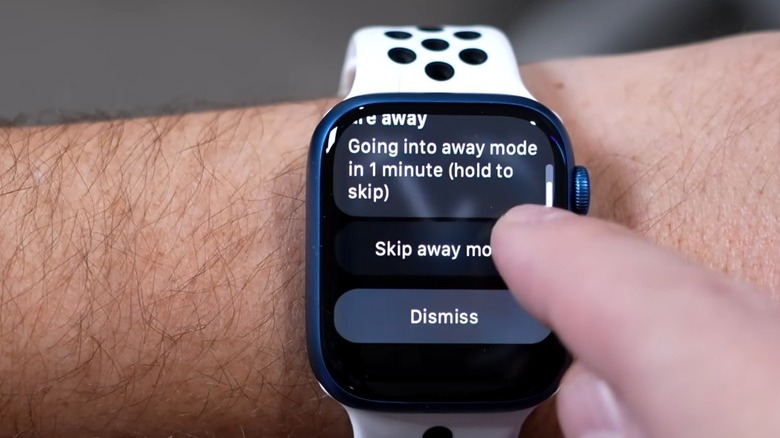
Google Home automations can work with a technology called presence sensing. This technology determines whether at least one person in the family is home or whether everyone has left, based on phone location and activity detected by supported home-device sensors like a Nest thermostat or a Google smart speaker. By using Google Home automations, you can set up certain actions to occur based on whether people are at home or away, such as turning on certain lights when someone enters the home.
One problem you may have with presence sensing automations is that the system doesn't correctly measure when people are home or away. If it's just one device that is failing to correctly turn on or off, visit the Automations tab in the Google Home app, then select the problematic home or away routine. Make sure that the device that is not responding is listed in the "Actions" area. If not, you'll have to add it to the list. If the device is listed, tap on it. Make sure that it is enabled to run a routine based on whether people are in the house or everyone is away. Then test the device to ensure it's working as intended.
Certain routines won't work for everyone in your household
Google Home has a feature called routines that can combine a series of actions into one task. These routines can start based on triggers such as a voice command, certain device actions, or a schedule. People might use routines for things like setting all the lights in their house to a bedtime mode where only the hallway light and bedside lamps are left on, for example.
If your routine works perfectly fine for you, but doesn't seem to be running when another family member tries to trigger it, it may have something to do with the type of routine you chose during setup: Personal versus Household. With a Personal routine, Google Home will use its Voice Match feature (assuming you've set it up) to effectively gate the routine to your account. So, in our bedtime mode example, if your spouse were to say "Okay Google, bedtime mode," the routine wouldn't run for them since their voice doesn't match yours.
Unfortunately, you can't change a Personal routine into a Household one after the fact, so you'll have to set up the routine from scratch if this is the case. Thankfully, Google Home's new 2026 UI, which is widely rolled out as of this writing, did away with the Personal versus Household distinction for routines by default. Now, all routines you create apply to the whole household, provided you don't go out of your way to switch to the old UI when setting up the routine. So you'll simply need to head to the Automations tab in the Google Home app and tap the Add (+) button, then recreate your routine to make it work for everyone in the home.
Deleted third-party app automations may still try to run
You have the option of running some Google Home automations that take advantage of a third-party app or service that you're using. For example, you may have a smart home service that you want to run through Google Home. You could potentially then use the Google Home app to make changes to and operate the smart home service, rather than having to use a separate app. You might choose to create an automation in the Google Home app to help with managing the third-party service's features.
If you later decide to stop using that third-party smart home service, you might cancel the service and delete its app. Unfortunately, simply deleting or uninstalling the third-party app may not stop the scheduled automation that's stored in the Google Home app. To completely stop things, you will likely need to go into the Google Home app and remove access for the third-party service that's still trying to run the automation, usually by deleting the automation. Select the Automations tab in the Google Home app, then tap the automation you want to remove. You'll see the name of the third-party app that created it, along with an option to delete the automation.
Some automated routines may fail to start when expected
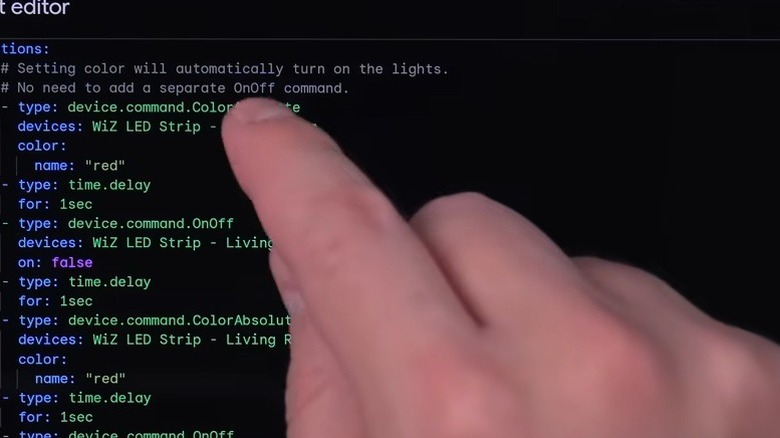
If you set up an automated action (called a routine) through Google Home, you expect it to run when the conditions are met. However, a common problem with Google Home automations occurs when the routine fails to run as expected. Perhaps you set up a routine to start your coffee maker in the morning so you can take a cup with you to work. If the automation fails to run on time, it can throw off your entire morning routine (and leave you yawning at work).
You can use the Google Home app to look at routines that have recently run under the Activity menu. If the app doesn't have your coffee maker listed as having run in the morning, you'll have to do some troubleshooting. Open the Automations menu in the Google Home app and find the routine that isn't properly operating. Make sure it's turned on and all the settings are correct. Sometimes, the day or time might not be correct. You may need to test the routine manually to see if the problem is with the automation or the actual device.
Advanced automated settings are not running as expected
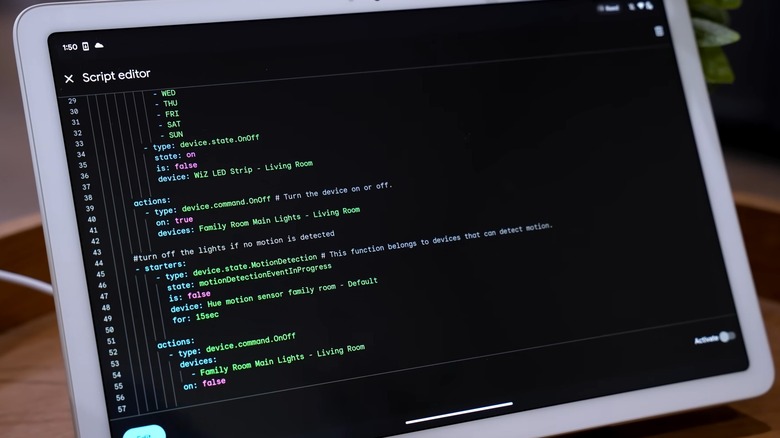
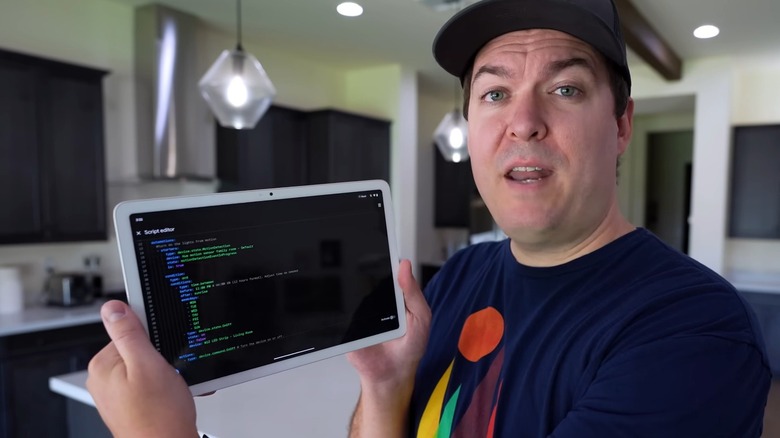
You have the option with Google Home automations to use the script editor to create your own routines and settings. If you want a routine that isn't available among the prewritten options, just make your own code. You can access the script editor through the Google Home app or at home.google.com.
Sometimes, though, the code you created in the script editor may contain an error, causing the automation to not run or run incorrectly. You can troubleshoot code you created in the script editor by manually inspecting it for errors. As an added clue, you might see an error message that can point you toward the bad lines of code. The script editor contains a "validate" command that you can use to check whether you have any formatting errors that are causing the issue.
Even though you can create advanced settings for automations, there are certain things you should never ask your Google Home devices and automations to do. You especially should not automate any routine that involves an action that could affect the security of your home or personal data. In other words, carefully choose when to use the script editor to create advanced automation settings.