

5 Hidden Features Most Tesla Owners Don't Realize Exist
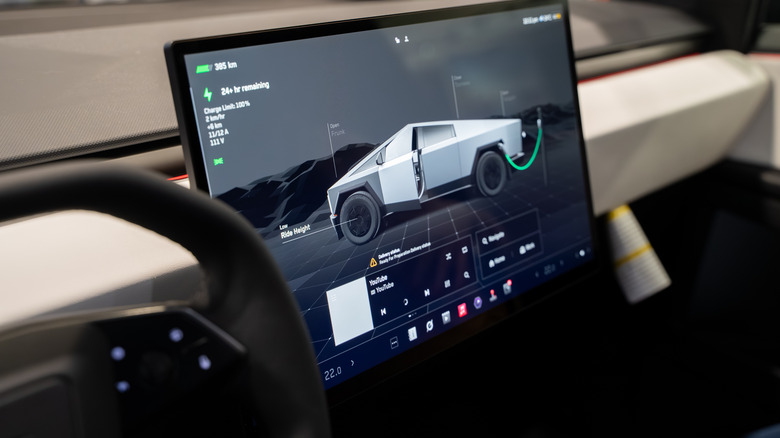
Those who own a Tesla tend to love it. Consumer Reports has named it the most satisfying EV brand to drive, and the Model Y is singled out among some other electric vehicles owners really love. But in addition to being a vehicle manufacturer, Tesla is also a tech company. On the hardware side, it offers things like a large in-dash touchscreen, and its Supercharger network is built to accommodate long trips and everyday driving. Tesla also offers a lot in its vehicles through software alone, including features like driver assistance technology.
But because so much of what Tesla puts into its vehicles is done through the software interface, some features can easily be overlooked, or even left unused over the entirety of a vehicle's ownership. Many helpful features are switched off by default or sit several menus deep, while others are obscure enough that owners might not ever consider trying them out. Some of these hidden features are worth implementing immediately, while some others are meant more for entertainment purposes. Whether in search of a way to keep software updates installing efficiently, a way to keep a Tesla vehicle more secure, or a way to enjoy the Tesla driving experience a little more, here are several features that Tesla owners may not realize exist and are actually quite easily accessed.
1. Overnight software updates
Tesla owners who like to ensure their vehicle's software is always updated are likely familiar with the process. But they are also likely aware that the vehicle can't be driven while an update is being installed. According to Tesla, these updates can take upwards of several hours to complete. In other words, software updates can render a vehicle inoperable when it might need to be used. You could start an update when you know you don't need to use the vehicle for a while, but Tesla's 2026 Spring Update introduced an incredibly convenient option.
Using the Automatically Install Updates setting, Tesla vehicles can now go through the installation process automatically overnight. This setting is turned off by default and lives under Controls > Software. Once turned on, the vehicle will schedule each update for installation itself and will no longer ask the owner for permission to install. In order to use this feature, the vehicle must be parked at the location owners have set as their home location, and its battery must have more than 10% charge remaining.
Automatic installations are scheduled for 2 a.m. local time, with no other scheduling options available. Because Tesla vehicles utilize over-the-air updates, owners will also need to ensure their home's Wi-Fi network is working properly and that the vehicle is parked within range. In the event the vehicle is in the middle of charging when an installation takes place, the charging process will resume once the software update is complete.
2. Valet Mode
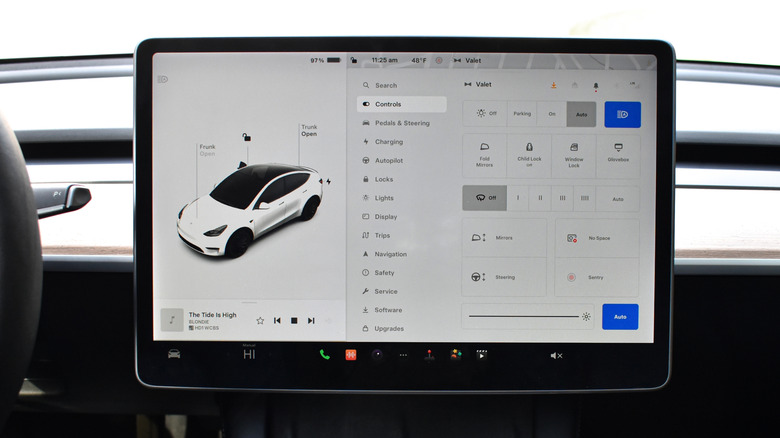
Anyone who steps into the driver's seat of a Tesla vehicle gets access to both the vehicle and its touchscreen. The former has some serious acceleration to it, and the latter can be loaded up with private information such as the owner's home address and contacts. While the feature has been around since 2015, Tesla's Valet Mode is easy to forget about. Valet Mode is meant for the times a vehicle needs to be moved or driven by somebody who does not need access to the owner's full driver profile.
Turning Valet Mode on caps the vehicle's speed at 70 mph, cuts acceleration by about 50%, and disables Autopilot. For physical security, it locks the glove box and front trunk. For digital security, it hides personal information and turns off the vehicle's navigation and ability to receive voice commands. Some obvious use-case scenarios for this hidden feature are when valeting a vehicle, when running it through the car wash, and when getting it serviced.
But Valet Mode is also a consideration for Tesla households with teenagers of driving age. Valet Mode can be used similarly to a set of parental controls when teens are tasked with running local errands, though Speed Limit Mode is another available option. Valet Mode can be turned on through the Tesla App or by navigating to Controls > Safety > Valet Mode on the vehicle's touchscreen.
3. Bioweapon Defense Mode
In many Tesla vehicles, a feature called Bioweapon Defense Mode is available. Like many of the more obscure features onboard Tesla vehicles, its name is somewhat tongue-in-cheek, as the feature is not as dramatic as it suggests. It is, however, a hospital-grade filtration system that's meant to sanitize the air coming into a Tesla vehicle. Climate systems within a vehicle draw air from the outside, and that can include contaminants like allergens, exhaust fumes, cigarette smoke from nearby vehicles, and general pollution. Turning on Bioweapon Defense Mode sends incoming air through a HEPA filter that's rated to capture 99.97% of particles with a diameter reaching as small as 0.3 micrometers.
Engaging Bioweapon Defense Mode also activates carbon filters that remove odors, then pressurizes the cabin to prevent outside air from leaking through the vehicle's door seals. While much of this may seem like overkill on an ordinary day, the mode can be incredibly beneficial when commuting through cities during high-traffic hours, as well as in cities where brown clouds are regularly present. Tesla owners who live in more rural or wooded areas can also lean on their vehicle's Bioweapon Defense Mode to keep smoke out during fire seasons. Not all Tesla vehicles are equipped with it, but Bioweapon Defense Mode can be activated by tapping the biohazard symbol that appears near the top of the climate screen.
4. On-screen easter eggs
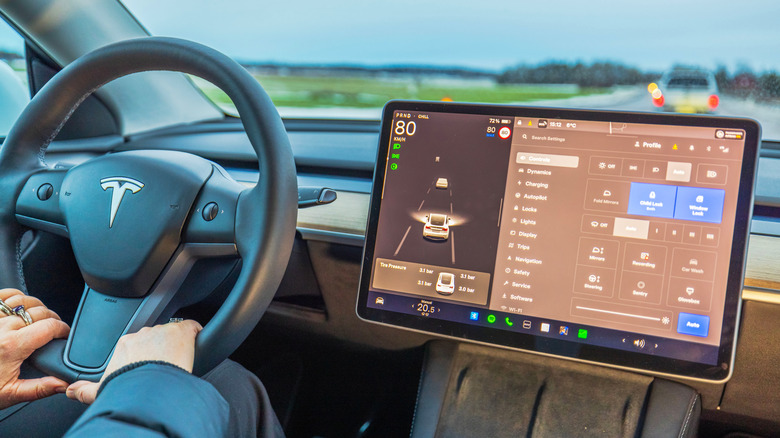
The quirkiness of the Tesla brand comes out in its more entertainment-minded hidden features, particularly through some of the things you can do with the vehicle's display. One of the more well known easter eggs built into Tesla software is Rainbow Road, an ode to the final race track of various "Mario Kart" games. It's accessible when a Tesla vehicle is in Autosteer mode. A less talked about part of this Easter egg is also a good reason to look into getting the best audio quality out of your Tesla, as driving the Rainbow Road comes with its very own soundtrack. Blue Oyster Cult's song "(Don't Fear) The Reaper" plays along with visuals of the famous race track, and it includes lines by Christopher Walken encouraging "More cowbell" from the famous "Saturday Night Live" sketch.
Another feature hidden in-dash is Mars Mode. It replaces a Tesla vehicle's standard navigation map with the surface of Mars. The vehicle's icon also becomes a SpaceX Mars rover, though the navigation system functions just as it regularly would. This feature was originally included as an homage to SpaceX and to space travel in general, though more recent updates make Mars Mode a slightly more immersive experience. Ambient lighting in Tesla vehicles equipped with the feature will turn orange, and the climate screen will display red airflows. Mars Mode can be activated by navigating to Apps > Toybox. For those looking to drive the Rainbow Road, the feature can be found there as well.
5. PINs for different purposes
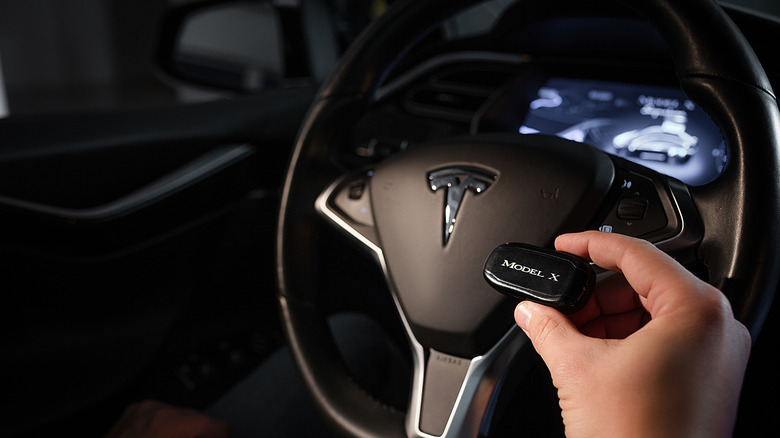
A Tesla can normally be driven by anyone with a key to the vehicle, whether that's a key fob, a key card, or a paired phone. PIN to Drive adds a second step, as well as some additional security. When it's turned on, a four-digit code needs to be entered before the vehicle can be driven. The feature is turned off by default, but can be found under Controls > Safety & Security > PIN to Drive. It can also be turned on with a smartphone.
The PIN to Drive feature adds more security than it may initially seem, as PIN to Drive can be turned on through the Tesla app. This allows owners to turn PIN to Drive on if a key fob or a key card is lost, making it so the vehicle can no longer be started with those keys alone. In the event a paired phone is lost, owners can still access PIN to Drive through the Tesla app on a different mobile device.
Tesla owners can also set up a separate PIN to open the glovebox. Because Tesla gloveboxes have no physical handle and open by pressing a button on the touchscreen, the functionality is easily secured with a PIN. Glovebox PIN is the name of the feature, and it can be found under Controls > Safety > Glovebox PIN. With Glovebox PIN enabled and a four-digit PIN set, anyone trying to open the compartment will be prompted for the PIN on the vehicle's touchscreen. This is true even when attempting to open the glovebox using a voice command.