

This Free App Saved Me From Buying A $70 KVM Switch
We may receive a commission on purchases made from links.
When I started stationing my laptop next to my desktop PC, I sometimes wanted to use the same keyboard and mouse to control both. I tried accomplishing this with my peripherals' Bluetooth connectivity options, but switching between connections took several seconds, and that was when Bluetooth wasn't being finicky. Another solution was to buy a KVM switch like UGREEN's 85115 HDMI and USB KVM switch. That cost $70, though, and my budget was tight. A free and open-source app called Deskflow ended up suiting my needs just fine instead.
The Deskflow app lets you move your mouse cursor seamlessly between two or more computers, and the cursor drags your keyboard along with it. It uses an encrypted connection over the local network to do this. One computer, whichever has the keyboard and mouse you prefer to use, acts as the "server" device and the other computers are "clients." As soon as you drag your cursor over to a client, your mouse and keyboard start controlling the input of that computer. If you enable the clipboard sharing feature, it also lets you paste on your client computer whatever text you copy on your server computer.
Deskflow is similar to Logitech's "Flow" app, which lets you remotely control other devices with select Logitech mouse and keyboard models. Unlike Flow, though, Deskflow isn't limited to any brand, and it supports Linux and FreeBSD in addition to Windows and macOS. Unfortunately, Deskflow doesn't let you copy entire files over like Flow does, though you can copy huge swaths of text over.
How to set up Deskflow to connect your PCs
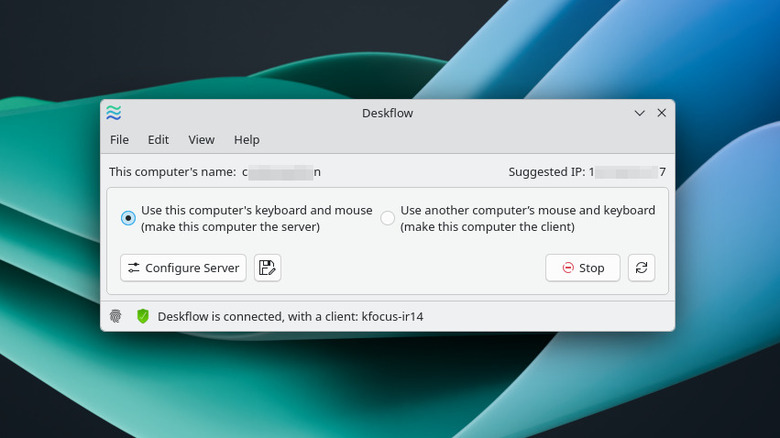
For Deskflow to work at all, the most important factor is that all the PCs you're connecting are on the same network, over either Wi-Fi or Ethernet. If you've confirmed that's the case, you're ready to set up Deskflow:
- Download the Deskflow app and install it on every computer.
- Open Deskflow on the computer whose keyboard and mouse you want to use on the others and select the option to use this computer's keyboard and mouse, making that computer the "server."
- Open Deskflow on every other computer and choose the option to use another computer's mouse and keyboard.
- In the "Connect to" text box, enter the name or IP address of the server computer. (Deskflow shows both on the server computer.)
- You'll see a "fingerprint" of random characters appear on each computer screen. If the fingerprints match, allow the connection on each computer.
- If Deskflow asks you to arrange the device screens, click and drag the screens to make them match the physical arrangement as closely as possible.
From now on, whenever you move your cursor over toward the client computer, control will shift to that computer. Move your cursor back toward the server to return control. If you have trouble connecting, check your firewall settings to confirm it allows Deskflow to communicate between devices, specifically over port 24800. Double-check that your devices are definitely on the same network; split Wi-Fi networks and Wi-Fi extenders may cause issues for you.