

Your PC Can Tell You Exactly Why It Crashed, If You Know Where To Look
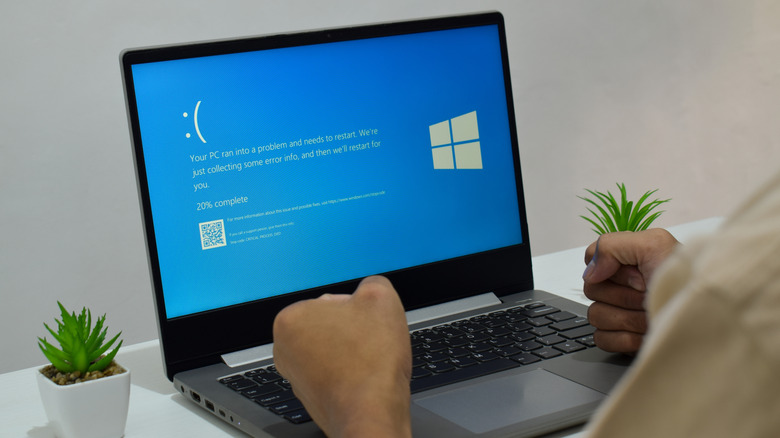
Imagine finally getting to play that game you have been anxiously waiting for, only for your PC to crash. PC crashes aren't unusual, but they aren't something you encounter on a regular basis either. If it happens without a warning, Windows might already have a record of what went wrong, so there's not much to worry about. An unexpected crash doesn't necessarily mean a hardware component, such as the GPU, Motherboard, CPU, or RAM, has failed.
Windows includes two useful tools: Reliability Monitor and Event Viewer. These tools log system errors, application failures, unexpected shutdowns, and other problems that may explain why your computer crashed. Reliability Monitor gives you an easy-to-read timeline of system failures and errors, making it a good starting point if you want to know when something went wrong. On the other hand, Event Viewer takes the investigation further by recording detailed events from Windows, its drivers, hardware components like RAM, and applications.
By checking these logs around the time of the crash, you can often narrow down whether the problem involved a faulty driver, an application, a hardware issue, or an unexpected loss of power. Neither tool guarantees an instant answer, but together they can turn an unexplained crash into something you can actually investigate and perhaps find the solution.
How do I find out why my PC crashes using Reliability Monitor?

The best approach is to start with Reliability Monitor to identify when the problem occurred and then use Event Viewer to investigate the relevant events in more detail. To open Reliability Monitor:
- Press Windows + R to open the Windows Run Box
- Type perfmon /rel
- Press Enter
- Wait for the Reliability Monitor window to appear
- Look at the stability graph and the event history below it
- Find the date when your PC crashed or started behaving unusually
- Select the relevant event to see more information
- Open View technical details options if provided by Windows to see additional information such as the failure details.
Now comes the difficult part: how to make sense of the results. The timestamps are particularly useful because it lets you compare system problems with changes that happened around the same time. For instance, if an application repeatedly crashes after an update, the application or its update might be worth investigating. Similarly, if Windows reports a hardware error around the time your PC freezes, you can investigate the relevant hardware further.
Don't assume the first error displayed is necessarily responsible for the crash. Look for events that occurred immediately before or around the same time. You need to keep in mind that Reliability Monitor is not a complete diagnostic tool. It can identify the time and type of failure, and sometimes provide technical details, but it might not explain the underlying cause. That is where Event Viewer becomes useful.
How do I find out why my PC crashes using Event Viewer?
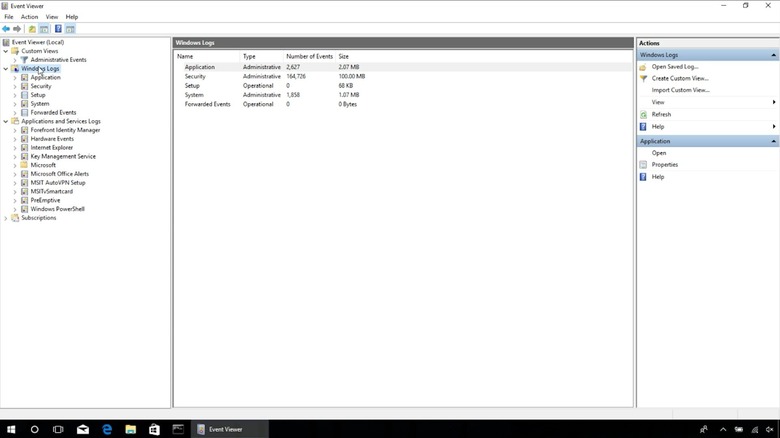
Event Viewer lets you examine individual events, including their source, data, time, event ID, and accompanying descriptions. To open Event Viewer:
- Type 'Event Viewer' into the taskbar search bar
- Expand Windows Logs in the left-hand panel
- Select System to investigate Windows and system-related events
- Or select Application to investigate application-related events
- Look for errors or critical events around the time your PC crashed
- Double-click an event to open its properties and examine the General and Details tabs.
There are several categories in Event Viewer, but two (System and Application) are particularly useful when investigating PC crashes. System records events from Windows components, services, drivers, and other system-related processes. Application records events generated by installed applications and software. If your PC suddenly restarts, the System log is a good place to start. If a particular program keeps crashing but Windows remains operational, check the Application log. In case of a game crash due to a graphics driver problem, you may have to check both logs.
Each event has a level, source, and Event ID. Understanding these three makes the logs easier to interpret. There are four levels: Critical (indicates a serious problem), Error (indicates an operation or component encountered a problem), Warning, and Information. Regarding Event ID, it is a numerical identifier assigned to a particular type of event. For instance, Kernel-Power (Source) Event ID 41 indicates that Windows restarted without shutting down cleanly first. Similarly, Event ID 6008 indicates that the previous shutdown was unexpected. Also, instead of scrolling through hundreds of events, you can filter the System log:
- Select Windows Logs
- Click System
- Click Filter Current Log in the Actions panel
- Under Event level, select Critical and Error
- Enter relevant Event IDs in the Includes/Excludes Event IDs field
- Click OK.