

How To Update Your Nintendo Switch Joy-Con Controllers
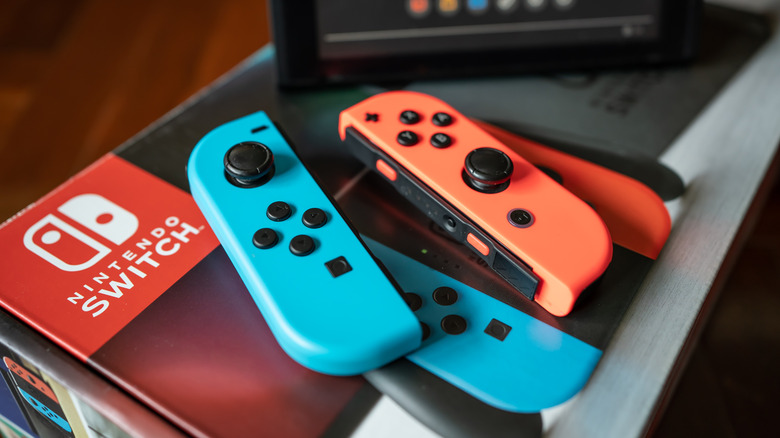
The Nintendo Switch 2 from 2025 has quickly become many users' pick as one of the best handheld consoles you can get, but that doesn't mean the original Nintendo Switch is no longer worth buying. Despite it debuting in 2017, Nintendo continues to release updates for the Switch nearly a decade after the console came out. These updates — and those for the Nintendo Switch 2 — are downloaded automatically; you aren't prompted to download system updates on a Nintendo Switch. However, many Switch owners who rely on these automatic updates eventually run into issues with their Joy-Con and Switch Pro controllers. Unlike the console itself, Nintendo Switch controllers don't inform you when an update is available — you need to manually check the system Settings menu to know when it's time to install controller updates.
It's easy enough to update your Joy-Con and Switch Pro controller firmware through the Settings menu. With the home page open, go to System Settings in the system icons row, open the Controllers & Accessories menu on the Switch 2 (or the Controllers and Sensors menu on the original Switch), then scroll down and select Update Controllers.
You can do this with the controllers attached to the console or with them connected wirelessly; just ensure you don't press any buttons on the Joy-Con or touch the Nintendo Switch until the update completes. This generally only takes a minute, and, while it isn't required, restarting the Switch afterward can help ensure the update has fully initialized. Do this by holding down the power button on the console itself until the "Power Options" menu pops up on the screen, then selecting Restart.
What to do if your Switch controllers aren't updating
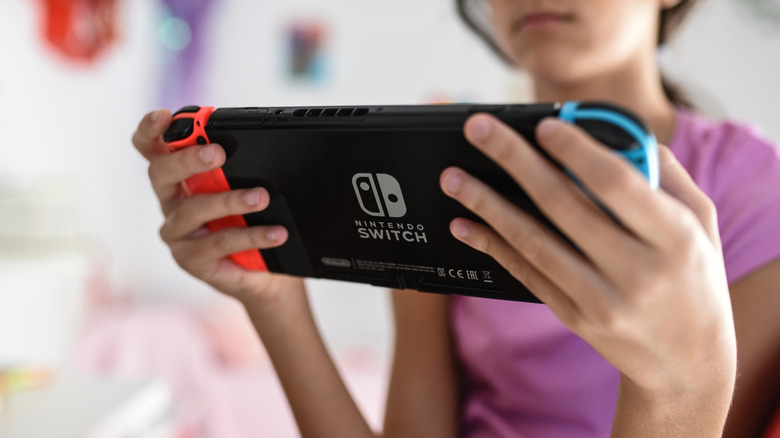
Switch controller updates are relatively small in size. As such, a failed update or an error prompt showing "Unable to update the controllers. Do you want to try again?" is rarely caused by large corrupted update files. Oftentimes, just restarting the update fixes the issue, but there are certain things you can do if it doesn't.
First and foremost, ensure that your Nintendo Switch itself is up to date, as version mismatches can cause update syncing issues. You can update your Switch's firmware or ensure it's running the latest update by going to System Settings from the system icons row, scrolling all the way down to System in the left sidebar, and then selecting System Update. With the update completed (or once you have ensured the system is up to date), Nintendo also recommends restarting or power cycling your console before you try updating the controllers again.
If this doesn't work, you can try resetting your Switch controllers by pressing the SYNC button. On the Joy-Con, disconnect each one from the console and press the tiny black button on the slider rail side. Afterward, press any button on the controller to reconnect it to the Switch, or slide the controller back onto the console. The process is similar on a Nintendo Switch Pro Controller, but the SYNC button is located on the top edge, near the USB-C port.
What does updating Nintendo Switch controllers do?
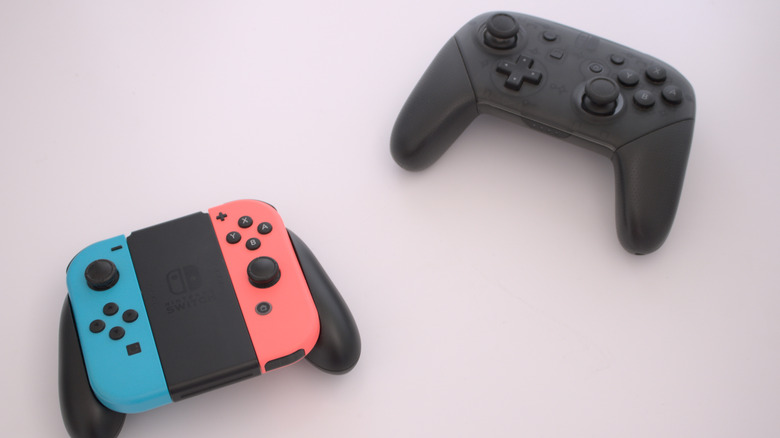
Keeping your system software up to date is important for any piece of tech in order to maintain stability and reliability, and this is especially true for the Nintendo Switch and Nintendo Switch 2. As mentioned above, the Switch itself downloads updates automatically when connected to the internet, but the controllers require manual downloads. Controllers running years-old firmware connected to an up-to-date console can result in sync issues that can manifest in a variety of ways.
If you find that your Joy-Con controllers are randomly disconnecting, have delayed inputs, struggle with stick drift, or just aren't working as they should, there's a chance that might be at least partly due to them running older firmware. Updating them from the Switch's Settings menu in that case would be the easiest way of fixing the issue. If you continue to receive errors during the update process or the issue persists even after updating and power cycling the console, Nintendo recommends sending the console and the affected controllers to be serviced. Alternatively, you can get a cheaper Joy-Con alternative for your Switch.