

YouTube Won't Block AI Content, But You Can Try To Limit It - Here's How
It's no secret that generative AI content has somewhat taken over the internet. As you've likely noticed, social media platforms are particularly susceptible to slop, with video-focused platforms like YouTube being hit hard. In 2025, Kapwing researchers estimated that around 20% of the platform's videos are now AI-generated. Despite YouTube adding labels to known AI content, there unfortunately isn't any way to block all AI-generated videos from your searches or algorithm altogether.
Since YouTube introduced the new feature, creators have been required to add labels to any uploads containing AI. The platform also now automatically detects some AI use based on "internal signals", metadata, and watermarks, and labels it accordingly. It's a useful feature, as it makes it easier to avoid this kind of content, but it doesn't fix the problem completely. However, there are a few other steps you can take to fine-tune your feed, hopefully reducing the amount of it you see.
A lot of AI content specifically seeps through in the form of YouTube Shorts, and switching them off can decrease the amount of AI videos you see. Annoyingly, YouTube also shows AI-generated adverts occasionally. So, if you upgrade to YouTube Premium, then you could limit the amount you see, as you won't see any more adverts. It's an imperfect solution, though, as that's only one piece of the puzzle. If all else fails, you could try a third-party Chrome extension like ByeAI or Control Panel For YouTube to filter out unwanted content.
YouTube's AI labels: what to look out for
YouTube introduced labels for AI-generated content in 2024. While you can't use these labels in tandem with any kind of filtering system, if you know what to look out for, then they are fairly useful for avoiding some types of AI-generated video content. Exactly where to look to find these labels depends on the type of content you're watching and the extent of the AI-generation at hand.
If you're watching Shorts, then you can find the AI label overlaid on top of the video itself. It's usually in the bottom-left corner, right underneath the video's title and description. It's presented with a little exclamation point that says "AI" next to it. The label appears in a slightly different spot on long-form videos, but it's still near the description. You can find it by looking underneath the video player, and it's again signified by the same symbol as it is on YouTube Shorts.
That all only applies to content that YouTube considers to be "meaningfully AI altered or generated" or "photorealistic", though, per the site's official blog post. When it comes to AI-generated content that's "unrealistic, animated, or slightly altered", you'll need to check the video's expanded description instead. Checking a video's expanded description is fairly easy; all you need to do is scroll down to a video's description box, click it to see more, and scan to check for an AI disclosure.
How to limit YouTube Shorts
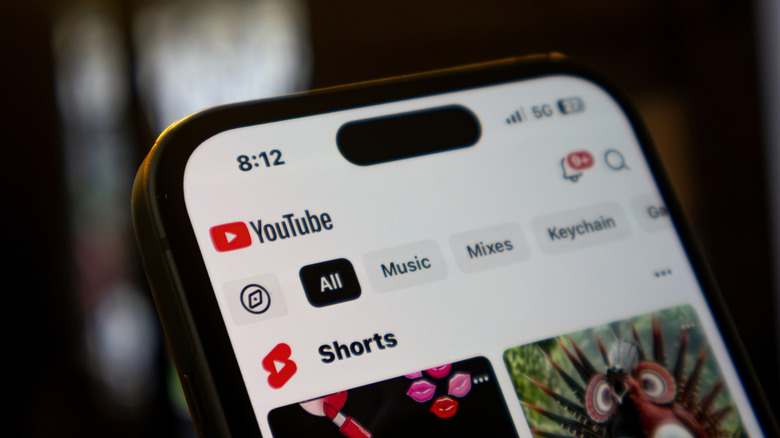
You have two options when it comes to getting rid of YouTube Shorts: the official method and the unofficial method. The official method is straightforward if you know where to find it, but you'd be forgiven if you missed it entirely. That's because it's effectively disguised as a time limit, intended to stop you from sinking too deep down while doomscrolling. It won't completely get rid of Shorts, but it does decrease the amount you see, as well as stopping you from being able to scroll through them. You can access this feature both through YouTube in a browser or on the YouTube app.
To switch off YouTube Shorts in your browser:
-
Open YouTube
-
Click your profile picture in the top-right corner
-
Scroll down and select Settings
-
Select Time Management on the left-hand side
-
Click the toggle next to Shorts Feed
-
Select 0 minutes
-
Click Confirm
If you want to switch it back on or change the time limit, then you can follow the same steps to do so. You can either click the toggle to switch it back off altogether, or click the blue Change Limit button to increase the amount of time you can see Shorts for.
The steps for limiting Shorts on YouTube Mobile are roughly the same:
-
Open the YouTube app
-
Tap your profile picture in the bottom-right corner
-
Tap the cog in the top right
-
Select Time Management.
-
Scroll down to the Daily Limits section and toggle on Shorts Feed limit
-
Tap 0 minutes.