

How To Get The Best Battery Life Out Of Your Motorola Phone
It's never a good feeling when you're out and about and you notice your phone's battery has almost completely drained. If you're well prepared, you might have a portable power bank with you, but if not, it's a case of crossing your fingers and hoping there's enough juice until you get home. While smartphone batteries continue to improve with every handset iteration, many leading phone makers have also been adding various settings and features to their handsets, with the aim of helping users get the most out of every charge. Knowing how to make the most of these, while also following other good practices when it comes to batteries, can be particularly useful when you're heading out for a long day and you don't fancy carrying extra charging gear with you.
Motorola is one handset maker that recognizes the importance of helping users get the most out of their Moto phone battery, bringing a number of useful settings to its handsets, alongside other handy features you might not even know about. They include options such as Battery Saver mode, which can help extend battery life when power is running low, and Adaptive Battery, which helps to optimize energy use based on your habits. But there's more to explore, so let's take a closer look at these features and other things you can do to help your Moto phone go the extra mile between charges.
Battery Saver
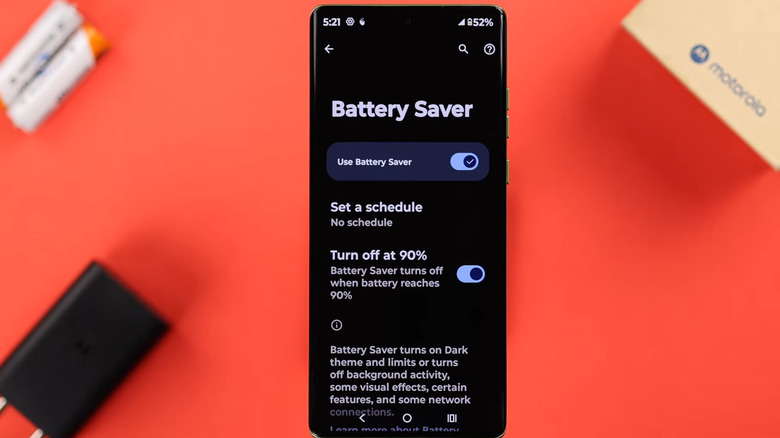
If your Moto phone is running low on power, Battery Saver mode can help make the remaining charge last longer. Some Moto phones offer two levels with this setting — Standard and Maximum. Standard reduces power consumption by enabling Dark Theme, lowering the screen refresh rate on models that support higher refresh rates, restricting background activity, and stopping location services when the screen is off. Maximum Battery Saver goes further by pausing non-essential apps and restricting additional features. Both settings should help your Moto phone last longer between charges, though be aware that you might miss or receive delayed notifications and have access to fewer functions while they're enabled.
You can turn on Battery Saver mode manually by going to Quick Settings and then tapping the battery symbol. To have it come on automatically, go to Quick Settings and touch and hold the battery symbol. Next, tap Battery Saver > Set a schedule > Based on percentage. Finally, move the slider to adjust the battery level for when Battery Saver turns on. Also, Battery Saver can be configured to turn off when your phone reaches 90% during charging. To do so, open Quick Settings, touch and hold the battery symbol, tap Battery Saver, and make sure "Turn off at 90%" is toggled on.
Adaptive Battery
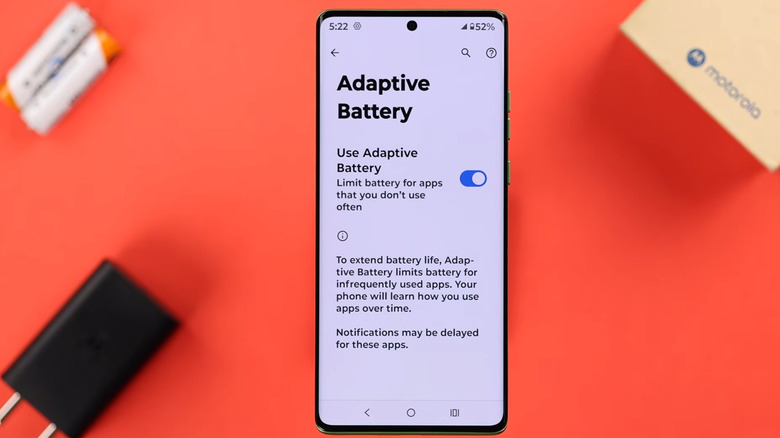
Another useful feature is Adaptive Battery. This learns how you use apps over time, drawing on that information to limit background activity for apps that you seldom use, helping to reduce battery consumption. This way, your Moto phone makes better use of its available power without you having to manually close apps. To enable it, go to Settings > Battery > Adaptive Battery and turn on Use Adaptive Battery. Availability varies by model, but if it's supported, it's worth keeping it on because it works automatically in the background.
It's worth noting that Adaptive Battery may not be ideal for everyone. For example, you may find its battery management measures restrictive, as apps used less often can experience reduced background activity and delayed syncing or notifications. If immediate updates and background functionality are important to you, then it may be better to adjust the battery optimization settings for specific apps rather than relying entirely on automatic battery management. You can do this by going to Settings > Battery > Manage background apps, although this capability isn't available for all Moto phones.
Display settings
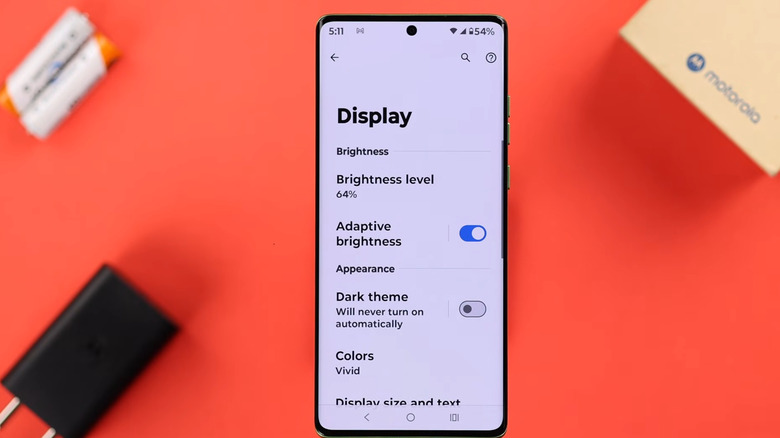
High screen brightness can also drain a smartphone battery, and Moto handsets are no different. Dimming the display is a simple and effective way to prolong the battery life, thereby extending the amount of time between charges. You can adjust the brightness manually through Quick Settings, or enable Adaptive Brightness to automatically match surrounding light levels by going to Settings > Display, and toggling the Adaptive Brightness button to On.
Another step worth taking to extend the battery life on your Moto phone is to reduce the screen refresh rate. A higher refresh rate, such as 120Hz, makes scrolling and animations appear smoother, but it can also use more power. To reduce battery drain, go to Settings > Display > Display refresh rate, where you can select a lower setting. For the best balance between smoothness and battery life, choose Smart & balanced (if available). Alternatively, select Efficiency first to prioritize battery conservation, which limits the refresh rate to up to 60Hz, although scrolling and other movement may appear slightly less smooth. Also, when Battery Saver is on, the refresh rate will become 60Hz, whether or not you enable this setting.
Settings for long-term battery health

Select Moto phones offer an Optimized Charging feature designed to help extend the lifespan of your phone's battery. Unlike features like Battery Saver and Adaptive Battery, which focus mainly on making your daily charge last longer, Optimized Charging is more about protecting your battery's long-term health so that it delivers strong battery life for years to come.
Leaving your phone plugged in for long periods, especially overnight, can put additional stress on the battery over time. Optimized Charging helps reduce this stress by intelligently managing how the battery charges. When enabled, the feature can limit charging to around 80% when your phone has been plugged in for an extended period of time. This helps reduce the time the battery spends at full charge, and can help slow down battery aging. To enable it, go to Settings > Battery > Optimized Charging, and switch on Use Optimized Charging. Consider it a spot of preventative maintenance that can help avoid early battery deterioration and keep your phone performing well over the long term.