

5 Hidden Features You Probably Didn't Realize Your Motorola Phone Has
Motorola isn't particularly at the top of the list of the major Android phone brands in the market today. It is, after all, pretty slow with updates, so users typically don't get the latest features and even security patches until a few months after. Despite this downside, though, Motorola is still a solid option for a lot of people, especially those who want long battery life, good performance, and nifty features.
Speaking of features, one of the features users particularly love about Motorola phones is the gesture for turning on the flashlight and launching the camera app. Unlike on other Android devices where you'd have to press a physical button or the screen, Motorola supports a simple double karate chop to turn on and off the flashlight and double twist of the wrist to open the camera in either selfie mode or rear camera mode. It sounds simple enough, but the convenience it offers just makes a big difference. Other than these gestures, there are a bunch more Motorola features you might not realize existed. Here are five underrated ones you should try.
Control your music even with the screen off
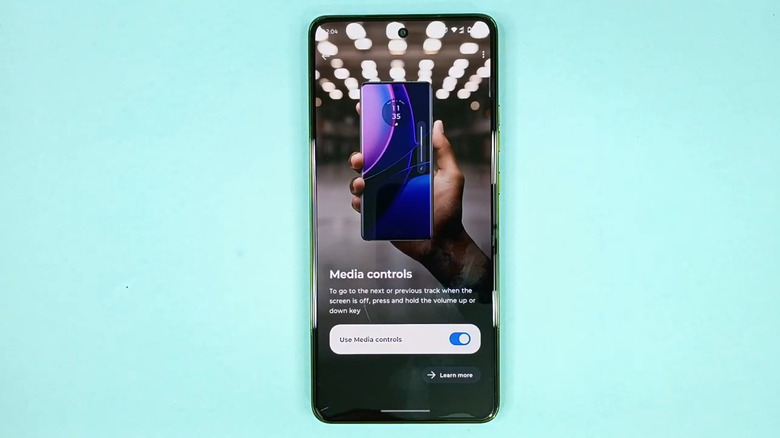
While touchscreens are handy for nearly everything you do on your phone, tactile buttons can still come to your rescue. They're particularly convenient when you're listening to music on a bus and have your phone in your bag or pocket. Instead of pulling it out just to skip to the next song, you can simply use the volume keys.
Some Motorola phones offer this feature through the Media controls setting. With Media controls enabled, you can long-press on the volume up button to jump to the next song, or press and hold the volume down key to return to the previous song. This works even if your screen is turned off. Unfortunately, you can't play and pause media with the volume keys. You can, however, do so with a back tap. You might already know you can tap the back of your phone to take a screenshot, but this gesture is actually customizable and can be set to play and pause media instead. Here's what you need to do to set this up:
- Go to the Settings app.
- Open Sound & vibration.
- Under General, tap on Media controls.
- Toggle on Use Media controls.
- Go back to the main Settings page.
- Choose Gestures.
- Tap on Quick Launch.
- Turn on Use Quick Launch if it isn't already enabled.
- Hit the gear icon.
- Change the option from Take Screenshot to Play/Pause Music.
From here, you can now test out your gestures. If the back tap doesn't work when the screen is off, try waking up the screen before doing a back tap.
Take photos without using the on-screen shutter or physical volume button
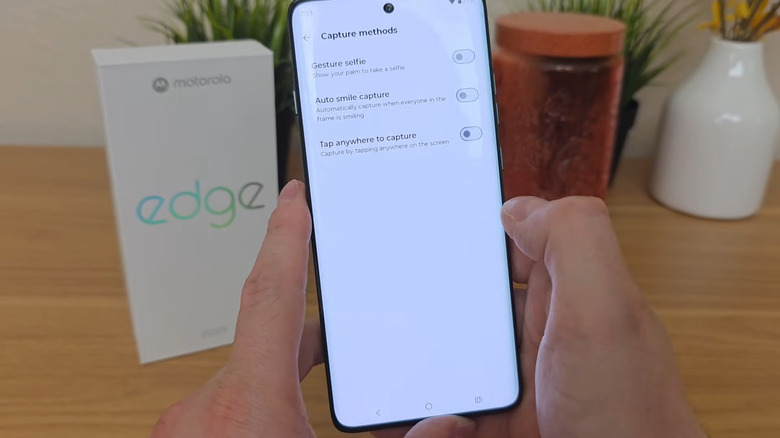
Probably one of the most convenient Android camera features that you won't find on an iPhone is the different capture methods. You aren't stuck with hitting the shutter button on the bottom of the screen or pressing the volume down button on the side. When these two gestures are too hard to do — say, you're taking a selfie with the back camera — you can just use the other capture methods available to your device.
For Motorola phones, there are actually three options. First, you can show your palm. Just hold it in front of the camera for about a second or two until the three-second countdown starts. Next, simply smile for the camera. When your Motorola phone detects that every face in the frame is smiling, it will automatically take the photo. Finally, you can tap anywhere on the screen to capture the shot, so you can choose wherever feels comfortable enough to press.
To enable these capture methods on your Motorola phone, follow these steps:
- In your Camera app, tap the Settings icon in the upper right corner.
- Under General, choose Capture methods.
- To take a picture by showing your palm, toggle on Palm capture.
- To get a shot with your smile, turn on Auto smile capture.
- To turn the entire screen into a shutter button, enable Tap anywhere to capture.
You can switch on all three methods if you'd like and use them for capturing your photos from here on out.
Take notes during in-person conversations without actually typing on your phone
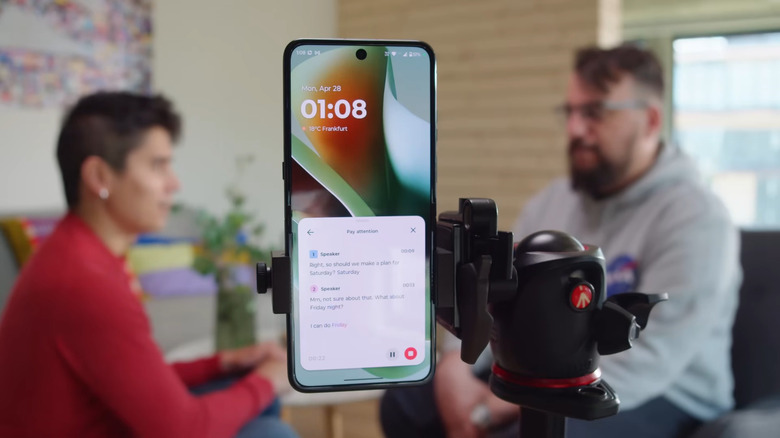
When you want to jot down notes from an in-person conversation but find it distracting to type away on your screen, you normally turn to the voice recorder app instead. But then again, it's a bit too tedious to use as extracting useful information from the recording means having to listen to the entire thing. Motorola solves that dilemma with Pay Attention – one of Moto AI's nifty built-in features.
What Pay Attention does is record your conversation and transcribe it for you in real time. It can automatically tell different speakers apart and label each one in the transcription to help you follow the conversation better. Pay Attention even generates a summary of the conversation if you don't want to bother reading the long transcription. To use Pay Attention, simply go to the Moto AI app. You can also configure the side button to activate Pay Attention with two presses. To set this up, head over to Moto AI in the Settings app and open Launch gestures, then AI Key. From here, set the double press action to Pay Attention. You can pause and stop the recording anytime, though it's important to note that Pay Attention can only record for 50 minutes in one go. After 50 minutes, the recording pauses, but you can still continue it if you want to.
Pay Attention can understand at least 50 languages, including Spanish, German, and Romanian. Just make sure to set your preferred language beforehand. In the Settings, open Moto AI and select Language. Then, choose your language of choice. Once all is said and done, Pay Attention saves the recording, transcription, and summary in your Moto Notes app for later reference.
Limit your screen time when you want to
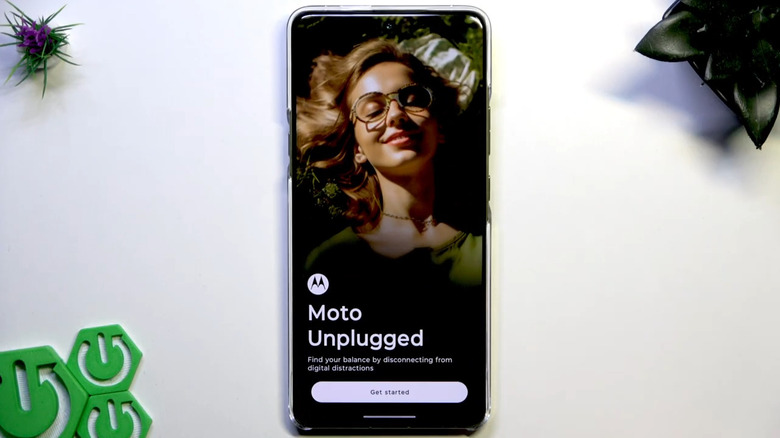
There are loads of screen time management apps available on the Play Store, but you won't need to download one on your Motorola phone. It already includes its very own focus app: the Moto Unplugged app. Moto Unplugged is specifically designed for starting and ending focus modes whenever you want to. It can conveniently be activated right from the Quick Settings or from the dedicated Moto Unplugged app. Here's how to use it:
- Launch the Moto Unplugged app.
- Skip through the welcome pages.
- Hit Start.
- Grant Moto Unplugged the necessary permissions.
- Press Continue.
- Select Customize.
- In the Allowed apps section, mark the apps you still want to use during your focus periods.
- For the App Layout, pick your preferred screen layout between 3x2, 4x3, 4x4, and 5x4.
- For the Wallpaper, change the photo to your preferred wallpaper. This is what you'll see when Moto Unplugged is active, which makes it easier to tell the unplugged session apart from your regular phone mode.
- For Interruptions, select who can call or message you, how notifications appear (either as a dot on allowed apps or in the pull-down shade), and whether you want to turn on alarms and calendar alerts.
After setting up, go back to the Find your balance page and hit Start to start your session. You'll be prompted to pick how long the session will be, with choices from 15 minutes to two hours. There's also options to set it to no time limit or a custom limit. When you're ready, press Start. Your phone will then change the wallpaper and only show the apps you allowed. It will automatically return to the regular mode after your set time limit, or you can manually exit by tapping End on the Moto Unplugged widget on the home screen.
Make the edges of your phone light up for notifications
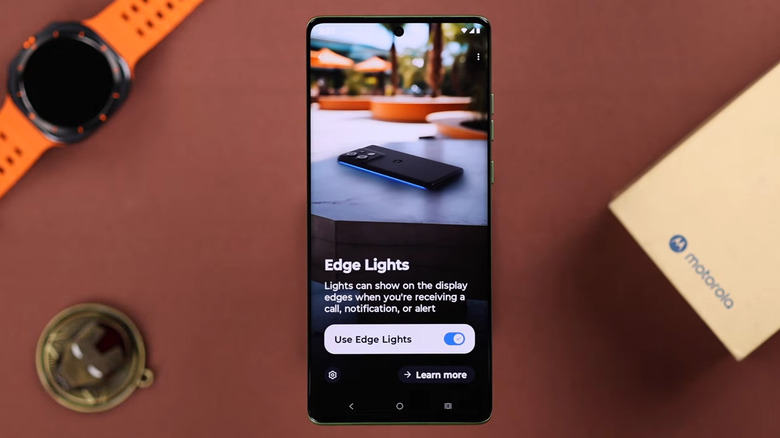
Every time you receive notifications on your Motorola phone, your screen usually lights up to alert you. The thing is, you don't always have your phone face up. You might have set it face down while you're in class or at work, or when you just don't want to get distracted. That means you'll need to rely on audio alerts during such times, which you could easily miss. If you have a compatible Motorola phone, though, you can enable a visual alert called Edge Lights that notifies you by lighting up the edge of your device. Follow these steps to turn it on:
- Launch the Settings app.
- Select Display.
- Tap Edge lights.
- Toggle on Use edge lights.
- Tap on the gear icon to customize the edge lights.
- To change what color the edge lights show, pick one of the available options. A preview of the color will appear in the animation at the top.
- To turn off edge lights for calls, alarms, or app notifications, toggle off that specific alert under "Show lights for."
From the Edge Lights settings, you can also find an option to only show the lights when your phone is face down and set to a schedule to turn off edge lights. Once everything is set, you'll then see the edges of the display glow for the alerts you allowed.