

How Hot Is Too Hot For An AMD CPU? The Official Answer Might Surprise You
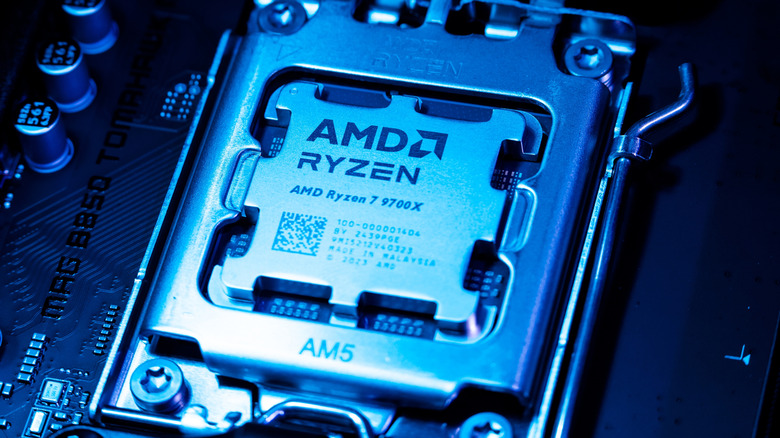
If you're monitoring the temperature of your AMD processor, you might wonder what's too hot to be running safely. CPUs from AMD commonly have an upper limit of 203 degrees Fahrenheit (95 degrees Celsius), but it can vary based on the situation, and select AMD chips have slightly lower limits. The Ryzen 7000 X3D series of CPUs, for example, is rated at 192 degrees Fahrenheit. That's thanks to their higher risk of instability when things get hot for the 3D V-Cache technology that AMD packed into those specific chips. So, the maximum temperature of specific models can vary a little bit, and you can check to confirm your upper limit by visiting AMD's website and searching for your CPU model number. Look for Max. Operating Temperature (Tjmax) under the General Specifications tab for your model.
If your CPU is reaching its maximum operating temperature, that may still technically not be cause for alarm. When AMD released its first Zen 4 chips in 2022, many owners reported their processors were consistently hitting and even hovering around the 203-degree upper limit. At the time, AMD responded by saying that the chip was engineered to operate at or near that temperature for long periods. It wasn't the first time AMD had made such assurances, so, generally speaking, you shouldn't have to worry if your CPU thermals are nearing or even at their specified limit.
How to keep Your AMD processor temperature down
Of course, cooler is usually better when it comes to PC internals. Even if your AMD processor isn't technically being harmed when it gets near 203 degrees Fahrenheit, it's still heating things up for neighboring sensitive components that may not be so well-equipped to handle such temperatures. For example, some high-performance chips have even been known to burn out their motherboard sockets. When things get hot, you also might experience throttling. That's a common AMD processor issue where your PC intentionally slows down to keep itself from getting into the thermal danger zone.
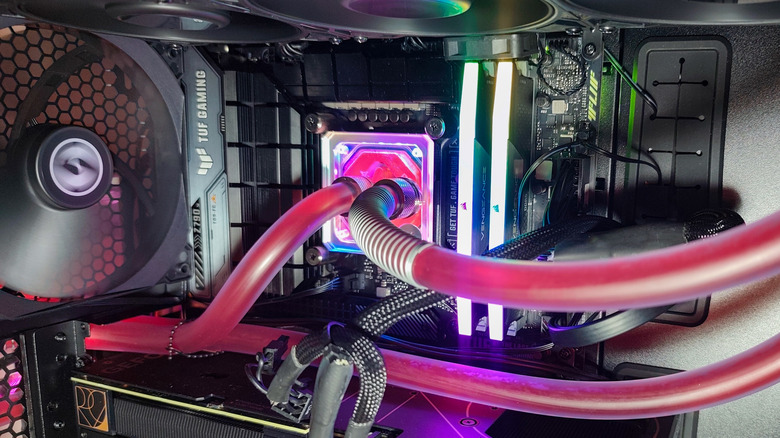
You can take steps to avoid those issues. Consider whether liquid cooling could be worth it for your PC, since it may be necessary for high-powered hardware completing high-intensity workloads. It's also best to use cooling equipment that meets the Thermal Design Power (TDP) specifications of your processor, and you should make sure your cooler is plugged in before powering on a newly installed CPU. When actually using your PC, turn off unnecessary background apps, like RGB lighting managers, to keep performance optimized. Long-term, you should also be doing regular cooling maintenance on your PC so issues like dust buildup and aging thermal paste don't push your AMD processor beyond its limits.