

5 New Features Coming To Your Nothing Smartphone With OS 5.0 Update
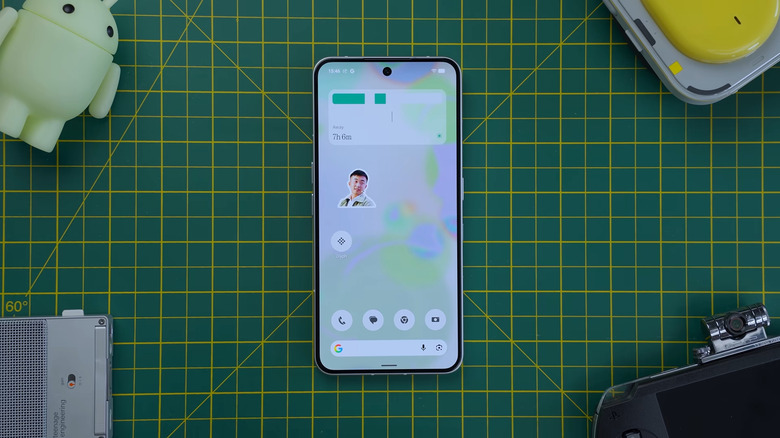
Nothing Phone users rejoice because Nothing OS 5.0 is finally here. It began rolling out to Phone (3) in mid-October, and in November, Phone (4a) Pro, Phone (4a), Phone (3a) Pro, Phone (3a), Phone (2a) Plus, and Phone (2a) are all expected to get the update. If you're on a Nothing Phone (4b), Phone (3a) Lite, or CMF Phone 2 Pro, though, you'll have to wait until late December to mid-January.
No matter when Nothing OS 5.0 lands on your device, there are plenty of solid features to look forward to in the latest updates. After all, Nothing OS 5.0 is now powered by Android 17, which alone brings a couple of handy features your device was previously missing out on. Nothing also adds its own nifty tweaks, especially for customization. Here's an overview of five of the top Nothing OS 5.0 features you should check out once you install the new update.
Home screen and system customization
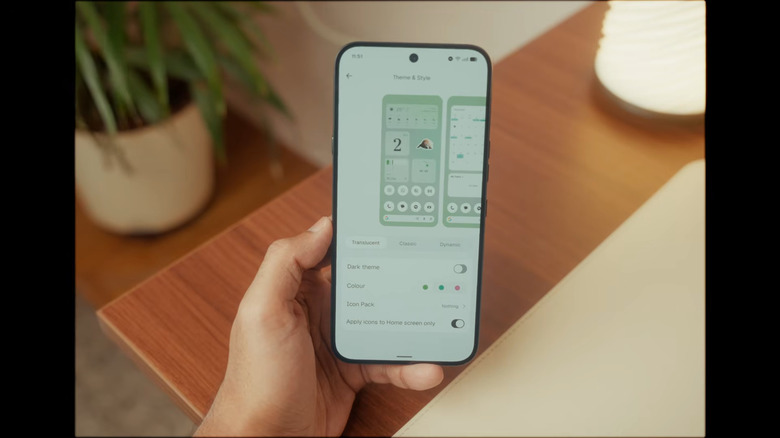
Nothing OS 5.0 offers a few personalization improvements to your home screen, starting with the Translucent theme. If you've always disliked how your folders and widgets get in the way of your wallpaper, you can try switching to this new theme. It gives folders and widgets a frosted-glass look that helps them blend better with the background. To apply this theme, press and hold a space on the home screen and choose Customization from the pop-up menu. Then, go to Theme & Style and switch to the Translucent tab. You can leave the settings as is, or choose the accent color and icon pack from the available options. Unfortunately, the theme doesn't make the home screen apps translucent yet. You can either wait for an update (not guaranteed) or use translucent icons from the Nothing community, such as Nothing IconGen.
Another nifty feature Nothing OS 5.0 introduced for home screen customization is batch editing. Previously, to rearrange your home screen, you'd have to move each app and widget one at a time. Now, you can just select the Arrange option after long-pressing the home screen. This lets you select multiple apps or widgets and drag them to a new spot on the same page or to a completely different home screen page.
Nothing OS 5.0 also gave you a new typeface option called Geist. To use it across the system, open Settings and tap Display. Under Appearance, select Font and display size. From there, you can set Geist as the default font.
Lock screen customization
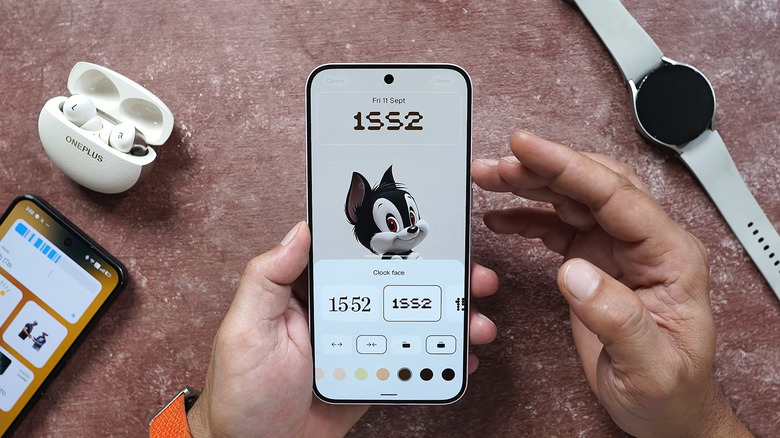
Along with home screen updates, Nothing OS 5.0 also improves the lock screen. There are two new ways you can customize the lock screen: switching to one of the two new clock faces or changing the clock face color, size, and position.
To view the new clock faces, go to Customization in the Settings app and swipe to change to the Lock screen settings. Then, tap on your lock screen and select the clock. You should now see the new Micrographics and Gooey options. Micrographics displays a sophisticated digital clock with the usual day, date, and time, plus the temperature, weather, and other cool, relevant icons. Gooey, on the other hand, looks more like the older clock faces, but in a cartoonish gooey font.
In the same Clock face panel, you can choose the size, position, and color of the clock face. Tap the two outward-pointing arrows to enlarge the clock, or the inward-pointing arrows to shrink it. To reposition the clock, choose either the left or center alignment icon. Meanwhile, your color options will be based on your wallpaper. These are chosen to create a more cohesive lock-screen aesthetic, where the clock looks like an extension of the wallpaper. Once you've finished customizing the lock screen, tap Done to save your changes.
Three new widgets
One of the best ways to make your Android phone's home screen actually useful is to add widgets. Thankfully, your Nothing Phone offers plenty of widget options, and Nothing OS 5.0 even adds three more. The first is Away Time. It works like the built-in Screen Time feature on Android, but in reverse. Instead of telling you how much time you've spent looking at your screen, Away Time monitors how long you don't use your phone. Just add the widget to your home screen like you normally do, and it will start tracking the time you're away from your phone. To view more details, tap on the widget. This will give you your total away time for the week, your daily average, and a simple graph of your away time for each day of the week. You can also add the Away Time widget to your lock screen.
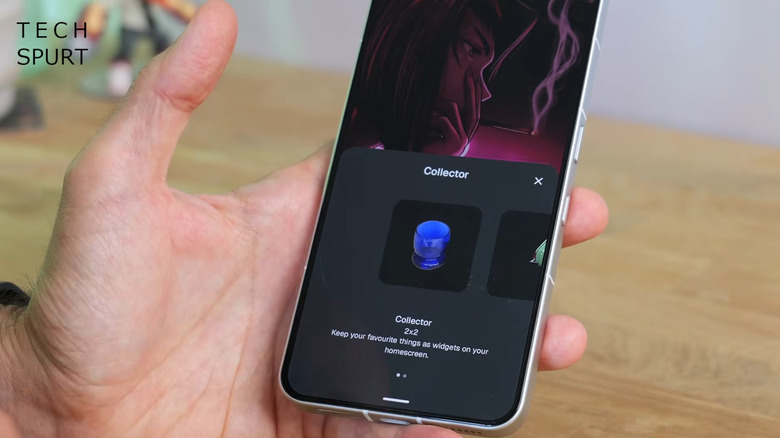
Then, there's the Collector widget. This essentially creates a sticker out of an object from your photos (like a cool car, a pretty notebook, or a bouquet) and pastes it on your home screen or lock screen. You can set it to change every day or whenever you unlock your phone.
Finally, you have the Glyph Timer widget. It lets you run a timer straight from the home screen. You can freely adjust the duration as needed, then just flip the phone to start the timer. An hourglass animation in the Glyph Interface will appear initially before switching to a countdown when the timer is almost up.
Separate Quick Settings and Notification Center
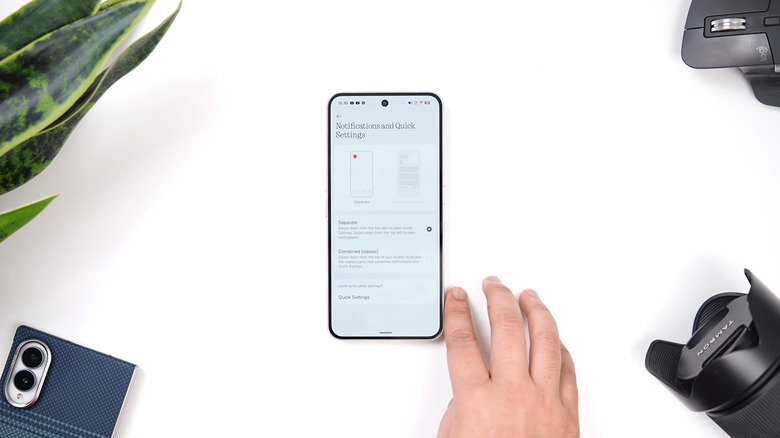
If you've switched from iPhone to Nothing Phone, one of the most jarring changes you'll notice is that notifications and Quick Settings are in the same pull-down menu. This is a bit of an inconvenience, as you'd then have to swipe down again just to reveal all the Quick Settings tiles. The good news is that Nothing OS 5.0 fixes that with a brand-new setting.
In the Settings app, open Notifications. Then, under General, tap on Notifications and Quick Settings and set it to Separate. This splits the Quick Settings and the Notification Center into two distinct shades. So, instead of swiping down from the top to open both, you now need to swipe down from the top-left corner to see your notifications and swipe down from the upper-right of the screen to open Quick Settings. This nifty setting is an Android 17 feature, so it isn't exclusive to Nothing Phones.
Torch brightness adjustment
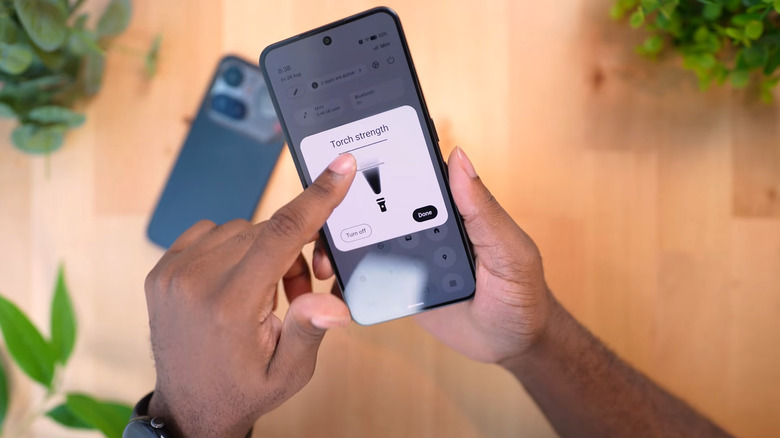
The torch is probably the most basic but also the most useful utility built into your Nothing Phone. But the thing is, its fixed brightness can sometimes be too intense for your use case, such as if you're checking on your baby in their dark nursery, or reading a book in bed and prefer having only a soft light on. If you wanted to adjust the torch's brightness, you previously had to resort to third-party apps. That's no longer the case with Nothing OS 5.0.
This software upgrade has finally added a way to change the brightness to your liking. All you have to do is long-press the torch icon in your Quick Settings panel. A floating panel should appear on your screen, where you can slide the light up or down to increase or decrease the brightness. There's even an Off button here to quickly switch off the torch. If you don't need to change the brightness, you can still press it to turn on the flashlight.