

5 Ways To Make Your Android Phone's Home Screen Actually Useful
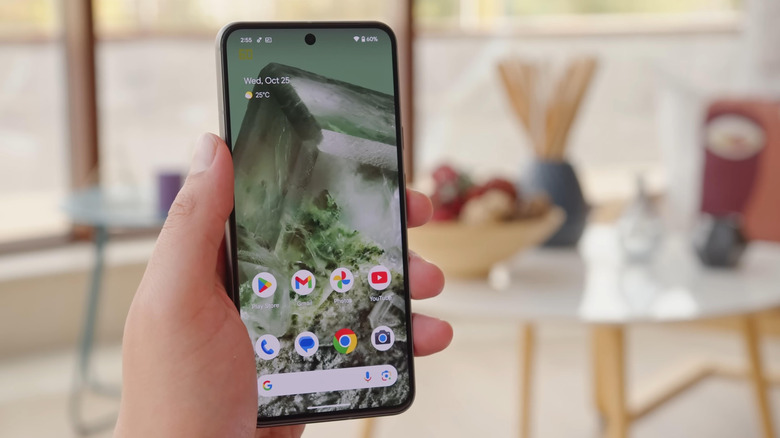
Out of the box, your Android phone's home screen is just a clutter of apps the manufacturer thinks you want to use. You get a few preloaded apps including several from Google itself. Most of the time, you barely touch these apps. So, when first setting up your Pixel, Samsung Galaxy, or other phone of choice, your first order of business is to customize the home screen. This mostly involves removing all those preloaded app shortcuts and adding your preferred ones.
While that's a solid start, though, there are actually more ways you can customize your Android home screen — not just to give it a cleaner look but to make it more useful in your day-to-day routine. It doesn't have to stay as a simple dumping ground for your favorite apps when you can turn it into a handy hub instead. We'll show you some tips and tricks on how to do so, including adding widgets and categorizing your app shortcuts into folders.
Use widgets
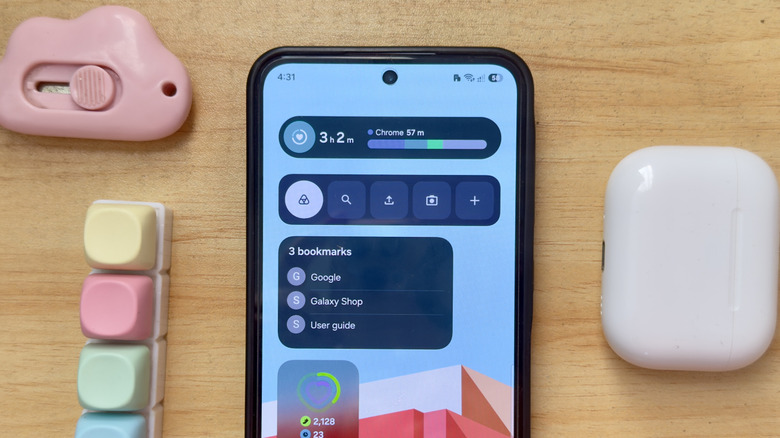
While the app drawer is always just a swipe away, it's still much faster if you can perform your desired actions directly from the home screen. That's what widgets are for. They make tasks quicker since you won't need to go through your app drawer and open the app. Instead, they let you view information and perform certain actions right from your Android home screen.
When deciding what widget you need to use, always default to the tasks you do throughout the day. Maybe that's doing quick Google searches, logging your daily water intake, or checking your email. Those are the widgets you should add to your home screen for quick access. The process is usually different depending on the manufacturer, but here's a general guide:
- Long-press anywhere on your home screen.
- Find the Add widget/Widgets button.
- Browse through the options.
- Once you find a widget you like, drag and drop it onto the home screen.
- Reposition and resize the widget if needed.
- When prompted, tap on the widget to set it up further.
Most of the time, mainstream apps offer different widgets for different actions, so you won't have any issues adding one to your home screen. Some apps, however, don't support widgets. You either need to replace them or try finding the widget you need in a third-party app like Widgeet or iWidgets. Once you have all your widgets on the home screen, you can separate them into different pages for further organization.
Pin app shortcuts to your Android home screen
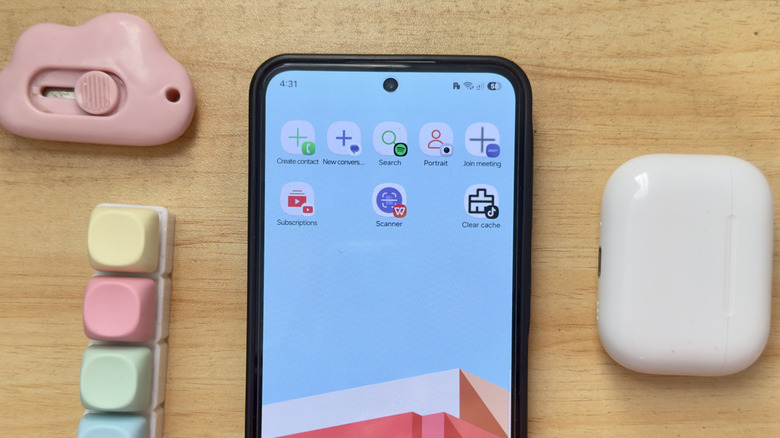
On many Android phones, you can pin app shortcuts for specific actions on your home screen. For instance, you can have Chrome open in incognito mode or launch your Gmail with the compose screen already open. Compared to widgets that come in different shapes and forms, these app shortcuts look just like regular app icons. The only difference is that instead of simply opening the app's home screen, it goes straight to a supported action.
To add app shortcuts to your Android home screen, head over to your app drawer and press and hold the app you want. A small popup will appear with all the action shortcuts it supports. Choose one and drag it onto the home screen. Here's a quick breakdown of the supported actions for some of the mainstream productivity apps:
- Chrome: Open a new tab or an incognito tab.
- Gmail: Open the compose screen or the inbox for any of the first three Google accounts signed into your device.
- Keep: Create a new text note, list, photo note, or audio note.
- Zoom: Open the sign-in page or a "Join meeting" page.
- Viber: Open My Notes or the conversation thread for any of your top three contacts.
- WPS Office: Open the scanner; go to the search bar; create a new document.
Keep in mind that the shortcuts can vary from one app to the next. Not every app also comes with shortcuts. If you don't see a list after long-pressing on an app, that means it doesn't have any shortcuts.
Have your browser open on a specific website from the home screen
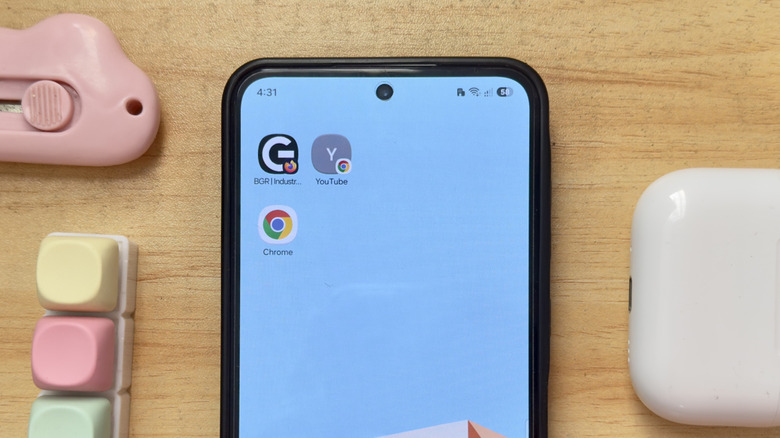
So, you're constantly visiting the same website from your mobile browser every day. That means having to type the same URL every time. For convenience's sake, you could pin it as a shortcut on your browser's home page. But even then, it will still take you at least two taps to open the site. An even quicker way to access your favorite websites is by adding a shortcut to your Android home screen instead. This way, they're all just a single tap away.
To pin website shortcuts from your mobile browser to the home screen, follow these steps:
- Open the website on your mobile browser of choice.
- Go to the menu (hamburger icon or three vertical dots, depending on the browser).
- Find these options:
- Chrome and Brave: Install and create shortcut.
- Edge: All menu > Add to phone.
- Firefox: More > Add to Home screen.
- Opera: Add to > Home screen.
- Samsung Browser: Add page to > Home screen.
- When prompted, enter a name for the website shortcut.
The website shortcut, which looks like an app icon, should appear on your home screen. Feel free to move it around or group it with your existing folders. If you visit multiple websites, you can create more website shortcuts from the same mobile browser.
Add frequently used apps to your Android home screen
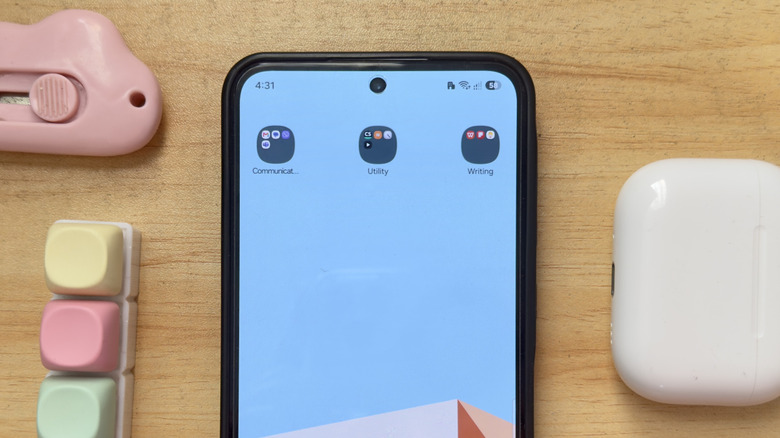
No matter how much you want to keep your home screen clean, you'll probably still add some apps to it. It's just more convenient compared to digging through your app drawer every time. Thankfully, you can still make your Android home screen functional without making it look messy. You just need to make sure you're adding apps that are genuinely helpful to your everyday routine. Think Gmail, Keep, Calculator, Messages, and Google Docs. To prevent visual clutter, try keeping your Android productivity apps to ten apps or fewer.
Afterwards, you can organize the apps into categories and put them in separate pages to make them easier to find. For instance, you can have one page for your work apps and another page for your personal apps. Or one page for your messaging apps, another for your documents and files apps, and a last page for your utility tools.
If you're not a fan of separate pages, you can also go with folders. Group the apps into different folders, such as Finance, Communication, and Tools, and arrange them on a single page to save space. To create a folder on your home screen, all you have to do is drag and drop one app into another app. Then, rename that folder. You can add more apps and app shortcuts in the folder once it's created.
Remove distractions
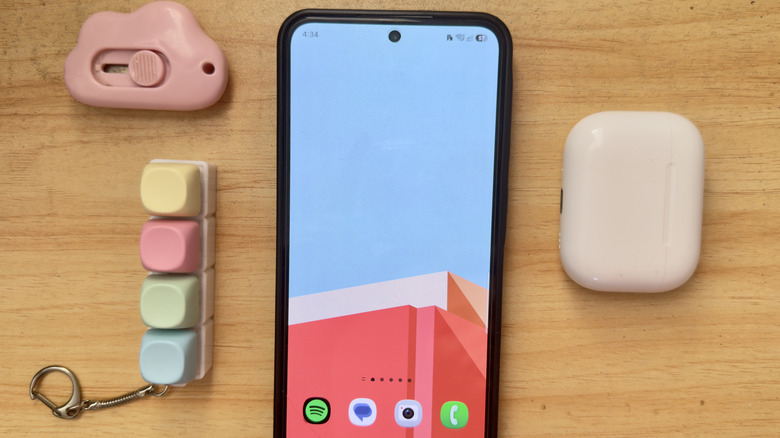
The home screen is the first thing you see as soon as you unlock your Android phone. To make it more useful, it's a must that the apps you place there are ones that help you get things done. Start by removing all the distracting social media and game apps already on your Android home screen. They can easily lure you into doomscrolling, so it's generally a bad idea to place them front and center where you can readily click on them.
You can also consider switching to a minimalist Android launcher that is designed to display only a few apps on the home screen, forcing you to stick to the bare essentials. You can still open your other apps, though, but it would take some extra steps. While inconvenient, this encourages you to be more mindful of the apps you launch. Besides making your Android home screen more useful, a minimalist launcher can also help cut down on your screen time. It usually strips the home screen of icons and wallpapers, so you're less tempted to use your device. Some highly rated minimalist Android launchers on the Play Store include Minimalist Phone and Olauncher.