

What Do All Of The Lights On Your Starlink Mini Mean?

Whether you're going on a camping trip or living the van life, it's practically a necessity these days to have an internet connection on the go. The good news is, mobile internet services now exist, and the Starlink Mini is one of the more popular options out there.
It's the smallest and most portable among the Starlink lineup, and the easiest to lug around. But despite its size, the Starlink Mini's real-world performance is pretty impressive. Users say they can play online games and stream videos just fine on the Mini, with speeds somewhere between 50 and 300Mbps depending on the location.
But testing the internet speed isn't the only way to tell if your Starlink Mini is working properly. You'll get a better sense of your setup's status using one built-in feature: the LED indicator. It changes colors, flashes, or stays lit to inform you how the device is operating or whether something needs fixing. Here's how to interpret the meaning of the lights on both the Starlink Mini dish and its relevant accessories.
Breaking down the different lights on the Starlink Mini dish

The Starlink Mini comes with a built-in indicator light on the back of the dish, in the lower-left corner. Based on the pattern and color, the indicator light can signal either normal operation or an error.
The normal operation lights include a temporary solid blue dot, slow blue blinks, and fast blue flashes. When the light is solid blue and stays on for just 14 seconds, it means the Starlink Mini is booting up. It then switches to slow blue blinks, indicating that the dish is working as expected and you can now connect to the internet. If you reset the Mini for whatever reason, you'll see fast blue blinks on the dish while it's resetting.
Meanwhile, no lights on the dish is an indication that it isn't receiving any power. In that case, try unplugging and reconnecting the cable, moving the power supply to a different outlet, and verifying that the cables are in good condition. If you see a white, yellow, or red light on the dish, that's an error warning. To fix this, unplug the dish from the power supply and remove the power supply from the wall outlet. Wait for two minutes before reconnecting everything. Once you're connected to Starlink Wi-Fi again, open the Starlink app to see if any alerts have popped up. The Starlink app is also handy for uses like testing the internet speed to check if the Mini is back to normal.
Understanding the lights on your Starlink Mini accessories
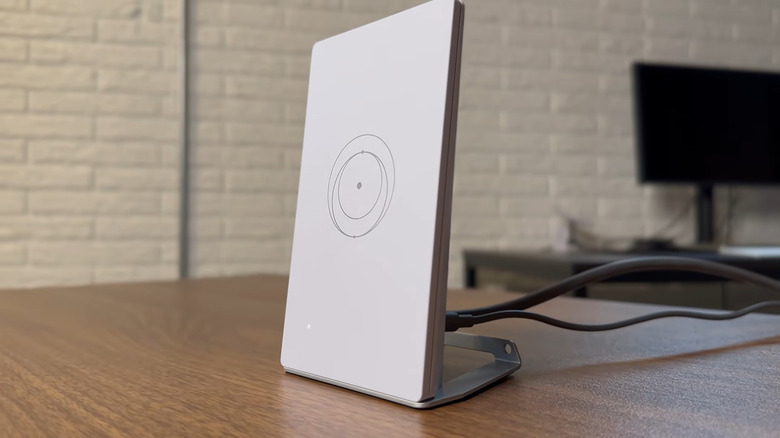
The Starlink Mini works perfectly fine on its own, but you can pair it with accessories to get the most out of your Starlink setup. Two of these accessories — the router and car adapter — have indicator lights you should be familiar with. The router, which can either be a Router Mini or Gen 3 Router, also features normal operation and error lights. During normal operation, it should display slow white pulses initially as the dish tries to connect to the internet. When the light becomes a solid white dot, the connection is established. You'll only see this dot for 60 minutes, after which it turns itself off. If the LED indicator shows a solid violet light, the router is in Starlink's bypass mode. This light also disappears automatically after an hour.
If you don't see any light on the router at all, it suggests that the router isn't powered on. Disconnect the power supply from the router and outlet and plug it back in after ten seconds. Another error light you might encounter on the router is a solid red dot. This indicates you have no internet connection. What you can do is power cycle the router and make sure the cable connection is secure.
For the Mini Car Adapter, there are three status indicators to take note of. The first is soft white blinks, which means the adapter is on and can be plugged into the Starlink Mini. If it's a solid white light, it's a sign that the adapter is delivering power to the dish. Meanwhile, a red light indicates a high temperature on the adapter. It's okay to leave it plugged in, and the red light should turn off once the adapter cools down.