

5 Ways To Speed Up Your Old iPad
The iPad is one of those devices that can last a lifetime. After all, most people only use Apple's tablet for reading stuff, using social media apps, browsing the web, or playing light games. However, if you've had an iPad for a few years now, or even a very old model that you still reach for every once in a while, there are a few ways to make this tablet feel snappier, and we will gradually show you how.
With the ongoing memory crisis and iPads costing more than ever, holding on to your current model can be the best way to save money and enjoy a technology that should last quite some time with the right amount of care. Something as simple as removing apps you don't need, turning off a few settings on your device, or ultimately replacing its battery can give your iPad a new life. And even if nothing works, you don't need to toss the tablet into the bin, as there are many amazing ways to repurpose your iPad.
Remove apps you don't need
Whether your iPad has 32GB (hopefully not), 64GB, or 128GB of storage, it's never a good idea to take the storage to the limit, as it can degrade the overall performance because operating systems rely on free flash memory to operate smoothly. After all, solid-state storage requires empty blocks to manage read and write cycles. Additionally, iPadOS uses available storage space as virtual memory on some models, which is useful when the physical RAM fills up so having more free storage is always better.
With that, if your storage is nearly maxed out, the system can't create temporary swap files or cache active data quickly, forcing the processor to wait while the flash controller struggles to shuffle data around. To prevent that from happening, a good call is to delete unused apps, as this relieves storage pressure without requiring expert intervention. Similarly, deleting downloaded TV shows or movies from streaming apps or even reviewing large files you might have could all help remove a few gigabytes from your tablet.
The best way to clear your iPad's storage is to go to Settings > General > iPad Storage, and follow Apple's recommendations or navigate through each app. If you're able to free 10 to 15% of your iPad's storage capacity, you might immediately notice apps loading faster, multitasking once again being more fluid, and even the on-screen keyboard appearing without delays.
Reduce Visual Motion and Transparency
If you have an iPad that's been released in this decade but it already feels sluggish, you should know that iPadOS could be the one responsible for the tablet feeling slow. After all, new versions of the operating system feature sophisticated visual effects, parallax wallpapers, zooming app transitions, and an all-new Liquid Glass experience that consumes a lot more resources than older versions. A tablet with an aging GPU which needs to constantly calculate real-time blur layers and render 60 frames per second during every swipe, tap, and so on will naturally feel slower than it did on iPadOS 15.
By enabling Reduce Motion and Reduce Transparency, you can eliminate these resource-heavy cosmetic layers while leaving the core functionalities of your tablet completely intact. With that, instead of making the iPad render complex 3D zooms and real-time background blurs, iPadOS will use simple cross-fades and solid, opaque backgrounds. This also helps reduce your processor's load while lowering memory bandwidth consumption.
To reduce motion, open Settings > Accessibility > Motion > Toggle on Reduce Motion. For reduced transparency, open Settings > Accessibility > Display & Text Size > Toggle on Reduce Transparency. Once these two settings are active, your iPad will likely feel snappier and more responsive to touch. Menus, folders, Control Center, and so on will open faster, and you'll probably not even realize that the system looks more opaque or the transitions are simpler.
Turn off Background App Refresh
Apple devices are really good at managing background apps, ensuring everything is ready once you decide to go to that software. Still, an old iPad might struggle with apps trying to refresh themselves all the time, especially when it's also managing a more demanding task. With that, if you're playing a game, but the Weather app keeps pushing new data, Mail keeps checking your messages, and all the social media apps want to have an updated feed by the moment you tap them, then, yes, your iPad might really feel slower.
Since older iPads have limited memory and an aging processor, ensuring that only the apps you really need can refresh in the background is key. If you don't turn off Background App Refresh, you'll probably see the tablet slowing down, experience lag while browsing Safari, or even notice apps unexpectedly crashing back to the home screen.
To improve that, you can go to Settings > General > Background App Refresh and from there you can choose whether you want a more granular control over each app or ultimately just turn off this feature. After you make this change, the iPad will most likely deliver more consistent, predictable performance throughout the day, especially when browsing media-heavy websites or typing long documents, as the processor won't have to juggle multiple tasks together.
Factory reset the iPad
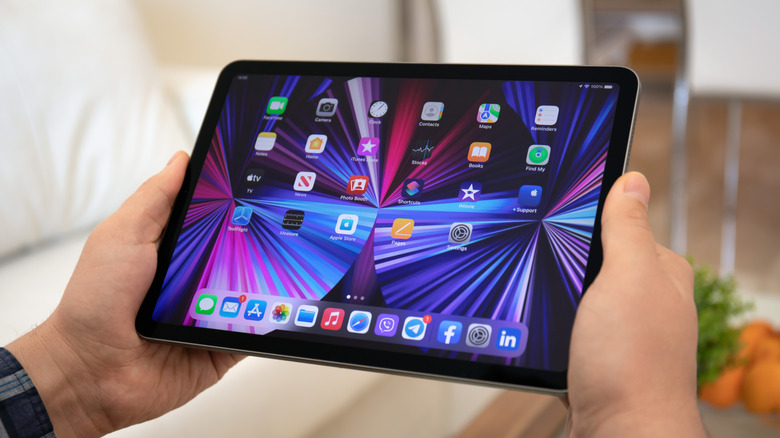
With this fourth tip, things start to get a bit more annoying. After all, it requires you to back up your data, completely whip out the iPad, and then install everything back again. While this can be an annoyance at first, after several years of daily use and incremental operating system updates, an iPad inevitably accumulates deep layers of digital clutter that tweaking just a few settings might not clear. We're talking about corrupted files, orphaned system caches, fragmented databases, and lingering software bugs from past iPadOS upgrades that can be slowing down your tablet.
To perform a factory reset, open Settings > General > Transfer or Reset iPad > Erase All Content and Settings. This will erase the device's storage and take you back to the setup page, similar to when you first booted your iPad. While the process will take some time, it's also the best way to rule out software degradation, as this could be what is slowing down your iPad.
After everything is restored, your iPad will behave more similarly to when you first bought it: system animations will run cleanly, Wi-Fi and Bluetooth connections will stabilize, and lingering glitches or random app crashes should disappear entirely. Not restoring an old backup could be the best way to ensure a speedier iPad, but even if you do bring your old files, it will still run better than before.
Replace its battery
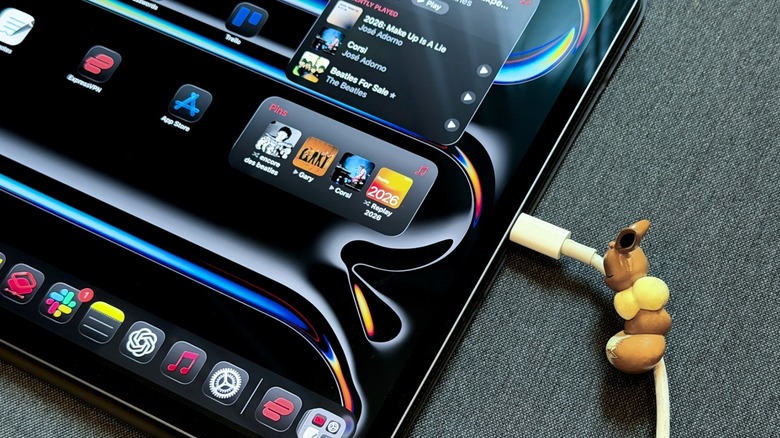
Last but not least, a tip that most customers ignore but that's actually the most effective solution with an aging Apple product is to replace its battery. For the iPad, Apple's battery service starts at $99 for a 7th generation iPad and can go as high as $199 for the latest iPad Pro. Like any lithium-ion battery, it's natural that it will degrade over hundreds of charge cycles, which means your tablet loses both its maximum capacity and the ability to deliver consistent performance. When an older iPad's battery becomes chemically aged, it can struggle to handle the sudden voltage spike required when the processor ramps up to load complex tasks. On the other hand, if the voltage drops too low, the device can shut down abruptly to protect its internal components.
In any case, to prevent these shutdowns, iPadOS leverages performance management that deliberately slows down the processor's clock speed to draw less power from the battery. Once you replace it, you eliminate this hardware bottleneck that was forcing the operating system to hold back performance. With that, alongside all the other tips above, you can make an old iPad feel brand new and give yourself a few more years of usage.
To check your iPad's battery health, you can go to Settings > Battery > Battery Health (available on newer iPad models only). Users with older iPads might need to deduce how their battery is faring versus how it performed before to determine if they need a battery replacement.