

You've Probably Been Missing Out On The Best Apple Notes App Alternative
If you are an Apple user, you've probably dumped everything you need to remember and plan for on your Notes app — grocery lists, recaps from work, and all those random ideas you wouldn't want to forget. Furthermore, updates from iOS 27 added more things your Notes app can do. The integration of native section links and divider lines brings more convenience to users who tend to write and keep longer blocks of text.
But what if you could have an app that not only lets you jot down notes, but also lay out visuals and link previews in one place? Moreover, if you're the type who prefers to map out ideas and thoughts on a huge whiteboard over a tiny notepad, then it's time you explore Apple's Freeform app. As Apple's own rendition of a digital whiteboard, this app is available for free on the App Store for iPhone, iPad, or Mac. Freeform gets you started with a blank "canvas" where you can place shapes, images, documents, and links alongside typed or written notes.
It's a suitable app for mapping out ideas, building flowcharts, putting together visual boards, or organizing information for your next project. For instance, where one would simply write a recipe word-for-word in the Notes app, one Reddit user created a "map" of all the recipes they have on the Freeform app for iPad, categorized by color and paired with images and links. In cases of professional work, a screenwriter who uses Freeform on Mac shared their feedback on Reddit, saying that it "helps create more of a visual language" for their writing process.
Use Split View and create collaborative Freeform boards
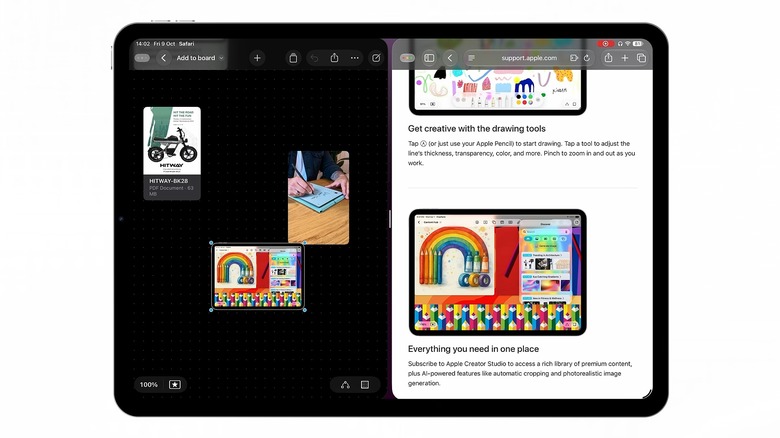
Switching between apps tends to disrupt your workflow, which sucks when you're already locked in. But now that Apple has updated its Split View feature for iPads, it's easier for you to have two different apps displayed simultaneously. To enable this feature, your device should be running on iPadOS 26 or later. Head to the Settings app, and under Multitasking & Gestures, toggle Windowed Apps on. Afterwards, slide Freeform and another app's icon onto each side of your iPad or let Freeform hover as a window on an existing Split View.
On the other hand, if you want extra eyes and brains on your existing Freeform board, save yourself from copying and pasting text or screenshots between messaging apps and convert your board into a collaborative file. Just locate the Share button and adjust your sharing settings, especially if you want others to be able to make edits. Once they join, everyone can add text, images, and other content to the same board. It's important to note that Freeform doesn't have a native Windows or Android app, so people using those devices can't directly join and edit your board. You can export it as a PDF for them to view, but they won't be able to contribute to the original board.
Annotate, add visuals, and insert link previews to your board
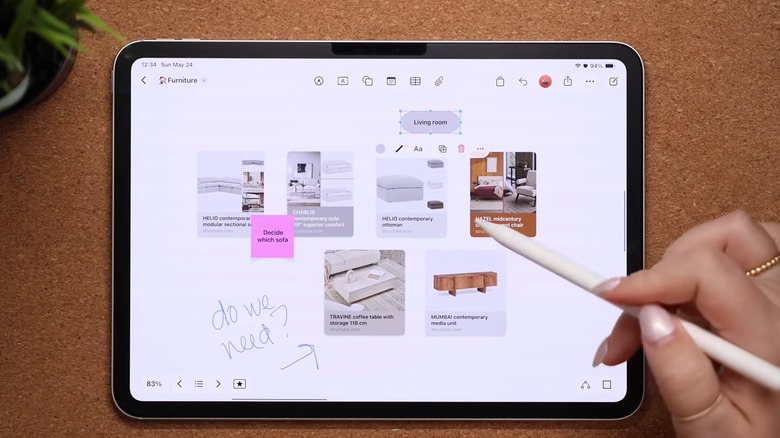
If your usual to-do lists are starting to look a little too text-heavy, Freeform gives you more room to experiment with the option to place shapes, images, PDFs, link previews, and written annotations alongside text. On the app, shapes, lines, and arrows can be neatly snapped together and transformed into flowcharts or diagrams that can be useful for mind-mapping or brainstorming sessions.
Moreover, inserting photos can be done either by dragging images over from a different app open on Split View, or by copying and pasting them. You can also use the Insert Media option to add both photos and documents saved on your device. Inserting links to products on your wishlist or destinations for your travel itinerary, for example, is also possible here. Just tap the Share icon on the top right side of the browser or app you're on and select Freeform. The app will insert a link preview with a thumbnail, which reduces the need to add an image next to a plain URL.
Freeform is a whiteboard app after all, so there's an opportunity to take full advantage of your Apple Pencil. Writing handwritten comments and annotating over images and PDF files on the board is as easy as writing on a real one. Furthermore, since Freeform has multiple pen types and colors to choose from, drawing simple or rough sketches on your file is another great way to visually annotate if images are insufficient or unclear.