

5 Ways To Speed Up Your Old Apple TV
We may receive a commission on purchases made from links.
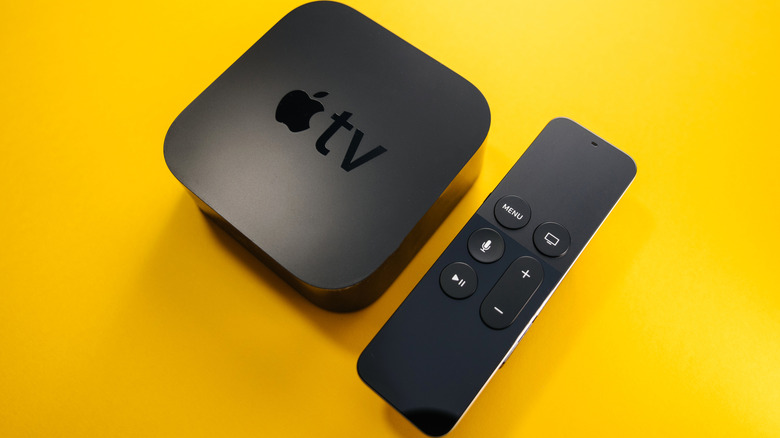
With the lifespan of an Apple TV stretching up to a decade, it wouldn't be surprising if you have your Apple TV 4K (2nd gen) from 2021 still in your entertainment setup today.
But just like any other electronics, old Apple TVs will eventually show their age. Yours might start feeling too sluggish to navigate, experience frequent app crashes, or just make the streaming experience frustrating in general.
Sure, it's always an option to replace it with a new Apple TV model, especially the latest Apple TV 4K (4th gen) that Apple just released. But you don't necessarily need to shop for a new one right away. If your old Apple TV still boots and downloads apps fine, you might be able to revive it with a few software and hardware adjustments. Here are tweaks you can make to speed up your old Apple TV.
Update your Apple TV to the latest supported tvOS version
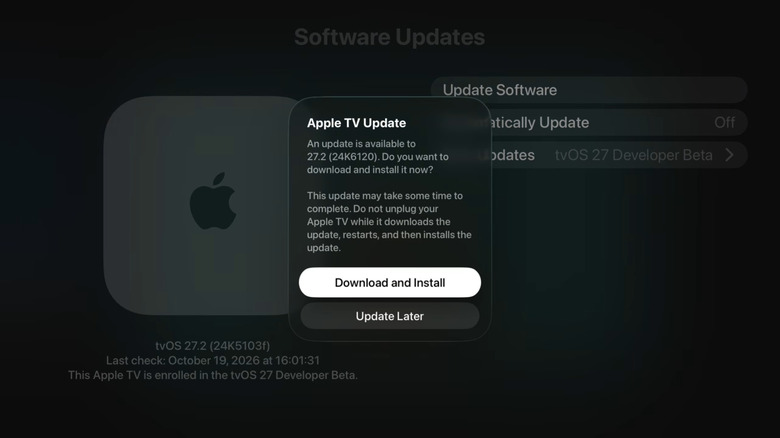
Software updates are important for any device, and it's especially useful if you find that your old Apple TV isn't running as smoothly as before. According to several user experiences, updating to the latest software kept their streaming box snappy and feeling new. If you have the second through fourth generation Apple TV 4K, you can update it to the latest tvOS 27 now that the stable release is out. However, some Apple TV models are no longer eligible for tvOS 27, including 2015's Apple TV HD and 2017's Apple TV 4K (first gen).
If your model is still supported, here's what you need to do to update it:
- Launch the Settings app.
- Click on System.
- Under Maintenance, open Software Updates.
- Hit Update Software.
- In the popup that appears, press Download and Install.
The update should now begin, with a progress bar shown onscreen. Make sure not to unplug the Apple TV from power during the update. Otherwise, the updated software might not install properly. Simply wait for the Apple TV to reboot and open back up to the Home Screen before using it again.
Restart your Apple TV remote
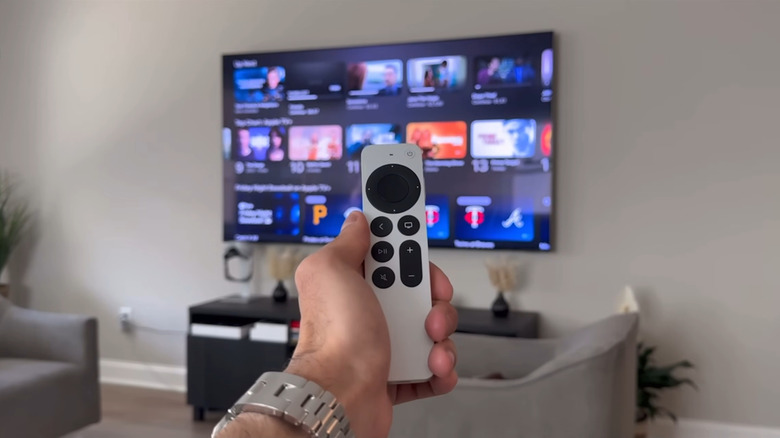
Old Apple TVs often get to a point where they become laggy, but some users report that one nifty trick made their Apple TV run significantly faster. It involves restarting the Apple TV remote, which might not sound relevant but apparently works.
To restart the remote, all you have to do is hold the volume down button, along with the TV button, for five seconds or so. Let go when you see the Apple TV status light blink. Leave the remote untouched for a good ten seconds. Afterwards, you can now use it again and see whether it made your old Apple TV faster.
If, the remote doesn't work following the restart, just pair it with the Apple TV again. With the remote pointed only three inches from the streaming box, hold down the volume up and back/MENU buttons for five seconds. You might be prompted to keep the remote on top of the Apple TV until pairing is complete.
Connect new cables
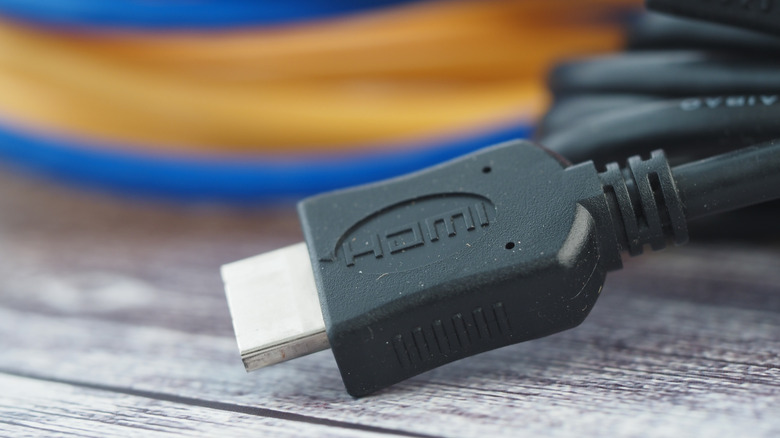
When you're experiencing display and internet issues on your Apple TV like stuttering, black screen, and slow video streaming, that might be a sign that you need new cables. Several Apple TV owners shared that switching out the HDMI cable for a newer one that supports HDMI 2.1 solved their picture problems. You can easily find one on Amazon for $10 or less, including the highly-rated Ugreen 8K HDMI 2.1 Cable and Anker HDMI 2.1 4K@240Hz HDMI Cord.
Other than getting a new HDMI cable, it's also worth trying wired instead of wireless internet. It's generally more stable, offering a better viewing experience with faster load times and less buffering.
Simply buy an Ethernet cable, connect one end to your Apple TV, and plug the other end to your router. If the router is far from the streaming box, make sure to run the cable along the edges of the room and use cable raceways to keep them organized. It's recommended not to bend the LAN cable much to avoid damaging it.
Free up storage
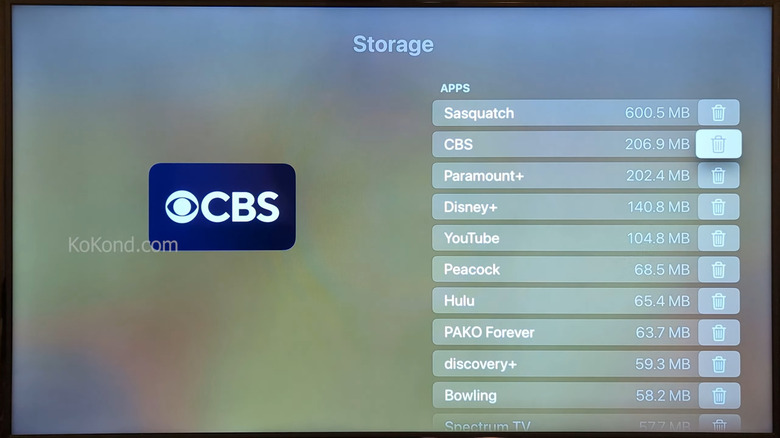
Full storage is one of the most common reasons why devices like your old Apple TV no longer perform as quickly as they used to. If you want to speed up your streaming box, you need to free up local storage as much as you can.
One excellent way to achieve this is to uninstall apps you don't want or need anymore. It's pretty quick and easy to do. Head over to the Settings app, open General, and select the "Manage Storage" option under Usage. This lists all your installed apps, sorted by how large they are. Go through the list, and once you find one you'd like to remove, simply hit the trash can icon next to it and click on Delete to confirm. You can do the same thing right from the Home Screen too. Just highlight the app, then, long-press the clickpad on the remote. Choose Delete App from the menu and press Delete to proceed. Once uninstalled, the app, along with all its data, will be removed from your Apple TV storage.
Another simple way to keep your local storage use to a minimum is to prevent your Apple TV from downloading new screensavers. These Aerial screen savers can easily eat up as much as 1GB of storage. If you use your iCloud photos as your screen saver or are not really a fan of screen savers in general, just change the Aerials download frequency to stop new downloads. In Settings, navigate to Screen Saver and click on Aerials. Then, select Download Frequency and change it to Never.
Factory reset your Apple TV
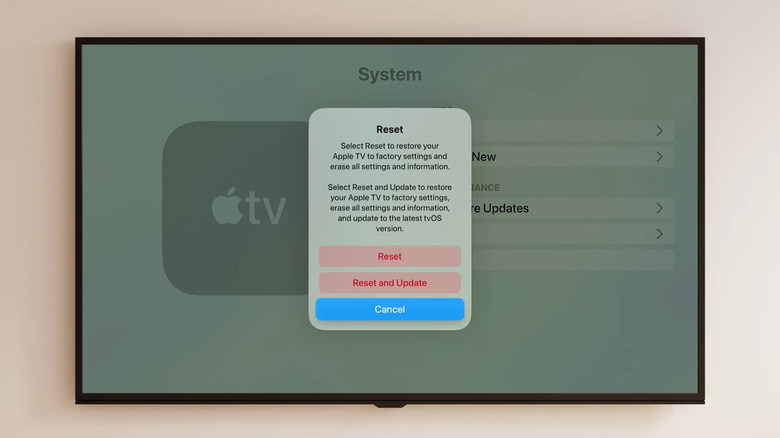
If you've tried all you can to speed up your old Apple TV but it still isn't as responsive as you'd like, the last resort is to reset it to factory settings to potentially restore its original performance. To factory reset your Apple TV, you just need to hop on the Settings app. Press System and choose Reset under the Maintenance Section.
For older Apple TV models (third gen Apple TV and earlier), you can find this option under General instead. From here, you'll be prompted to choose either Reset/Reset All Settings or Reset and Update/Restore. Reset/Reset All Settings wipes your Apple TV clean as if you just pulled it out of the box when you bought it. If you want to erase the system and update it to the newer software when available, choose Reset and Update/Restore. Make sure your Apple TV is connected to the internet.
Wait for your Apple TV to reboot. When it shows the Hello welcome screen, you can proceed with setting everything up again. Just follow the instructions, re-download your apps, and then sign back into them as normal.
Methodology
These practical suggestions were all selected based on real user experiences. These are the solutions that helped actual Apple TV owners either fix a problem like slow internet, laggy interface, and black screens, or just make the Apple TV run faster in general. We made sure that the suggestions are DIY-friendly and can easily be implemented by casual users.