

This Hidden One UI 9 Setting Can Block Ads Inside Your Apps
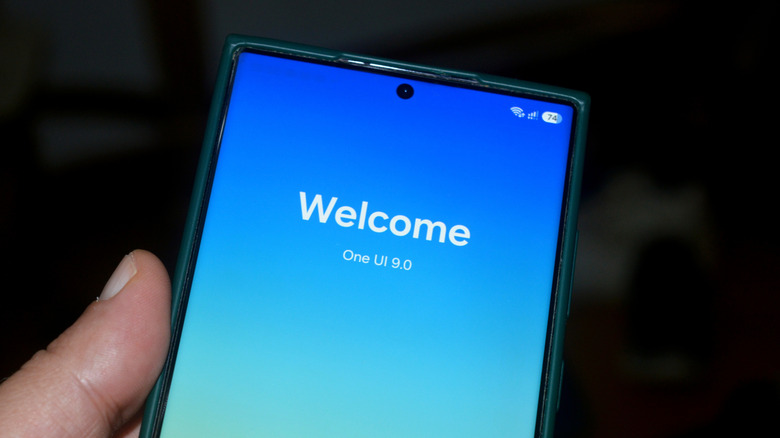
Samsung's One UI software layer that sits atop Android in the company's phones and tablets is generally liked for its nifty enhancements and features. Moreover, the company keeps adding new ones with each version. For example, One UI 9, the latest version of Samsung's software, brings several helpful features, including custom cards in Now Brief and the My FanCam functionality. One UI 9 has added another helpful option that often gets missed but can actually be useful in removing ads from certain apps.
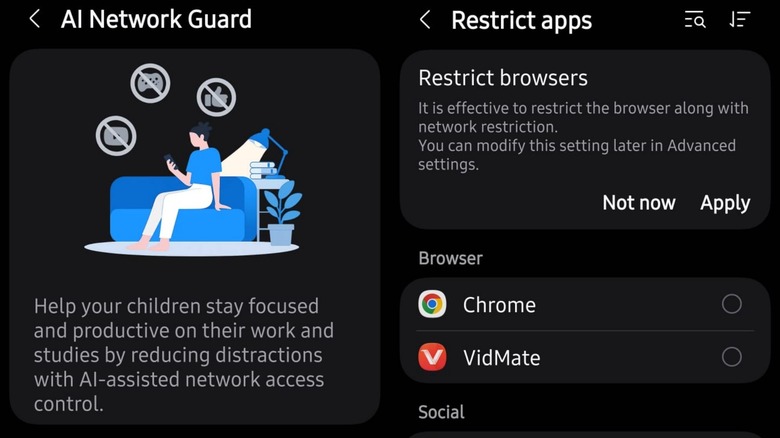
One UI 9 comes with an option called AI Network Guard, which basically allows you to stop internet access from selected apps. Although it's also used as a parental control to stop your kids from accessing the internet in specific apps, it has alternate use cases. As apps rely on the internet to fetch advertisements, this option can potentially be used to stop ads from appearing on some of your apps. However, as it completely blocks internet access, it works best with apps that primarily work offline and only need internet to download ads; otherwise, you will end up breaking the app's functionality. Keep in mind that previously-downloaded ads can still appear unless you clear the app's cache.
How to use AI Network Guard
You can find the AI Network Guard as part of the Connectivity Labs feature, which is a hidden Wi-Fi menu. You'll first have to enable Connectivity Labs, which you can do by opening the Settings app on your Samsung phone or tablet, and then navigating to Connections > Wi-Fi. Once you are on the Wi-Fi settings page, tap on the three-dot menu in the top-right corner and select Intelligent Wi-Fi.
You will then have to scroll down and tap the Intelligent Wi-Fi version number seven times, similar to how you tap Build Number in the About Phone section seven times to enable Developer Options on any Android device. Once you have tapped the required number of times, your Samsung device will show a confirmation message stating Connectivity Labs is enabled. You will now see Connectivity Labs below the Intelligent Wi-Fi version number.
Open Connectivity Labs to find the AI Network Guard option. You will first be prompted to set up a Guardian PIN to access the feature. With the Guardian PIN set up, you can choose and restrict individual apps. As mentioned, the tool is designed to stop internet access, meaning it will stop any app that requires data connectivity from functioning. That said, you can use it without issue with offline games or other apps that work offline or don't need an active data connection. With internet access blocked, you won't generally see advertisements in the selected apps. If you do see them, they were likely cached before you blocked the app's access to the internet.
What else can AI Network Guard do?
Besides blocking ads, you can use AI Network Guard to stop certain apps from accessing the internet because you either don't trust them or they don't really need data access for their functionality. This can be any apps you might have downloaded from outside the Google Play Store, or tools like document scanners, barcode readers, and e-reader apps that don't require an active data connection.
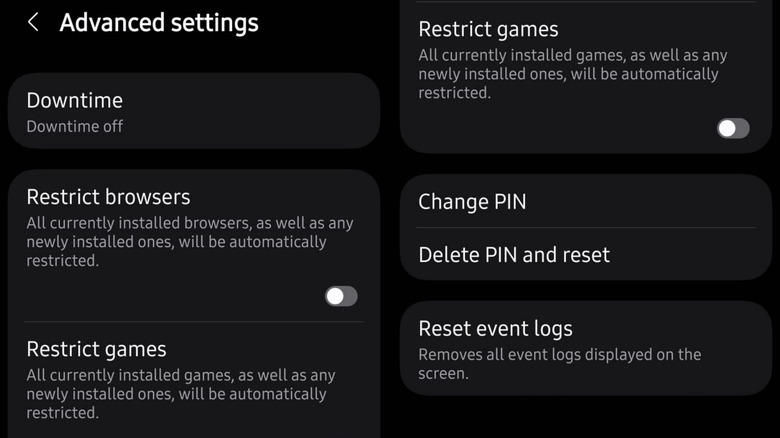
It also includes an advanced settings page accessible through the three-dot menu, which allows you to set a "Downtime" for the AI Network Guard, during which it temporarily stops blocking the internet This can come in handy if you're using the tool as a parental control and want to allow your kids to use apps and games during a certain period during the day.
Moreover, the AI Network Guard advanced settings have an option to restrict all existing (and future) browsers and games from the internet en masse. This can be helpful if you think your kids may install a new browser or game to skirt the internet restriction.