

5 Samsung Galaxy Features You Should Set Up Before Winter
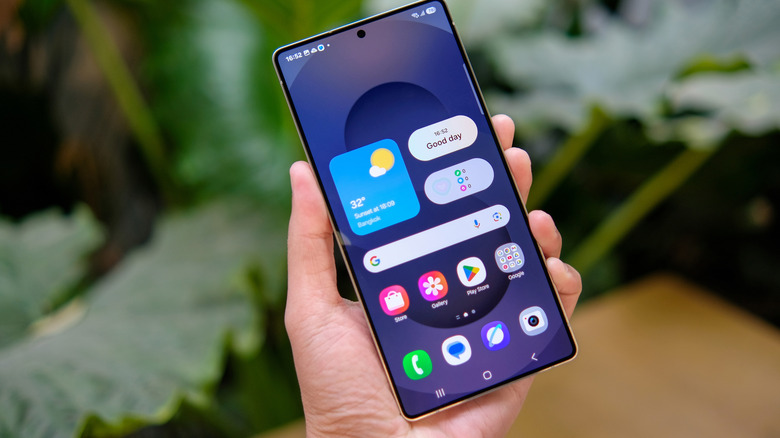
Winter is right around the corner. While you're probably already pulling your heavier jackets out of the closet and making plans for the holidays, there are a few things you might want to do with your Samsung Galaxy smartphone to prepare for the colder months, too. Samsung has packed its phones with all kinds of useful features, many of which can come in handy when the days start getting shorter. While some of these features are things you can take advantage of all year long, setting them up before winter could make the next few months a little more manageable, especially if you're prone to the winter blues.
Whether you're looking for an easier way to keep track of the weather ahead of your holiday travels or you just want to avoid having to go outside in the cold every evening to turn on your Christmas lights, your Galaxy phone can help. There are even Samsung apps you can take advantage of to keep yourself entertained and active when it's too cold to spend much time outdoors.
Of course, exactly which features you'll have access to will depend somewhat on which Samsung Galaxy devices you own. Thankfully, you don't necessarily need one of Samsung's latest flagship smartphones to take advantage of many of these features.
Set up Samsung Weather and emergency alerts

While there are plenty of weather apps available for Android, the Weather app that comes with your Samsung Galaxy phone is more than capable of keeping you up to date on the forecast. The app offers both hourly and weekly forecasts, as well as information about expected precipitation, wind speeds, and humidity. You can also add multiple locations to the Weather app, which can be especially useful if you're planning to drive somewhere for the holidays and want to keep an eye on the weather in the areas you'll be traveling through.
One of the easiest ways to make sure you're keeping up with the weather is to add a Weather widget to your home screen. To do this, press and hold an empty spot on your Galaxy phone's home screen, tap Widgets, and then look for Weather. If you have a newer Galaxy phone that supports Samsung's Now Brief feature, you can also take advantage of it to get regular updates on the weather throughout the day.
While you're setting up the Weather app, it's also worth double-checking that you haven't disabled wireless emergency alerts. You can find these options by opening Settings and navigating to Safety and emergency. Here you should see a section for wireless emergency alerts. Keeping these enabled helps ensure you're notified of particularly dangerous weather events when authorities issue applicable warning alerts.
Automate your holiday lights with SmartThings
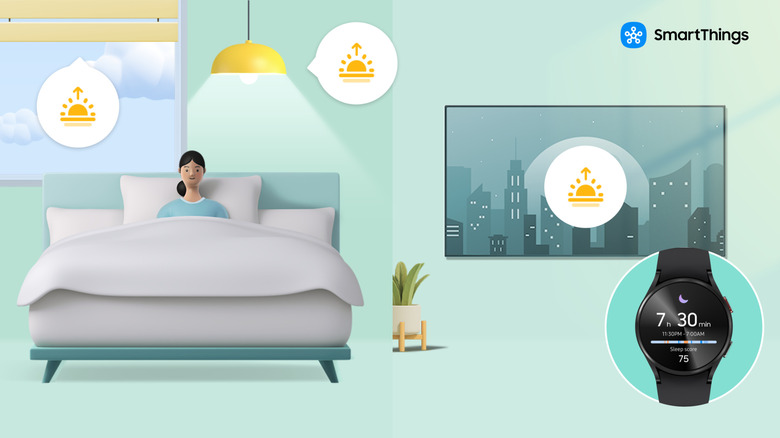
If you've been looking for an excuse to invest in some smart home devices, the upcoming holiday season is a great time to do so, especially if you can find some during Black Friday sales. Samsung's SmartThings app allows you to create automated routines for compatible smart home devices, which makes it easy to set up everything from your living room lamps to your outdoor Christmas lights to be turned on and off at designated times. You'll need an outdoor-rated smart plug that's compatible with SmartThings to automate traditional outdoor holiday lights. However, once you've added the plug to the app, setting up a routine is relatively straightforward.
Open SmartThings on your Galaxy phone and navigate to the Routines tab. From here, you can create a new routine and establish the conditions under which you want it to run, as well as what you want your connected devices to do when those conditions are met. For your Christmas lights, you could create one routine that turns them on around sunset and another that turns them off before you go to bed — that way you aren't kept awake at night.
There are plenty of other ways you can take advantage of your Samsung Galaxy devices in the morning, too. If you find it particularly difficult to get out of bed when it's still dark outside, for instance, you could configure your compatible smart bulbs to gradually brighten ahead of your usual wake-up time. You can even schedule some of your home's lights to turn on and off while you're away visiting family over the holidays, as this will make it appear as if someone's home, which could ward off potential thieves looking for easy targets.
Create some winter-specific Modes and Routines
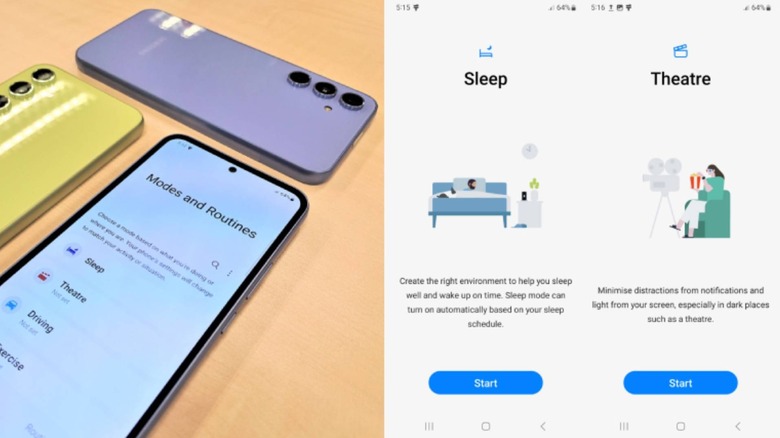
Another useful feature that Samsung builds into its Galaxy smartphones is the Modes and Routines function. While we suggest building daily tech habits that can help keep your smartphone running smoothly, taking advantage of Modes and Routines can make it easier to establish these types of habits when it comes to how and when you use your smartphone. This can be especially useful if you find yourself spending more time scrolling through social media in the evenings, especially now that it's getting dark earlier in the day.
A good place to start is to set up Sleep mode. This lets you configure certain parts of your device to activate automatically around your usual bedtime. You can do things such as turn your phone's display to grayscale, enable Dark Mode, and turn on Do Not Disturb. You can also schedule Samsung's Eye Comfort Shield to automatically activate at sunset if you find your smartphone's display uncomfortable to look at when using it in darker rooms.
Of course, you aren't limited to the modes that Samsung has created for you. You can create your own custom modes by opening Modes and Routines in your phone's Settings app and selecting Add mode. If you want to spend more of your winter evenings reading, for example, you could create a mode that restricts access to distracting apps and silences unnecessary notifications for an hour or two every evening.
Take advantage of Samsung Health to stay active
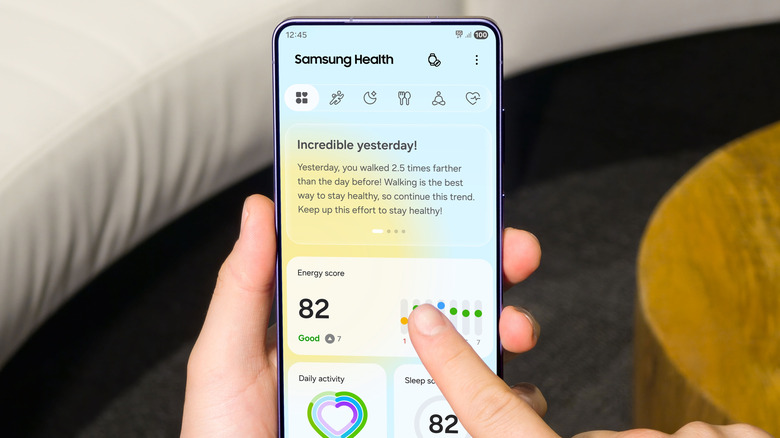
It can be a lot harder to find the motivation to get outside and go for a walk or run when temperatures start dropping. However, there are plenty of ways to stay active without going outside, and Samsung Health offers a number of features that can help you do just that. The app's Fitness tab offers a variety of workouts and exercise programs, giving you options for staying active at home without having to come up with your own exercise routine. You can also establish daily activity goals to give yourself something to work toward throughout the winter.
If you find it easier to stay motivated when you're exercising with other people, then it could be worth setting up the Together feature in Samsung Health. This feature allows you to participate in fitness challenges, giving you another reason to get up and move around. If you own a Galaxy Watch, you can take advantage of Samsung Health's additional fitness and health trackers to get a more detailed look at your activity levels throughout the day.
Samsung Health isn't just useful for keeping track of your physical activity, either. The app also offers tools for monitoring your mood, as well as mindfulness features like guided meditation and breathing exercises. Some of the meditation content requires a Calm subscription, while certain stress-tracking and breathing features require compatible hardware. Still, these are useful options to explore if you're looking for new ways to relax and unwind during the colder months.
Pick up a new indoor hobby with PENUP
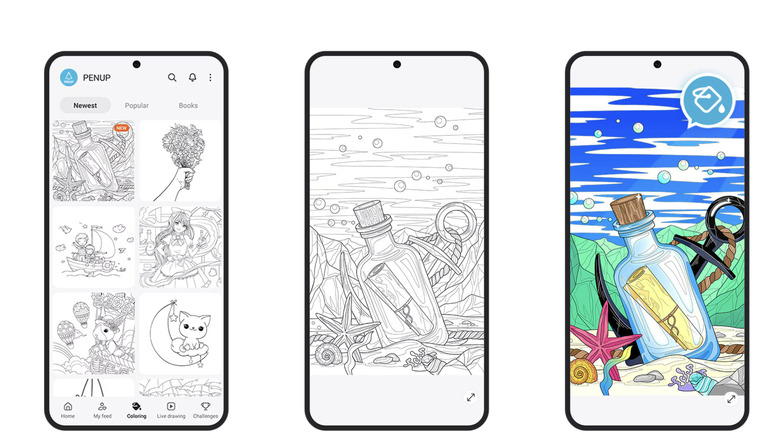
If you're looking for something to keep yourself entertained through winter that doesn't involve binge-watching another television series, then you might want to check out Samsung's PENUP app. The app, which you can download from the Galaxy Store, is essentially a digital art studio and social platform rolled into one. You don't have to be particularly artistic to get much out of PENUP, either, as there are several features designed to help beginners get comfortable with drawing and coloring.
One of the more interesting features available in PENUP is Live Drawing, which allows you to follow along with recordings of other drawings and trace over them as you go. There are also plenty of existing sketches you can color in if you just want something relaxing to do while listening to music or an audiobook. Of course, you can create your own artwork from scratch, too, and Samsung even allows you to import photos and draw directly over them.
While you can draw and color using your finger, this is an especially worthwhile app to check out if you own a Galaxy device that supports Samsung's S Pen. Once you've gotten a little more comfortable with the app's various drawing tools, you can even start participating in PENUP's themed drawing challenges, giving yourself something new to work on during cold winter evenings.