

You Can Mirror Your Phone Screen To Your Roku TV - Here's How
In previous tech eras, TVs were simpler affairs, and didn't come bundled with "smart" hardware enabling streaming services. However, that all changed with the introduction, and proliferation, of advanced HDMI ports and streaming peripherals. Now, you can readily plug in all sorts of devices to your TV — laptops, game consoles, or streaming accessories — and enjoy more advanced features. Conveniently, your smart TV works wirelessly too, as do nearly all standalone streaming devices, allowing you to mirror your phone to your home's biggest screen.
Screen mirroring your mobile device to your TV can come in handy in plenty of situations. Instead of crowding around your phone's tiny screen, you and your friends can all comfortably browse your vacation photos. Gaming is also infinitely better with a larger and clearer view. If you have phone-only apps, mirroring lets you view them on a screen other than that belonging to your phone.
But how exactly do you project your phone screen to your Roku TV? It's actually pretty easy, and it's one of the best Roku TV tips you should know to get the most out of your entertainment setup. Here's how to do so.
How to screen mirror your Android device to your Roku TV
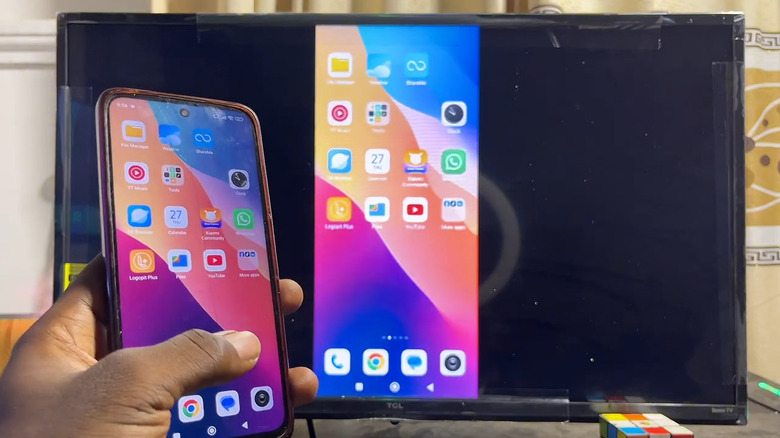
Roku TVs allow you to share your Android phone screen to the TV in two ways: mirroring or casting. Mirroring displays your whole screen, while casting only shows the content you elect to share. Neither process requires any special Roku TV apps. Follow these steps to project your Android to your Roku TV:
- Make sure both devices are on the same Wi-Fi network:
- To verify this on Roku, open Settings, select Network, and go to About.
- On Android, swipe down to open Quick Settings. The Wi-Fi icon usually displays which network you're connected to.
- To share your entire Android phone screen:
- On your Android device, go to Quick Settings.
- Look for the screen mirroring option. Its name can vary, though, depending on the phone manufacturer. For instance, it's called Cast on Google Pixel devices, Smart View on Samsung devices, and Screencast on OnePlus products.
- Tap on screen mirroring.
- Choose your Roku TV from the options.
- When prompted, select Allow on your Roku TV.
- To cast media from a supported app, like YouTube:
- Launch your app of choice.
- Play the media you want to cast.
- Press the casting icon (rectangle with Wi-Fi signal in one corner).
- Tap on your Roku TV.
From here, you should be able to see your phone screen or content live on your TV screen. If you're having trouble with screen mirroring, check whether your TV is set to accept mirror requests. Press the Home button on your Roku remote and scroll to Settings. Then, navigate to System, then Screen mirroring, and then Screen mirroring mode. Change it to either Prompt (needs to manually allow every request) or Always allow (your phone will automatically connect, without any input on your end). Then, try again.
How to screen mirror your iPhone to your Roku TV
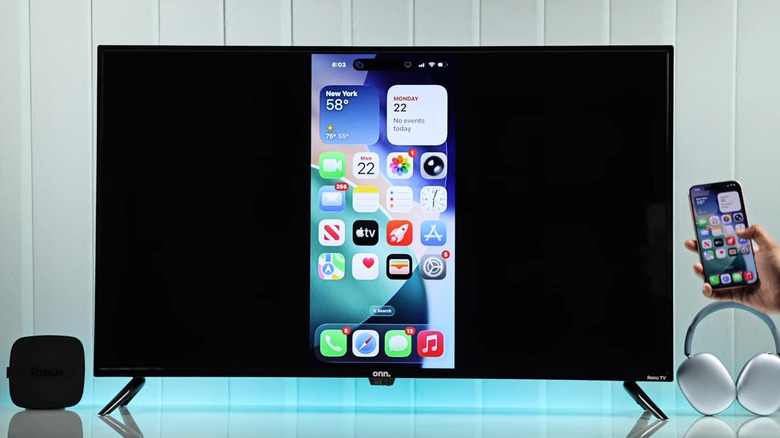
Sharing your iPhone screen to your Roku TV is possible via AirPlay. Here's how to set it up:
- Connect your Roku TV and iPhone to the same Wi-Fi network.
- On your Roku TV, press the Home button on your Roku remote.
- Head over to Settings.
- Scroll to Apple AirPlay and HomeKit.
- Press OK to open it.
- Toggle on AirPlay.
- On your iPhone, go to the Control Center.
- Long-press on an empty space.
- Hit Add a Control.
- Search for screen mirroring.
- Tap it to add it to the Control Center.
- Tap an empty space again to save it.
- To mirror your entire iPhone screen:
- From the Control Center, select the screen mirroring icon (two overlapping rectangles).
- Choose your Roku TV from the popup menu.
- Type the AirPlay passcode that pops up on your TV screen.
- Press OK. You should immediately see your iPhone screen appear on your TV.
- To share specific videos, photos, or songs to your Roku TV:
- Open the media you want to mirror.
- Tap the AirPlay icon (rectangle with triangle for video, or concentric circles with triangle for audio).
- If you don't immediately see the AirPlay icon, try going to Share.
- Press your Roku TV from the menu.
Note that AirPlay 2 is only available on Roku Select and Plus Series TVs. Certain Roku TV models are also compatible with AirPlay 2, but they must be updated to either Roku OS 9.4 or later (for models starting with A, C, and 7) or Roku OS 10.0 or higher (for models that begin with 5 and 6). You can easily see the model and OS version in Settings, then System, then About. Similarly, your iPhone needs to be running at least iOS 12.3 to use AirPlay 2.