

4 Clever Uses For Your Old Routers
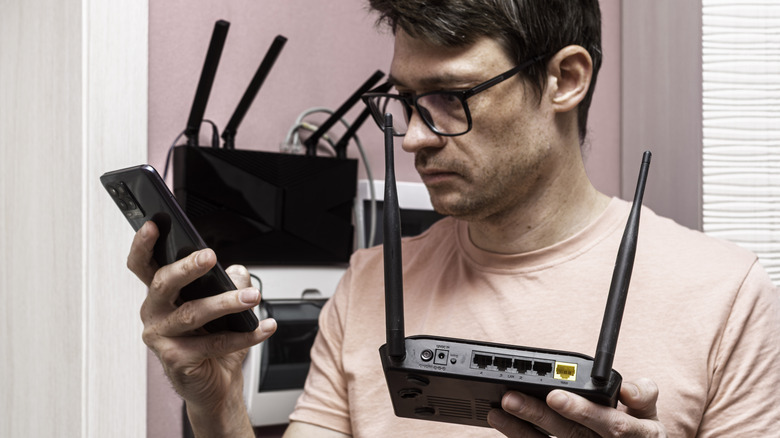
Replacing old tech is a vital part of ensuring the items you rely on are up-to-date, as secure as possible, and offer the speeds and features you need. While many of us might mostly think about the more mainstream tech items we use on a daily basis, like our smartphones or computers, your Wi-Fi router is another important piece of tech you may end up replacing one day.
Whether you're replacing your old router because it's out of date, or just switching to one your latest internet provider offers, you don't have to turn your old router into extra e-waste. Even if it runs a bit slower, there are a number of things you can do to put that old router to use.
Before we get started, though, it's worth noting that while some of these tasks are a bit more difficult to complete than others — and will likely require you to research your router brand — each one can have a distinct benefit worth exploring for your home or business.
Extend your current Wi-Fi network
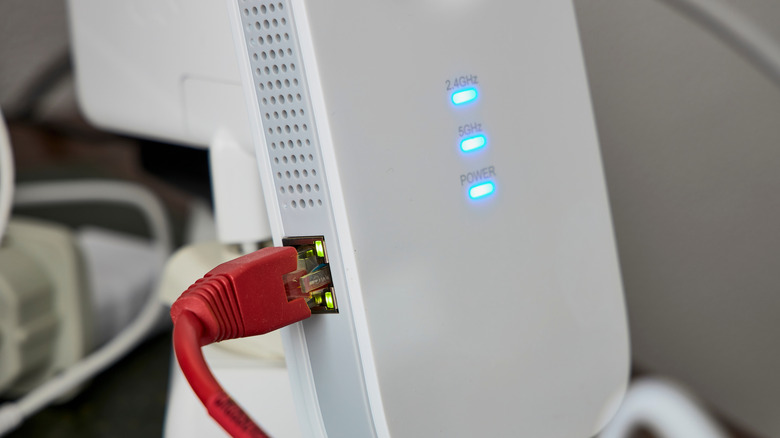
One of the easiest ways to put an old router to use is to turn it into a Wi-Fi extender (sometimes referred to as a Wi-Fi repeater). These devices essentially take your existing Wi-Fi network and extend (or repeat) it, making it reach longer distances. This can be helpful for large houses where you have weaker areas for Wi-Fi or even dead spots — places the Wi-Fi doesn't reach reliably enough to use. While there are great Wi-Fi range extenders out there that you can buy, anyone with an old router laying around can do the same without having to pay anything extra.
The steps taken will vary depending on the model and brand you have. However, many brands like Netgear offer an easy-to-access setting in the router's internal software that you can toggle with a few simple clicks. TPLink is another trusted brand that makes setting your router as an extender really easy. If you have another kind, though, you'll need to look it up and see what the steps are for that particular brand. This information can usually be found online or in the owner's manual that came with the router.
The downside to using your old router as an extender is that doing so may result in reduced Wi-fi speeds from that extender, depending on whether the router is single or dual-band. Because it only has one channel, a single-band extender cannot receive and send data at the same time. It must first receive all the data and then send it out after.
Turn it into an Access Point
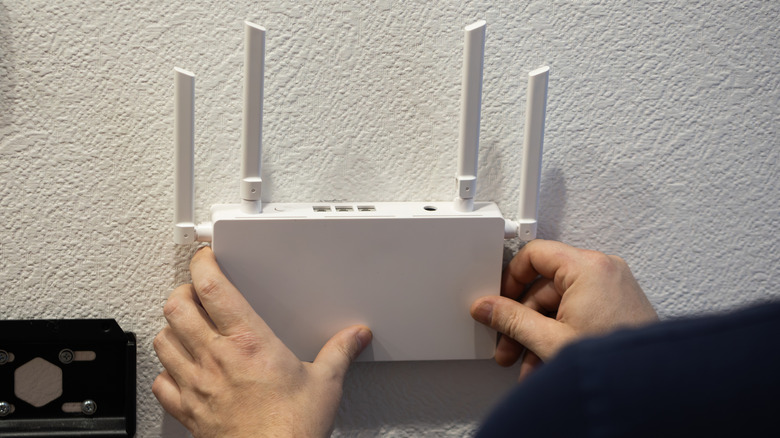
Another possible way to put an old router to use after you replace it is turning it into an access point. Access points are essentially the part of a router that broadcasts the Wi-Fi signal out to the rest of your home. They can be handy for extending access to other places on your property — like the garage. The exact steps to turn your router into an access point will vary, though some brands like TPLink make it pretty easy to do.
The main reason you might want to use an access point over a Wi-Fi extender is a need for the highest possible speeds. Repeaters can halve the speed of your internet connection, while access points are typically designed to connect to your main router via ethernet cable.
This lets them take full advantage of the wireless speeds your connection offers, while still pushing the signal out to other parts of your home. Access points are great, especially if you've already found the best place to put your Wi-Fi router, but want to extend where the signal reaches and fix Wi-Fi dead zones without losing any of your internet speed in the process.
Set up a guest Wi-Fi network
Another handy way to put your old router to use is to set up a dedicated guest Wi-Fi network. This is great for people who have a lot of visitors to their home that need to access the dedicated internet speeds provided by a home network, as it gives them access to your Wi-Fi without actually giving them full-blown access to your local network (where all your home devices are connected).
This separates internet traffic on guest devices from your devices, as people can affect your network without realizing it, depending on what types of sites they visit. Some people even recommend setting up a guest network for devices with weaker security features — like smart TVs. Brands like Samsung even recommend you stop using Wi-Fi with your smart TV, though that's usually because of bandwidth quality, not security.
While the names and exact settings will vary, the basic idea here is to connect your old router to your new router similar to how you would turn it into an access point. However, instead of leaving the connection information the same, you'd enable the Guest Network feature on your old router and set up new credentials to hand out to your guests. Unfortunately, not all brands of routers have this option, so you'll need to do some research before trying to set it up. If you want a brand that does, though, many Linksys routers offer a Guest Access setting in the router's internal software.
Extend ethernet connections with a network switch
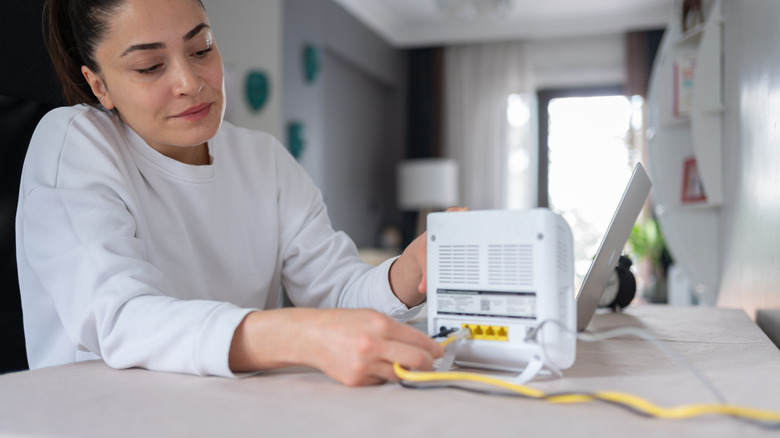
This additional way you can use an old router is one of the most useful if you prefer plugging all your devices into your network directly. As Wi-Fi connections have become more prevalent in today's technology, Wi-Fi routers have started to offer fewer ethernet ports directly on the device.
Many only offer 4 ethernet ports now, though you can easily extend this number by turning your old router into a network switch. A network switch helps connect other devices to your local network, similar to a router. Unlike a router, though, which sends data to your network itself, the switch only sends data to the devices that it's intended for — In this case, anything plugged directly into it.
To turn your old router into a network switch, you'll need to connect the old router to your new router via ethernet cable. Then, access the internal router settings for the old router and change its IP address to something that matches the new router but isn't exactly the same. For example, if your new router has an IP address of 192.168.1.1 (a common default address for routers), then you'd change the old one to something like 192.168.1.2 (or anything else in this range that isn't attached to another device). You'll also need to disable some other settings like DCHP, so be sure to research how to turn your particular brand of router into a network switch before getting started.