

11 Common Wi-Fi Mistakes Everyone Makes
A Wi-Fi connection has become a mainstay in almost every household. It's the fastest and most convenient way to connect to the internet, with many ISPs providing breakneck speeds in their best packages. These plans are highly recommended for people with heavy internet usage, allowing them to stream high-quality 4K video without a hitch and download hundreds of gigabytes worth of games without having to wait too long. However, no matter how good your internet plan may be, it all goes to waste if your Wi-Fi connection isn't set up properly.
It may seem like an easy task, but you'll be surprised to hear how even the simplest of mistakes while setting up a Wi-Fi connection can have a huge knock-on effect. Chances are that you've made one of these errors while setting up your Wi-Fi, so it's highly recommended that you rectify them as soon as possible. Thankfully, most of these issues have crowdsourced solutions and easy fixes that will help your Wi-Fi connection reach the highest speeds possible.
Poor Wi-Fi router and antenna placement
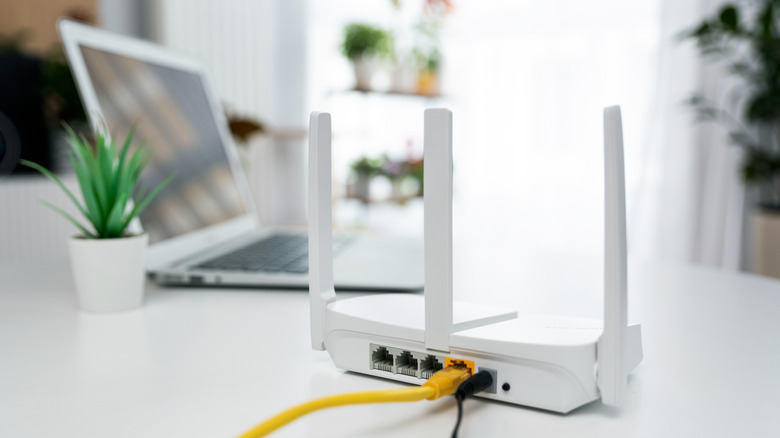
One of the most common mistakes people make while setting up their Wi-Fi connection is placing their router in the wrong spot. Instead of putting this device in a central location free of obstructions, it is often placed behind TVs, furniture, and other household fixtures that end up severely impeding its signal strength. Even a few wires or a metallic object near your router can hamper its signal, leading to slower internet speeds than promised by your internet plan. If you lack an empty space in your house that's convenient and free of obstructions, then hanging your router on the wall is also a viable option.
However, simply placing your router properly isn't enough to guarantee high signal strength. All your efforts will go to waste if you haven't properly arranged your router's antennas. Most people don't put too much thought into this, but the angle of your router's antenna can make the difference between slow internet connections and maximum coverage. To avoid dead spots, keep your antenna perfectly straight in a single-story household for wide coverage. Meanwhile, if you live in a house with two or more floors, keep the antennas at a 45° angle to reach multiple floors. Signals are propagated laterally from the antenna, which is why these angles — or lack thereof — can make a huge difference.
Using an old, outdated router
Just like any piece of tech, routers are advancing over time. The latest technology you can access is Wi-Fi 7, so make sure that your router is compatible with Wi-Fi 6E technology at the very least to enjoy better speeds. This is something many users ignore, choosing to stick with a router that is many years old without realizing the drawbacks of using dated hardware. While 6 GHz channels will still take a while to become the norm, that doesn't mean you should cheap out on your router and use an outdated device that doesn't support those channels.
Another important reason to upgrade your router is to adhere to the latest security protocols. After a while, older routers stop receiving firmware updates, making them more susceptible to cyberattacks. If you don't want your data to become open season for hackers, get the latest Wi-Fi router — ideally, one that supports WPA3 encryption. This is especially important if your router is more than five years old, since it will most definitely lack support for better Wi-Fi technology and the latest security protocols.
Ignoring the router's security settings

After setting up a Wi-Fi router, people often forget to configure it. If you've made the same mistake of sticking to the router's default settings, then the first thing you should do is change its login details and the Wi-Fi password. You'll find the options to change your router's login credentials in its settings. If you don't know how to access this, typing in '192.168.1.1' or '192.168.0.1' in your address bar should bring up this device's settings. After changing the default login details, change your Wi-Fi password to something secure. A router's default password is laughably easy to guess, making it child's play for outside parties to access your network.
These steps are the bare minimum to safeguard your Wi-Fi, but you shouldn't stop there. Most modern routers have a Wi-Fi Protected Setup (WPS) button that lets devices connect to the internet with a single press, but this convenience comes with a security flaw. Brute force cyberattacks can exploit this WPS feature to connect to your network, so you should make it a point to disable this setting if you don't want to be the victim of a debilitating hack. You should also check your router's security settings to see whether WPA3 encryption is enabled. Changing the router's Service Set Identifier (SSID) to something unique can also help protect it from attacks that aim to spoof your network. Finally, you should review the Dynamic Host Configuration Protocol (DHCP) settings. This feature automatically assigns IP addresses to devices on your network. Limit the number of DHCP leases to the number of devices you own to improve security and prevent network conflicts. Alternatively, you can manually assign static IP addresses to your devices.
Choosing a suboptimal channel for your Wi-Fi connection
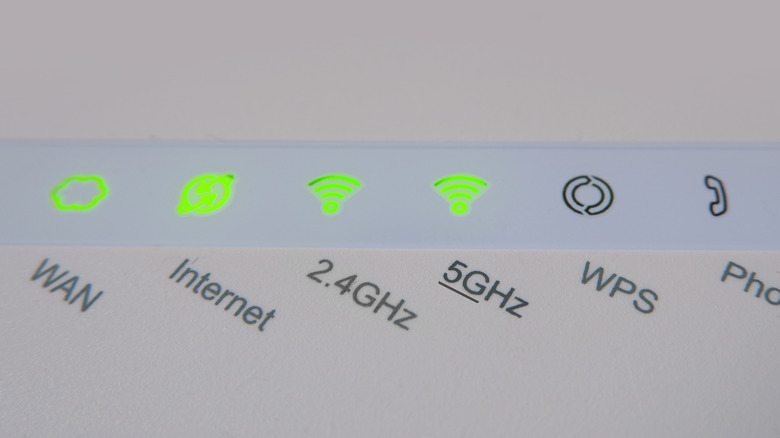
The 2.4 GHz and 5 GHz Wi-Fi channels have dominated the modern landscape, with the vast majority of Wi-Fi routers supporting both. The former transmits at a slower speed but offers better range, while the latter delivers higher internet speeds at the cost of stability. With the advent of Wi-Fi 6E, a 6 GHz band was introduced to the mix. While this channel is yet to see widespread acceptance in the domain of internet connectivity, it's still a much-needed step forward to unlock even higher internet speeds. Simply connecting to the 5 GHz or 6 GHz bands for faster internet speeds is far from an optimal solution, especially if your household has numerous IoT devices that must connect to a centralized network.
Instead of overcrowding a channel by connecting all your devices to it, ensure that all your channels are being used for appropriate purposes. Since the 2.4 GHz band has a higher range, this channel can be used for all your smart devices and any accessories that don't need to download or upload too much data. Meanwhile, your gaming consoles, smart TVs, and any other devices that require blazing-fast internet speeds should use the 5 GHz or 6 GHz channels. Smartly segregating your IoT devices across all available channels prevents network congestion and ensures your internet plan is used to its fullest.
Using a Wi-Fi extender over a mesh Wi-FI network
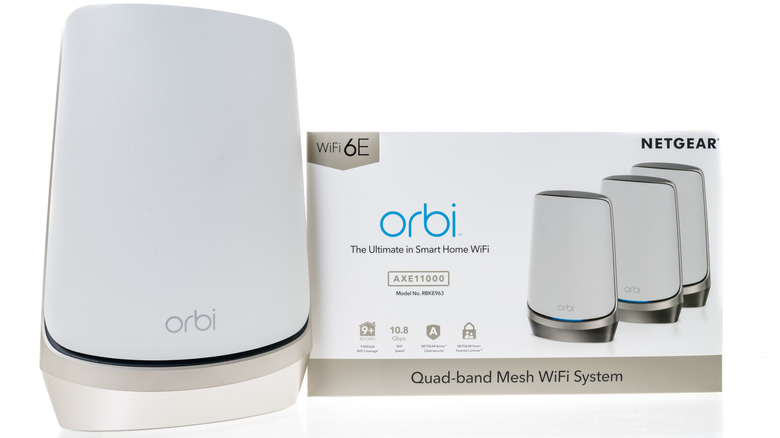
In large houses, a single router doesn't provide enough coverage, leading to a ton of dead zones and connectivity issues. To avoid this, a convenient solution is to use a Wi-Fi extender that can be plugged into a wall outlet, but it's far from the most optimal way to improve your Wi-Fi's range. For starters, Wi-Fi extenders just lazily spoof your network by adding an "_EXT" to your current Wi-Fi's SSID, which means that you have to manually switch connections when moving around your house. Wireless devices are also "half-duplex," meaning they can't send and receive simultaneously. An extender will exacerbate this issue, leading to slower internet speeds.
If you don't mind spending a bit more to augment your Wi-Fi's signal coverage, then opt for a mesh Wi-Fi network. Setting up this system takes more time, since this network uses nodes placed in strategic locations all around your house to extend your Wi-Fi's range. However, this is well worth the effort, since the end result is a single, seamless Wi-Fi network in your house that doesn't rely on lazy spoofing and clumsy extensions. Your device will automatically switch to a different node to get a better signal, and your internet connection speed will remain the same. It's definitely a costlier setup than a simple Wi-Fi extender, but the benefits make it a must-have for a user with a high-speed network in a large house who doesn't want to compromise on Wi-Fi signal strength or internet speed.
Not updating your Wi-Fi drivers
If your Wi-Fi connection is causing issues with your Windows device, the fault may not necessarily lie with your router. Sometimes, the Wi-Fi drivers on your system may be outdated or corrupted, leading to bottlenecked internet speeds, intermittent disconnections, and — in rare cases — no option to connect wirelessly to the internet whatsoever. Open Device Manager and check your drivers to see if they're up to date and without any faults.
Updates for your Wi-Fi driver can be installed via Device Manager itself. However, if the driver itself is corrupt, then you'll have to manually delete it and reboot Windows. Chances are that a fresh version of these Wi-Fi drivers will be automatically installed the next time you open Device Manager. If they're still missing, search the internet for Wi-Fi drivers compatible with your system and install them to resolve this issue. If all these steps don't work, it's possible the Wi-Fi adapter on your laptop or desktop is on the fritz. In this event, you'll need the services of a certified professional to rectify this issue.
Congesting the network with too many connected devices

Wi-Fi network congestion is a fairly common problem that can impact your internet speeds and signal strength. Most households have a bunch of devices that connect to the internet, so it's only natural for the network to get overloaded with connection requests. If multiple devices fight for bandwidth on the same network, then issues are bound to arise.
Most consumer-grade routers can support anywhere from 20 to 50 connected devices at once, but it's recommended to stay well below this limit to prevent issues. For starters, use different channels for various devices — depending on their functionality — to mitigate the issue of network congestion. Aside from this, it's recommended to get a better plan from your ISP if you need high internet speeds across multiple devices. You can also get another router and connect it to your home network if all else fails, providing a fresh access point that will most definitely do away with the problem of an overcrowded network.
Never updating your router's firmware
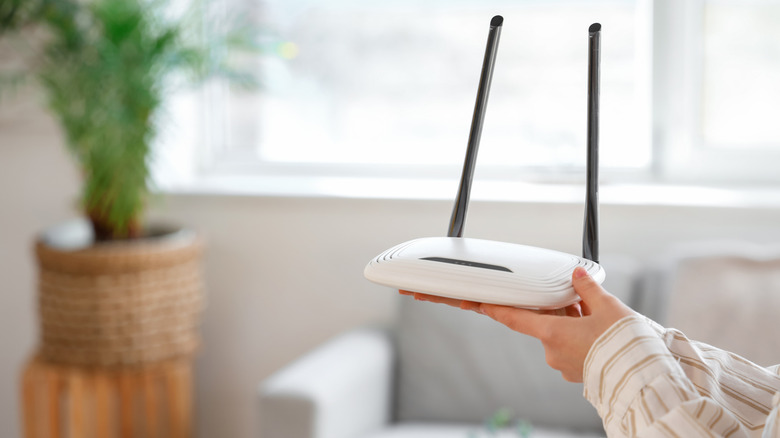
A lot of people aren't even aware that their Wi-Fi router's firmware can be updated. It's a common but costly mistake that jeopardizes network safety and limits your router's efficiency. Go to your router's settings and check for updates there. It's highly recommended to connect your router to your system with an Ethernet cable to prevent any disruptions, which are more likely if this update is carried out via a wireless connection. With the latest firmware, your router's security protocols will be upgraded to fend off any cyberattacks. Sometimes connectivity issues can be addressed with an update, so you don't have to deal with bugs that hamper your internet speeds.
This should become a regular practice if you want your router to stay up to date at all times. Thankfully, some modern routers have an option for automatic firmware updates to take care of this headache for you. If you've gone out of your way to purchase a state-of-the-art Wi-Fi router with all the bells and whistles you'd expect from this investment, then you're bound to find this option in settings. Enable it as soon as possible — if it isn't already — and you won't have to worry about manually downloading updates for your router ever again.
Connecting smart devices to the main Wi-Fi instead of using a guest network
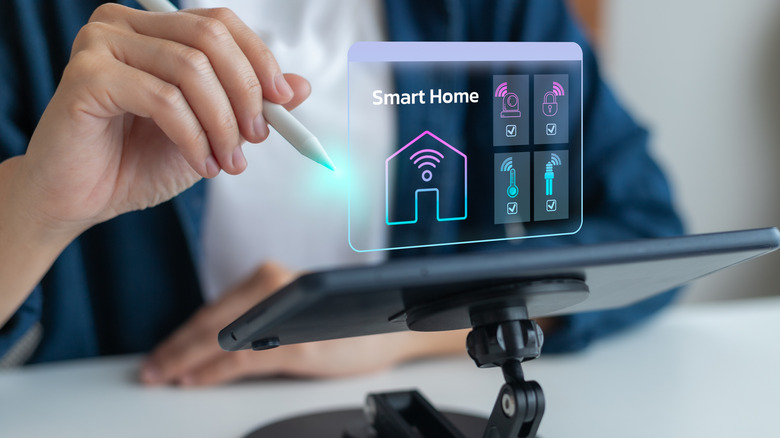
If you're deep into the smart home ecosystem, then don't connect every IoT-enabled device under the sun to your main home Wi-Fi. Not only does this overcrowd the network, but it also serves as a security risk that can leave you open to a debilitating hack. This is because most smart devices have little in the way of network security, making them easy targets for cyberattacks that can tap into your primary network and steal valuable information. A guest Wi-Fi network can take care of this issue for you, serving as a separate access point for your smart home devices. It keeps the primary network free of congestion and safeguards it against hacks targeting your smart products. As a bonus, anyone who's not a member of your household can connect to your guest network, allowing for an additional layer of safety.
You can take things a step further with Zigbee or Z-Wave wireless technology. These are smart home protocols tailored to ensure your digital safety by connecting any smart devices to this network instead of your primary connection. Even if a hacker manages to gain access to one of your smart devices, Zigbee or Z-Wave technology will ensure that their options are limited to manipulating basic smart home functions. Your personal information is protected, and your primary network will have enough bandwidth to accommodate other devices. Smart devices that use Wi-Fi also consume a ton of power, but Zigbee and Z-Wave's optimized protocols minimize that consumption.
Opting for a powerline network instead of MoCA
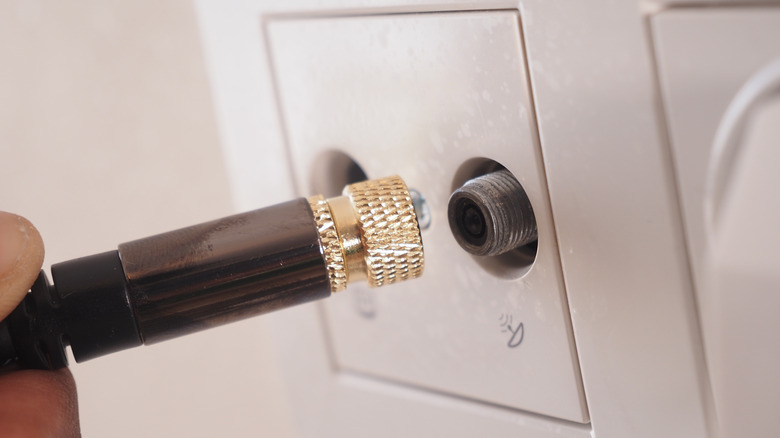
Eliminating dead zones and improving signal strength is a must if you want to enjoy a robust Wi-Fi network. Mesh networks and Wi-Fi extenders are valid solutions here, but there's a way to turn your home's electrical wiring itself into a data propagation network. A powerline system connects to your Wi-Fi network, using two or more adapters that connect to your wall outlets and enhance your Wi-Fi's range. It's a unique piece of tech that looks good on paper, but it can be a hit-or-miss solution in practice. Electrical wiring isn't the most optimal way to propagate data, which can lead to lower speeds and unreliable connections.
So, instead of a powerline network, you're better off using Multimedia over Coax Alliance (MoCA) adapters instead. Instead of electrical cables, A MoCA system turns the coaxial (TV) cables of your house into a reliable network with speed and reliability that far exceeds that of a regular powerline system. If you have a well-connected coaxial network in your household, MoCA adapters are a game-changer, delivering fast internet speeds ideal for everything from 4K streaming to low-latency gaming.
Never using an Ethernet cable along with your router
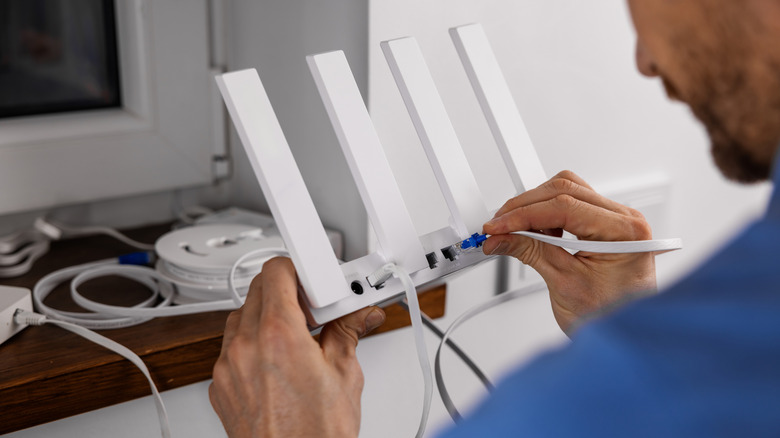
As widespread as wireless technology may be, it's no secret that wired connections will always be faster and more reliable. If you're an avid gamer who wants minimal latency in intense multiplayer sessions or just need the highest internet speeds possible, an Ethernet cable is a must. Most people aren't aware that these cables won't hamper a router's wireless signal. This erroneous notion leads many people to discard the idea of a wired connection outright, preventing them from enjoying a satisfactory multiplayer gaming session with minimal lag.
An Ethernet cable can connect to your router itself, letting you enjoy the best of both wireless and wired internet connectivity. It's the perfect solution, and you can select whatever type of Ethernet cable best suits your needs. Usually, a Cat6a or a Cat7 Ethernet cable is more than good enough for home use. Anything higher than that is considered overkill. However, if you're enamored of the high speeds of a Cat8 Ethernet cable and have a compatible internet connection, you can definitely opt for this to unlock the highest possible internet speeds.