

9 Signs Your Dual Monitors Aren't Set Up Properly
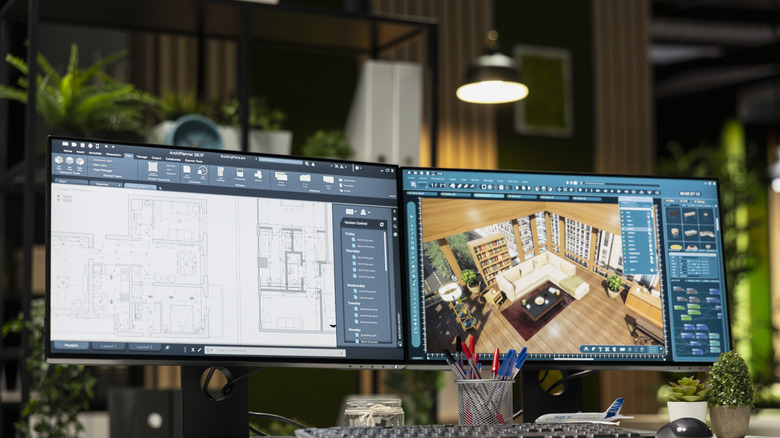
It might be hard to imagine now, but there was a time when having more than one monitor connected to your computer at the same time would have been a rather ridiculous idea. Many PCs could only run one display, much less stretch a workspace across two or more. Windows only officially got multi-monitor support with Windows 98, although Macs had this ability since the late 80s.
Once you've experienced having two monitors, it's easy to see why many consider this the minimum requirement for optimal multitasking efficiency. One can get by on a single monitor using tricks like virtual desktops, and you can use features like window snapping to split apps across the same monitor, but it's not quite like having two dedicated screens.
Today, we take using multiple monitors for granted. It's easy to set up on all desktop operating systems. Even mobile devices like smartphones and tablets can have multi-monitor support, so it really is completely mainstream. And yet, it's still surprisingly easy to misconfigure your dual-monitor setup or to run into maddening issues that have no clear solution. We've collected 10 common signs that something's not quite right with multi-monitor configuration, and how to solve each problem.
Only one monitor works
Having only one monitor working is the most common showstopper and seems to happen right as it's your turn to present to the class, the board of directors, or some other inopportune moment. It's usually also the easiest problem to solve, as long as you're systematic about it. A good place to start is checking whether you've accidentally plugged the second monitor into the motherboard's HDMI port. This is a common mistake when setting up a computer. You want to plug the monitor into a free port on the dedicated graphics card instead, since the integrated GPU (Graphics Processing Unit) is usually disabled when a dedicated GPU is installed.
If you're using a USB-C adapter to connect a display instead of HDMI, which is common for laptops in particular, you should be aware that not all USB ports support this feature. For example, a USB-C port must support DisplayPort "Alt" mode to work as a monitor output. Sometimes, compatible ports will have a small icon that looks like a monitor next to them. Otherwise, you'll have to check that computer's documentation to see if any of the ports support monitors. Of course, you can always just use trial and error to find a port that works, assuming there's at least one.
Some computers will not detect the second monitor unless you reboot with it attached. In Windows, you may also want to use the Win+P toggle to ensure that "extend" or "mirror" is selected, not "PC screen only."
Your display arrangement doesn't match reality
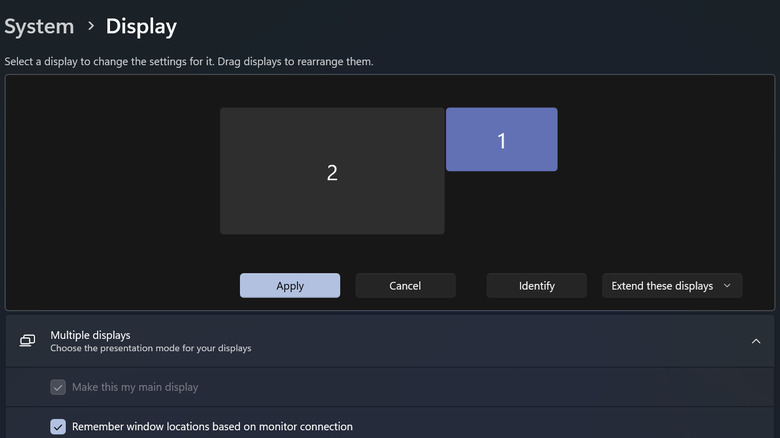
In the vast majority of cases, your computer doesn't know how your displays are arranged in the real world. In some cases, such as when using an iPad with universal control on a Mac, the computer can make an educated guess. In most cases, however, it's probably going to get it completely wrong.
If your computer thinks the monitor on the left is actually on the right, then dragging a window from one screen to the next quickly becomes confusing. That's before we get to the slight complication of mixing monitors with different native resolutions and aspect ratios.
This is why Windows, macOS, and most desktop releases of Linux have an icon in their respective display properties that allows you to dial in what your arrangement looks like in reality. Simply drag the monitor icon to where it should be, and all should be well. However, do ensure that all your monitors are set to the resolution you want to use, since this affects their relative size in the virtual world, as seen above, where a 4K and FHD screen are side-by-side.
Some monitors feel laggy

We don't always have the luxury of using identical monitors in a dual-monitor setup. Attaching a monitor to a laptop or buying a second monitor later for your desktop means you've probably got two very different display devices sitting side by side. This can make one monitor feel laggy compared to the other. This, in turn, can be annoying for some people. Luckily, there are several things you can do about it.
The most likely reason this happens is refresh rate mismatches between your monitors. The refresh rate is a measurement of how often the screen can update the image it displays. The higher the refresh rate, the smoother and more responsive the screen looks and feels to use. You don't need to have a high refresh rate monitor to have an enjoyable experience, but if your one monitor can display at 120Hz and the other can only show half that much, it's going to feel jarring.
If this is something you simply can't get used to, the most practical thing to do is set the refresh rate of the monitors to the highest rate that both monitors support. This way, you'll get a consistent experience when switching between them.
Your monitors aren't plugged into the same GPU
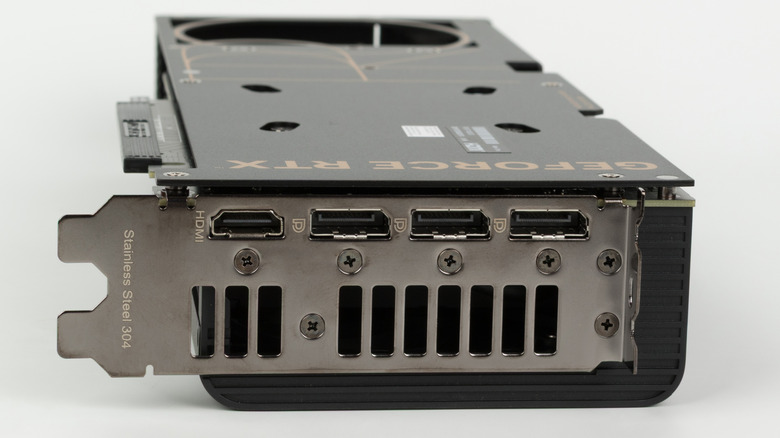
A little earlier, we mentioned that one of the common reasons that a second monitor doesn't work is because it's plugged into the wrong GPU, such as the integrated GPU (iGPU) port in the motherboards of some desktop PCs. However, this doesn't always prevent the second monitor from working. If more than one GPU is active, then each can drive its own set of monitors. A modern operating system is perfectly happy with this.
However, this isn't always an optimal setup, and if you've done it without realizing it, you may run into performance issues without understanding why. For example, if you're playing a video game, then the target monitor for that game should be the one directly connected to the GPU rendering the game. If not, then you may only see a blank screen, or you'll see the game rendered, but with worse performance, as each frame has to be forwarded to the other GPU before it can be displayed on-screen.
On the other hand, using a second GPU, like an iGPU, to drive a second monitor can have benefits. Anything that the second GPU is displaying on its monitor doesn't require processing power from your main GPU, so you can run apps like Discord or a web browser without impacting your primary graphics system. Either way, take care to check that you've plugged your monitors into the GPUs you actually want to use.
UI scaling is way off between monitors
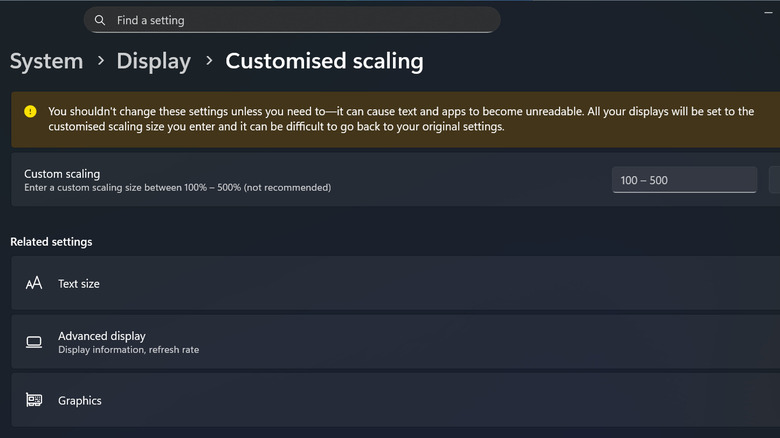
UI (User Interface) scaling is the practice of scaling elements like text and icons on a screen according to its resolution. Suppose you had two screens that are the same physical size, but one has a resolution of 1920x1080 and the other 3840x2160, which is four times the pixel count!
If you had the UI elements take up the same number of pixels on the high-resolution monitor as they do on the lower-resolution monitor, they would be so small the screen would be unusable. Most of the time, operating systems like Windows have a good built-in estimation of how to scale UI elements on your monitors to give them a consistent look and feel. However, sometimes it gets it wrong, or perhaps you just want to change the scaling to your own preference.
In Windows, simply go to System > Display to pick one of the presets (e.g.150%), or you can open Customized scaling and enter a specific integer value betwen 100% and 500%. Use this to tune your scaling (also known as DPI scaling) until you're happy with how both monitors present themselves.
Your monitors have wildly different colors, contrast, and brightness
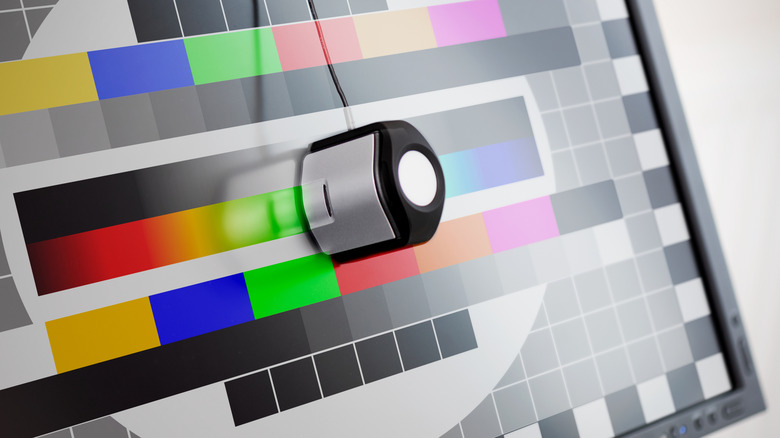
These days, most good monitors come with at least a basic calibration done at the factory, but even two screens that rolled off the assembly line one after the other won't be the same when it comes to color, brightness, and contrast. It's a good idea to calibrate your monitors so that they appear the same to your eyes. This is more comfortable and less jarring, especially when we're talking about color temperature and brightness!
Of course, the ideal is to use a colorimeter like the one pictured above to not only ensure the two (or more) screens look similar to the eye, but that they are all calibrated to an objective standard of accuracy. However, colorimeters aren't cheap, and unless you're doing work that depends on color accuracy, it's probably not worth the cost and hassle
Instead, use the built-in color calibration wizard in Windows, or any similar app you prefer, to calibrate your monitors to each other. If your monitors are different models, you'll never get them exactly the same, but the result will be more pleasant to your eye. You can try to use preset color profiles (ICC) files to get your monitors close to each other, but a lot of the time ICC profiles are more likely to ruin your computer monitor image than make things better, in our experience.
Your games run worse with a second monitor connected
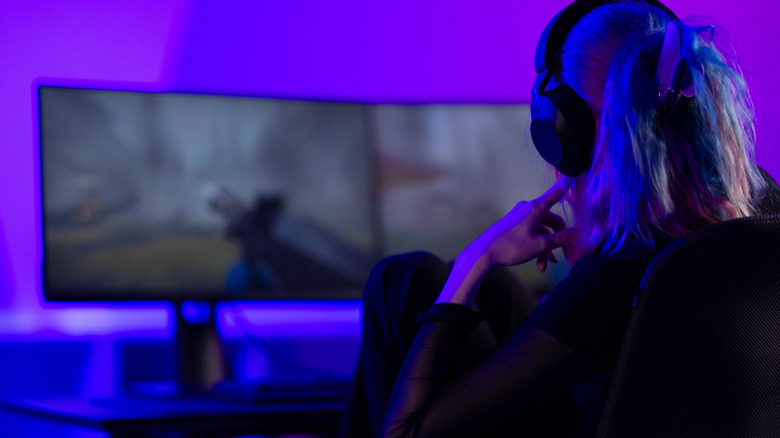
It may seem strange at first, but benchmarks have shown that having two or more monitors can have a negative effect on your gaming performance. The impact can range from negligible to significant, depending on how many monitors you have and what applications are running on those additional monitors.
Running some apps on a second monitor while you play can reduce your frame rate and potentially introduce stutter. This is more common among streamers, but it's not unusual for someone to have a game running in their primary monitor, and a web browser with a game guide, or an app like Discord open on the second screen.
Try running your game with only your primary monitor activated to see if it makes a noticeable difference to game performance and stability. If there is a difference that matters to you, consider playing your games with your additional screens disabled, or if you have a computer with an additional GPU, consider connecting your second monitor to that GPU, so that running the second monitor doesn't take resources away from the GPU running the game.
Your mouse pointer gets stuck
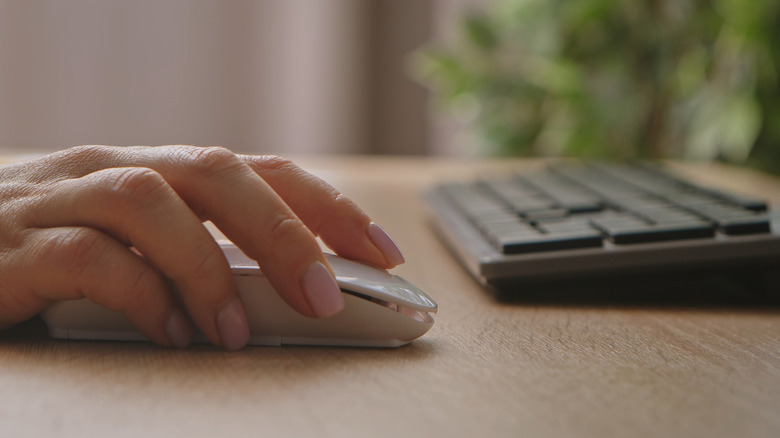
One of the most common annoyances with a dual-monitor setup (which gets worse with more monitors) is managing your mouse pointer. After all, you only have one mouse pointer, no matter how many screens (or mice) you connect to your PC.
Once you leave the confines of a single monitor, that pointer has to traverse a much more complicated landscape, and because the physical location of your monitors is separate from the 2D virtual space your mouse pointer lives in, the pointer can get stuck in unintuitive ways.
The basic solution here is to refer back to the monitor arrangement diagram we looked at earlier and ensure that the places where one monitor transitions into the other precisely match how these screens are arranged in real life. However, sometimes you want to do the opposite. Instead of arranging their virtual positions to reflect reality, arrange them in such a way that transitioning your pointer from one monitor to the other makes sense to you. That way, your pointer won't get caught up against a wall where you don't expect one to be.
Your games open on the wrong monitor
In Windows, you can set which of your monitors is the "primary", and in most cases, any apps you open will first appear on this screen. The same goes for video games, which will usually open on your primary monitor first. Sometimes, though, some games will simply open on another monitor, ignoring which screen is set as primary.
Even worse, it can be surprisingly difficult to move them to the monitor of your choice. There are a few ways to get a stubborn game to go where you want. The first thing to try, with the game selected as the active application, is the keyboard shortcut Win+Shift and the left or right arrow keys. This will move an active application between monitors.
If that doesn't work, the surefire solution is to disable your additional monitors temporarily, but be sure to check the game settings. Some games released in recent years have a setting in the Display section of the game's settings that lets you select a specific monitor. If that's the case, simply change the target monitor to whichever screen you desire.
You'll be seeing double in no time
The early days of the dual-monitor movement were fraught with bugs and frustrations, but these days issues are rare and rather minor when they do crop up. It's likely we've dealt with most of what you're likely to encounter already.
However, thanks to the advent of cheap ultrawide monitors, you no longer need to endure even these minor inconveniences when it comes to productivity. A modern 21:9 ultrawide will handily do the work of two conventional monitors in split-screen mode and, if you're a gamer, offer you a fresh and immersive way to experience your games.
On the flipside, you don't have to stop at just two monitors either. For example, you can combine a laptop's internal screen with a dual-monitor setup for some triple-monitor goodness. You can also repurpose your old iPad tablet to act as an additional screen. Getting your dual-monitor setup working is just the beginning of the journey. There are so many different ways to configure and optimize a multi-monitor setup, though if you aren't using one of your monitors in a vertical orientation, some might say you're using your second monitor wrong. Just food for thought!