

5 Hidden Features To Boost Your Android Phone's Audio Quality And Volume
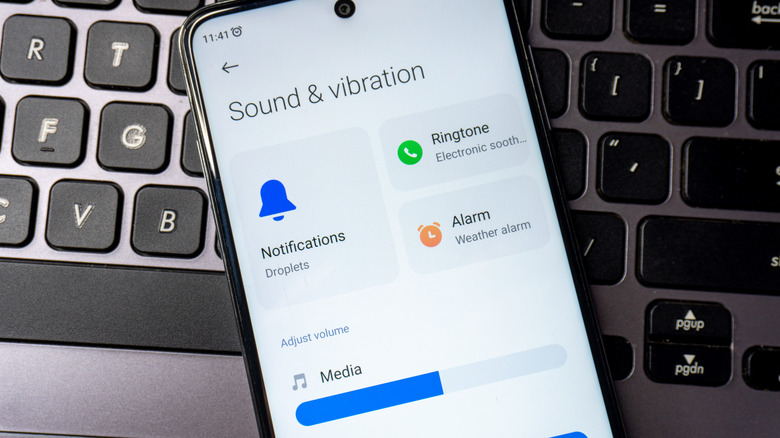
For years, we relied heavily on headphones and speakers to improve the listening experience, as older smartphones usually didn't feature advanced, powerful speakers. But those days are largely gone. Modern smartphones are loud enough for everyday use. However, there may still be instances where your Android smartphone's audio quality doesn't seem up to the mark or the volume feels too low even after dragging the volume slider all the way to the maximum. While it's easy to assume that your phone's speakers are below par or perhaps have started to show age, that's not always the case.
Sometimes, tweaks to the built-in phone settings or a third-party app do the trick. Simple changes like choosing a high-quality audio codec, disabling absolute volume limits, reconfiguring equalizer settings, or enabling native features like Dolby Atmos can provide the much-needed audio boost. When none of these work, there are always third-party apps to help you out. So, if you are planning to upgrade to a top-rated Android phone simply because the current one has low audio, it's worth adjusting a few settings first.
Pick a high-resolution audio codec
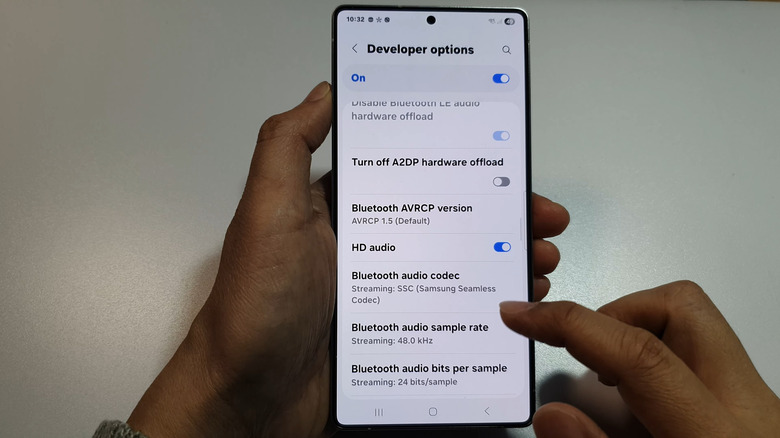
If you use headphones, earbuds, or speakers — basically anything that relies on a Bluetooth connection – manually selecting a high-quality audio codec might improve the sound quality. That's because even though newer Bluetooth audio devices support high-resolution audio codecs, your phone might be configured to use the default one. Default codecs like SBC and AAC are usually considered more reliable. But for better audio quality, picking LDAC will result in a better bitrate. To change the Bluetooth audio codec, first connect the headphones or speakers and check whether Developer Options are unlocked. If so, skip the next step.
In case Developer Options aren't visible, open the phone's Settings, go to About phone, and tap the Build Number seven times. Once done, return to Settings, navigate to Developer Options, choose the Bluetooth Audio Codec entry, and then pick LDAC from the list. You can also enable the LDAC codec from the Bluetooth settings for the headphones. You can also try out the other codecs listed here and pick the one that delivers the best sound.
Disable Media volume limit and Bluetooth absolute volume
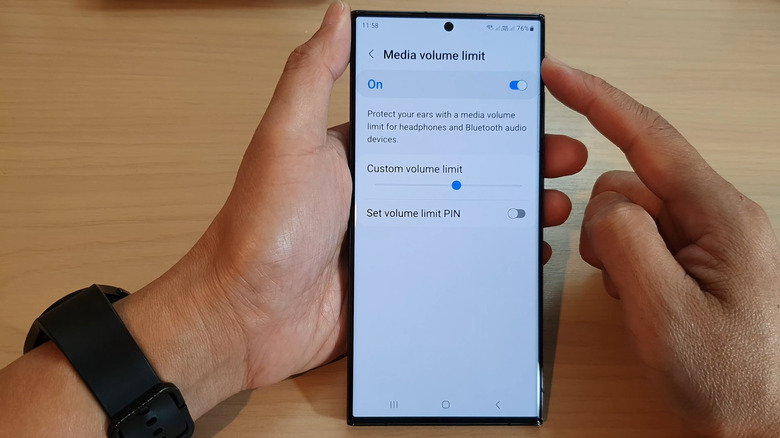
There are two hidden features in Android that limit how loud your phone's speakers or connected headphones can get. The first is the Media volume limit, which caps the maximum sound output of your phone. It does so because when speakers play sound at their designed maximum capacity, the audio starts to crackle or the speaker risks getting damaged. Manufacturers apply this limit to most phones. The second is the Bluetooth absolute volume, which ties your phone's volume control to the connected headphones or audio device. This means that adjusting the volume level of your phone also changes it for the connected device. While the feature usually comes in handy, it sometimes acts as a bottleneck to the audio device's performance.
To disable Media volume limit, open Settings, go to Sounds and vibration, select Volume, tap the ellipsis near the top right, choose Media volume limit, and disable the toggle. To turn off Bluetooth absolute volume, return to Settings, navigate to Developer Options, and enable the toggle for Disable absolute volume. After you are done making the changes, increase the volume to the maximum and check whether the audio feels louder, both from the phone's built-in speaker and your headphones. Keep in mind that listening to loud music can impact your hearing. So, keep it within the safe limit.
Adjust Equalizer settings
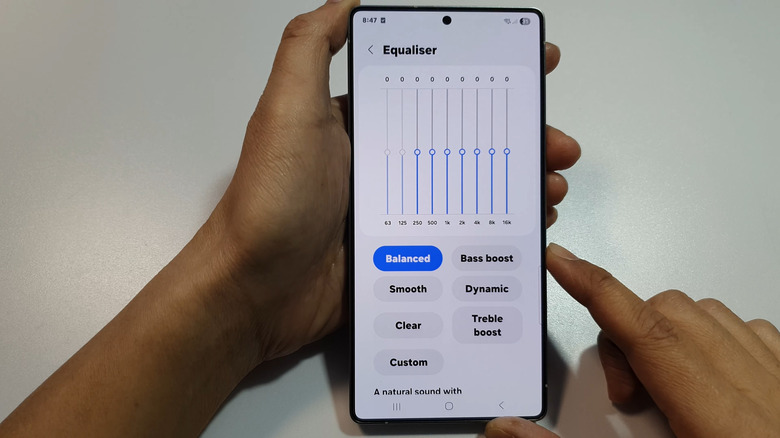
Next, we have the equalizer settings. These decide how the audio sounds, letting you adjust the intensity of low, mid, and high frequencies. This may sound fairly complicated to anyone who is not an audiophile. That's why the equalizer settings have built-in presets to choose from. Depending on the smartphone manufacturer, you will see options like Pop, Classic, Jazz, Rock, and more. By default, the equalizer is set to Normal. Underneath, you will see a bunch of sliders, with lower frequency ones on the left and higher frequency ones on the right.
To adjust the equalizer settings, open your smartphone's settings, go into Sounds and vibration, select Sound quality and effects, choose Equalizer, and then pick another entry from the list. Now, check how that impacts the phone's sound quality. Similarly, test out all the other presets and see which one works best. After trying the presets, you may get a basic idea of how the intensity of low, mid, and high frequencies affects the audio quality. You can then try choosing Custom and manually adjusting the sliders for different frequencies. Even if it doesn't work, you can always revert to Normal or another preset. Alternatively, you can use dedicated equalizer apps like Equalizer FX, which are free to use.
Enable Dolby Atmos
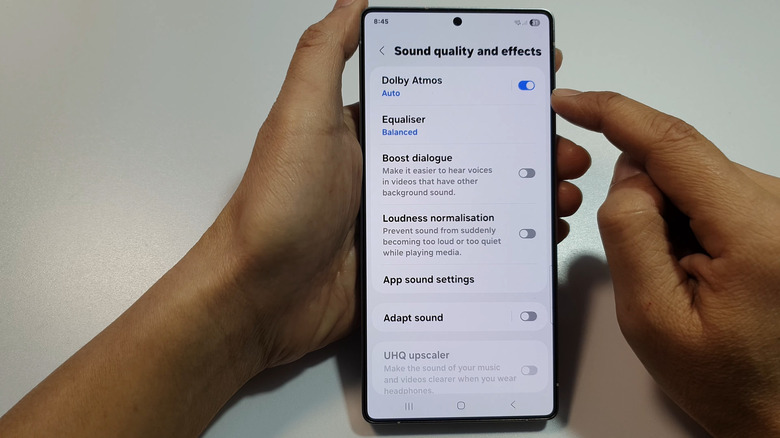
If you don't want to adjust a lot of settings, simply enabling Dolby Atmos may significantly improve the audio experience on your smartphone. Dolby Atmos creates a surround sound effect. Many modern smartphones support the Dolby Atmos standard. It just needs to be turned on. When you do that, the sound becomes immersive. To enable Dolby Atmos, connect the audio device to your smartphone, open settings, go to Sounds and vibration, then into Sound quality and effects, and turn on the toggle for Dolby Atmos.
In addition to supported devices, the content should also support Dolby Atmos for the best experience. Music streaming apps like Apple Music and Amazon Music, or services like Netflix, Prime Video, and Apple TV, also support Dolby Atmos. So, when assessing the effects on sound after enabling Dolby Atmos on your Android phone, make sure you stream content from one of the supported services.
Use a volume booster app
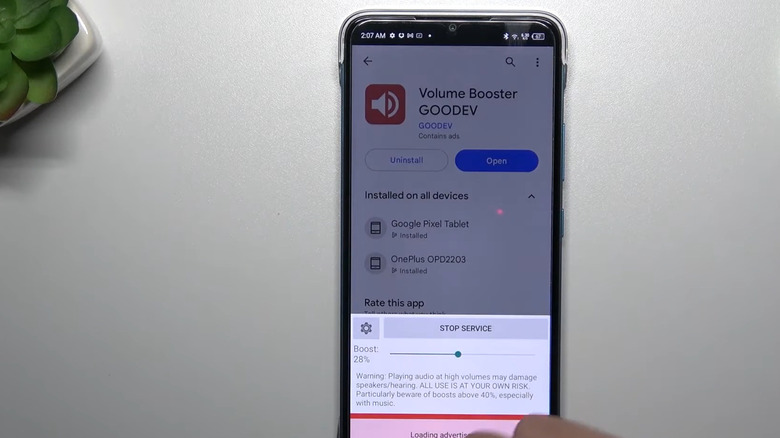
Lastly, you have the option to use a dedicated volume booster app. While it isn't always the safest option, a third-party app can be highly effective if you are looking to make your speakers sound louder. With apps like Volume Booster GOODEV, you can quickly increase the volume of your phone's built-in speaker or the connected headphones. The best part is the ease of use. In most cases, simply dragging an in-app slider will make the audio louder.
However, this does come with a few risks. First, listening to loud music over extended periods can affect your hearing. Second, it may damage the speakers. Volume Booster GOODEV, for instance, recommends against boosting audio over 40% due to these risks. But as a last resort or a quick fix for low audio output, these apps can work well.
Keep in mind that results from enabling/disabling these features will vary for everyone, depending on the manufacturer and the setup. For some of you, a high-resolution codec alone may deliver the expected results, while others might have to adjust equalizer settings or turn on Dolby Atmos as well. The best option is to try them all out and then retain the configuration that works best.