

4 Things You Can Do On A Kindle (Besides Reading)

We may receive a commission on purchases made from links.
Many users would argue that there is nothing better to do on a Kindle than to read. It is, after all, designed exactly for that purpose. It has an e-ink screen that gives it a paper-like look and feel. This puts less strain on your eyes, all while being flexible enough for reading in both the bright outdoors and a dark room. It also has no apps, so there's less of an urge to doomscroll and no distracting notifications popping up anytime. Conveniently, Amazon Prime even has a hidden Kindle perk, where you get one free book every month from a selection of unreleased titles. This means you can enjoy a book before anyone else.
But while reading is the primary selling point of a Kindle, it actually has a few other functionalities up its sleeves. You can use your Kindle for annotating documents or browsing the web like on a conventional tablet. Moreover, you can use its built-in features to track your habits or strengthen your vocabulary.
Annotate work/school documents
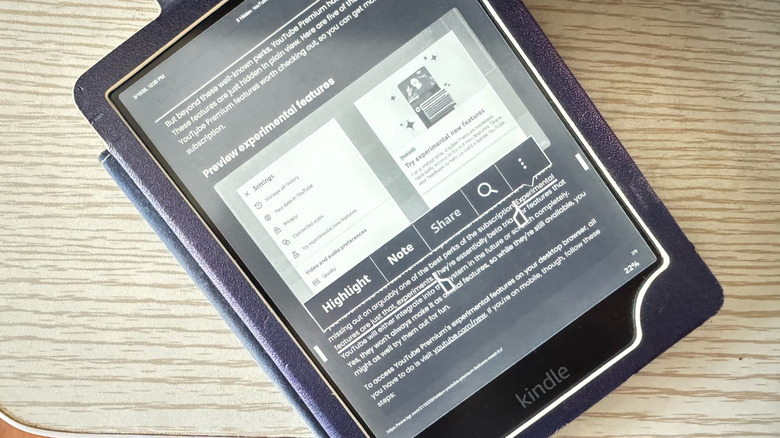
If you don't already know, Kindle supports personal documents and treats them like any other book you download. That means you can also annotate them like you would a regular book. This is particularly handy when annotating a long and boring document for work or school. Your highlights and notes will be saved in a separate file, so you can save time and energy. To work with personal documents on your Kindle, check this guide:
- Visit amazon.com/sendtokindle on your desktop browser.
- Log in to your Kindle account if you haven't already.
- Click Select files from device.
- Choose the PDF you want to open on your Kindle. Keep in mind that you can only send documents with a size of 200MB or less.
- Hit Send.
- Wait for the Status to show "In library."
You should be able to find the document in your Kindle library. When you find a passage worth highlighting, simply start writing using the pencil to add a note. You can also press and hold on the word and move the selection handles to capture the whole phrase or sentence. Then, choose the A icon from the menu. To add notes to your highlights, tap the highlighted passage, select the note icon, and type your note. It will automatically be recorded on your Kindle Notebook.
Once you're ready to retrieve your highlights and notes, download and sign in to the Kindle app on your phone. Open the document you annotated, tap on an empty space, and select the Notebook icon at the top. To export your annotations, click the share icon and enter your email. They'll be sent to you as an HTML file.
Browse the web
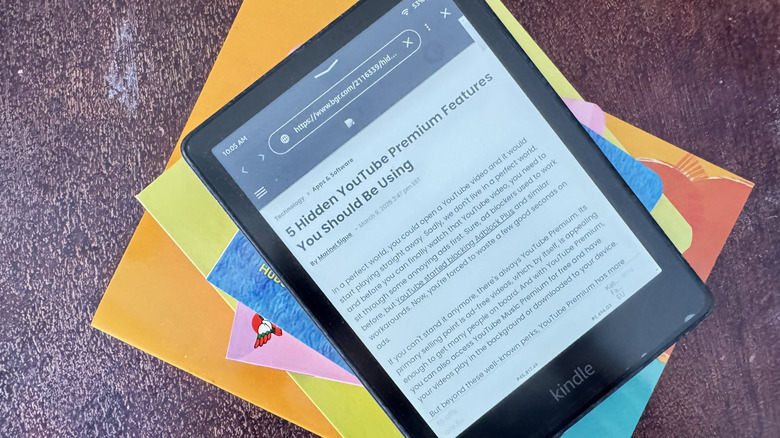
Your Kindle isn't only great for reading books, but also for reading web articles. Yes, this e-reader actually comes with a browser hidden in plain sight. To launch it, press the More icon (three vertical dots) in the top-right of the screen and choose Web Browser from the menu. Once opened, the Kindle browser works like any other browser. You can do Google searches, tap on links, and browse through articles like usual. There's even an option to bookmark a page and check your history.
If you plan on spending a good few minutes on a specific web page, the Kindle browser also has a nifty feature to enhance readability. Article Mode — found in the More icon on a web page — essentially formats the article in a more reader-friendly layout. It strips unnecessary elements like the website header, sidebars, and ads off the page, much like how some free browser extensions work. You're then left with only the main text in a less cluttered and distraction-free view.
While the Kindle browser does a solid job of displaying web pages, it actually isn't as powerful as your desktop and mobile browsers. It responds much slower to input and struggles with displaying images, especially while scrolling. That means it's best to avoid sites filled with photos. You can also just remove the images from the page altogether. From anywhere on the browser, tap the More icon and head over to Browser Settings. Then, select Disable Images and hit Done to exit. The web page will now display purely text from here on out. If the image does include an alt text, only the alt text will be shown on screen.
Track your habits
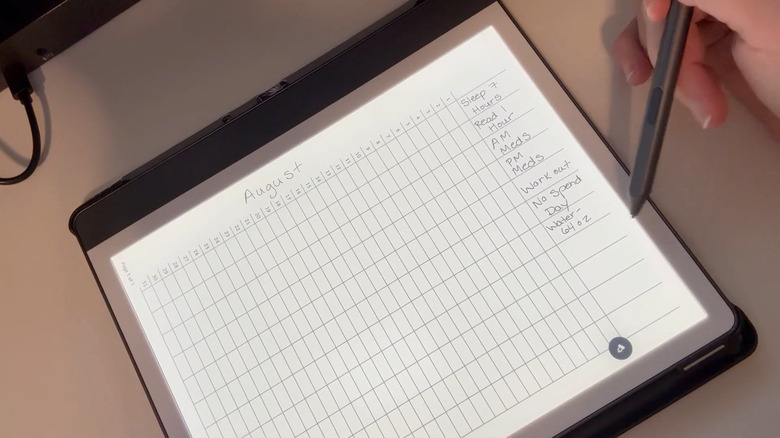
The Kindle Scribe is among the e-readers on Amazon users swear by, and for good reason. It works as a reading device and doubles as a space for handwritten notes. But other than reading and note-taking, you can also use the Scribe as a digital monthly habit tracker. Here's how:
- Go to the Notebooks tab at the bottom of the screen.
- Hit the plus icon in the top-right corner.
- Select Create notebook and type a name for your notebook.
- Choose the Habit tracker template at the bottom.
- Press Create to proceed.
- Fill the top row with your habits, keeping one habit per column.
- Write the current month in the leftmost margin.
- To check off that habit, mark it on that day with either a checkmark or by simply filling in the box.
- To create a new habit tracker page for a new month, swipe left.
Just like on any other Notebook, you can also use the pen tools on this template. Tap the pen icon on the left of the screen to open the tool panel. Then, feel free to switch to a different pen, a highlighter, or eraser and change the line thickness to your liking.
If you're not a fan of the pre-made habit tracker template on the Kindle Scribe, you can just build your own, then import it to the device. Design your template in your favorite editor app like Canva, and make sure to download it as a PDF. Then, upload it to your Kindle like you would any personal documents (via email or the Send to Kindle website). The only downside to this workaround, though, is that the PDF will appear in your Library instead of the Notebooks tab.
Quiz yourself on vocabulary words
One of the fun things about reading is picking up new words and expanding your vocabulary. Thankfully, your Kindle makes that easy with its built-in dictionary. If you come across an unfamiliar word, just long-press it, and you'll automatically pull up the dictionary with the definition.
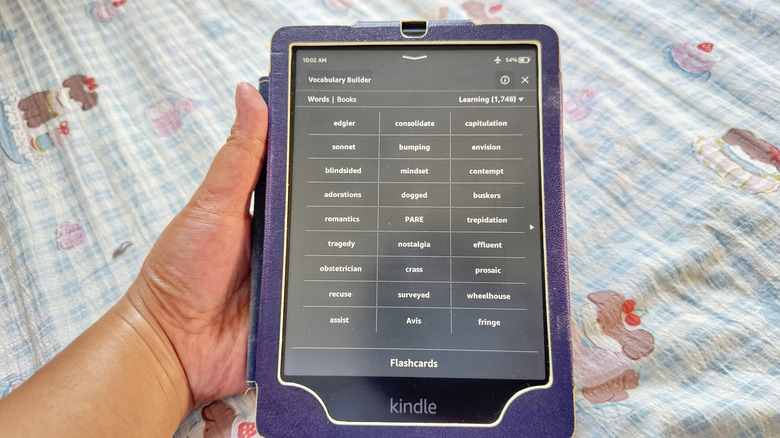
Every time you look up a word, your Kindle does another thing in the background: saving that word to your Vocabulary Builder. The Vocabulary Builder is a collection of words you've looked up while reading. The more often you read and look words up, the larger your Vocabulary Builder will be. Besides storing the words you were unfamiliar with, the Vocabulary Builder can also help you master them via flashcards. To access your Vocabulary Builder, follow these steps:
- Open any book in your library.
- Press the top of the screen.
- Hit the More icon in the upper-right corner.
- Navigate to Vocabulary Builder.
You'll then see all the words you've looked up across your different books. Tap on one to view its definition and how it was used in the book it was taken from. If you're only interested in the words from a particular book, though, go to the Books tab at the top and select the book.
Once you're ready to start quizzing yourself on the vocabulary words, all you have to do is click on Flashcards at the bottom. A flashcard with the word and sample usage will show up right away. Try recalling the definition in your head, then tap See Definition to check if you got it right. If you already know the word and no longer need a dictionary to see what it means, feel free to press Mark as Mastered on the flashcard. That way, it won't appear in your flashcards anymore.