

The Hidden Back Tap Feature On Your iPhone Has Some Clever Uses
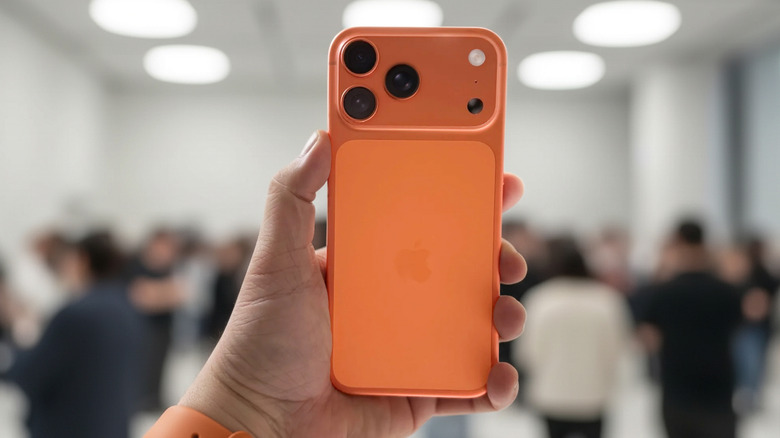
In the past, it was pretty common for Android users to give the iPhone flack for not being customizable enough. But it can be easy to forget the number of options available in the Settings menu of an Apple smartphone. Naturally, we love digging through an operating system to find some of the coolest or most useful tricks — such as these 13 iPhone security settings you should enable right now — and users should be aware of an iPhone feature that essentially turns the back of the device into a giant button.
Known as the Back Tap feature, those with a supported iPhone model can use the back of their device to perform a variety of actions. This clever feature is buried within the iPhone Settings menu, but if you're the type that has a flair for automation, it is certainly worth checking out. Getting started with Back Tap is fairly straightforward, but there are a few options to consider, so let's check it out. As a reminder, there are several hidden iOS 26 features that are actually useful, so remember that exploring your iPhone Settings can help you discover its full capabilities.
Where is the iPhone's hidden button?
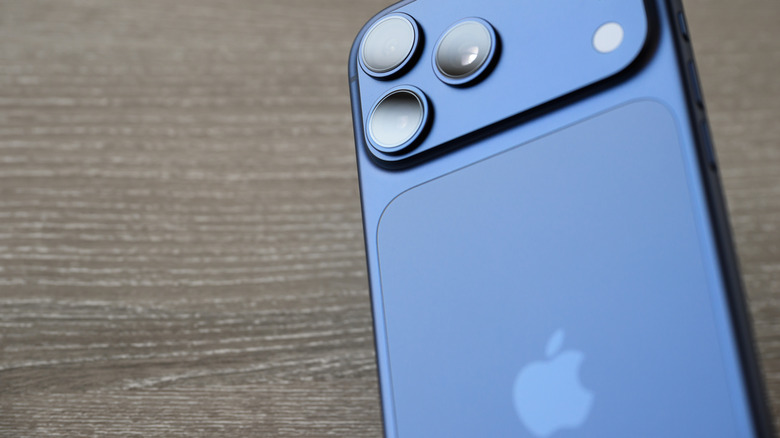
The Back Tap feature has been available for the iPhone since iOS 14 and works with the iPhone 8 or newer. Located within the Accessibility menu, Back Tap allows users to perform custom actions when they double or triple tap the back of their phone. Users can tap anywhere on the backside of an iPhone, including the area that houses your camera, to activate this hidden feature.
With it, you can navigate to different system applications, including the Control Center, Lock Screen, or Notification Center. It can also be set up for an Accessibility feature, such as VoiceOver or enabling and disabling Background Sounds. Back Tap supports iOS Shortcuts as well, even those iOS Shortcuts you didn't know you needed.
Using Shortcuts options, the Back Tap feature can be used to open apps that aren't available through Apple's Settings. And for those who use a cellphone case, Back Tap should work, even if your case is on the bulky side. It's also worth noting that while more recent versions of iOS will have a banner providing information about when you use the feature, there is no tactile confirmation feedback, meaning it is possible to accidentally trigger Back Tap and not know it.
How to use Apple's Back Tap feature
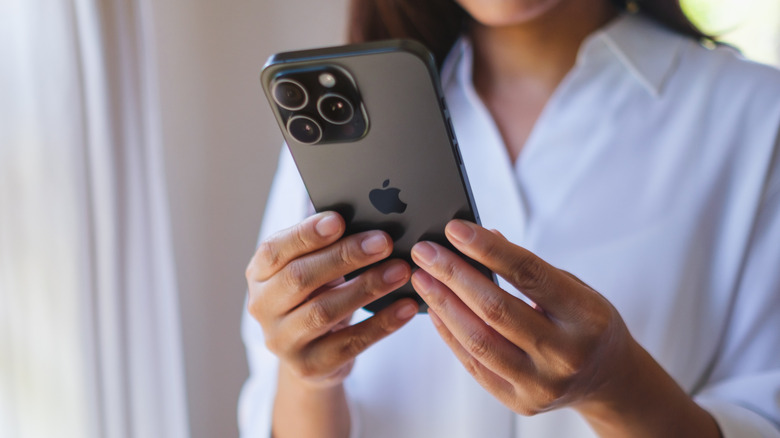
Just like some other useful iOS features you need to start using, getting started with Back Tap involves the Accessibility settings on your iPhone. Be aware that you can enable or disable the Show Banner option, which provides a little notification when the Back Tap feature has been used.
With that in mind, here are the steps to use Back Tap:
-
Open the iPhone Settings menu.
-
Select Accessibility.
-
Tap Touch.
-
Choose Back Tap.
-
You will have two options: Double Tap or Triple Tap. Selecting one of these options will provide you a list of actions.
-
Once selected, you can then double tap or triple tap the back of your device to engage that action.
Despite the process being rather simple, you can use this feature to pull off some cool tricks. For example, if you set the Double Tap option to Camera, you can then set the Triple Tap to Volume Up or Volume Down — allowing you to open the Camera app and take a photo with just five taps. If you ever want to disable this feature, set the Double Tap and Triple options to None, which will unassign any actions you previously setup.