

What The Power Indicator Light Colors On Your PS5 Are For

The current-gen PlayStation 5 delivers high graphical fidelity and excellent performance across a bevy of titles. It also boasts a unique, futuristic design, with many interesting angles and curves making up its stand-out black and white exterior. It can be positioned horizontally or vertically at your media center, but be warned — should you opt for an upright setup, there's a slight chance your PS5 would need some repairs eventually.
On the surface, the PS5 doesn't look like it has an indicator light to let you know the console's running. But it does — it's just a cleverly hidden feature. Your PS5's indicator is a tucked-away LED light strip positioned at the center of the console. It runs along the perimeter of the system's glossy black center chassis, and it fires up the moment you power on your system. Once you do, "power on" is indicated by a blue light that eventually transitions to solid white. That's what you want to see, since it suggests your PS5 is 100% operational. But there are a few other light colors and pulse patterns you should be aware of as a PS5 owner.
If your PS5's LED indicator blinks white or blue, or if it remains solid blue, you may be dealing with a console error. If your system is frozen or otherwise not working correctly, Sony suggests unplugging the power cord, waiting three minutes, and then reconnecting power to unfreeze your PS5. If that fails, the company recommends using the device's built-in Safe Mode.
The PlayStation 5 has a few indicator light colors and patterns you should be aware of
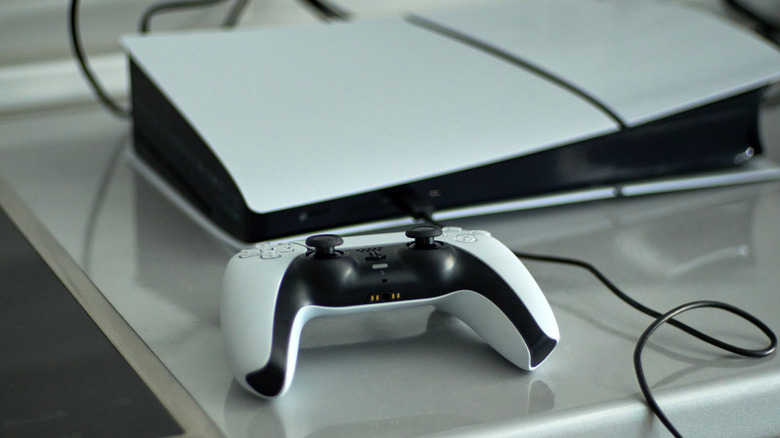
When you've had your fill of video games for the day, it's time to turn off your PS5. Or, at the very least, it's time to put the system into rest mode — especially if you just plan on playing again in a couple of hours anyway. If you shut down the console completely, the indicator light should blink white, then turn off to indicate the console is fully powered down.
When you put your PS5 into rest mode, the indicator should turn solid orange. Rest mode will allow you to charge controllers, as well as download and install content. To wake a console from rest mode, simply press and hold the PS button on a controller that's been paired to the console (or connected via USB). The indicator should also flash orange when entering rest mode.
Here's a nice little bonus: You can easily adjust the brightness of the PS5's power indicator light. To do so, fire up your PlayStation and go to Settings > System > Beep and Light > Brightness. From there, simply choose between Dim, Medium, or Bright according to your preference, and your new settings will be applied. The indicator light really helps if you're experiencing system failures, and it's one of many things your PlayStation 5 can do to streamline your experience of using the console.