

Yes, You Can Use Amazon Fire TV Stick On A Laptop - But Is It Worth It?
We may receive a commission on purchases made from links.
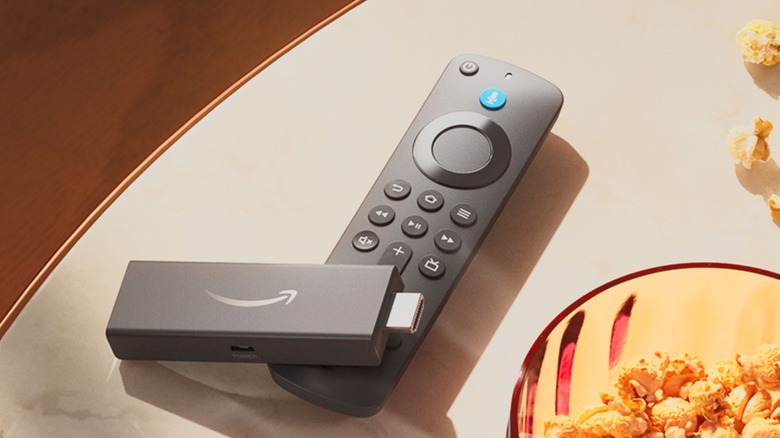
The Amazon Fire TV Stick is an excellent addition to your entertainment center, especially if you already subscribe to Amazon Prime — who wouldn't want a dongle that streams live football and video games? But if your TV already has smart features, using an Amazon Fire Stick might seem superfluous. Of course, you could always hook it up to your laptop instead of your TV. With some work, that is.
Technically speaking, a Fire TV Stick isn't compatible with a laptop out of the box. It turns out that HDMI ports have a dark secret: All HDMI cables can fit HDMI ports, but different slots have distinct functions. In the case of laptops, their HDMI ports are all output-only components, so they can only send data, not receive it. To use an Amazon Fire TV Stick on a laptop, you need to trick your computer into accepting visual and audio signals through the port.
The best way is to use a video capture card with an HDMI slot and a USB port. You can buy these devices through retailers such as Amazon, although prices vary wildly depending on the model and brand. So long as the Fire TV Stick slots into the input end and the computer is connected to the output end, you can start the process of making Fire TV work on your laptop.
You need extra programs to use Amazon Fire TV on a laptop
Modern technology has spoiled many computer users. You just plug a mouse, keyboard, monitor, or other peripheral into a desktop or laptop, and it will install all the requisite drivers. However, since the Amazon Fire TV Stick was designed to work with a TV (it's in the name), you must put in some extra work to make the dongle cooperate with a laptop.
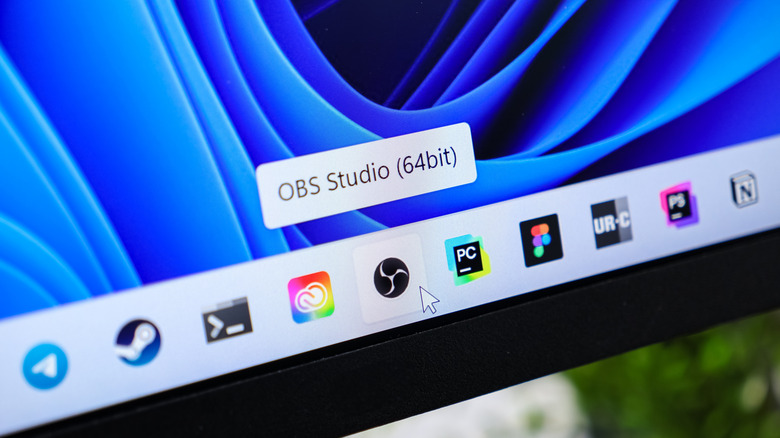
After you connect a video capture card to bridge the connectivity gap between your laptop and a Fire TV Stick — and plug the dongle into a power outlet — you need to install a video capture program such as OBS Studio. Without this software, you can't use Amazon Fire on your laptop. Once the process is complete, you should open the Settings menu in OBS Studio and customize the Output Resolution (in the Video tab) to your liking.
Once you're done setting up OBS Studio, it's finally time to add the Amazon TV Fire Stick. On the program's main page, click on the plus button in the Sources tab, then select Video Capture Device. Under Create New, enter a name for the capture card, and press Ok. Change the Device option to USB Video, and click Ok again. If you did everything correctly, you should see Amazon Fire TV on the screen. But before you can start watching, click the button with three dots under the device's name, select Advanced Audio Properties, and set its Audio Monitoring to Monitor and Output. Close out of that window, right-click on the preview window, and select Fullscreen Projector (Preview) to enjoy your favorite Amazon shows on your laptop.
You can access most Amazon Fire TV apps without the Fire TV Stick
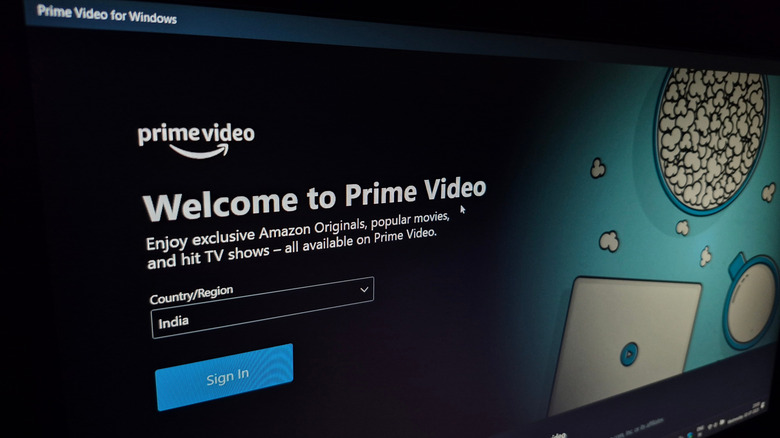
When we said that buying an Amazon Fire TV Stick feels superfluous if you own a smart TV, especially an Amazon Fire TV, we weren't totally honest. The Fire TV Stick loads programs faster than a standard smart TV, but if you don't mind a bit of lag, you can get all the same apps on an Amazon Fire TV without the Stick. The same argument applies to a laptop.
While you can install plenty of apps onto your Amazon Fire Stick, they're all readily available through a laptop's internet browser, too. And, since computers are generally more powerful than smart TVs, they will load these streaming services faster as long as your internet speed is solid. You can also use voice controls to navigate these streaming platforms, just like you can with the Fire Stick. The only important feature of the Amazon Fire TV Stick that you can't replicate with a computer is the ability to stream your Ring Doorbell's live feed. But then again, you can use the Ring app on your smartphone to achieve the same result.
Ultimately, using an Amazon Fire TV Stick on your laptop is little more than a novelty. It's a fun experiment that can teach you how to set up devices that don't work natively on your computer, but in terms of pure functionality, the Amazon Fire TV Stick does almost everything a computer does, just slower.