

8 Tips And Tricks Every Windows Touchpad User Should Know
You won't always want to (or be able to) use a mouse with a laptop, and whether you call it a touchpad or a trackpad, it'll be your best friend in piloting your computer. Using a touchpad isn't as great as using a mouse, though; you don't have as much control, it can feel cheap, and — while the newer haptic touchpads are an improvement — you'd almost always want to use a mouse.
Still, your touchpad experience can be improved. There's nothing you can do if it just physically feels wrong (except maybe cleaning your touchpad), but with Microsoft constantly pushing out new Windows 11 features, there's a lot you can do to customize how it interacts with your system. It helps to know the various gestures that are turned on by default as well as ways of customizing them to fit your needs better or removing them entirely.
Gestures aside, you can even control how hard you have to press for a touch to be registered to get rid of unintentional clicks, change the speed at which your cursor moves, and turn your touchpad into a dedicated music controller. Whether you're on Windows 10 or Windows 11, here are some tips and tricks that every Windows touchpad user should know.
1. Changing cursor speed and touchpad sensitivity
No two people have the same preferences, and good user support means giving people ways of customizing parts of their experience. When you're using a computer, there's nothing you'll be doing more than moving your cursor around. If you're used to the speed at which your cursor moves, great! But if you think it moves too slow or snaps around too fast, you might want to customize it.
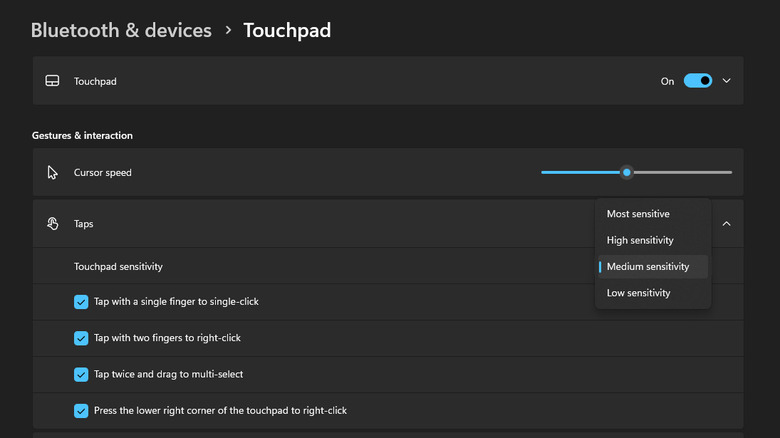
For those using a mouse, this is as simple as changing your mouse's DPI. However, what if you don't have a mouse? For touchpad users on Windows 10 or 11, this is as simple as opening up your settings, going to "Bluetooth & devices," and then going to "Touchpad" settings. From here, you can change your cursor's movement speed to your liking.
Another common issue that many touchpad users face is unintentional touches from your wrist resting on the touchpad. How much of a problem this is depends on where your specific touchpad is placed, but you can make your experience a little better by changing how hard you have to press for a touch to register. To do this, go to "Bluetooth & devices" again, click on "Taps" right below "Cursor speed," and you'll find a "Touchpad sensitivity" option. From here, choose the option that fits you best from among low, medium, high, or the most sensitive.
2. Zooming and scrolling
For most people, a touchpad is just an alternative to a mouse, with its sole purpose being moving your cursor and clicking on things on the screen. This is good enough for casual browsing, but there's a lot more you can do with your touchpad. By default, Windows ships your system with built-in gestures that are turned on by default. Two of these gestures that might come in handy include zooming in and out and scrolling.
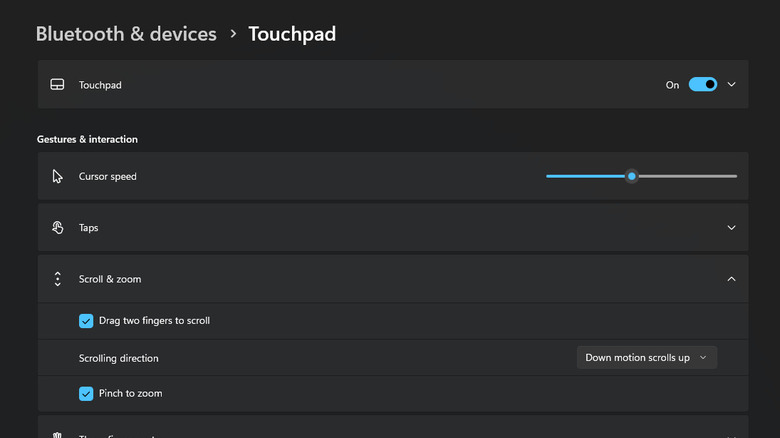
You don't have to activate either of these; simply performing the associated gesture will let you use the attached function. For zooming in and out, the way to do it is the same as you would on a smartphone or tablet: pinch to zoom out, and do the opposite to zoom in. If you want to scroll using your touchpad instead, you can do this by holding two fingers to your touchpad and then dragging them up or down.
Microsoft gives you additional ways of customizing your scrolling further as well. You can turn off either option by going to "Bluetooth & devices" and then clicking on "Scroll & zoom." This will open up a menu where you can turn off either option. Additionally, you can reverse the direction of the scroll as well to fit your tastes better. The option to do this is in the same menu inside "Scroll & zoom."
3. Switching or tabbing between programs
There are a ton of programs most people have open at all times nowadays. There's your browser, your preferred messaging app, and maybe some music in the background. If you use your laptop to work, you'll have apps such as Slack, YouTube, or a programming space open most of the time. This can get very messy, and tabbing provides a much better alternative to using your cursor to switch between programs.
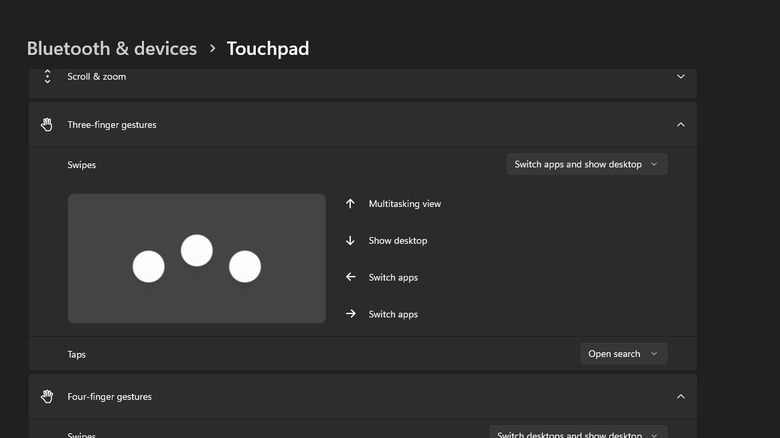
This convenience can be made even better, though, as there's a gesture turned on by default on all touchpads for devices with Windows 11. If you use three or four of your fingers to swipe up, you'll open the Multitasking view, which shows you all the tabs you have open at any given time. Similarly, swiping either left or right with three or four fingers switches to a different program. Additionally, swiping down with either three or four fingers takes you to your desktop.
4. Changing default gestures
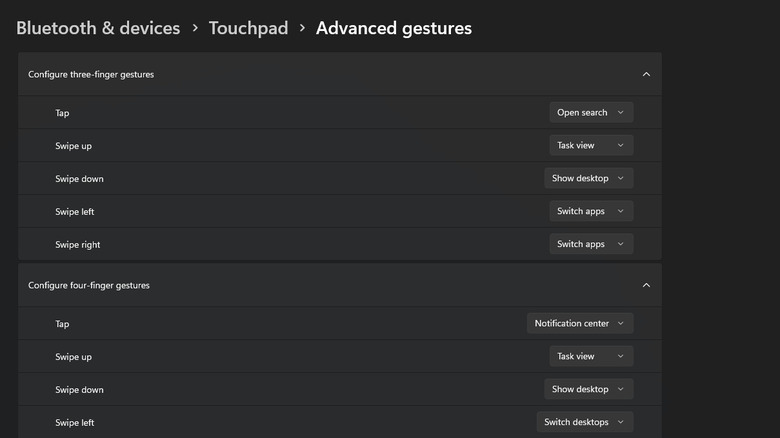
Knowing what gestures you have access to on your touchpad is one way of having a more comfortable experience on your Windows laptop, but there's still more you can do. One of the best tricks in mastering your touchpad is knowing what options you have access to and how to change these default gestures into ones that fit you better.
The way to change a default gesture is very straightforward. Inside the "Touchpad section" in "Bluetooth & devices" in your settings, click on the right side of any gesture trigger that you want to change. This can be a double tap, a swipe, or a four-finger tap. Some of these can be found on the "Touchpad" page directly, but you might have to click on options like "Taps" to open up dropdowns that show all the gestures. Furthermore, you can navigate to "Advanced gestures" right below "Related settings" in the "Touchpad" to find even more gestures that you can customize.
You have a lot of control here over what changes you can make to the default touchpad gestures, including opening certain programs, using keyboard shortcuts, and changing system settings. For example, you can set it so swiping to the left with three fingers goes back on a web page, removing the need to press the back button directly. Another useful gesture is snapping windows to either side of your screen if you want to have YouTube open alongside another app such as your notes.
5. Creating unique custom gestures
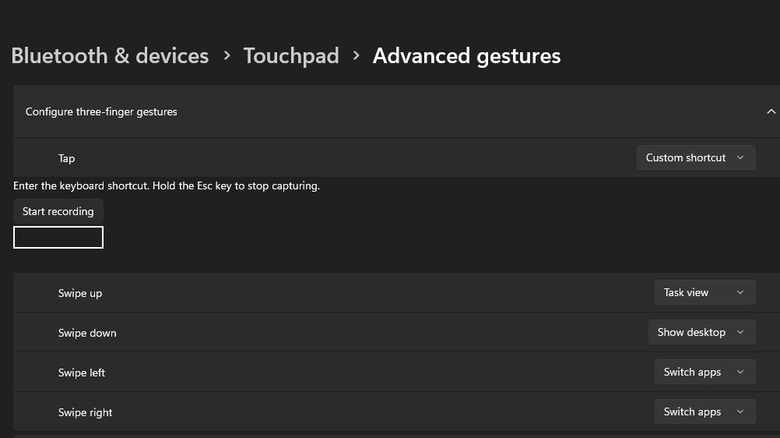
Microsoft gives you a lot of options when it comes to what you want your gestures to do, but what do you do if your specific desired use isn't among the options? Fortunately, apart from the options in the dropdown menu, there's a hidden Windows 11 feature that lets you create a custom gesture. This includes things like using keyboard shortcuts, function keys, and more.
To do this, you can go to "Advanced gestures" inside "Touchpad" gestures. From there, choose any activation (three-finger tap, four-finger drag, or anything else), and then select what you'd like it to do. If it's a keyboard shortcut, you can record the sequence of keys, and they'll play out whenever you perform the gesture.
There are a lot of useful custom gestures you can add to your daily routine. For example, you could set gestures for common keyboard shortcuts like CTRL + C to copy and CTRL + V to paste when you use a four-finger tap or bind your four-finger swipe to a key such as DEL or the backspace to make things easier. You could even set a shortcut for the function key + anything that you often use, such as muting your volume, changing it, or pausing a YouTube video.
6. Choosing your preferred way to right-click
A mouse has two buttons with different uses: one to click whatever you're hovering on normally and the other to show additional options. For touchpads, this secondary right-click usually means pressing a mechanical button on the right side of the touchpad to actuate a click.
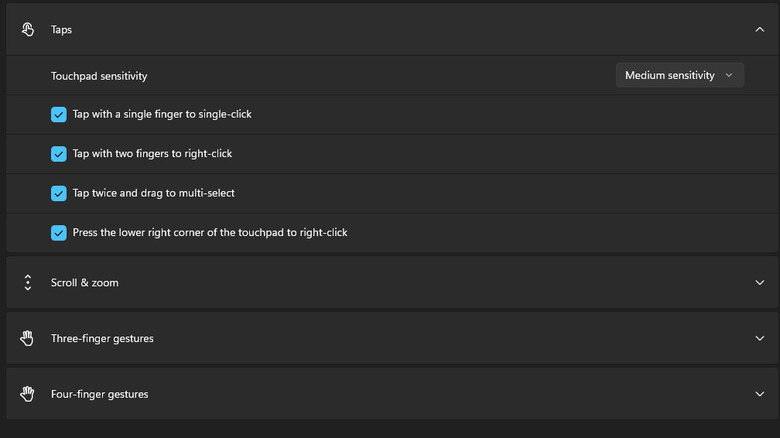
If you have a cheap touchpad, this can be janky, where you either accidentally right-click when you want a simple click, or you can't right-click even when you want to. With newer laptops opting for better haptic touchpads, the more common way to right-click is now to tap with two fingers anywhere on your touchpad, a gesture that's turned on by default in Windows 11.
You still have the option to right-click using the bottom right of the touchpad if you prefer that, but it's good to know what other options you have access to. Furthermore, if there's one way you prefer over the other and want to disable the one you don't use, there's a simple way to do so. Navigate to your settings, then "Bluetooth & devices," and then "Touchpad." Here, you can click on "Taps" to open a dropdown that shows what gestures are turned on, including the two different ways of right-clicking. Deselect the one that you want to disable, and you'll be set.
7. Using your touchpad to control volume and music
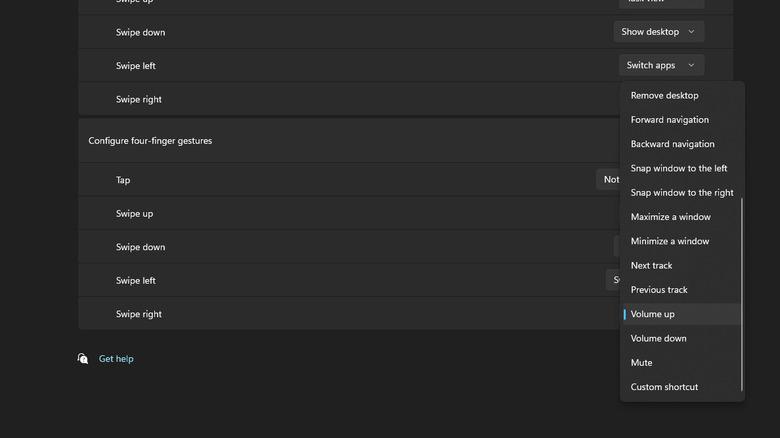
We've talked about the usefulness that gestures provide and how you can change the default ones and even create custom gestures using keyboard presses. All of these gestures make your life easier by themselves, but you can combine them together to make your Windows navigation even more seamless.
There's a lot you can do, such as turning your touchpad into a complete volume and music control hub. When you open up the gesture option dropdown menu on any one gesture, you can see functions such as turning the volume up or down and switching between music tracks. Alternatively, you can record a custom gesture using your keyboard's function keys to control the volume and tracks. Either way works, and it is simple to do once you get the hang of setting your own gestures.
For example, you can set it so swiping three fingers up increases the volume and swiping them down lowers it. Similarly, you can make it so a three-finger swipe to the right means skip to the next track, and a swipe to the left takes you back to the previous one. You can also set it so a three-finger or four-finger tap mutes or pauses whatever is playing. These are all things you can do using your cursor and buttons on the screen, but being able to control everything to do with your audio and music from your touchpad makes navigation quicker and snappier.
8. Turning off gestures
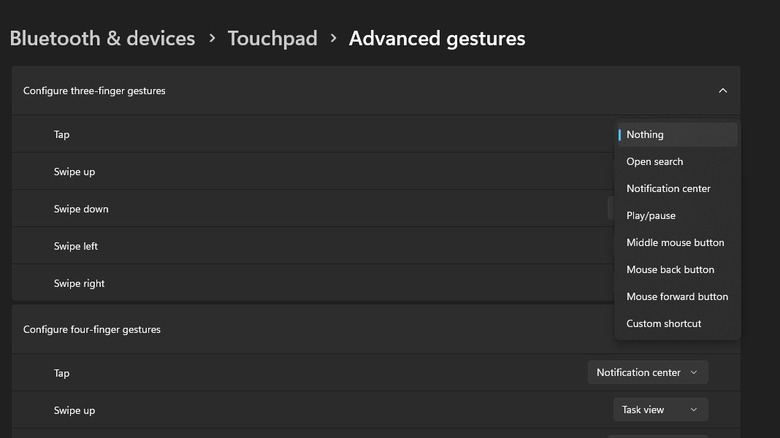
Gestures are nice and all, letting you have an alternate shorthand for doing things that would otherwise be just a bit more inconvenient. Not everyone has the same tastes, however, and a convenience to some might be something that only infuriates others. As such, if you find yourself accidentally using gestures that you don't plan on or just want an experience that you're used to without extra things to worry about, Microsoft gives you the ability to turn gestures off.
To turn off specific gestures, you can go to "Bluetooth & devices" and then "Touchpad." You can turn off certain gestures from here — such as zooming, scrolling, normal taps, and two-finger taps — by simply deselecting the box beside them.
For other gestures, you can click on each individual gesture — such as a tap or swipe — and open the dropdown menu beside it that shows different effects. From here, you can select "Nothing." To disable other gestures that you don't see on the main page, go to "Advanced gestures" under "Related settings," and you'll find a complete list of gestures. From here, disable any gesture that you don't like or disable them all to avoid the hassle of unintentional gestures entirely.