

12 Cool New Apps That Will Upgrade Your Mac Experience In 2026

When technology headlines are dominated by AI chatbots and automation agents, it can feel like the desktop OS is getting a bit stale. Yes, Apple breathed new life into macOS with a Liquid Glass redesign in macOS Tahoe, but was that really it? Far from it.
While the Liquid Glass redesign served as a nice coat of paint for Apple's software and third-party apps, 2025 has been far from a quiet year for Apple's desktop operating system. In fact, the Mac has a thriving developer community, with independent developers, and large companies both introducing new and interesting apps for the platform.
Some of the most fascinating AI apps launch first on macOS — Claude Code being a big one. It's fertile ground for small, thoughtfully designed utilities that actually improve your experience on your Mac. There are many recent examples of this and we've highlighted a selection here, including those apps that can help you manage files, explore Apple Music, type with your voice, take quick notes, and more. You can find out more about our methodology at the bottom of the article.
1. Antinote
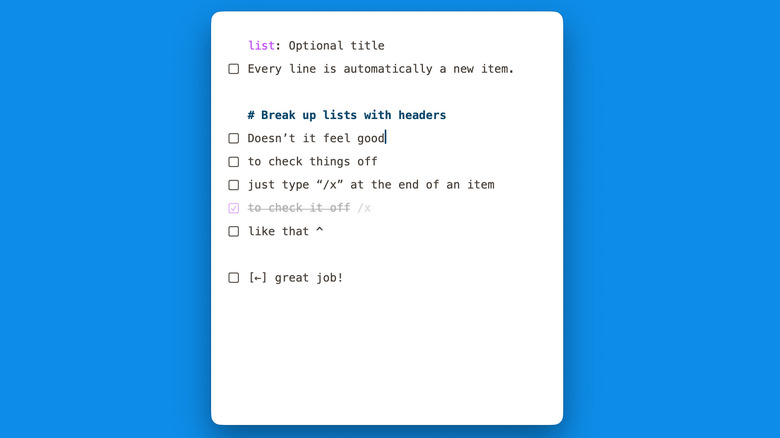
Antinote is different from the functional chaos of many popular notes apps. As the name suggests, it's not a real replacement for Apple Notes, but a scratchpad that's always available. Think of it as sticky notes, but smarter and more powerful.
The app opens in a floating window (that can be pinned to the top of the screen). You don't worry about the title or formatting. You swipe left with two fingers to create a new note and start typing (swipe left or right with two fingers to move between all notes). Write in plain text and dump your important thoughts to be sorted out later.
Based on the command at the top of the note, the app changes. If you write "math" up top, it will turn into a plain text calculator. Write "list" and it turns into a checklist. The "sum" feature will simply tally all the numbers in the text, no matter the formatting. The app even has a built-in Pomodoro timer so you can just write "timer pomo" to start a classic version (there are multiple custom options as well). As you'd expect from any notes app, you can quickly search through all your notes and export one to a more serious notes app (like Apple Notes or Notion). The app offers a free trial, but a $5 fee unlocks all features forever along with lifetime updates; no subscription is required.
2. Claude Code and Cowork
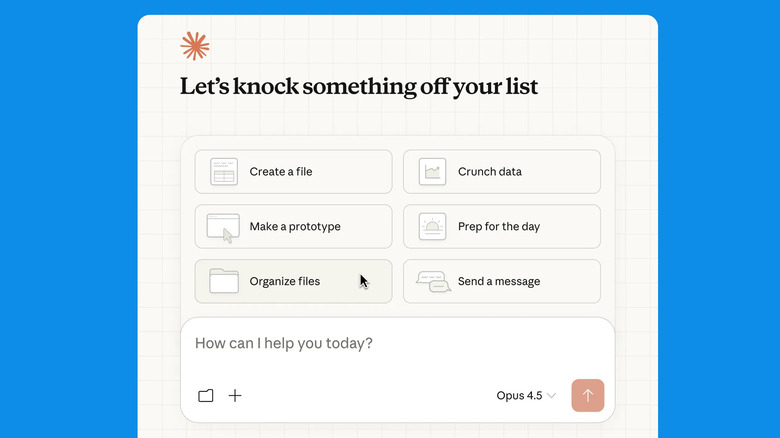
2025 was a busy year for AI coding tools, but there's one app that truly stood out and cemented its place as the go-to app for vibe coding and AI automation on the Mac. Claude Code and Cowork sit directly in the Claude app. With Claude Code, users can create custom apps and websites all from the chat-based interface, without the need to dive into Terminal or use specialized coding software.
Launched later, Claude Cowork added another layer to AI automation on the Mac. When provided access to local files, Cowork can manipulate files, and take actions on your behalf. Of the two, Cowork is the more approachable solution for everyday tasks. For example, you can ask Claude Cowork to take all RAW images in a file, rename them based on the date, convert them to JPEG, and move them to a different folder.
It will do the task methodically, while giving you updates, and is capable of working in the background while you do other tasks. Claude Code and Cowork are available for paying members, with plans starting at $20 monthly for Claude Pro. Cowork is currently a research preview.
3. Pipit

MacOS comes with a built-in dictation feature that helps you type simply using your voice. It does an okay job, but struggles when it comes to proper formatting, and removing filler words. This is where AI can be quite helpful. Pipit is a free app that uses on-device AI models to transcribe your speech live. In the process it also takes care of formatting and punctuation.
Pipit uses Nvidia's Parakeet AI TDT 0.6B, an automatic speech recognition (ASR) model featuring 600 million trainable weights for converting spoken audio into text. It takes up 600 MB of local storage and runs completely on-device. You can start voice typing using a global hotkey (the right Option key by default), and Pipit will transcribe the text live. The app also offers a transcription feature where you can upload an audio file to generate transcribed and formatted text. For enhanced formatting, you can add your own OpenRouter API key to use the latest Gemini models. This means that your data will pass through Google's servers, however. And without the API, Pipit does an impressive job of transcribing and formatting text instantaneously.
It's not just about formatting, though. Pipit has a library of voice commands, so you can take actions by simply speaking. You can open apps (Open Zoom), or even search on Google (Google Weather) using just your voice.
4. Substage

Substage is a Finder utility that helps you manage your files using AI. Substage shows up as a little floating window below any Finder window that you open on the Mac. You can use text prompts to accomplish various file management tasks. Behind the scenes, the app will take your query, pass it through an LLM from a popular AI service, and convert it to actionable steps using Terminal commands. Once you confirm, it will perform the steps for you, in the background.
For example, you can pick images and say, "Convert these to PNG" and Substage will write a command like you do in Terminal, and execute it on your behalf. Substage's website outlines many popular use cases, including PDF page manipulation, document conversion, ZIP archives, video conversion, and more.
Substage has two different pricing models. You can subscribe for $3.99/month or $29.99/year and get access to all features, including AI models from OpenAI, Anthropic, and Google. Or you can buy it outright for $39.99 for lifetime use — but to use the AI features, you'll either have to bring your API keys or use local AI models.
5. Affinity by Canva

Affinity already had a reputation as a decent subscription-free alternative to Adobe's Creative Cloud on Mac. But, in its update of October 2025, it took things one step further. Now owned by Canva, Affinity released a new app that combines photo, vector, and layout editing tools all in one app (they used to be separate paid apps before).
Now instead of Affinity Photo, Affinity Designer, and Affinity Publisher, you get a single Affinity by Canva app, which is available for free with all the basic and advanced editing features. The only catch is that you'll need a Canva account, and a $12.99/month upgrade if you want to use Canva AI features, which is completely optional.
The all-in-one app features a tab at the top to switch between different modes, all of which can work in the same file. You can switch to the Pixel model for editing images, the Vector mode for creating complex graphics, and the Layout mode to create multi-page documents with custom typography, and image placements. A Canva AI subscription adds extra features like automatic AI object selection, background removal, and more. The new Affinity app can be used for designing UIs, print layouts, marketing material, graphic design, and for creating bespoke illustrations.
6. Orion Browser

Some of the most popular browsers on the Mac are made using Google's Chromium engine, the one that runs Google Chrome. As versatile and dependable as Google Chromium is, it can also struggle with performance and RAM issues on older Macs. And plus, Google isn't known to be the most privacy-friendly company in the world either.
Safari is an efficient browser on the Mac, made using Apple's own WebKit framework. It's fast, and lightweight, but doesn't support Chrome extensions. Orion is a browser made by the Kagi search engine that attempts to bridge the gap. It's made using WebKit's framework, so it's fast and efficient. Plus, it's built with privacy in mind, where no personal or telemetry data is shared with third parties, with a built-in ad blocker and anti-tracking features.
To top it all off, Orion has figured out a way to make Chrome and Firefox extensions work in the browser natively. This means you can run full-fledged Chrome extensions while still using a Safari-like browser on the Mac. As the browser is made by Kagi, it uses Kagi's search engine as default (it is a fully private, ad-free search engine), but you can switch to any search engine that you want.
7. Daft Music

The Music app on macOS can sometimes feel a bit bloated. It's packed with features that you might never use, and some users argue that it doesn't feel at home with macOS Tahoe's Liquid Glass landscape. If you've wanted a lighter, more lively alternative to the Music app on macOS, Daft Music might be the answer. It connects with your Apple Music account and gives you a fast and simple interface for music playback.
All your playlists are in the sidebar, and there's a fast search feature too. The app is heavily inspired by Apple's Liquid Glass design with frosted sidebars, and large intuitive buttons. Daft Music has a neat feature where you can subscribe to a playlist from your Spotify account, and get updates as it's refreshed itself (this is useful as Spotify has an active playlist sharing community). You can also enjoy diverse global radio stations, and import Spotify playlists in a second (no need to use third-party tools). Daft Music costs $1.99/month or $17.99/year. However, you can try the app for free to see if it works for you, with 30 second song previews.
8. Beeper

For anyone who's chronically online, or is part of multiple communities, it's not unusual to jump between multiple messaging apps throughout the day. It starts with Facebook Messenger for local messages, then Discord for gaming conversations, LinkedIn for professional networking, WhatsApp for personal messages, and even maybe Signal for private chats. Aside from the obvious mental burden, running all these different apps comes with a huge resource drain on the Mac itself.
Beeper is designed to solve this problem. It's meant to be the only messaging app you need on the Mac (to that end, it also integrates iMessage). Beeper's supported apps list is quite long (available on the website). A free user can integrate five accounts (up to three accounts from the same network), and anything above that requires a $10/month Beeper Plus membership. All the core features are available on the free tier. You can send messages, add a new contact, participate in group chats, and exchange media (but for video calls, you will have to use the official apps).
Beeper Plus offers a couple of useful messaging features. You can schedule messages to be sent at a later time, or be reminded of a chat message if you can't respond when the message comes in. There's also an incognito mode that lets you preview messages without sending a read receipt.
9. wBlock

Browsers like Chrome and Edge are based on Google's Chromium engine that benefits from wide availability and a vibrant extension system. Safari isn't nearly as popular, but is more private and secure by design. However, due to this lack of popularity, Safari has suffered when it comes to the extension ecosystem. For instance, there wasn't a native alternative to popular ad-blockers like you find on other browsers like Brave.
WBlock finally solves this problem. It's a free and open-source app that uses Apple's own official APIs for content blocking. The app is lightweight, and it won't bog down your Mac's resources just to block banner ads. The app provides various customization options, allowing very strict or the most minimal of filter lists.
The app has a large resource of community-curated blocklists, and in case the app misses something, there's also an Element Zapper feature to manually remove an ad (much like Safari's built-in option for removing distracting items).
10. LaunchOS

With the release of macOS 26 Tahoe, Apple removed the Launchpad, merging the Applications list with Spotlight Search. The Apps button in the Dock now opens a truncated list of applications in a floating window, like with Spotlight Search. The old fullscreen apps list is no more.
However, if you miss the comfort of browsing a list of all installed apps in a paged layout like Launchpad offered, the LaunchOS app restores that functionality for macOS Tahoe, bundled with some customization options. You can open LaunchOS from the Dock, but there's also a customizable keyboard shortcut, trackpad gesture, and support for Hot Corners (the feature that triggers actions by simply dragging the cursor to one of the corners of the screen).
When launched, the LaunchOS app will take over the whole screen, and will display a paged layout of all installed apps. The free version is enough for most users, but the Pro version adds some of the aforementioned customization including Hot Corners support, custom layout, custom naming, and the ability to hide unwanted apps.
11. Bloom

Bloom is a powerful replacement for the Finder app that adds more features and customization. It keeps things relatively simple with the looks, replicating the design of a native Mac app. While the Finder goes with a tabbed approach, Bloom specializes in a multi-pane layout. It opens with two panes side-by-side, but you can try out many layouts — up to four panes at a time. Each pane works as a tab of its own, with a nice path structure at the top. It defaults to two panes at startup (Desktop and Downloads), but you can change this setting to always open the previously used setup each time.
Other than the paned layout, the app is completely customizable. You can change the background color, the fonts, the style of the path bar, and more. Bloom has a fast search system to let you quickly open any folder, or to search for files using keywords. The app also lets you connect cloud drives like iCloud Drive, OneDrive, or Dropbox natively.
While you can use Bloom as a Finder alternative simply by launching it as any other app, there is an option to use it as a default viewer when opening files from third-party apps (it requires a Terminal command, but is safe to use). Bloom costs $16 to buy outright, with no recurring subscriptions, plus it offers a 7-day free trial.
12. DockFlow

DockFlow is a Dock productivity app designed for Mac users who use the Dock as the primary way to switch between apps, and optimize their workflow. DockFlow's core idea is simple. When you're working on a particular task, or a project, you should only see relevant apps and files. Everything else is merely distraction and noise.
To that end, DockFlow lets you create custom presets for different kinds of work and personal life modes. You can have a Dock preset for coding that only shows Terminal, IDE, Claude Code, and so on. But internet research mode can show Safari, ChatGPT, and Notion. The customization really depends on your particular use case.
With DockFlow you aren't only changing what the Dock displays, but your entire environment. When you apply your coding preset, for example, the app hides everything else and opens all the relevant apps and windows, just as you've set it up. It can even activate Focus modes as you enable a preset. DockFlow currently costs around $11 (€9.99) for one year, or $46 (€39.99) for lifetime access on two devices.
13. Methodology

To compile this list, we limited our search to recent apps that have received glowing reviews from reputable software review websites, great user feedback, and high ratings on the App Store. We combined this data with personal testing.