

12 Things You Never Knew Your Laptop's Function Keys Could Actually Do

For almost every PC or Mac user, a keyboard and either a mouse or a trackpad are more than enough to navigate these systems without too many problems. In fact, it might be a bit too easy — people are so used to the tricks offered by their Windows touchpad that they end up ignoring some of the more impressive shortcuts their keyboard has. The function keys are a great example of a woefully underused part of your keyboard. To the average user, these keys are a great way to quickly access and adjust system functions without having to dig through a bunch of menus.
However, limiting these function keys to this solitary purpose may not be the best idea for people who want to navigate optimally on their device, especially if they don't want to use a mouse or trackpad often. This is why the hidden function key shortcuts can be so convenient, especially for people who use certain programs regularly and want a way to be more productive.
Use the F1 key to get help

The F1 key has long been the universal help button, with this functionality established by the IBM Common User Access guidelines. Before Windows 10, the OS had a dedicated Windows Help and Support program that could help you troubleshoot a whole host of issues. Eventually, as the tech ecosystem became more comfortable with unhampered internet connectivity, Microsoft decided to simplify this feature in Windows 10 and onward.
Now, pressing the Windows key and F1 brings up Bing with an automatically added search phrase on how to get help for your Windows OS. With Microsoft discontinuing support for Windows 10 and people moving on from it, most people will get help relevant to Windows 11.
As convenient as this feature is, users miss the days when they didn't need to stay connected to the internet to get help for the vast majority of system problems. Still, this is a decent start to fixing any issues that might crop up on your OS. Meanwhile, if you want specific help for a particular app, ditch the Windows key and just press F1. Depending on the active program, you'll either open a help section that's baked into the app, or the system will specifically search for help regarding said app by opening Bing Search in Microsoft Edge.
The function keys enable a lot of useful options in Microsoft Office

Many working professionals will find it in their best interests to learn about the numerous hidden Microsoft Office 365 features and shortcuts that can make their lives easier. In this regard, the function key can make a world of difference. Pressing F2 while in Microsoft Excel lets you edit cells instantly, while combining this key with Alt and Control lets you open the Document Library in multiple Microsoft Office apps. If you want to cut some text and store it in Microsoft Word's clipboard, then highlight the same and press Control and F3 together.
F5 is useful for PowerPoint users who want to start a slideshow without having to use their mouse. It also opens the Find and Replace option in the Microsoft Office programs. Coming back to Word, you can press Control, Shift, and F6 to switch between multiple open documents. F7 can be used to start the spell check function, which is common across all Microsoft Office apps. Pressing this function button with Shift opens the thesaurus if you want to diversify — or double-check — your vocabulary.
If you want to highlight some text or cells in the section you've selected without using the mouse or trackpad, F8 will make things easier for you. F9 has multiple applications across Microsoft Office — it performs a refresh in Word and Outlook, sends emails in the latter, opens a presentation in PowerPoint, and calculates formulas in Excel. Shift and F11 create a spreadsheet in Excel, and replacing this function key with F12 saves a document in Microsoft Word. You can open another document by using Control with F12 instead, and pressing both Control and Shift with F12 lets you print a Word document.
Some function key shortcuts can be used in File Explorer

As one would expect, Microsoft Office's apps aren't the only programs that benefit from these underused function key shortcuts. The way you navigate File Explorer, formerly known as Windows Explorer, can also change completely based on the number of shortcuts you're familiar with. If right-clicking — or delaying your second click – is not the best way to rename files or folders for you, then pressing F2 will do the trick. Pressing F3 lets you instantly input text in the search bar. Similarly, F4 will help you jump to the address bar.
All these shortcuts will make navigation easier than ever before in File Explorer. Keen-eyed users may have noticed that we didn't talk about F5 being a handy shortcut to refresh File Explorer – among other pages — and that is mainly because, unlike the other function key shortcuts highlighted here, the classic F5 refresh is one of the most common and well-known keyboard shortcuts that doesn't need a special mention.
Function keys can help out when you're browsing the web

Browsing the World Wide Web is so common that internet browsers jostle for the position of being the best and most convenient program people can use to make their digital journey easier. Google Chrome may have market dominance, but many people still swear by other browsers like Mozilla Firefox, Opera, Apple Safari, and Microsoft Edge as competent web browsers that will get the job done and then some. Thankfully, no matter what browser you use, there's a litany of function key shortcuts that are common across all these apps.
Let's start with the F4 key, which is useful to bring up your browser's dropdown address bar. If you just want to select this section of the browser instead, press F6. If you don't have access to your mouse or trackpad, then you can enable caret browsing with F7 to navigate a web browser with an on-screen pointer that can be controlled using the keyboard. To toggle full screen, press F11. Finally, people who want to peruse or mess around with the code of a web page can use F12 to gain access to developer mode. Like in the File Explorer, pressing F5 will allow you to quickly refresh a page.
Pressing Control and F4 closes solitary tabs and documents

Alt and F4 is arguably the most popular function key shortcut of all time, coming to a user's aid more often than not when a program stops responding and needs to be closed on the double. What most people aren't aware of is the Control and F4 shortcut, which performs a similar function. Instead of closing the entire program, this key combination is useful for closing single tabs and documents.
As simple as it may sound, this shortcut is a great way to gain more control over the tabs you want open in a particular app. Sure, a mouse or trackpad can do the same for you, but people who prefer the swifter navigation enabled by the judicious use of keyboard shortcuts will appreciate being in the know when it comes to this particular function key trick. It's simple, convenient, and perfect for tab management. The latter is clearly a user priority that other browsers have identified, with a notable example being Opera and its AI solutions to help you control your tabs.
Cycle through the elements of various programs with F6

As convenient as it may be to select elements of a program with a pointer, people who have to select and deselect elements of the page over and over again can get a bit irritated if they have to move their fingers away from the keyboard multiple times. This can indirectly slow down a person's workflow, which is why a function key shortcut that optimizes in-app navigation is always welcome.
This is achieved with F6. Pressing this function key lets you browse through multiple interactive elements of a browser, File Explorer, or most other apps that you use daily. It's a simple shortcut, but the utility it boasts is something that most people aren't familiar with. It takes a bit of getting used to, but people who are accustomed to pressing F6 for navigation purposes will find it invaluable when trying to save time during their daily routine.
Access Advanced Startup Options with F8
The look of the dreaded Blue Screen of Death changed following the release of Windows 8, but that doesn't take away from the sting of seeing this screen pop up at the most inopportune moment possible. This is just one of the many problems that can plague your PC and make it downright unusable in some severe cases, which is why it's important to know how your function keys can be a lifesaver in this regard. Before your Windows PC boots up, repeatedly tapping F8 will bring up your system's Advanced Startup Options menu.
This menu is invaluable for users who want to troubleshoot any issues in their computer, start the computer in Safe Mode, restore their system, or check out the system configurations and seek out any pain points. Even if your system isn't exhibiting any issues, there's nothing wrong with opening this Advanced Startup Options menu and perusing the settings. If nothing else, you'll uncover numerous hidden features that can make it easier for you to troubleshoot issues in case your PC starts acting up.
Use F10 to access the menu bar for certain programs
For the most part, apps on your PC are tailor-made to be as easy to use as possible. Most applications ensure their features are easy to access and aren't hidden behind too many menus or mouse clicks. Still, that won't stop some users from wishing for a convenient way to access all possible options pertaining to a program they're using with a single button press.
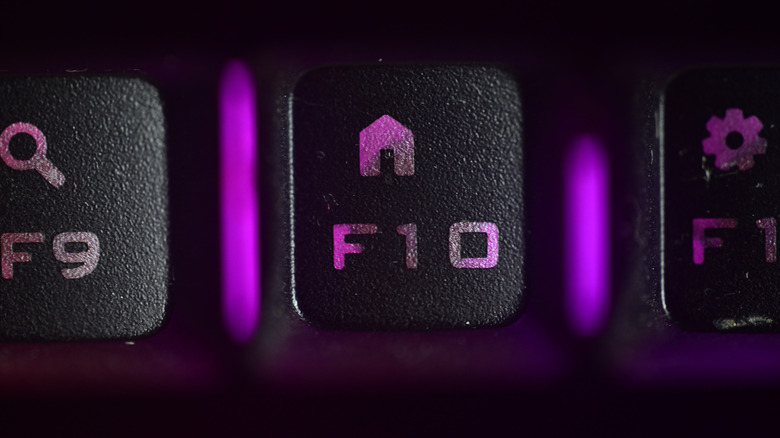
For these people, the F10 button is a godsend. Press this button for almost any program, and you'll reveal a menu bar with all the possible options you can think of. Opening new files, saving existing ones, creating bookmarks, selecting an array of tools, or just making navigation easier – the sheer number of options at your behest in this menu bar is near limitless and will make life easier for users who don't want to dig through various menus and submenus to perform basic actions.
Customize what your function keys do on both Windows and Mac

There are many ways you can change how your function keys operate. For starters, a shortcut for a program in Windows can be programmed to turn on with the simple push of a specific function key. All you have to do is right-click on it — or press Shift and F10 together – and select Properties. From here, go to the Shortcut tab and press whatever function key you want to open said program in the Shortcut key section.
If you're using a Mac, you can create keyboard shortcuts that allow you to use the function keys to enable powerful and convenient shortcuts. Go to System Settings in your Apple menu and select Keyboard. Then navigate to Keyboard Shortcuts. From here, you can set up shortcuts that use the function key along with other button processes to quickly carry out system commands or actions specific to a particular app.
If you want to access a wider array of function key shortcuts on both operating systems, then downloading certain programs will make things easier. Microsoft PowerToys is a free Windows app you've probably never used (but should), while Mac users have to rely on third-party applications to get the job done.
Adjust your keyboard to switch between function key shortcuts

Function keys double as shortcuts to access hardware functions, including volume and brightness adjustments, adjusting the keyboard backlight, enabling (or disabling) Bluetooth, and locking the laptop's trackpad. The Fn key doesn't need to be pressed to access these function key system commands, but this can be flipped in the settings. For Windows users, the simplest way to do it is to toggle the Fn lock by pressing the Fn key and Escape together. This means that you can only access these device settings when you hold Fn down.
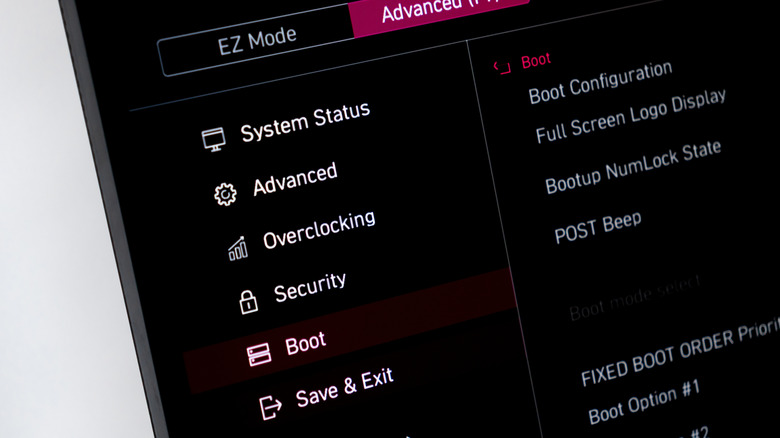
If you want even greater control over how your function keys operate, then here's an advanced pro tip — you can adjust these settings in your system BIOS. Depending on your system manufacturer, the way you access these BIOS settings may differ, as does the term used to refer to your function keys. Usually, it's called HotKey Mode, Function Key Behavior, or Action Keys Mode. Either way, you can toggle how your function keys operate from here. If this doesn't work, then check out your device's UEFI settings instead. This can be a bit intimidating for regular users, but people who don't mind tinkering with their OS on a more complex level can experiment with these settings.
Accessing BIOS or UEFI settings in a Mac isn't possible, but this might be a boon in disguise. This makes switching between your function keys easier on this OS. Go to your Mac's System Settings and select the Keyboard option. In the Keyboard Shortcut section, select Function Keys. From here, select "Use F1, F2, etc. keys as standard function keys," and your function keys will do precisely as stated instead of letting you tinker with system settings.
Remap the function keys specifically for each app or program
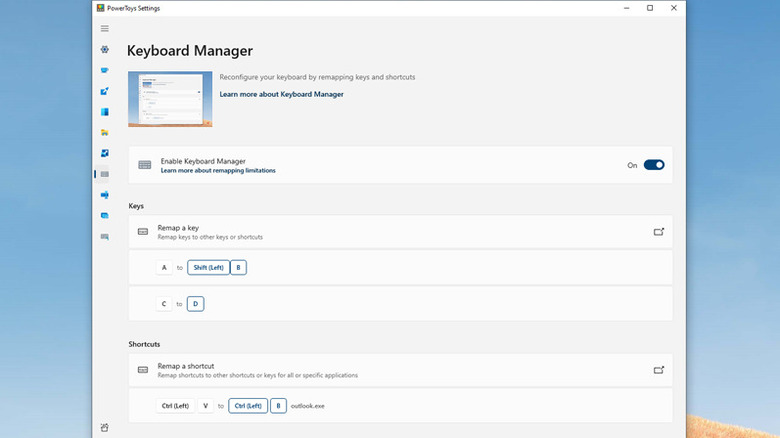
We've already talked about how additional tools for your PC or Mac can help you remap your function keys and access shortcuts that aren't available in the base settings. Windows PowerToys makes this deceptively simple on PC, courtesy of a Keyboard Manager where you can set up a suite of convenient shortcuts. What makes this even better is that you can set custom shortcuts that come into play only when an app is active. This is quite similar to how macros work for different profiles on a gaming keyboard. Most high-end keyboards come with custom software that lets you set up macros and keyboard shortcuts for specific apps.
Mac users will be elated by the fact that app-specific shortcuts are baked into its settings. Go to Keyboard Shortcuts from the Keyboard section of your System Settings. From here, you can select App Shortcuts to set up these localized shortcuts and make it easier to use and navigate numerous applications on Apple's OS.
If you find these options to be somewhat lacking, you can take things a step further by using third-party tools like Keyboard Maestro, Karabiner-Elements, and BetterTouchTool. Personal preference will dictate which tool you'll stick with for the long haul, but all of these applications let you customize your Mac's keyboard to a greater degree than you could do otherwise.
Function keys are very useful when using Command Prompt
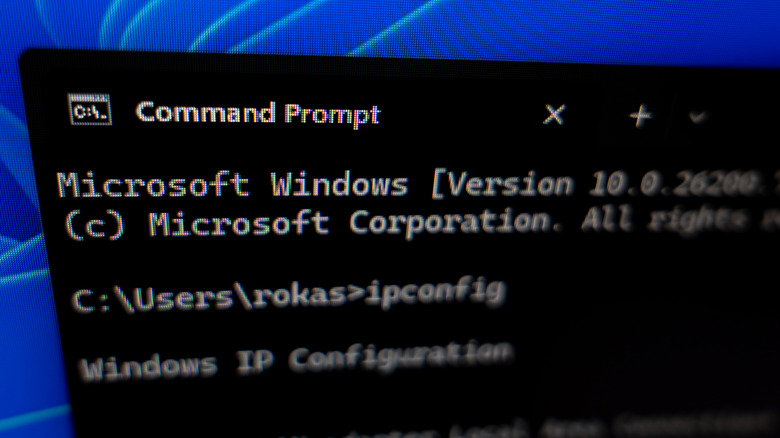
Command Prompt is still very useful in 2026. File management, administrative processes, complex scripting, task automation, and gathering information are all critical tasks that can be done via this handy tool. However, even people well-versed with the Command Prompt can find it a cumbersome tool to use at times. Clunky navigation and repetitious commands don't help, which is why users will be glad to know that function keys can come to the rescue here.
Tapping F1 will insert characters from the previous command one by one. If this seems like a slow process, press F2 and then put down a number when the line "Enter char to copy up to" comes up. Sure, this is faster, but far from an intuitive way to copy a command, which is why F3 is the best option here. It fills the previous command in its entirety, and you can always press Backspace to remove any unwanted characters.
For greater control over the previous commands you want to select, press F7 to bring up your command history. Use the directional buttons or F5 to cycle through these commands. If you want to clear said command history, press Alt along with F7. If you press F8 after typing one or a few characters, then you'll find a list of matching commands that have these characters. Pressing F9 brings up the "Enter command number" prompt. Input the number of a previous command, and it'll be executed instantly.