

This iOS 26 Feature Will Tell You When Your AirPods Need To Be Charged
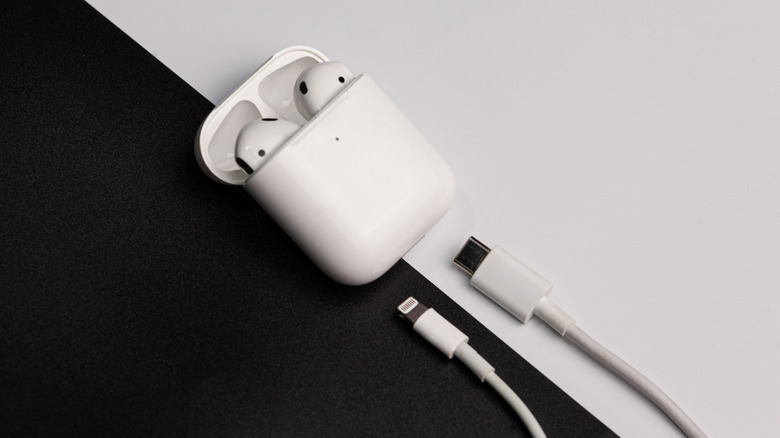
The last thing you want to deal with before leaving for work or school is dead AirPods. After all, how are you supposed to get through the day without your trusty noise-cancelling earbuds? Fortunately, charging your AirPods is as simple as connecting them to your iPhone's wall charger, placing them on your Apple Watch's wireless charger, or plugging them into your Mac or iPhone itself. But the real problem isn't how to charge them — it's how to remember to do so in the first place.
For this dilemma, you might normally turn to the Batteries widget, one of the best widgets to add on your iPad and iPhone. It shows you the remaining battery percentage for your AirPods case and each earbud, so you just need to make a habit of checking the level regularly to avoid running out of juice. While this is a solid workaround, iOS 26 has an even smarter solution to help make sure your AirPods always have enough battery life: charging notifications. Now, you can get alerts on your phone every time your AirPods run low on juice. This must-know AirPods feature, however, is exclusive to the AirPods Pro 2, AirPods Pro 3, and AirPods 4 (ANC). Here's how to turn it on.
How to enable charging notifications for your AirPods
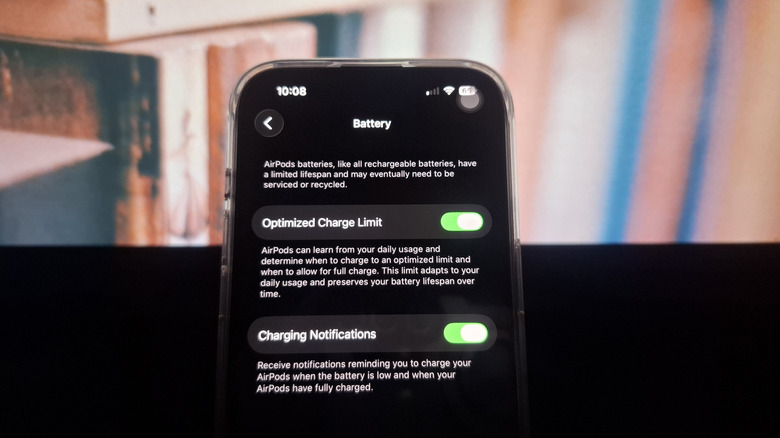
You can find and enable the AirPods charging reminders right in the Settings. But before setting it up, make sure you're running on iOS 26 and your AirPods are updated to the latest firmware version. To update your iPhone to iOS 26, go to Settings and look for Software Update. To update your AirPods, simply pair them to your iPhone or iPad, make sure it's connected to Wi-Fi, and then charge the AirPods case. The earbuds should automatically update after about half an hour.
Once all your software is up to date, follow these steps to turn on charging notifications for your AirPods:
- Wear your AirPods.
- Ensure they're paired with your iPhone or iPad.
- Launch the Settings app.
- Select your AirPods at the top of the screen.
- Scroll down to Battery.
- Enable the toggle next to Charging Notifications.
When your AirPods' battery level reaches 20%, you'll get an alert on your iPhone or iPad. If you don't charge them then, you'll get additional charging reminders at 10% and again at 5%. After you plug in your AirPods, you will receive another notification once the earbuds are fully charged, so they're not left on the charger unnecessarily.