

Your Smart TV Has A Handy Multitasking Feature You Should Be Using
It's always cool when consumer tech makes a comeback in some way, shape, or form. As far as TVs are concerned, we've been living in a 4K HDR smart TV paradise for quite some time, so it's hard to imagine a feature like 3D TV making a return. But the same can't be said for Picture-in-Picture (PiP) technology, which often carries the handle Multi View today. Back as far as the '80s, PiP was all the rage.
The TV tech allowed you to display two video sources simultaneously, with the secondary source displayed in a smaller window at the bottom corner of the screen. With it, you could multitask by watching a live TV broadcast using an over-the-air antenna, while also indulging in your VHS box set of "Lost in Space." While PiP never officially went away, it was dwarfed for years by the advent of free smart TV apps, games, and other features. But now, brands like Samsung, LG, and TCL, are revisiting Picture-in-Picture to make the tech even better.
Multi View is the new and improved Picture-in-Picture
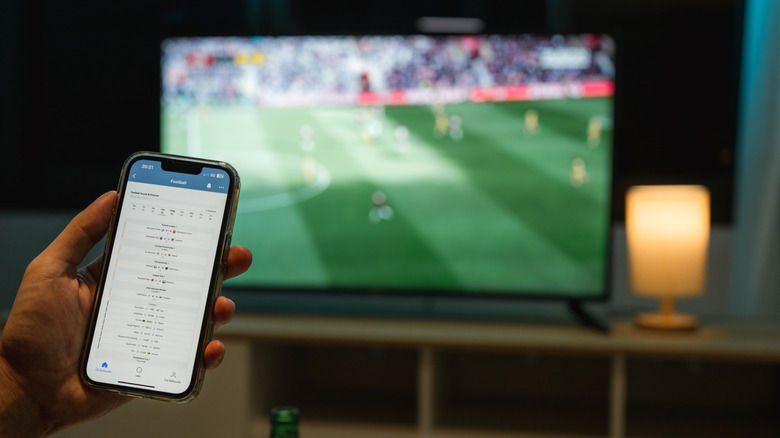
Since 2020, PiP has received a solid upgrade from most manufacturers, with TV brands now referring to the technology as Multi View or something similar, like Twin Picture. While the original PiP was limited to analog connections and your TV's internal tuner, modern PiP adds HDMI inputs, TV apps, and mobile screen sharing to its bag of tricks.
With Multi View-enabled TVs, you can have a main screen dedicated to your PlayStation 5, while a smaller window shows a movie stream from your TV's built-in Netflix app. You could also swap Netflix for the news feed on your iPhone or Android device via screen mirroring. And if two feeds aren't enough, brands like Samsung and TCL support up to four displayed sources on certain models for maximum multitasking.
Most Multi View-capable TVs are limited to two sources, and there are certain manufacturers that passed on PiP tech entirely (Sony hasn't bothered with it since 2024). That said, modern smart TVs generally support PiP in some fashion, and likely with a few options for customizing its appearance.
How to access and customize Multi View
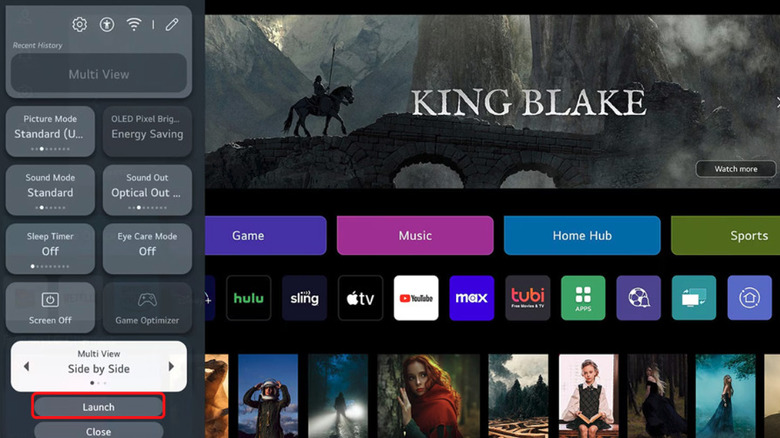
Samsung is one of the best major smart TV brands, making it a good place to start for understanding how to use the Multi View setting:
- Grab your Samsung TV remote, open up the Settings menu, and select Multi View.
- You'll be prompted with four Multi View launch options: Recent, Saved, Add View, and Make My Own (pick your own source and template). Choose whichever best suits your preferences.
- To customize a Multi View screen, simply choose it and press the Select button on your remote.
- Customization options include adding or removing screens, changing the screen size, and sound distribution.
Conveniently, there's also a Multi View hotkey on most Samsung TV remotes — look for the three layered squares icon in the top right. Press it to quick-launch Multi View on top of whatever app or source you're currently using. The process for activating the PiP setting on most modern smart TVs is similar and should have you ready to multitask in no time.