

5 Wi-Fi Myths You Need To Stop Believing
We may receive a commission on purchases made from links.
Wi-Fi has become such a big part of our daily lives, and it's a technology that has evolved greatly over the years. While it was once a miracle to see speeds of 100 Mbps, you can now download dozens of gigabytes in minutes. Despite being more reliant on Wi-Fi than ever, most people don't fully understand how it works, which has allowed many debunked Wi-Fi myths to still be in circulation today.
While some of these Wi-Fi myths only waste time, others are associated with much scarier stuff, such as paranoia around Wi-Fi signals affecting the human body. Then there are things you might be doing that a friend or someone online said would improve your Wi-Fi speed, but in reality, aren't doing anything except costing you money and time. Getting a better grasp on how Wi-Fi works will help you make better decisions around how you deal with your home's internet connection. So to get you started, we'll go over five of the most common Wi-Fi myths below.
1. Connecting Ethernet to a mesh node or Wi-Fi extender gives you Ethernet speeds
A wired connection is always faster than wireless. As such, whenever you have the choice, you should opt for a direct Ethernet connection to your computer or TV. This might not be possible if your device is located too far away from the router and you don't want long Ethernet cables throughout your house.
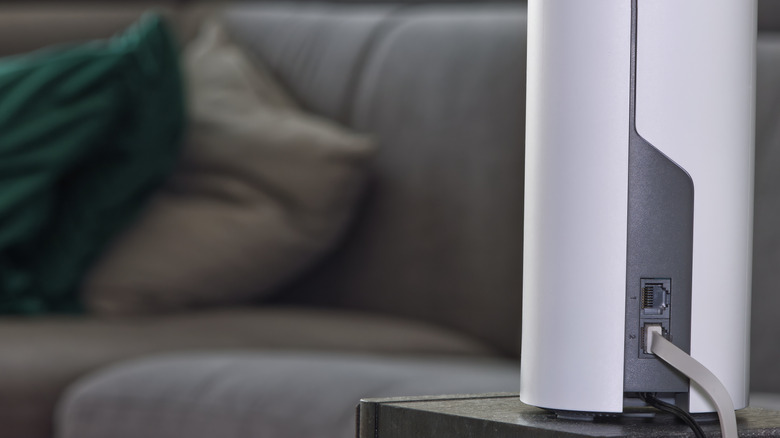
What might seem like the next best option in this case would be to get a Wi-Fi extender or a mesh Wi-Fi system, put the extender or node near the device you need to connect Ethernet to, and then use an Ethernet cable to establish a connection that way. You'll find that doing so shows the Ethernet icon on your computer, which you might think means that the speed gets improved. If you check this new connection, though, you'll find that there are no significant speed gains.
Even if you get the best Ethernet cable for your home network, it can only transmit the data it receives. Since a Wi-Fi extender and a mesh node both transmit data wirelessly, an Ethernet cable running from one of them to your device is still a wireless connection to your Wi-Fi router. If, however, you connect an extender via Ethernet and then run an Ethernet cable between your extender and your PC, you will have a proper Ethernet connection and improved internet speeds.
2. Pointing router antennas toward a device improves its speed
There are a lot of variables that determine how fast your Wi-Fi is. If everything should be working but your Wi-Fi is still slow, then it's not far-fetched to think that you need to do something with your physical Wi-Fi router. For many people, this means changing the position of your router, getting rid of walls or doors between it and your device, and potentially changing the angle of the router's antennas.
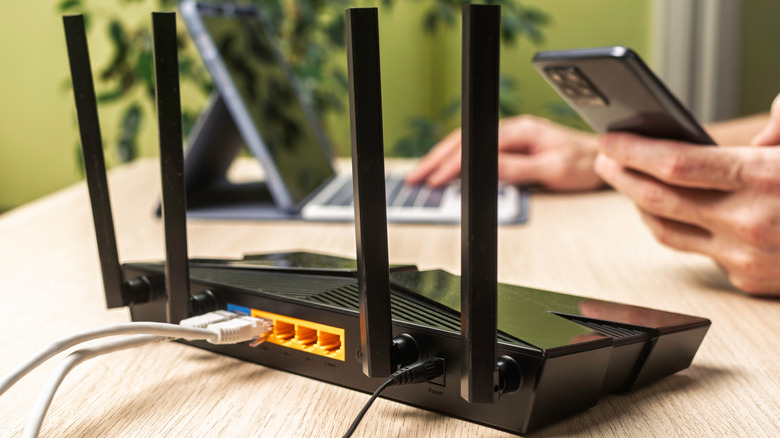
Just by looking at the antennas, you might assume that they shoot out signals in the direction they're pointing. This isn't true, however — in fact, pointing them in the direction of your device might make your signal strength worse. The antennas on a Wi-Fi router are omnidirectional, which means they transmit signals in all directions. However, they provide stronger coverage perpendicular to the antenna itself, in a doughnut- or oval-shaped pattern. This means you get more range to the sides of the antenna than straight off its tip.
For example, setting the antennas upright means better coverage for areas further away on a single floor, whereas aligning them horizontally means the signals reach other floors more easily. However, both of these options only change the signals for areas further away, so moving them to fix your internet connection speed while you're nearby won't help much, if at all.
3. Wi-Fi waves harm the human body

Technology you don't fully understand can seem scary. On a basic level, Wi-Fi waves are just invisible radiation that is powerful enough to send large amounts of data remotely to all your devices. Not many people understand the mechanics behind how this works, which is why there's a growing number of myths concerning EMFs (electromagnetic fields) and how signals like 5G affect the human body.
The sources of some of these myths make sense on some levels. Wi-Fi waves fall on the same spectrum as the waves produced by your microwave to heat up your food. It's also true that people are getting migraines and eye strains more often than they used to. Furthermore, the International Agency for Research on Cancer (IARC) has even classified certain EMFs as "possibly carcinogenic."
Despite all of this, there is no good evidence that typical Wi-Fi exposure at home causes harm to the human body, and you don't need a cheap anti-EMF gadget to protect you from 5G waves. The waves used by Wi-Fi routers (and even by your microwave) are non-ionizing, which means they don't have enough permeating power to change how your cells behave. Even this can be dangerous if concentrated enough, but the waves produced by your Wi-Fi router aren't concentrated nearly enough to be considered a risk. This is why the World Health Organization explains on its website that "...the maximum levels you might experience in the environment or in your home are at least 50 times lower than the threshold level at which first behavioral changes in animals become apparent."
4. The 2.4 GHz band on Wi-Fi routers has no use in modern times
One of the biggest advancements of the last few decades in Wi-Fi technology has been the addition of 5 GHz bands to Wi-Fi routers. For those unaware of what bands are, they're essentially highways for network traffic to travel on — the higher the band frequency, the more data it can usually carry over shorter distances.
Most Wi-Fi routers used to only work on a 2.4 GHz band, which, while fine at the time, isn't always enough for our modern speed needs. The 5 GHz band was first introduced in 1999 and has since become a major contributing factor for the faster Wi-Fi speeds we know today. With Wi-Fi 6E and even Wi-Fi 7 now existing and allowing routers to use the 6 GHz band, why do modern routers still have 2.4 GHz bands in 2026?
The answer is quite simple: Older bands still have their advantages, and a 2.4 GHz band might even outperform a 6 GHz band in some scenarios. One benefit of newer Wi-Fi versions still incorporating these older bands is that you can connect all your less network-hungry smart home devices to it, which alleviates congestion on the faster bands that you need for streaming or playing games. Additionally, the higher the frequency of the band (the higher the number), the shorter its effective range. The 6 GHz band might be faster, but it simply cannot reach places as far away as the 2.4 GHz band does.
5. You need an expensive Wi-Fi router to increase your network speeds
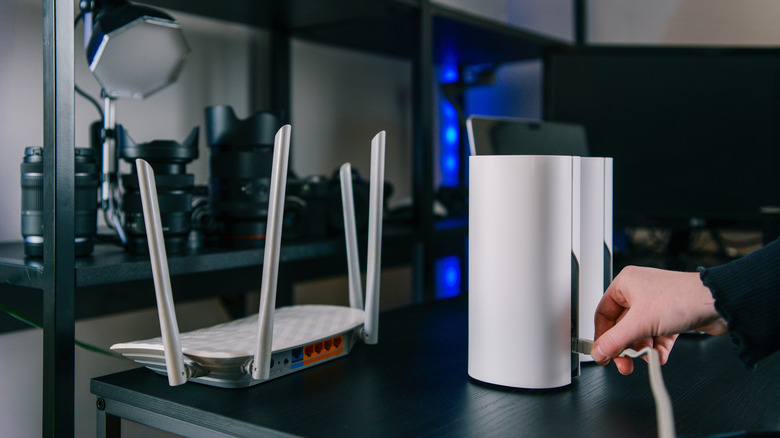
More money buys better quality. This is true for most things in life, since a large budget means you can spend more on sourcing higher-quality materials, funding more research, and opting for better, more complicated technologies. If you're having Wi-Fi problems that don't seem to go away no matter what you do, you might be wondering if getting a more expensive Wi-Fi router will fix the issue.
First and foremost, check if your ISP plan even accommodates your needs. If you regularly stream 4K content or play games that require a low network latency, your 100 Mbps plan might simply be too slow, and no Wi-Fi router can improve on an internet plan beyond what you're paying for.
Even if you're paying for a faster plan, though, you don't need to spend a fortune on a high-end Wi-Fi router just to get better speeds. You can get the latest Wi-Fi version available to the public, Wi-Fi 7, with a router as cheap as a hundred bucks, such as the TP-Link Archer BE230. If you want even higher speeds, you can get a tri-band Wi-Fi 7 router like the Cudy BE11000 for less than $150. If you see a router worth $300 or higher, you're paying for extra features — built-in VPN, longer range, and a better app — rather than actual speed. Since the average home in the U.S. only has internet speeds that go up to about 300 Mbps (according to Speedtest), even $100 might be paying too much for most people, as you can get a router supporting 300 Mbps — like the TP-Link Archer C54 – for below $30.