

How To Turn Off Ads On Your Amazon Kindle

We may receive a commission on purchases made from links.
Ads are the bane of every tech user's existence, and ironically, they're just about everywhere these days. They pop up on your phone, tablet, computer, and smart TV. Somehow, they've even made their way to your Kindle, too. You'll see these Kindle ads in two places: the lock screen and home screen. On the lock screen, the ad usually covers the entire display, doubling as a screensaver and replacing the Kindle's default wallpapers. In the Home tab, the ad is integrated into the page as you scroll through the recommendations.
Kindle ads aren't typically as crazy and random as the ones you get on your other devices. Most of the time, they're just promoting Kindle Unlimited or a new book. But if you're not a fan of ads of any sort showing up on your e-reader, there's an ad-free Kindle version available for $20 more than the base model.
What if you already own the ad-supported model, though? Don't worry, there's a way to make your Kindle ad-free, and it's actually one of the must-change Kindle settings to create a cleaner interface. However, keep in mind that this comes at a price.
How to officially remove the ads from your Kindle
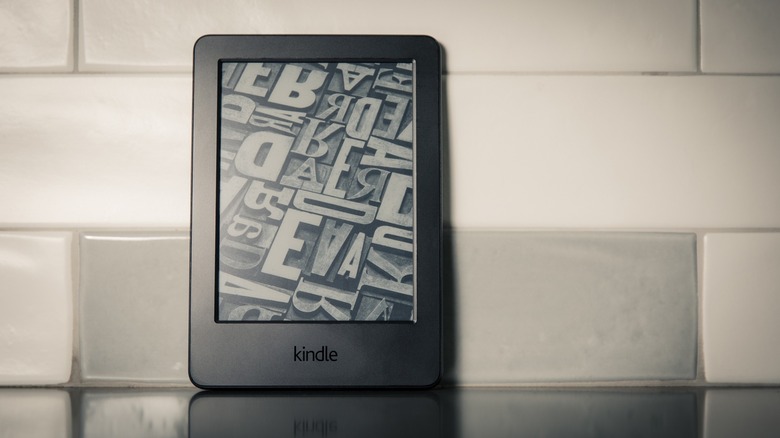
To get rid of Kindle ads, you'd have to pay the difference between the ad-supported Kindle and the ad-free version. As of this writing, it costs $20. This is just a one-time charge, though, so after that single payment, your e-reader is upgraded for life (or however long your Kindle will last). Here's what you need to do to turn off ads on your Kindle:
- Connect your Kindle to your home Wi-Fi.
- On your computer or phone browser, visit Manage Your Devices on the Amazon site.
- Log in to your Amazon account if you haven't already.
- Under Amazon devices, click on Show 1 device for the Kindle entry.
- Choose your Kindle.
- Find the Special Offers tile.
- Press Remove offers.
- In the pop-up, click on End offers and pay the $20 fee.
- When prompted, enter your payment information.
After some time, you'll get a pop-up on your Kindle saying that Special Offers have been removed. Just restart your Kindle, and the ads should disappear upon boot-up.
Is it worth paying to get rid of Kindle ads?

Upgrading to ad-free Kindle may or may not be worth it depending on your needs. If you're someone who values customization and convenience, it could be money well spent. Without ads, you're free to change the Kindle lock screen to either the default wallpapers or your current read's cover. To apply the book cover, open Settings from the Quick Actions panel and tap on Screen and brightness. Then, toggle on Show Cover. There are also plenty of tutorials online to create a custom lock screen.
Besides personalizing the lock screen, your Home tab will look much cleaner without the persistent ads appearing. Another major advantage of an ad-free Kindle is that you won't need to swipe up to get to your book. As soon as you wake up your Kindle, you're instantly back to where you left off.
On the other hand, paying to get rid of Kindle ads isn't worth it if you're not really bothered by them in the first place. After all, they're probably the least intrusive kind of ad there is — Kindle ads won't show up to interrupt you while you're reading a book. They just stay on the lock screen and home screen.
While you can't remove ads for free, there are simple ways to avoid seeing them. One option is to use a flip case to hide the lock screen when you're not using the e-reader. Another is Kindle's Screen Off option, which turns off the screen when locked, so nothing is displayed. To enable Screen Off, long-press on the power button and select Screen Off from the pop-up. Meanwhile, to prevent seeing the home screen ads, the trick is to stay in the Library tab and always have a book open.