

The First Thing To Replace When Your PC Feels Outdated
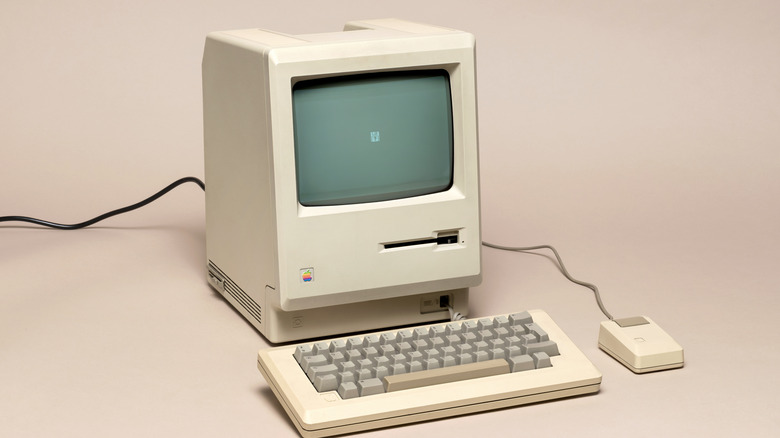
If your PC is chugging along and trying its best to load programs and play games, but it struggles to boot up, you don't have to buy a new one. There are several upgrades you can make to an outdated computer that can improve its performance, making it like new once again. That's one of the greatest features of a desktop: They're customizable, so all you may need to do is replace one part to have your older model operating more smoothly.
There are many components you could replace to beef up your PC. Even with AI leading to rising prices of RAM and storage like DDR4 RAM, there are options to make sure your PC operates at its best potential without spending thousands on parts. One essential piece of technology you may want to look into first when deciding to upgrade is a solid-state drive (SSD) or hard disk drive (HDD).
Solid-state drives are the norm for more modern PCs built in recent years, but older models are more prone to feature spinning hard disk drives. Upgrading either the SSD or HDD for your PC is a great first option if you're looking to expand the capabilities, speed, and latency of your PC. Both drive types serve a similar purpose when it comes to storing data, games, and files, but they operate rather differently when it comes to load times and booting up the system and applications.
The differences and similarities between SSD and HDD
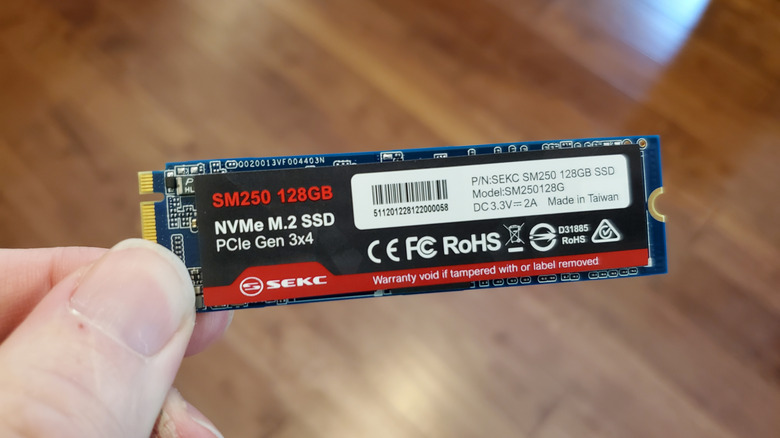
Upgrading the SSD or HDD of a dying PC is a great way to ensure it continues to operate at or near peak efficiency. You're free to decide between them as both serve the same purpose of expanding storage for your PC. However, there are key components to take note of when choosing which drive works best for you. One operates more quickly than the other, but all that speed comes at a cost.
Knowing how you intend to use your PC will help you decide on a drive. If you just need to save documents or shuttle some pictures off to long-term storage, you may not need an expensive SSD since HDDs work best for containing data at a much lower price tag. However, they tend to be slower than SSDs and may work best as an additional drive to your previously installed one, mainly for backup or overflow storage. If you're after enhanced performance, an SSD provides quicker boot times, enhanced program launch speed, and faster file transfers. Yet all of that does come with a steeper price point, but there are cheap, reliable SSD brands available. Both drive types are available as external or internal upgrades and, in many cases, if your PC feels outdated or is struggling to perform, upgrading its storage can make it more reliable.
What to replace after SSD and HDD

Drives are just the tip of the iceberg when it comes to upgrading an outdated PC. They are a great starting point, though, and once you're through adding your drive of choice, you can move on to additional upgrades. You really should replace these popular GPUs in 2026, then pick up some RAM, once your SSD or HDD is installed. Adding new parts can save you money and time in the long run when compared to outright purchasing a brand-new PC.
If your PC is running out of memory and you want to improve the performance of your applications and overall system, adding more RAM is vital. While SSD and HDD can be added to just about any PC — desktops and even laptops — RAM is a more specialized component. You'll need to make sure it is compatible with your computer before purchasing so it will function properly. Often, RAM slots into your PC easily, and you can add multiple memory cards for additional capacity, but adding RAM to your laptop can be a bit complicated.
For those who have older PCs that may seem to be getting slower as time passes by, you don't have to be stuck with a dinosaur or spend your hard-earned cash on a new machine. If you're looking to breathe new life into your dying computer, replacing parts is one of the best things you can do, starting by adding an upgraded SSD or HDD.