

4 Cool Ways To Use Bluetooth With Your Smart TV
One of the best perks of modern smart TVs is that they can connect to several gadgets thanks to Bluetooth connection. Modern TVs all come with HDMI ports, the standard for all-purpose connections with plenty of extra features. But Wi-Fi and Bluetooth can give you even more connectivity options. They let you share your computer display with your TV, pair headphones so you can watch your favorite shows at a reasonable volume at any time, or even play games using a gaming cloud system with a gaming controller.
While the steps to connect a Bluetooth device can vary depending on which TV you own, most smart TVs require you to go to System Settings, Bluetooth, and put your gadget in pairing mode. If you have a set-top box, like an Apple TV, it's even easier to connect earbuds to your TV. Taking advantage of your TV's Bluetooth capabilities can really step up the usage of this bigger display. Here are some of the cool ways you can use Bluetooth with your smart TV, and why you should be using this functionality every time you can.
Screen mirroring from another device
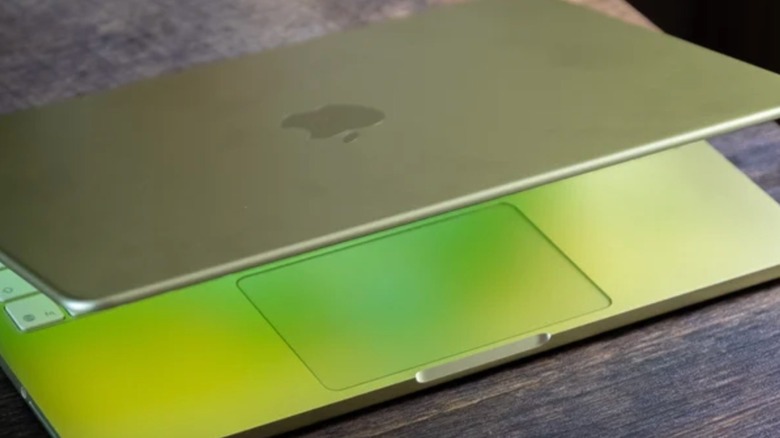
Have you ever thought about connecting your computer to your TV? A bigger display can help you see more pages at once, improve your multitasking workflow, or even just let you show photos or files stored on your computer on a larger screen. The traditional way to do this would be to connect your laptop with an HDMI cable, which means you need to be really close to the TV. It can be inconvenient depending on how your TV is set up or if you're with someone else in the room.
This is why recent Samsung TVs let you share your PC or Mac display using Screen Sharing or Screen Mirroring. If you have a PC laptop, you can mirror your screen or duplicate it by going to Settings and then Multiple displays. You can select Connect To A Wireless Display, and then select your TV. If you use a Mac, you can use your TV as a second screen of the Mac just by having them both on the same network with Bluetooth turned on. Then, you can go to Screen Mirroring in your Mac's Control Center, select your TV model from the screen mirroring list, and then enter the password displayed on the TV. After pressing OK on both the Mac and TV, you can use your laptop on the big screen.
It's not just Samsung TVs that support this kind of wireless display sharing. Other smart TVs and streaming devices offer similar features, often using built-in casting or screen mirroring protocols. Devices like the Apple TV 4K support AirPlay, which lets you mirror or extend your Mac or iPhone display to a TV with minimal setup. Many TVs from brands like LG and Sony also support AirPlay or Google Cast, meaning you can wirelessly share content from your laptop or phone without relying on cables or brand-specific tools.
Use your wireless headphones on a TV
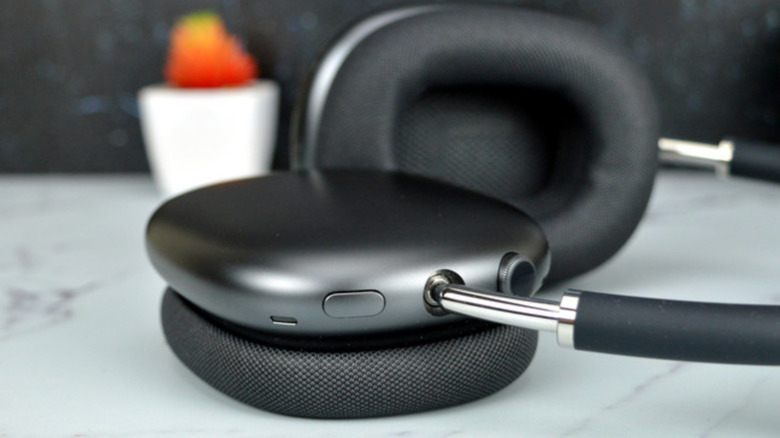
Using Bluetooth headphones can be one of the best ways to enjoy your TV, as you can watch your favorite content on the big screen without making any noise. Not a lot of people have thought about connecting their headphones to a television, but since we all do that with our smartphones and tablets, it's only natural that we should do that with the TV. If you're one of those people that like to turn on the TV really early in the morning or do long night sessions, this is a way to avoid bothering the people that live with you or your neighbors, and still enjoy the full experience of your TV.
Usually, the process of adding your wireless headphones to your TV is going to the Bluetooth settings in the system settings on your television. There, you can add a device. Just make sure your headphones are in pair mode so that they're discoverable. As mentioned before, if you use an Apple TV with AirPods, you can also enjoy Dolby Atmos support, ANC and Transparency modes, and more.
Game on your TV with a gaming controller
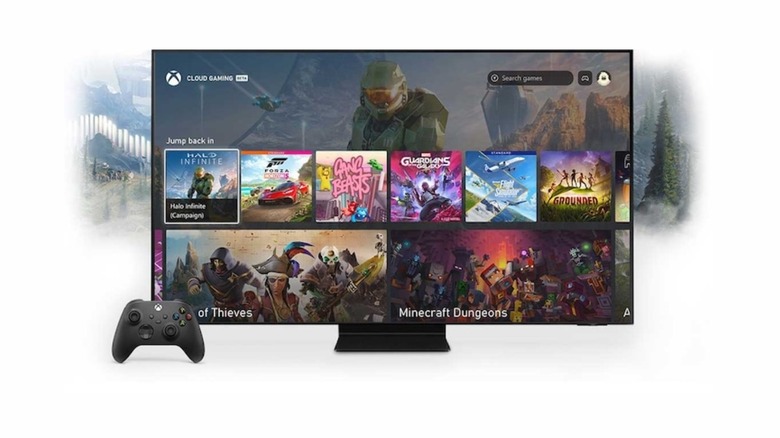
Some TV makers offer a proper console experience without you needing to own a video game console. TVs from Samsung, LG, and Fire TV devices let you use the Xbox app to play its Cloud Gaming service, which is available through a subscription. Other platforms such as Nvidia GeForce Now and Amazon Luna offer similar experiences across a wider range of devices. Some TVs and set-top boxes also support locally installed games or remote play features, letting you stream from your console elsewhere in the home.
While the experience might lag behind native consoles for latency and image quality, it's a great way to enjoy your favorite games without having to spend several hundred dollars on a console. Instead, you can use (or buy) a supported gaming controller and connect it wirelessly to your TV.
Since the experience is all based on the cloud, you don't need to download updates, worry about store management, or anything like this. You just launch a game and start to play, as your progress syncs across devices. If you have a compatible TV, you just need to go to your TV's Bluetooth settings and add your Xbox, PlayStation, Nintendo Switch, or third-party controller. With that, you can save money from not having to buy a console, but you can also enjoy your favorite games or discover new ones, as new options get added all the time.
Connect different speakers
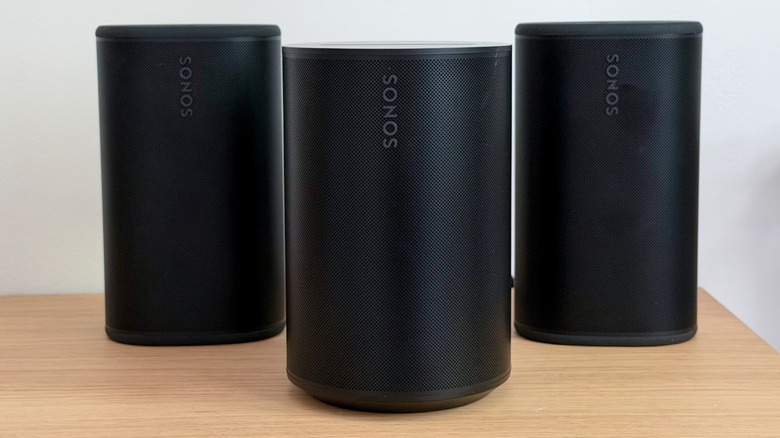
Soundbars are a great replacement for your TV's audio, but are not necessarily the best option if you want to build a home theater system. Instead, if you have a few speakers at home, you can connect them to your TV to spread audio across different rooms or the space you are in. By doing that, you can enjoy services like Apple Music, Spotify, and Deezer on a big screen with animated art covers or live lyrics, but with better sound quality from dedicated speakers. You could have your TV playing inside in your living room while the speaker it's connected to could be in your front garden or your backyard. All you have to do is put the speaker in pairing mode, go to the TV's Bluetooth settings, and add the device.
With that done, you can enjoy your favorite playlists without adding a music speaker as part of your home theater setup, but still take advantage of different sound channels all at once. Then, when the party is over, you can disconnect your speaker from the TV or just start using it again with your smartphone.