

Kindle Too Slow? 5 Things To Do Before Buying A New eReader

If you've recently switched to a Kindle after being used to reading on a phone or tablet, the experience might be a little jarring at first. Right upon booting up, you'll immediately notice how it feels slower compared to your mobile device, often taking some time to respond to every touch. While Kindles handle displaying books well, you might feel a lag when navigating the Settings, buying books from the Store, and using the built-in browser.
These seemingly basic tasks might be easy-peasy for a phone or tablet, but it's usually a struggle for the Kindle. After all, it doesn't come with the same technology as your mobile devices. It has an e-ink screen that takes a while to refresh, compared to LCDs. Its interface is also designed mainly for reading, not for navigation. But while the Kindle is slow by design, it shouldn't really feel like working at a sloth's pace.
If that's the case for your old, unsupported Kindle, you might think the only solution is to buy a new one. But there are a few things you can do to fix your slow Kindle before completely giving up on it. Sometimes updating its firmware or freeing up some system storage might just be enough to make your eReader as fast as new. Here's everything that should help you speed up your old Kindle.
Update your Kindle
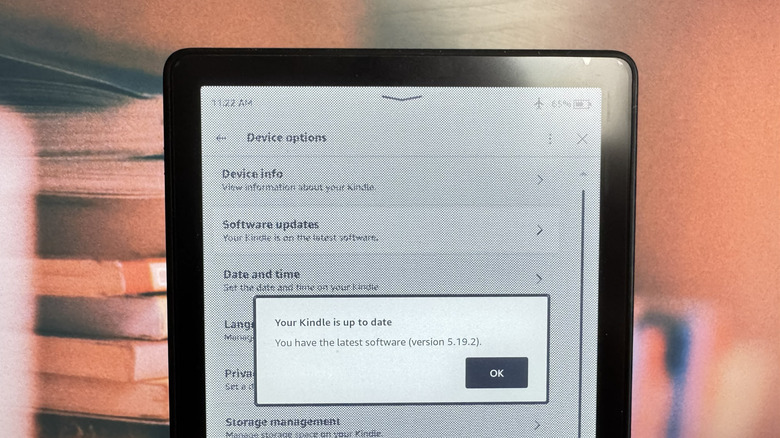
Just like any other device, your Kindle's software isn't entirely free from bugs and glitches. These can cause your e-reader to slow down, but they're typically fixed with software updates. Normally, Kindles automatically update to the latest software while you're online. But if you often go on Airplane Mode to save on battery, your device might not update on its own. So before trying any troubleshooting technique for your slow Kindle, it's always a good idea to check whether it's updated to the latest firmware version. Here's a guide on what to do:
- Check what Kindle model you have, as different models have different firmware versions.
- Go into your Kindle Settings.
- Tap on Device Options.
- Choose Device info.
Look for the firmware version and verify if it's the same as what Amazon mentions on its website for that Kindle type. If it isn't, you can manually update your Kindle instead. Here's how:
- Download the updated firmware version to your computer from Amazon.
- Plug your Kindle into your computer.
- Copy the update to the Kindle drive.
- Safely eject the Kindle.
- Go to Settings.
- Press the three dots at the top.
- Tap Update Your Kindle.
Wait for your Kindle to finish updating. Afterward, it will reboot automatically. It might take a while for all your books to be indexed, though.
Reboot the Kindle
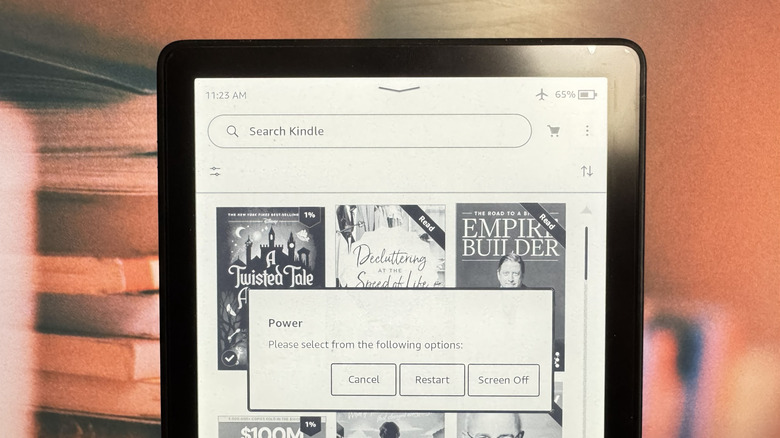
Sometimes, your Kindle can slow down because of a stuck background process, a temporary glitch, or an issue with the interface. When this happens, try restarting the Kindle. There are two ways to do this. If your Kindle is more sluggish than usual and you can still access the Settings, you can do a reboot. Go into Settings, hit the menu button (three vertical dots), and select Restart. Then, hit Restart in the pop-up again. You can also access this Restart option by long-pressing on the power button and choosing Restart.
But if your Kindle no longer responds to your taps, you can force the Kindle to reboot using the physical buttons instead. All you have to do is press and hold the power button until you see the screen go black or a pop-up appears with the options to cancel, restart, and turn the screen off. When the display dies or the Power options pop up, count to 40 seconds before releasing the button.
Your Kindle will then reboot, and it should feel faster to navigate and use. Do this every couple of days to make sure your e-reader stays in tip-top shape.
Free your storage
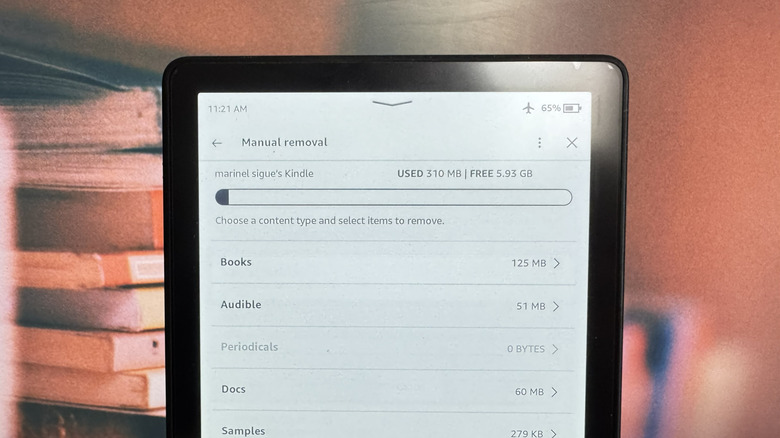
One thing Kindles have in common with your phone and tablet is that it also needs enough storage space to function properly. If you're mainly reading regular text-only books, you should be good for a long while as these only consume a tiny amount of space. In fact, a 16GB Kindle could hold 6,000 e-books, more or less.
But if you're an audiobook or manga lover, then that's a different story. These are larger files and can quickly fill up your Kindle's storage, causing it to slow down. When that happens, you'd need to clear out your library to give your e-reader enough room to breathe. To check whether you have storage space problems, here's what you have to do:
- Open Settings from the Quick Actions panel.
- Go to Device options.
- Tap Storage Management.
- Choose Manual removal.
At the top of the page, you'll see how much storage space you've already used and how much is still free. If you're close to using up your Kindle's entire storage, you should start removing items. Simply select one of the categories and mark the books you want to delete. Hit Remove to proceed. Keep in mind that sideloaded books will be permanently deleted from your Kindle. If you bought them from Amazon, though, you can download them again as long as you're signed into your Amazon account.
If you have a large library and prefer a faster way to delete titles you haven't opened in a while, go back to the Storage management page and choose Quick archive. Then, pick between one, three, six, or 12 months. Your Kindle will automatically archive books you haven't opened during that period. This, however, only applies to books you bought, not sideloaded. After archiving, they can be re-downloaded to your Kindle.
Check for books stuck in indexing
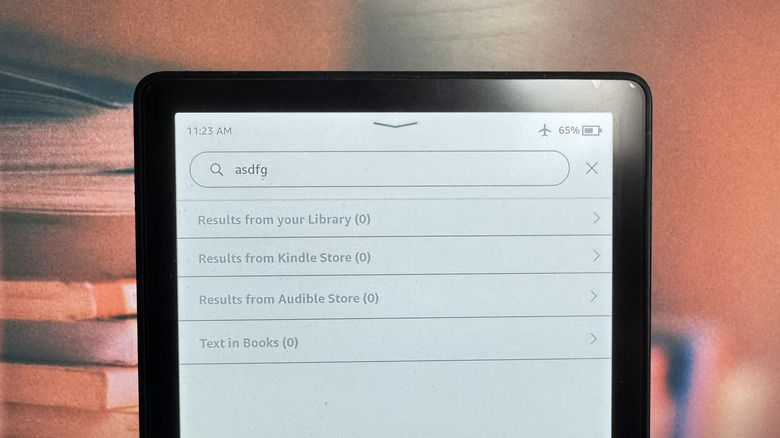
To make it easier for you to navigate your library, Kindle comes with a search bar at the top of the Home or Library tab. It can help you find book titles or search for text inside books. But before your Kindle can do so, it goes through a process called indexing. This happens in the background, and users typically only notice it after they've just downloaded a lot of books and the Kindle starts to slow down for a while. One user on Reddit reported their Kindle having sluggish performance for at least 24 hours after downloading multiple books. Once everything is indexed, though, things should return to normal.
However, if your Kindle still lags more than you'd like, it might be due to a book stuck in indexing. To see if that's why your Kindle is slow, follow this guide:
- In the Kindle search bar, type asdfgh (or any other nonsense text).
- Tap Enter.
- Take note of the Text in Books option at the bottom.
If Text in Books shows 0, that means the Kindle has already finished indexing your books and has encountered no issues. But if you can tap on Text in Books and it shows you an unindexed book, try waiting for it to index for up to an hour. Then, search for your nonsense text again. The book should no longer appear as unindexed. If it's still there, remove it from your Kindle and download it again.
Do a factory reset
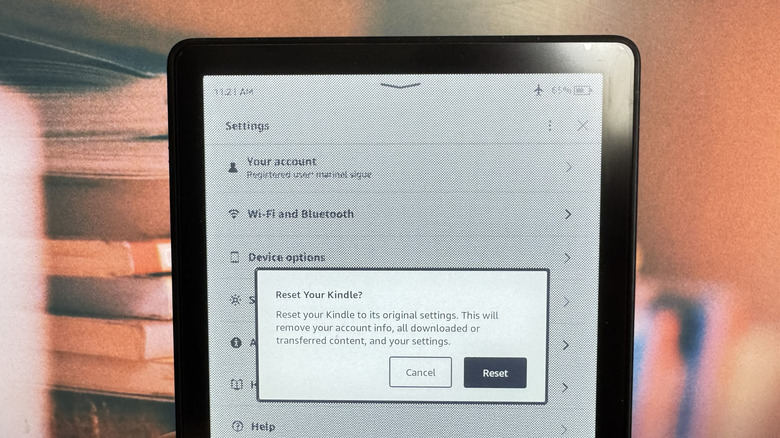
If all else fails and your Kindle is still painstakingly slow, your last resort is to reset it to factory defaults. This will remove all your books, data, and settings from the e-reader. You can still re-download the books you got from the Amazon Store afterward. But for your sideloaded books, they'll be erased completely, so make sure to back up your Kindle first. To do so, connect it to your computer via a USB cable. Your Kindle should show up as a storage device. Find the documents folder and open the Downloads folder inside it. It should contain the Items01 folder with all your sideloaded books. From here, all you have to do is copy and paste the books onto your computer.
When you're ready to reset your Kindle to factory defaults, follow these steps:
- In Settings, tap on Device Options.
- Tap on Reset and confirm your selection.
Your Kindle will automatically shut down and start resetting. Once done, you'll end up in the setup screen, where you can choose your language, connect to Wi-Fi, and sign in to your Amazon account. Then, just refill your library with your Amazon and sideloaded books.