

What Does 'Loc' Mean On Kindle? Here's How To See Page Numbers Instead
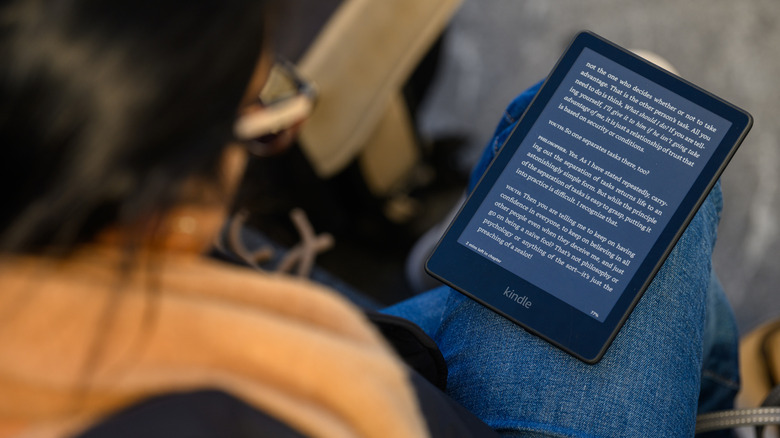
So, you just got your Kindle — one of the e-readers on Amazon that users swear by — and have configured it with your preferred font style and text size. Now, you're ready to start your first book. As you turn the pages, though, you notice the numbers at the bottom of the screen. That's your reading progress, showing how far along you are in the book. But these numbers don't really correspond to the traditional page numbers you see in physical books. Instead, Kindle uses a so-called Loc number.
Loc on your Kindle is short for Location, and true to its name, it points you to a specific location in the book. Yes, it essentially does the same thing as a page number, but more often than not, Loc numbers go into the thousands even if your book is way under 1,000 pages. So, what exactly does that mean, and why would you need the Loc number in the first place? And if you're not a fan, can you change it into the page number you're used to instead?
Why does Loc on Kindle even exist?
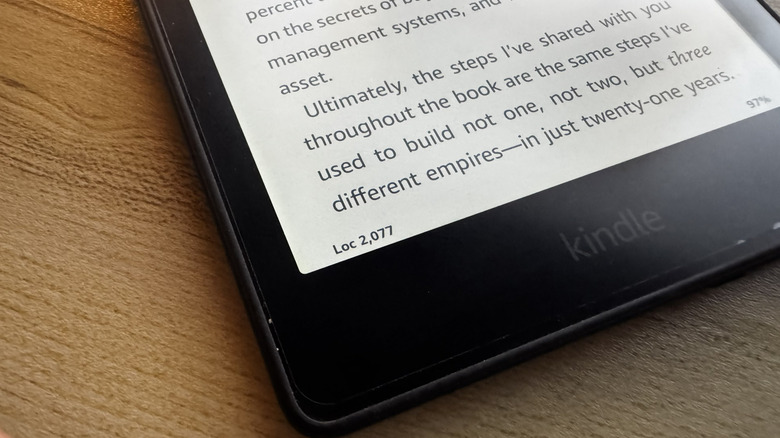
Loc on Kindle might look like a random string of numbers, but they actually serve an important purpose: marking your precise location in the book. This is something page numbers can't do. That's because in a Kindle e-book, the page numbers wouldn't be the same on every platform. Depending on how the user sets up the text settings, the same e-Book can look very different on every device. Page 101 on your Kindle might not have the same content as page 101 on your friend's iPad-turned-Kindle.
If that's the case, then how can you accurately cite information from the e-book and share it with others? That's where Kindle's Loc comes to the rescue. Unlike page numbers, Loc numbers are fixed and aren't dependent on the device type and text settings. That means as long as you and your friend have the exact same book downloaded from the exact same place, Kindle's Loc number will be similar for both of you. When reading alone, Loc on Kindle wouldn't really mean much. But when you start reading with a friend or a book club, it becomes the standard way of getting everyone on the same page, literally.
While Loc on Kindle is undeniably useful, it doesn't appeal to everyone. You might not like it because the four-digit numbers seem unnatural, especially when you're used to three-digit page numbers. The large figure can also be harder to remember when you frequently jump back and forth between pages. And when the book's Table of Contents refers to pages and not locations, it's a challenge to gauge how far you really are in a chapter. Don't worry, though. You can always switch from using Loc to page numbers in Kindle books if you prefer to see that instead.
How to display page number instead of Loc in Kindle
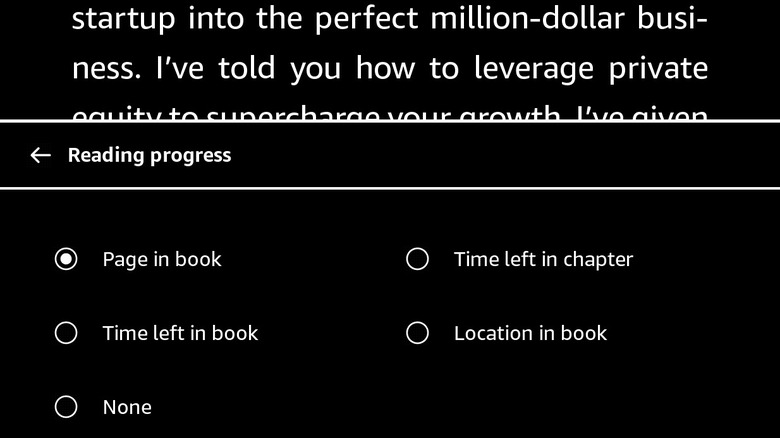
If you're not a fan of seeing Loc in your Kindle books, you can easily swap it out for page numbers instead. To do so, open the book you want to read and tap repeatedly on Loc in the bottom-left corner of the page. This will cycle through all the available reading progress options until you get to the page number. You can also achieve the same via the Aa menu by following these steps:
- Open a book in your Library tab.
- Tap anywhere on the empty space at the top.
- Go to the Aa menu.
- Choose More.
- Head over to the Reading progress menu.
- Select Page in book.
Now, instead of Loc number, a Page number is displayed in the bottom left corner of your book. This becomes the default selection for all your books moving forward. It's important to note, though, that in some books, the Page in book option is grayed out and says Not available. In that case, you can just use Time left in chapter or Time left in book. Both will show you the estimated time before you finish the chapter or the entire book. If you want to get rid of the reading progress indicator altogether, you can simply pick None in the Reading progress menu. This is one Kindle setting to change immediately for readers who don't want to track their reading progress and prefer a more minimalist interface.