

Here's 8 Things Your iPad Can Do That An iPhone Can't
We may receive a commission on purchases made from links.
For most of the iPad's existence, it has effectively been an iPhone with a much larger screen. Both devices ran the same operating system in the form of iOS, but over time the tablet gained unique features suited to its size and intended use case. In 2019, Apple split the operating system off into iPadOS, meaning there are now things your iPad can do and your iPhone can't. Under the hood, both devices still have the same beating Apple Silicon heart and can run the same apps and code, but iPads now have numerous features that set them apart from iPhones.
Of course, this isn't about choosing one device over the other. Just as with all Apple hardware, there's an ecosystem benefit to owning multiple devices from the company. You can enjoy Apple Continuity across these devices with features like Handoff, where you can start tasks on one device and finish them on another, or seamless switching of your AirPods between devices. But, that begs the question: When to reach for your iPad and not your iPhone? That all depends on what tasks you're trying to perform, so keep reading to find out things you can do on an iPad that you can't do on an iPhone.
Take advantage of real-deal multitasking
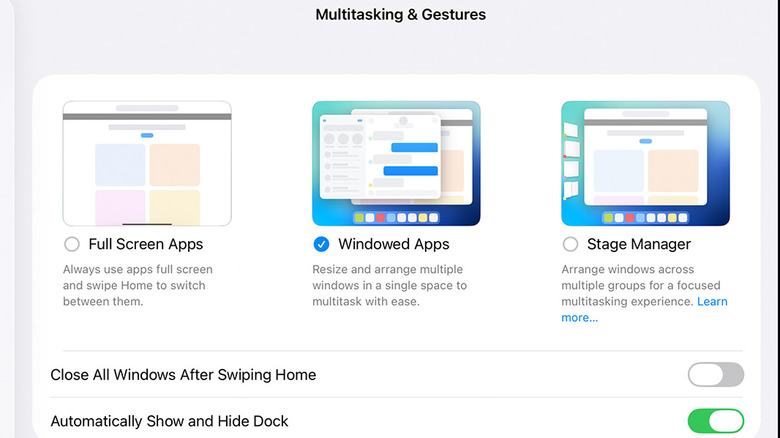
Simple split-screen multitasking is one of those Android features that put iPhones to shame. It might surprise you that the iPhone doesn't even offer the most basic multitasking abilities, and while Apple must have its reason for leaving this feature off the iPhone, things could not be more different on the iPad. Ever since 2015, the iPad has offered Split View multitasking, with Slide Over added later, allowing you to quickly slide an app partially over the one you're using — perhaps to check your mail or use the calculator.
Stage Manager brought a special desktop mode to iPad and, on Apple Silicon models, a proper extended desktop for an external monitor. iPadOS 26 almost turns iPads into Macs with real window management and those familiar macOS control buttons. It's not macOS, of course, but combined with mouse and keyboard support it can feel quite a lot like that, and the iPhone still doesn't have a split-screen feature. Go figure.
Act like a desktop computer
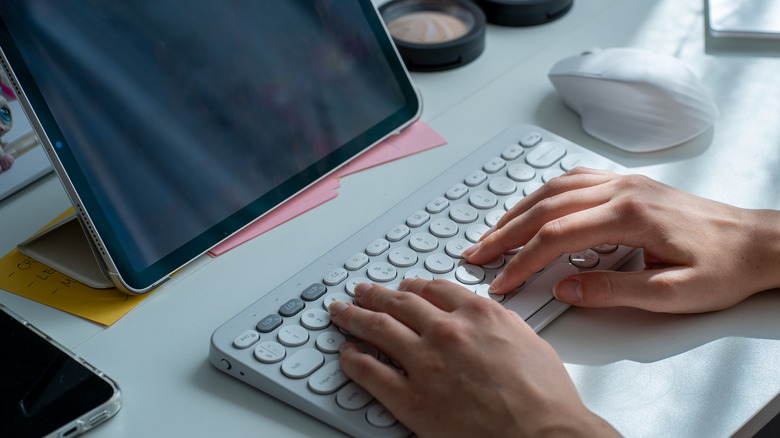
In 2017, Apple ran its "What's a computer?" ad campaign, pointing out that an iPad could replace a traditional desktop PC for a lot of people. The campaign was certainly a little premature, but with the advent of iPadOS 26 and its multitasking features it makes more sense than ever. For iPads that support extending to an external monitor, you can literally create a desktop setup that looks and feels almost like using a Mac.
The iPhone can't offer anything like this. That's especially puzzling considering Android devices have a desktop mode that turns your phone into a portable PC. While this is a fairly recent addition, Apple's biggest competitor in the phone market, Samsung, has offered its "DeX" mode for years. All you have to do is connect a monitor via USB to your Samsung phone with DeX support, add a mouse and keyboard, and you're ready to use it like a desktop PC.
While using an iPad like this is still more limiting than Windows or macOS, it should still be more than enough desktop computing for most people to use on a daily basis. Unless there's some specific software you need that doesn't have an iPad equivalent, you probably could use your iPad as your desktop system. Now if only Apple would give this tablet superpower to its phones.
Work as a portable monitor
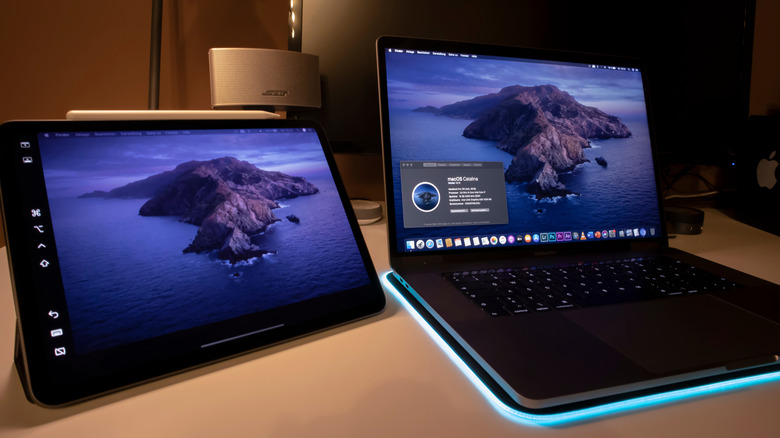
Apple's iPads generally have wonderful, high-resolution displays. It almost feels like a shame to limit that screen to running tablet apps, and Apple feels the same. Thanks to a feature called SideCar, you can turn your iPad into an extended display for your Mac. Best of all, the SideCar display doesn't count toward the total display limit of your Mac. For example, we've used an iPad as a third display on the original M1 MacBook Air which officially only supports a single external display.
You can also use your iPad as an external display on Windows systems, but this requires third-party software like Duet Display. If we're bringing third-party software into the picture, then technically you can hack an iPhone into acting like an external display, too, but given the size of a typical iPhone screen, the reasons to do so are limited.
If you are a Mac user, iPads offer an interesting alternative to the vanilla external monitor option, called Universal Control. Just like an external monitor, you can use the same keyboard and mouse to control both a Mac and iPad at the same time (and you can copy and paste data between the devices, too), but Universal Control retains the individual processing power and resources of each device. For example, opening web pages on your iPad doesn't take up memory on your Mac. Genius!
Use an Apple Pencil
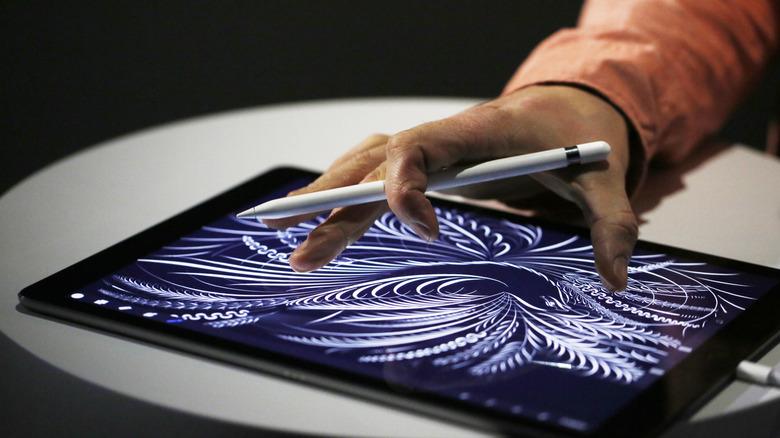
The Apple Pencil now has a 1st-Gen, 2nd-Gen, USB-C, Or Pro to choose from, depending on which iPad model you own. However, they are all excellent drawing tools that are well worth the money. Although, as always, you can buy an alternative iPad stylus instead. Functions such as pressure, tilt angle, a neat hover feature, and more have made the Pencil the gold standard for what a tablet stylus can do, but sadly none of these work with the iPhone.
It's not like the idea of a stylus for smartphones is untested, since Samsung's old Note line of phones and its current Galaxy Ultra flagships come with an internal stylus. As iPhone screen sizes have been steadily climbing — the iPhone 17 Pro Max has a 6.9" screen with basically no bezels — there is plenty of room to doodle with an Apple Pencil. And, of course, nothing stops Apple from making a smaller version of the pencil. There have been rumors that Apple will bring Apple Pencil support to iPhone for many years at this point. But if we've learned anything about the elusive company, it's that features come when Apple is good and ready.
Use professional apps like Final Cut Pro and DaVinci Resolve
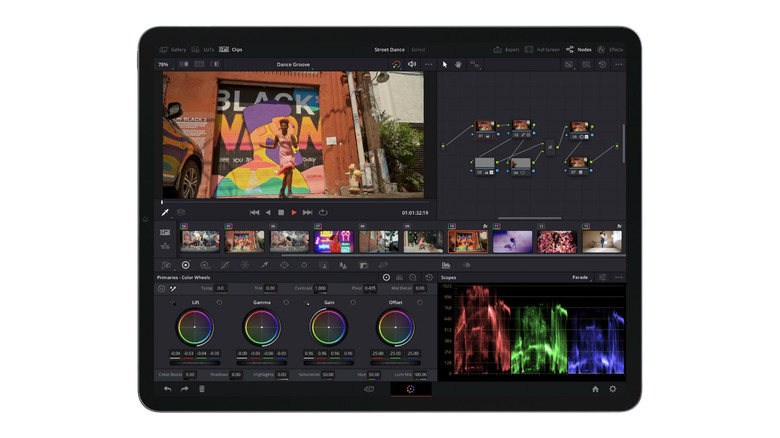
When the first iPad launched, it was mocked as being nothing more than a big iPhone. People wondered what the point was of the tablet, and it didn't seem all that useful. Today, the iPad accounts for almost 7% of Apple's revenue, which equates to just over $28 billion! With so many people buying iPads and the device going from a computer accessory to an independent computer in its own right, software developers started taking the iPad seriously.
This is why, today, you can find plenty of professional applications on an iPad you might only expect on a traditional desktop PC or laptop. Apple's own Final Cut Pro has an iPad version, as does DaVinci Resolve. Procreate, Affinity Photo, Affinity Designer, AutoCAD, and many more professional apps have either been ported to the iPad, or are native iPad apps designed for serious work. Current iPhones can get you some of that functionality, but they lack the horsepower of higher-end iPads. Even when there's an iPhone version of these apps, the small screen makes it hard to use them comfortably or efficiently.
Use proper desktop versions of websites
More than half of all internet traffic comes from mobile phones today, which is why modern websites have carefully designed mobile versions of their web pages. You don't want to know what it was like trying to browse the web on early smartphones. As nice as mobile-formatted websites can be, they often have limited features compared to the full-function desktop browser version of the same site. For example, the mobile version of your banking website may not let you do all the same things or see all the same information as the desktop version.
Both iPhones and iPads can request the desktop version of a website, of course, but since iPad screens are so much larger, you can view and use the site as intended. This allows you to use the proper desktop version of a website without compromise. Navigating a desktop website with an iPhone, on the other hand, messes with the site's formatting, and it usually involves lots of pinching, zooming, and an unhealthy dose of frustration.
Perform color-sensitive edits
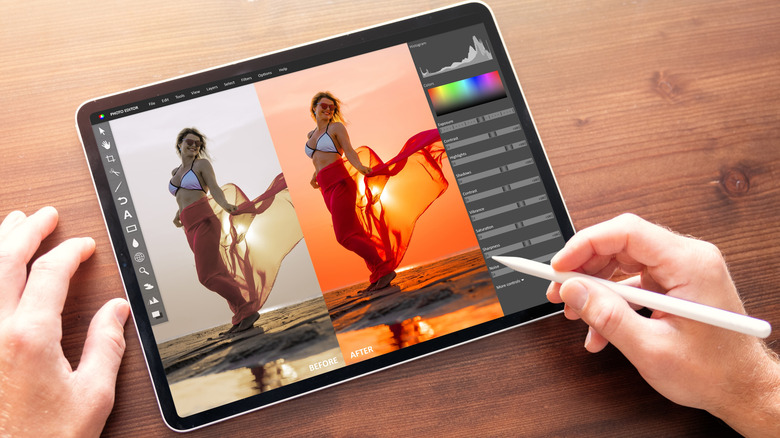
While you might not have the ease and feature set when editing video or photos on an iPhone, you can still do it. There are people who have made entire careers on platforms like YouTube while editing their footage on nothing but an iPhone. Apple has made its iPhones powerful enough to handle the workload, but the screens on these phones aren't color-accurate enough for professional work.
To be fair, the same can be said of standard iPads, but thanks to a feature called Reference Mode for iPad Pro, you can use an iPad for professional color grading, reviewing content, and editing with an eye on final output. To use Reference Mode, you need an iPad Pro 13-inch (M4), iPad Pro 11-inch (M4), or iPad Pro 12.9-inch (5th or 6th Generation).
In Reference Mode, you can switch the iPad to various common color standards and video formats, which means you can evaluate or master content aligned with those standards. Best of all, you can use this mode with the Sidecar feature we mentioned earlier, giving you a reference-grade monitor if you're creating or editing content on your Mac.
Replace your laptop

An iPhone is an amazing computer that can fit in your pocket, but those of us who need to do more than scroll social media and leave witty comments still need to carry a laptop. While an iPhone can't really replace a laptop in any real sense, an iPad absolutely can be a viable laptop replacement depending on your needs.
Apple itself produces an iPad keyboard with an integrated trackpad, and a hinge and magnetic mount that makes the iPad very laptop-like. Sure, the weight distribution is rather top-heavy compared to a MacBook, but having a detachable keyboard is incredibly versatile. Again, as with the idea of using your iPad as a desktop computer replacement, it depends on what software you use.
But no amount of software ingenuity will ever turn an iPhone into a potential laptop replacement. Well, maybe if Apple does give the iPhone something like Samsung DeX, and perhaps an Apple attempt at the NexDock, which is a laptop shell you can hook up to a phone to make it a laptop.