

Sharing Files From Your Android Phone Just Got Easier With This Free App
Every time you needed to transfer files between your Android phone and your computer, you'd typically email them, use messaging apps, or connect via USB with a physical cable or flash drive. But these methods aren't exactly the definition of convenience. They take more steps than necessary, and by the time you get your files, you've already wasted a few good minutes.
If only there were an easier way to move files from any Android phone to any computer, regardless of brand and operating system. Well, there actually is, and it's one of the essential Android productivity apps you should install. Aptly called Nothing Warp, the app is developed by the same team behind the Nothing phone. However, it isn't exclusive to Nothing phones, and can be used on any Android device, as well as any computer with a Chromium-based browser, such as your PC, Mac, or Linux computer.
What makes Nothing Warp simple to use is the fact that the only apps you need to share a file are the file management or photos app on your phone and the browser on your computer.
How does Nothing Warp work?
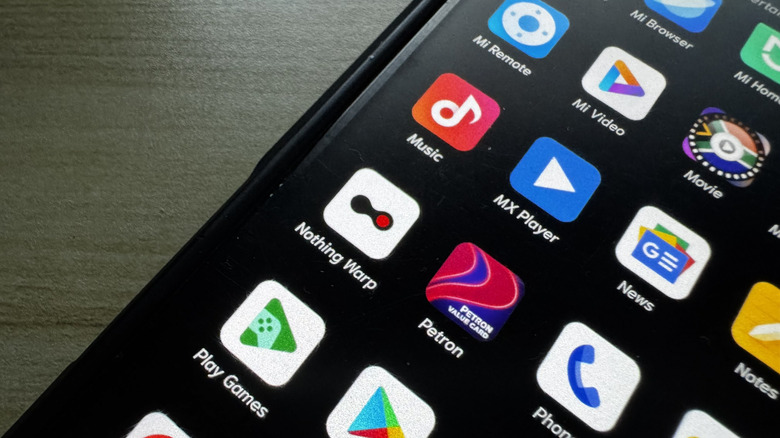
The system behind Nothing Warp is pretty straightforward. The Nothing Warp app on your phone connects to the Nothing Warp browser extension on your Chromium-based browser (e.g., Chrome, Edge, Brave) over the internet.
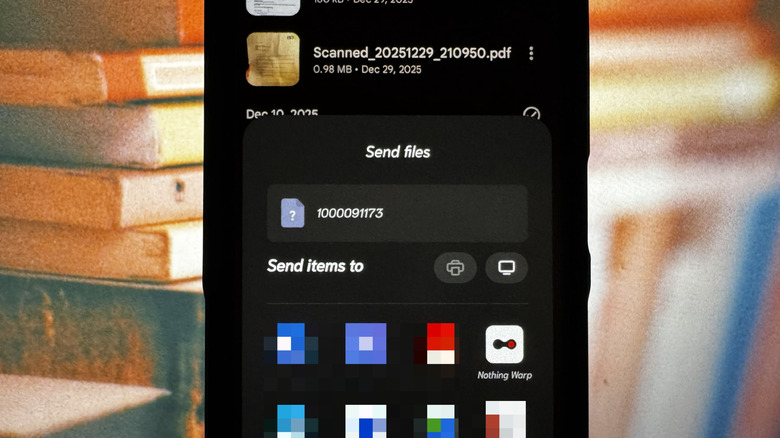
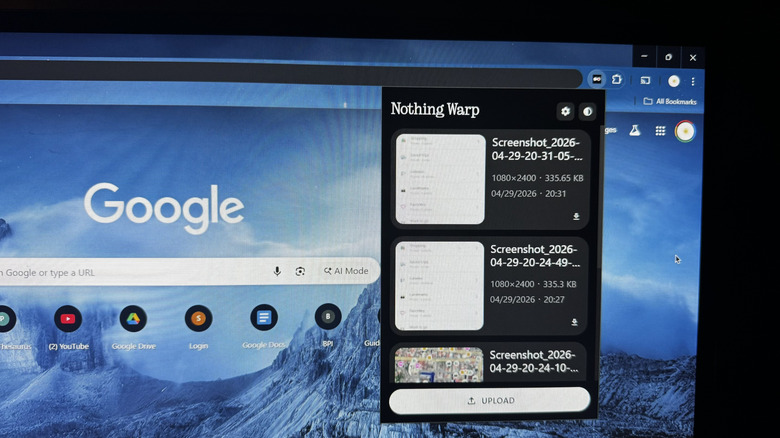
When sharing from your Android device to your computer, you won't even have to open the Nothing Warp app. Simply press the share button anywhere on your device and choose Nothing Warp from the options. The file will automatically appear on the Nothing Warp browser extension panel. On the other hand, when transferring files from your computer to your Android device, you'll use the Upload button in the browser extension. Then whatever you send will instantly appear in the Nothing Warp mobile app.
As of this writing, Nothing Warp is still in Beta testing, so it's not available on the Play Store yet. It's also important to note that Nothing Warp is powered by your personal Google Drive. That means it needs a Google account sign-in before you can proceed. The files are kept private, though, as Nothing Warp doesn't store them.
How do you use Nothing Warp?
To get started with Nothing Warp, install the mobile app and browser extension first. On your Android, scan the QR code from the Nothing Community and install the APK. In your browser, go to the extensions store, look for Nothing Warp, and add the free browser extension. Once installed, pin it to your extensions toolbar for easier access. From here, use your Google account to sign into Nothing Warp on both devices. Make sure you're using the same account and giving the app the necessary permissions to access Google Drive.
Now that Nothing Warp is ready, follow these next steps to send files from your Android to your computer:
- Find the photo, video, or document you want to share, whether it's in Google Photos or your file management app.
- Press Share.
- If you don't see Nothing Warp on the initial set of apps, hit More.
- Tap on Nothing Warp.
- On your computer, click on Nothing Warp from your browser's toolbar.
- Give it a few seconds to load.
You should then see your transferred files appear in the Nothing Warp panel. Press the download button to save the file on your computer. If you want to move files from your computer to your Android instead, here's what you need to do:
- In your computer browser, open Nothing Warp from the extensions toolbar.
- Click Upload.
- Choose the files you wish to share.
Alternatively, you can share items found on webpages. Just right-click on an image, highlighted text, link, or embedded file and select Send with Nothing Warp from the menu. A short while after you send them, the files will automatically appear on your phone's Nothing Warp app. Just like on your computer, you can download files to your mobile device.