

4 Cool Things You Didn't Know Your PlayStation 5 Controller Could Do
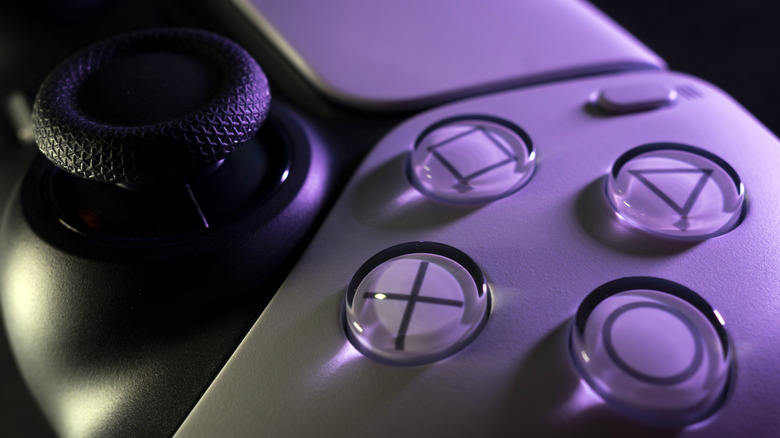
The PlayStation 5's DualSense controller is designed to maximize immersion with its haptic feedback and adaptive triggers that simulate things like falling rain and the distinct feel of firing different weapons. Sony has added new features over the years, such as the ability to pair it to multiple devices and adaptive charging, which is one of the reasons you should always update your PS5 controller when prompted by your console.
Some on Reddit have even said that the DualSense has changed the way they play, with one calling it "a literal game changer" that convinced them to get a PlayStation 5 over an Xbox Series X. Not all of the PS5 controller's features are immediately apparent, though. The sleek device is hiding some cool things in the settings and beyond that can improve your gaming experience, further enhancing immersion and accessibility. That includes 3D audio options and Create button customizations you probably didn't know existed.
Set up 3D Audio for headphones
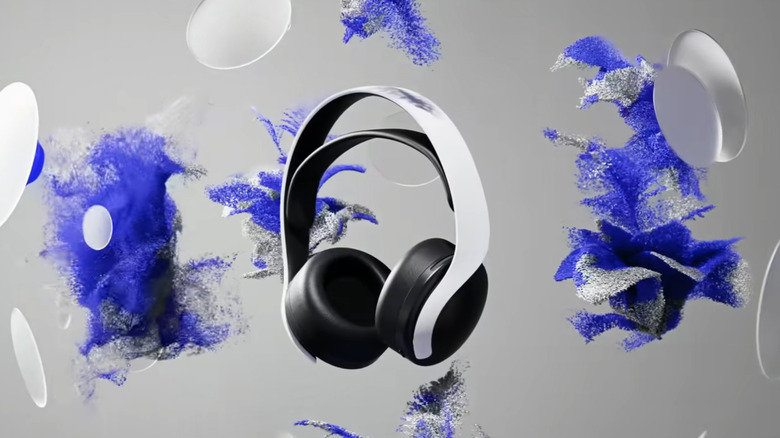
For games that support it, 3D Audio does a great job of simulating surround sound. It makes it feel like you've been dropped into a new world when you're swinging across Manhattan in "Marvel's Spider-Man: Miles Morales" or exploring the whimsical, reference-filled world of "Astro Bot." What you may not realize is that you don't need any fancy equipment to use it.
3D Audio isn't just for TV speakers or high-end gaming headsets. In fact, any pair of headphones that you can plug into the DualSense's audio jack can use 3D Audio. All you need to do is go to Settings, Audio, then 3D Audio (Headphones). From there, select Create Personalized 3D Audio Profile and follow the instructions to customize the sound to your liking. It's worth noting that not all games support 3D Audio, and users have reported that having it enabled for games not specifically designed for the feature can muffle the sound. Still, it's great that you can access the feature for compatible games without needing to buy new headphones.
Connect to other devices
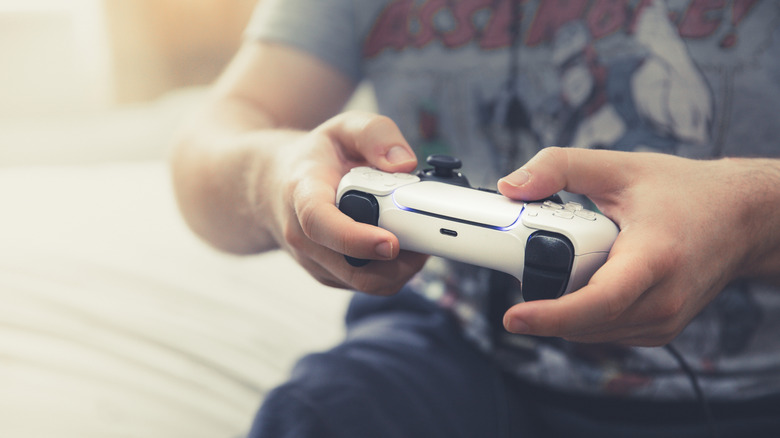
While it was made for the PlayStation 5, that's not the only device your DualSense can connect to. You can use your PS5 controller to play games on other platforms, including PC, Mac, mobile, and Steam Deck via Bluetooth or USB connection, which is perfect for anyone who doesn't want to buy or get used to another controller. Most games don't support DualSense-specific features like haptics and adaptive triggers, but they'll work if you're playing ports of games like "Horizon Forbidden West" or "Death Stranding Director's Cut" that were designed to take full advantage of the controller's capabilities.
Following a July 2025 update, you can simultaneously pair a DualSense with up to four devices. That means you don't have to unpair and re-pair your controller every single time you want to use it on a different platform, which is perfect for those who swap between console, PC, and mobile gaming but prefer the feeling of a PS5 controller.
Check accessibility features in the PlayStation Store
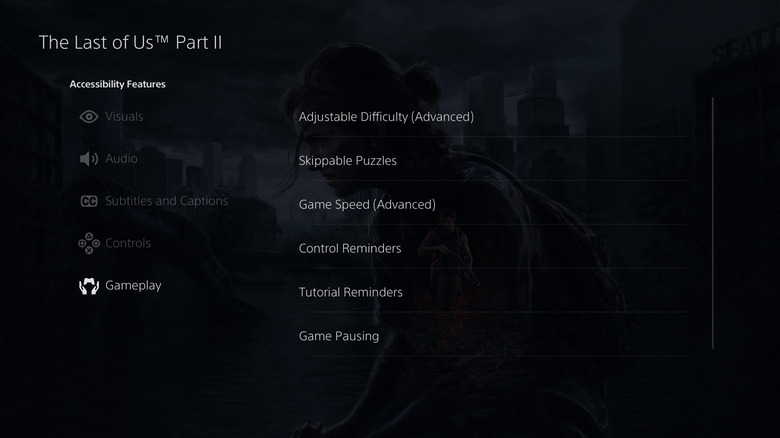
PlayStation 5 and its controller have various settings and customization options that make gaming more accessible to players with disabilities, like button remapping, a screen reader, and haptic feedback meant to help users navigate menus. However, while accessibility features within games have become more common, not all of them have equally robust options. That's why it's great that the DualSense makes it easy to check what kinds of options a game has before you purchase it.
Developers have the option to include Accessibility Tags, and all you have to do to see a detailed breakdown of a supported game's accessibility features is open its PlayStation Store page and press the Triangle button. That will bring up a page that goes over specific video, audio, control, and gameplay options. It'll also tell you if a game supports chat transcription, which converts voice chat speech from other players to text and reads aloud your typed responses. It's a shame not all games have Accessibility Tags, but it's a useful tool that makes finding important information as simple as pressing the Triangle button.
Customize Create button shortcuts
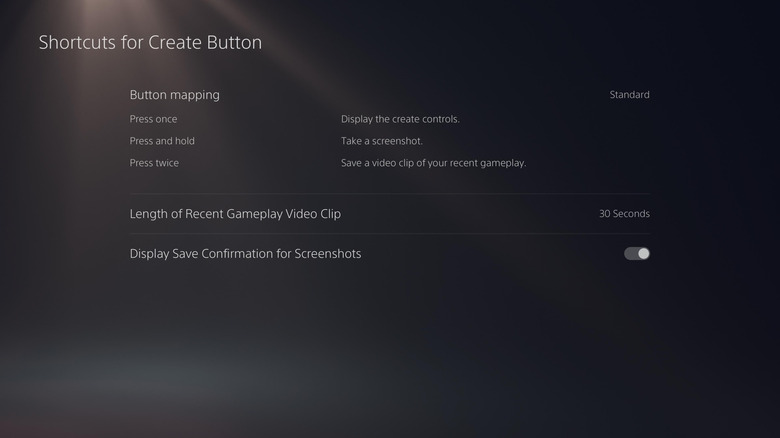
Button customization is important for accessibility, but being able to remap controls to fit your needs and preferences isn't just for gamers with disabilities. There's also one button on the DualSense you may not have realized you can customize: the Create button. There are three different ways to press the Create button. By default, a quick press will bring up the Create menu, a double tap will save the last 30 seconds of gameplay as a recording, and holding it for three seconds takes a screenshot.
To change what these different inputs do, go to Settings, Captures and Broadcasts, then Shortcuts for Create Button. There are two additional options outside the default. Easy Screenshots swaps the screenshot and Create menu inputs, while Easy Video Clips lets you start or end recording video clips with a double-tap. You can even change how much recent gameplay gets saved, with options ranging from 15 seconds to one hour. If you're the type who loves to dive into Photo Mode or share gameplay clips with friends, it's worth checking out these Create button options to make it work better for you.