

5 YouTube Features That Can Level Up Your Experience On Smart TVs
Having a smart TV is great for a number of reasons, including underrated features that you need to start using, but one aspect that lets a device shine is the ability to customize certain settings to best suited for your needs — on both the device itself and the apps you use. YouTube is surely one of the more popular apps you'll interact with on a smart TV, but you may not have known there are plenty of ways to personalize Google's video platform on your device to best enjoy the seemingly endless supply of content. From parental controls to artificial intelligence, we're taking a look at some YouTube features that can be a big help on your smart TV.
Along with explaining what each feature does for your experience, we'll also show you how to enable or properly utilize it. Most of them are fortunately rather straightforward. Naturally, for those with a new smart TV, there's a couple of things you should do with it right out of the box. However, even if you've owned your device for some time, many of the YouTube features below can still have an impact on how you use Google's service. Considering not all smart TVs are the same, you may want to do some additional research for some of these settings on your particular device, but keep reading to learn how you can take better advantage of the YouTube app with these helpful features.
Choose your default video quality
Even if there is a smart TV for every budget, no doubt you want your content to look its absolute best–even if you're just watching some videos on YouTube. For the app, there are several factors that may determine the quality of a video on your smart TV, including what resolution in which the uploaded video was filmed. The size of your television screen may also impact the video quality, as can the speed of your internet connection.
Even with these potential limitations, there is a setting within the YouTube app that allows you to force it to always display videos at a certain resolution and it isn't too hard to find. However, changing this setting may have an effect on other things tied to your television, such as your internet connection.
Nonetheless, here are the steps to changing your default video quality:
-
While watching a video on your smart TV, press your selection button.
-
Choose Settings.
-
Select Quality.
-
Choose your preferred option from the list.
From here, you're good to go, but remember that consistently streaming higher-quality video may have an impact on your internet usage, and you should most certainly keep this in mind if you have a data cap on your internet plan. If you want to get into the details, keep in mind you want about 5 Mbps for HD streaming and anywhere from 15 to 25 Mbps for 4K streaming. It's a straightforward feature, but it can be a useful one.
Take advantage of voice search
Using the on-screen keyboard to search YouTube can be pretty slow if you only have a remote, and even with search predictions, there are more direct measures you can take on a smart TV. If you want to save some time and jump directly into what you're looking for, take advantage of the voice search option, which lets you speak your search query rather than typing the whole thing one letter at a time.
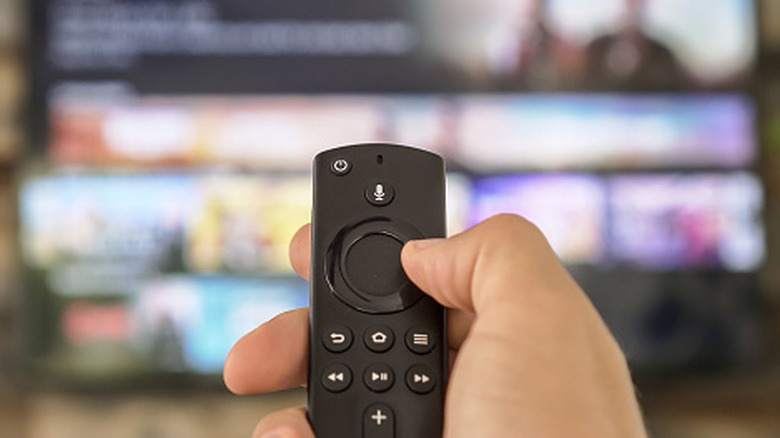
This one is also pretty easy to get started. If you have a microphone button on your smart TV remote, press and hold the button when the YouTube app is open and say your search. You'll find the search icon in the app's left column. Voice search can be great for when you're trying to find something specific, but you can also make general search queries such as "fast food reviews" to get an assortment of content for your perusal.
As you're searching for content on YouTube, remember that Google ranks search results based on three criteria: the video's relevance, how much audiences have engaged with it, and the overall quality of the video. And just as you're able to delete your YouTube watch history, you can also delete your search history by clicking the Settings icon, selecting Manage All History, and then choosing which queries you want to delete.
Ask YouTube questions
Depending on what you're watching on YouTube, you may be curious to learn more about a specific video or program. Whatever information you're looking for, YouTube is probably able to find it thanks to its conversational AI tool, which can be pretty helpful while you're streaming. Along with being able to provide a summary of the video, conversational AI can help provide information like telling you what ingredients are necessary while watching a cooking video.
There are two ways you can go about starting a conversation. If your remote has a microphone button, just press it or press and hold it to begin asking Gemini questions. Another way is to press the up or down buttons on your remote while you're watching a YouTube video, which brings up the video's details. Hit the Gemini button (looks like a star), and YouTube will provide you a number of suggested prompts.
Google has been leaning heavily into having AI assist you in a more conversational way, including bringing an update to smart homes that's a big deal. For your smart TV, there are some caveats to this feature, however. First, you'll need to be signed-in to YouTube, and you'll need to hit Google's minimum age requirement in your region — this feature doesn't work with YouTube Kids app, nor will it work with supervised kid accounts. Nonetheless, it can be a fun one to try if you're looking for more information about a video.
Disable autoplay
Like other apps and services these days, YouTube wants to keep you on the platform for as long as it possibly can. One example of this is the way that it uses algorithms to tailor an experience that feels personal to you, but another way is by having videos automatically play one right after another. Once you finish a video on YouTube, the platform is readying the next one for you. It can be good if you're wanting to just zone out to whatever, but there's no real control over what plays next.
Since Autoplay will continue to run for 30 minutes if you're on mobile and four hours when on Wi-Fi, knowing how to disable it can be pretty handy, especially if you're on a data plan. You are able to change your Autoplay options to specific devices, so you can disable it on one device while keeping it on another.
Here's the steps to change your Autoplay settings:
-
Navigate to the YouTube app on your smart TV.
-
Choose Settings.
-
Scroll and select Autoplay.
-
Choose either to keep it On or Off.
Surprisingly, Autoplay isn't necessarily always engaged automatically across all accounts. For users between the ages of 13 and 17, the setting is disabled by default. Those on a supervised account may not have the Autoplay feature at all, depending on if the guardian of the account has disabled it already.
Enable a parent code
And speaking YouTube accounts for kids, Google does have a child safety policy for YouTube that prevents users from posting certain content that may harm minors, and there is also an additional feature that can help parents moderate what a child watches. Fortunately, YouTube has a Parent code option, which stops children from accessing accounts that aren't intended for kids and prevents anyone from accessing content when not signed into an account. It's a small detail, but it can be handy for restricting access to content. Essentially, you make a four-digit code that will need to be entered when accessing YouTube.
Here's the steps for enabling a Parent code:
-
Open the YouTube app.
-
Choose Settings.
-
Select Parent code.
-
Follow the on-screen prompts.
Disabling it involves the same steps, though you'll need to enter the four-digit code. However, once the setting is enabled, you will need this code to remove YouTube accounts from the smart TV alongside accessing adult accounts or watching things when signed out.