

5 Tips For Reading More On Your Kindle

We may receive a commission on purchases made from links.
So, you've convinced yourself that a Kindle would pull you out of your reading slump and help you read more again. But after getting your hands on one and filling it up with all the titles your heart desires, it still ended up sitting on your bedside table, collecting dust. For many users, the Kindle is actually one of the most effective tools that had them breezing through their TBR list (To Be Read list). But for others, it might need a bit of setting up. Maybe it isn't comfortable to read on. Or the font is too small, too spaced out, or just plain uninspiring.
Lucky for you, you can make reading on the Kindle feel a lot more engaging than it is right now. There are some Kindle settings you can try changing, a few accessories you can use, and a couple of hidden features to explore. If you're ready to finally clear your backlog, here are five clever tips to get you reading more on your Kindle.
Display the time on the reading interface
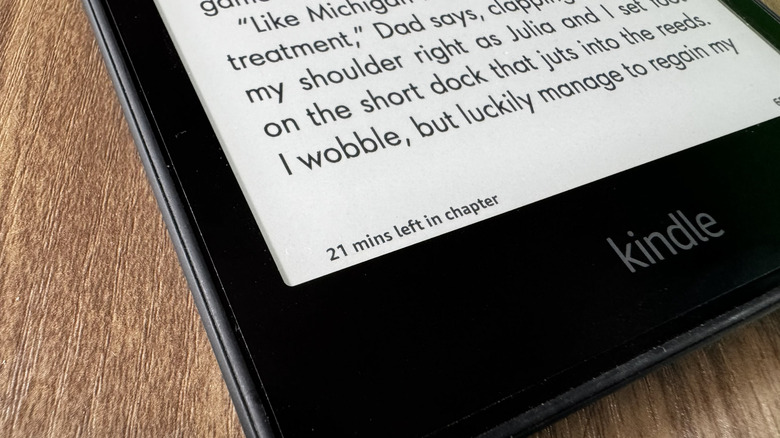
There are instances when while reading, you catch yourself thinking how long it might take before you can finish the book or, at very least, the chapter. Not knowing can make you lose the motivation to continue because it just feels like a never-ending task. Thankfully, the Kindle has two solutions to that: the clock and "Time left in chapter" feature. Both can be displayed on the reading interface to give you a more concrete sense of how much time you need (or want) to put into reading.
The clock sits at the top center of the screen. When a book starts to drag on and on, you can challenge yourself to read for five more minutes. Sometimes, that's all the push you need to finish a chapter or even the entire book. If not, at least you've still made some progress before stopping.
The "Time left in chapter" feature, on the other hand, is located in the bottom-left corner. It's one of the available reading progress indicators Kindle uses, along with pages and loc numbers. As you might have already guessed, Time left in chapter tells you the total minutes you need until you get to the end of the chapter. It's based on your personal reading speed, and from user reports, it's usually a good estimate. This can help you decide whether you can still squeeze in another chapter before bed or going out.
To turn on the clock and Time left in chapter on your Kindle interface, just open any book. Then, tap the space at the top and select the Aa menu. In the More tab, toggle on "Show clock while reading" and set Reading progress to Time left in chapter.
Pair your Kindle with accessories
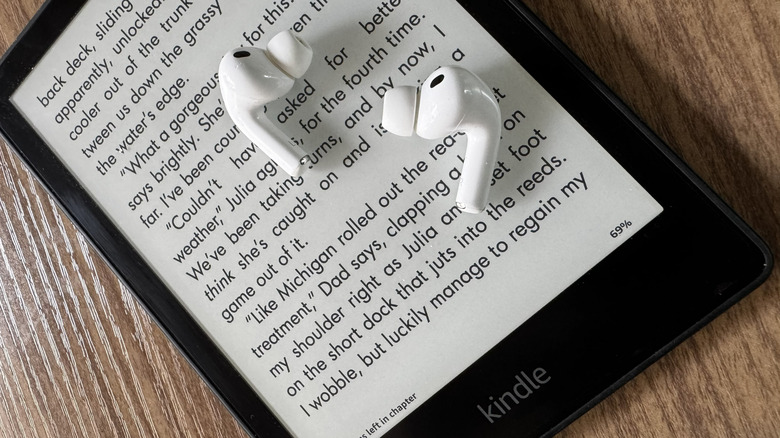
While the Kindle works pretty well on its own, there's no harm in using it with a few cool Kindle accessories that could help you speed through a book in no time. For starters, you can try a page turner like the Datafy Page Turner for Kindle. Its screen sensor simply clips to the e-reader and waits for a signal from the remote to turn the page forward. This is especially handy during reading sessions in bed or on the couch, where you usually have the Kindle on a mount or stand. Instead of moving from your cozy spot and disrupting your reading momentum, all you have to do is press the remote. Before you know it, you're already hours deep into your book.
Any tablet stand works with the Kindle. But when reading in bed or on the couch, it's more convenient to go with a tablet floor stand or a gooseneck mount that clamps to a nearby desk or your bed frame. If you prefer to set the Kindle closer to you, though, a pillow stand like the Lamicall Tablet Pillow Stand could work better. For handheld use — like when you're on the bus home or waiting in line at a diner — you'd want a grip or a case with a hand strap for your Kindle. This makes the e-reader more comfortable to hold.
A pair of headphones with a long-lasting battery is also a must-have for the Kindle. After all, the last thing you want is for your audio device to die right when you're in the midst of a thrilling audiobook.
Turn on Word Wise
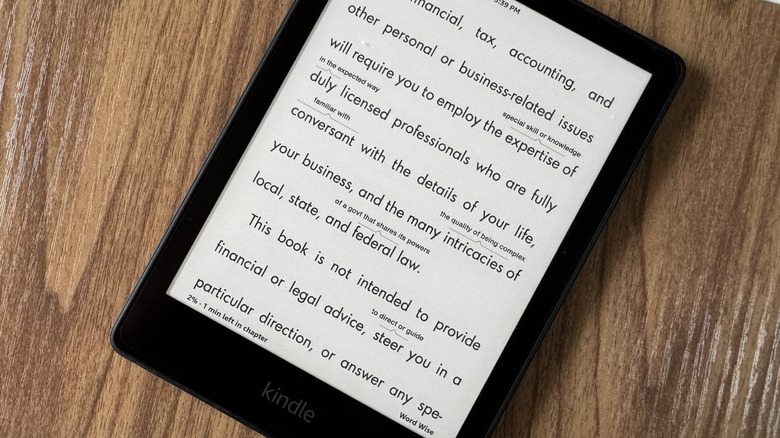
Reading is one of the best ways to expand your vocabulary, and the Kindle helps with exactly that. It includes a built-in Dictionary feature, which allows you to simply long-press on a word to check what it means — no picking up your phone and looking up the term on Google. Unfortunately, doing so every once in a while can quickly slow you down and discourage you from reading more.
Instead of using the Dictionary, you can switch to another Kindle feature called Word Wise. Word Wise is like a dictionary, but it doesn't wait for your input before showing you the meaning of the word. It automatically displays a short definition just above the term, making reading so much faster as your flow won't be distracted. To turn on Word Wise, follow these steps:
- Connect to the internet if you haven't already. Word Wise needs an internet connection to download resources.
- Open a book on your Kindle device.
- Hit the top of the screen.
- Go to the Aa menu.
- Tap on More.
- Choose Word Wise at the very bottom of the menu.
- Enable it.
Now, you can go back to your book. A "Downloading Word Wise" indicator should appear in the bottom-right corner of the screen. Once it's done downloading, tap Word Wise and adjust how many hints you want to see. Less hints mean Word Wise will only display the definition for the hardest words in the book, while More hints mean it will define more words, some of which you might already be familiar with.
Join reading challenges
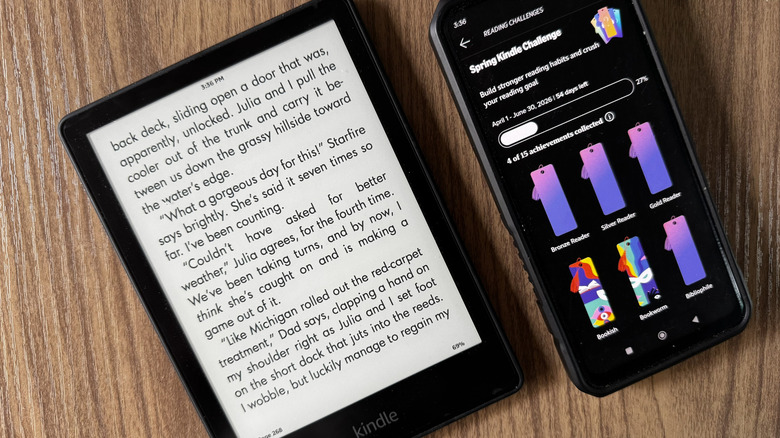
Setting a reading goal is great, but if you're having trouble following through, you might need a little external motivation. That's where the Kindle reading challenges come into the picture. There are usually two types of Kindle reading challenges available. First is the Reading Challenge, which runs all year round. Second are the seasonal challenges, which change every few months. Beyond these two, Kindle Unlimited subscribers also get a special Kindle Unlimited Welcome Challenge for a limited time.
How these Kindle challenges work is simple. They're active for a set period, and during that time, you'll have to complete different types of tasks. For instance, you have to finish one qualifying book before the challenge ends or read every day for an entire month. For every completed task, you earn the corresponding bookmark reward for your collection. For the Reading Challenge, though, your only task is to finish a book.
These Kindle challenges are, unfortunately, only accessible from your Kindle app. To view all the challenges, launch the Kindle app and tap on More. Then, head over to Reading Challenges. To start the year-long Reading Challenge, simply go to Reading Challenges and press Set a goal. Input the number of books you plan on reading within the year and hit Save. To join a seasonal challenge, tap on Challenge details to see all the tasks for that specific challenge. Just accomplish the tasks as instructed to earn the bookmark reward.
Remind yourself not to break your reading streak
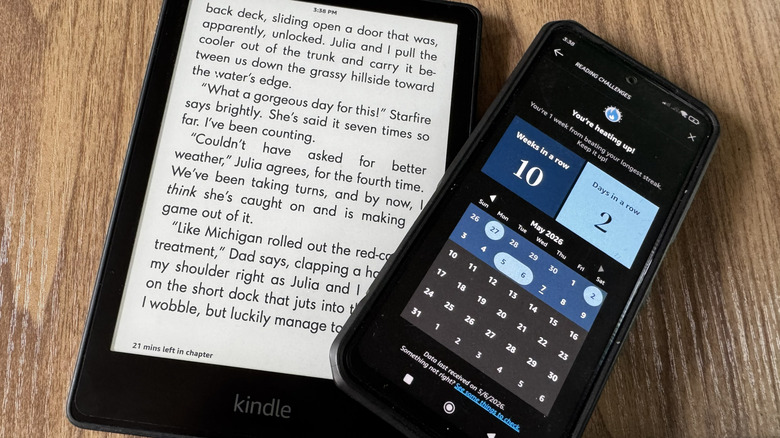
If you've ever used Duolingo, Snapchat, or Strava before, then you might already be familiar with streaks. It counts the number of consecutive days or weeks you've committed to doing something, gamifying the system to urge you to keep doing what you started. Kindle's reading streaks work the same way. Yes, if you don't already know, your Kindle actually monitors whether or not you've read something that day. It then provides you with two reading streaks, a weekly streak and a daily streak. The weekly streak just needs at least one reading activity in a week, while the daily streak requires you to read every day — otherwise, it resets.
This hidden feature can help you read more by passively encouraging you not to break the streak. You wouldn't want to lose your progress and start back at zero. To view your Kindle streaks, you need to hop on your Kindle app. In the app, tap More and go to Reading Challenges. If you already have an ongoing streak, a blue banner with your current streak will appear at the very top. Press it to open your Reading Insights. If there's no blue banner on your end, scroll down to the very bottom of the page and hit "View classic Reading Insights."
If you don't have a Kindle streak yet, there's no better time to start than today. Keep reading until tomorrow, and you'll already have a daily streak going. From here, it's only a matter of consistency. A daily reminder to pick up your Kindle can help with that, but at the moment, the Kindle app is yet to offer such a feature. You'd have to create one on your phone instead.