

4 Things You Need To Try Before Replacing Your Old Kindle
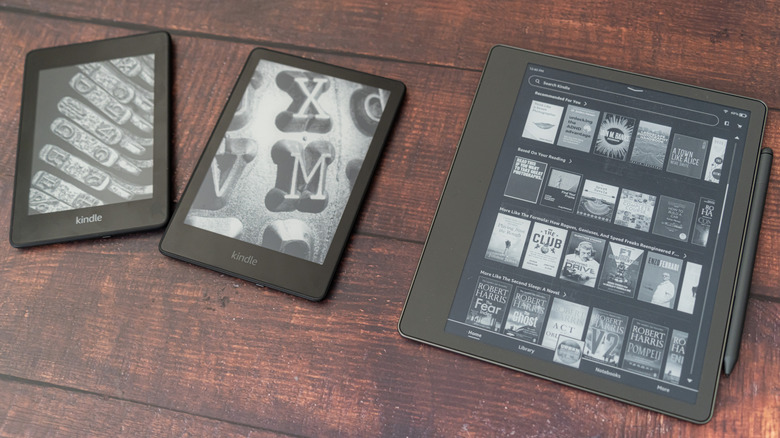
Starting on May 20, 2026, Amazon is discontinuing support for older Kindle models released before 2013. This has introduced a whole host of problems for people who own those older models: loss of access to the Kindle store, poor performance, the possibility of bricking the device, and more. Does this mean you should just give up and buy a new e-reader after all? Not quite; there are several things you need to try before replacing your old Kindle.
Some of these homegrown solutions will address common problems for a wide variety of Kindle owners, not just those affected by Amazon's sweeping discontinuation. You can breathe new life into your device, whether it's ten years old, five years old, or even if you just bought it last year.
If you do own a Kindle that's no longer supported by Amazon, though, make sure not to deregister or perform a factory reset. Amazon has warned that you will not be able to re-register an unsupported device, making it completely unusable. But as long as your Kindle still works, it's definitely worth trying these four things before you resign it to the recycling bin.
Sideloading books to your Kindle
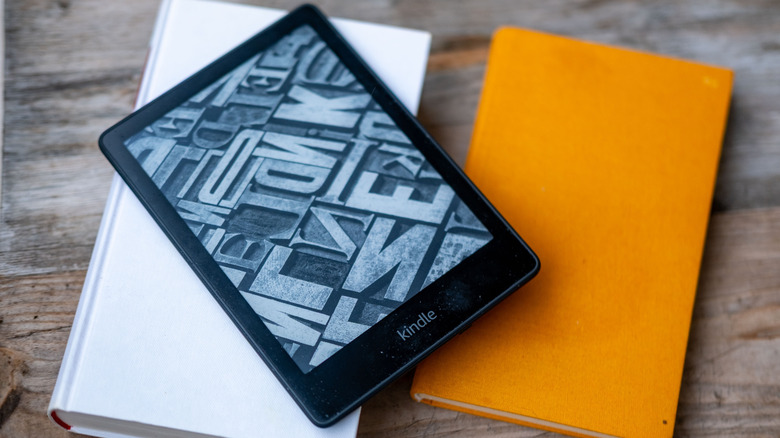
Sideloading is the process of adding content to a device from somewhere other than the official store. Once Amazon cuts off support for older Kindle models, sideloading becomes the only way to add more books to the device. Other companies, like Apple, have made it difficult or impossible to sideload content to their devices. However, it is still entirely possible to sideload books to all Kindle models. There are plenty of underrated places to get free Kindle ebooks, so sideloading can benefit any user.
The process is actually fairly simple. Just connect your Kindle to a computer via USB and drop any EPUB, MOBI, or PDF file into your Kindle's "documents" folder, usually located at Kindle > Internal Storage > Documents. You can even use a third-party solution like Calibre to manage your library, convert files to different types, and send books directly to your Kindle without having to delve into the file directories yourself.
If you're using a Kindle that can still connect to Amazon's online services, there's a more straightforward way to sideload: the official Send to Kindle page. From here, you can drag and drop PDF, EPUB, and a wide variety of other file types to be added to your Kindle's library. This service makes it very easy to move books between devices. If you've been running out of storage space on your old Kindle, give this workaround a try before you decide to spring for a newer model with more gigabytes.
Managing your Kindle's storage space
One thing that might be slowing down your old Kindle is your huge collection of digital books. A device's storage isn't only the space where it saves files; it's also the space the operating system uses for various tasks. Many applications generate temporary files that hold data needed to perform the app's current workload. If the device has limited storage space, the system can't generate as many temporary files at once, which may slow down certain functions.
The best way to free up storage space on your Kindle is by archiving the books you aren't actively reading. However, Kindle doesn't have a native archive function. Amazon's intended method for you to manage your library is to simply delete books from your device and re-download them from your account's Kindle library if you want to read them again in the future. If you want to take archiving into your own hands, you can back up books that aren't covered by Digital Rights Management (DRM) policies to iCloud or other cloud storage alternatives.
Extending your Kindle's battery life
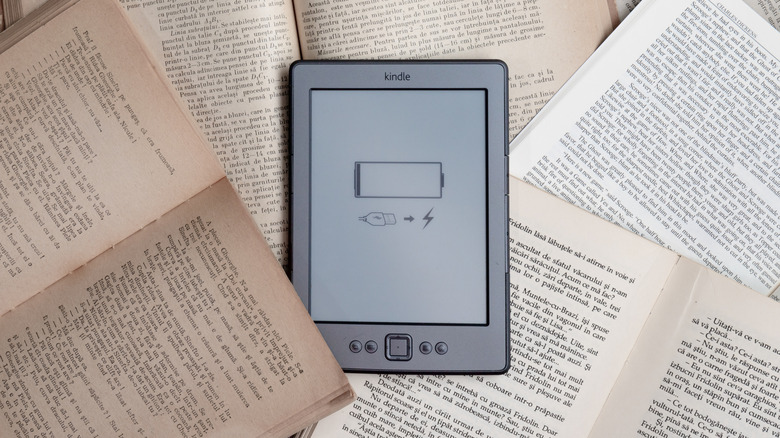
Kindles use lithium-ion batteries that inevitably degrade over time, so it's worth squeezing a bit more use out of them by making some changes to how you use your device. Lowering the screen brightness and avoiding overcharging your device are a couple of easy habits that can help. However, one of the most meaningful changes you can make is turning off Wi-Fi when not in use.
A study conducted at the University of New South Wales found that a smartphone's Wi-Fi functionality draws around 5 milliwatts for 120 seconds while the device is idle. This is roughly the same amount of power used by a strong laser pointer. It's even more important to turn off Wi-Fi if you're using a Kindle that Amazon has cut off from online support. If these older Kindles have Wi-Fi switched on, they're wasting energy by trying to access services they can no longer reach at all.
Another way to keep your Kindle disconnected from Wi-Fi is to simply put it in airplane mode. Doing so will disable all wireless transmission functions of your device, which can go a long way toward conserving power. This is just one of the benefits of keeping your Kindle in airplane mode; doing so will help you avoid battery-sucking Wi-Fi features and improve your Kindle experience in other novel ways.
Changing settings to improve your Kindle's performance
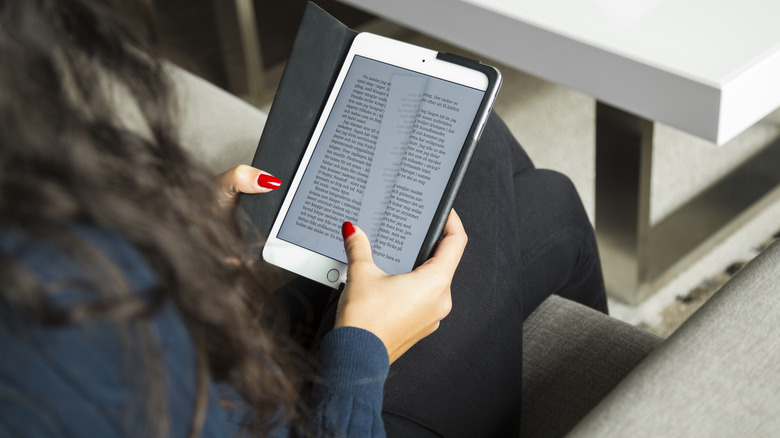
Does it seem like your old Kindle is stuttering along and not turning pages as smoothly anymore? This is a natural result of aging hardware and Amazon's lack of software updates for legacy devices. Before you resort to replacing it with a new e-reader, though, there are a couple of settings you can tweak that might speed up your Kindle just enough.
The first thing you might need to try is turning off page refresh by going to Settings > Reading Options > Page Refresh. By default, Kindle devices refresh the screen every time you turn the page to prevent ghosting. If you turn off page refresh, you might briefly notice a faint "ghost" of words from the previous page, but that might be a compromise you're willing to make if it boosts the Kindle's performance.
If your Kindle supports page turn animations, turning them off is another way to boost performance while reading. Go to Display Settings (the "Aa" button in your device's pull-down menu) and navigate to "More." In this menu, you can toggle the Page Turn Animation on or off. Disabling these animations will result in a snappier transition that may make your reading experience feel just as modern as if you had bought a brand-new model.