

11 Clever Uses For Split Screen Mode On Your Android Device
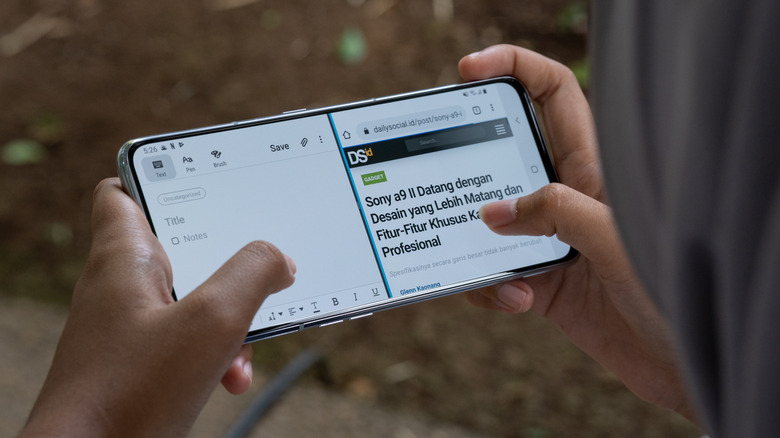
Split-screen mode is easily one of the most underrated Android features that puts iPhones to shame. It is an incredibly convenient feature, even if your phone seems a bit too small to accommodate two screens at once. After all, there are a lot of ways that you can use this to make your life easier. There are many ways to enable split-screen on your Android device, with the easiest one being to swipe up or use your navigation buttons to open a view of your recent apps. From here, tap the icon for each recent app, and you'll see a convenient split-screen option to enable this feature.
People who think that split-screen mode is nothing more than a novelty are missing out on some of the best and most convenient ways to enhance productivity and simplify their tasks. It'll be hard for you to stick to one-screen navigation for tasks once you realize how much faster it can be in split-screen mode.
Fact-check anything you're reading online without switching screens
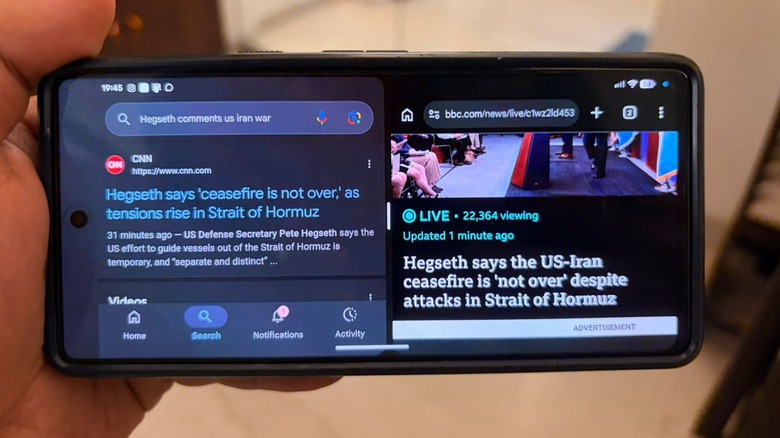
In the age of fake news and unreliable sources, it's up to you to fact-check these claims. It can be an exhausting affair — especially given the amount of content you consume online — but split-screen mode can make things slightly easier for you. A great way to fact-check claims quickly is to keep the article you're reading or the video you're watching on one half of the screen, while opening Google on the other half. If a statement seems suspect, do a quick search to see whether it has any weight.
Usually, copying the sentence in question and pasting it in the Google search bar you've opened on the screen's second half is enough to bring up relevant links that either support or refute these claims. If a bit more research is required to gauge the veracity of these statements accurately, you can always extend one half of the screen via the divider and properly do your research before going back to the article or video that had grabbed your attention.
Watch a video while browsing the internet or chatting with friends
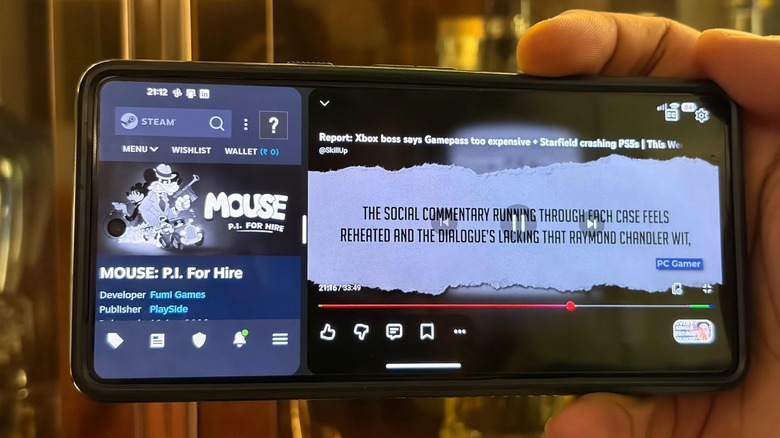
With constant multitasking and shortening attention spans, watching a lengthy video or reading a verbose article can leave people restless and bored. Thankfully, there's a way you can use split-screen mode to keep your attention intact. You can use split-screen mode to play a video on one half of the screen while keeping anything else you can interact with passively on the other half.
This can be everything from a messaging app to an article that caught your eye. While you can use YouTube's picture-in-picture mode to get a similar feel, Android devices with smaller screens — like smartphones — make it hard to discern what is happening in said video due to the small square window. Meanwhile, the ability to manually extend an app's real estate on your phone in split-screen mode means you can either expand or minimize the video in question whenever you want, without being restricted to a particular size.
Manage your finances while keeping your bank statements in view at all times
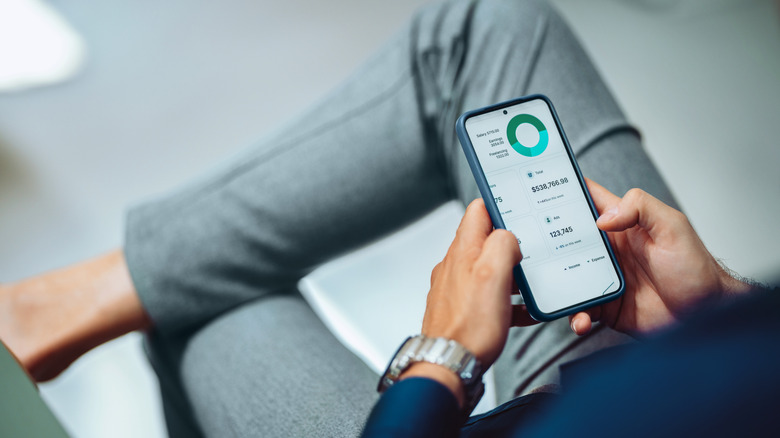
The trusty calculator app is very useful when people need to tally their finances and understand the intricacies of a tricky transaction. However, these people also understand the frustration of having to switch back and forth between screens to find a transaction amount, enter it in their calculator, and repeat ad nauseam. Instead of sticking to such an inefficient way of managing your finances, you're better off using your Android device's split-screen feature to keep both the calculator app and your bank statements in full view at all times.
This convenience doesn't just help you manage your own finances, but an entire group's, too. If you're on a trip or sharing a flat with roommates, then using an app like Settle Up or Splitwise is convenient to tally all expenses and figure out who owes how much. Again, split screen can be a huge help here, letting you keep an eye on group expenses while updating these apps on a single screen. That way, you won't have to waste too much time constantly switching between screens.
Doing office work while researching on other sites
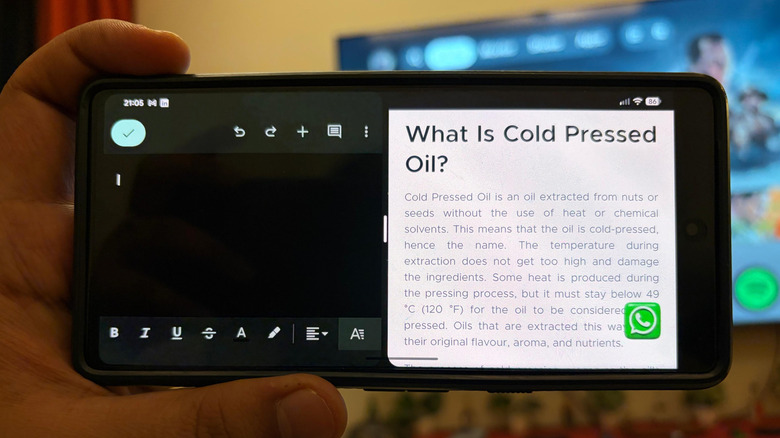
Workplace efficiency is something that every employee wishes to unlock. Usually, a ton of research is required to competently do your work, which mandates a lot of clicking around and checking out both in-house material and third-party references. This can take up too much time, so why not use split-screen mode to meet your deadlines and submit quality, well-researched work?
While this might be a bit of a challenge on smaller screens, people who use their Android tablets as a valid laptop replacement can easily split the screen. This helps them keep their work on one side while opening any relevant research material on the other. Instead of wasting time trying to check multiple tabs to do your research before hastily going back to your document or presentation, you can improve your productivity considerably with these steps. It's as simple as opening an article or anything else you need to peruse on one side of the screen, while keeping your Docs, PowerPoint, or any relevant app for office work open on the other.
Watch sports and check stats on a single screen
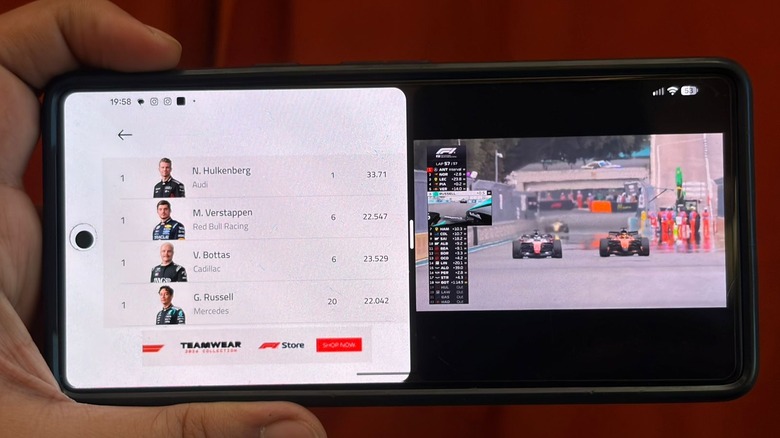
The sheer amount of live data and in-depth statistics that come into play for every sports game is overwhelming, but hardcore sports fans who want to remain up-to-date with all these stats will prefer a way to watch the game and peruse the behind-the-scenes data. For these fans, split-screen mode is perfect. If you're watching the game on an Android device, keep the live feed on one half of the screen, and the stats screen from apps like SofaScore or 365Scores on the other side.
Given how rapid a game of football, soccer, tennis, or hockey may be, keeping the stats in view at all times will let you dissect the stats of individuals and teams during the downtime, fueling your part-time career as a backseat sports commentator. That being said, keep in mind that these apps are notorious for being faster at relaying major match updates than the stream you're watching, which might spoil the game if you're watching it live.
Call customer support and keep any relevant details handy on the same screen
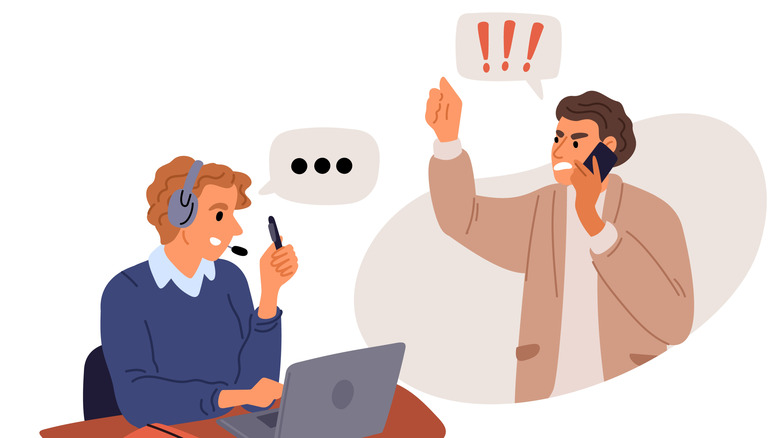
Email, chat assistants, and social media have made customer support far less of a pain than it used to be. However, that doesn't mean that you won't have to get on a call from time to time and give relevant details to an automated voice, which becomes especially grating when you're asked to input codes, order numbers, and other relevant numeric details into the dialer.
Split-screen is a massive help here. Keep any relevant details open on a separate screen, and you won't have to clumsily find these numbers by switching to other apps over and over again. With the dialer present on one screen, just read up on the information in the document you've kept open on the other half of your screen, and your customer support experience will become smoother and less irritating than before.
Use your preferred maps and music app together while driving
While Android Auto exists, some people aren't huge fans of this tech. Sure, the Coolwalk update in 2022 was a game-changer and improved this system's multitasking functionality, which was sorely lacking, but some people still find the tech to be a bit too buggy and unreliable.
It doesn't help that some cars only have Apple CarPlay and lack support for Android Auto or stick to their proprietary software, which is far from ideal if you only have an Android device handy. In such an event, you're better off using split-screen mode to enjoy distraction-free driving in your automotive.
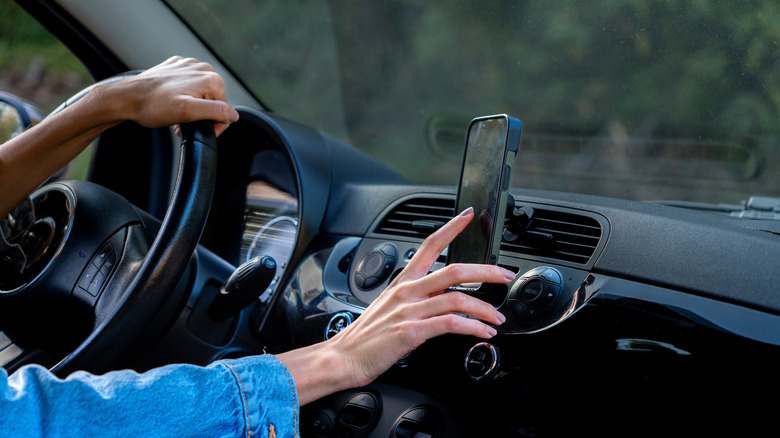
Simply open Waze or Google Maps along with your preferred music player, and you'll be able to enjoy seamless navigation and convenient music controls in one fell swoop. Just make sure that you set up a phone mount that's in view while driving, so that you don't have to pick up your phone and hastily navigate both interfaces behind the wheel.
Play multiplayer games and use another app while waiting for your opponent's turn
Passive gaming is far more prevalent than you'd expect, especially when it comes to multiplayer games. People who play titles like Scrabble or Chess on their phones are familiar with the agonizing wait times as they wait for their human opponents to make a move. Instead of twiddling your thumbs uselessly and waiting around until it's your turn, why not use this time to do something else that keeps you occupied until your opponent responds?
This doesn't necessarily mean that you have to look away from your game and potentially miss your turn if you get distracted by something else. Instead, just open any game with lengthy waiting periods in split-screen, and open anything else to occupy the other half of your screen and prevent any boredom once you've played your turn. Messaging your friends, reading an article, or watching a video is more than possible in split-screen mode. Once your opponent is done playing, you can use the divider to quickly extend the game screen and commence with your next move.
Supervise your baby monitor while using your phone

Parenthood is beautiful, but it's also an exhausting affair. Keeping tabs on your child at all times can be tough, and most people prefer using baby monitors for this task. However, it can be a tall order for a parent to constantly keep an eye on the baby monitor. No one is perfect, and it's understandable if your eyes drift away from the screen from time to time.
Once again, split-screen will come to the rescue here and help you become a multitasking, high-functioning parent. You don't have to push yourself to watch your baby do nothing for hours — keep the baby monitor app open on one side of your Android device as you run whatever app you want on the other half. Message your friends, get into a Wikipedia rabbit hole, browse YouTube, or do anything else that suits your fancy without any guilt!
Browse two Chrome tabs at once
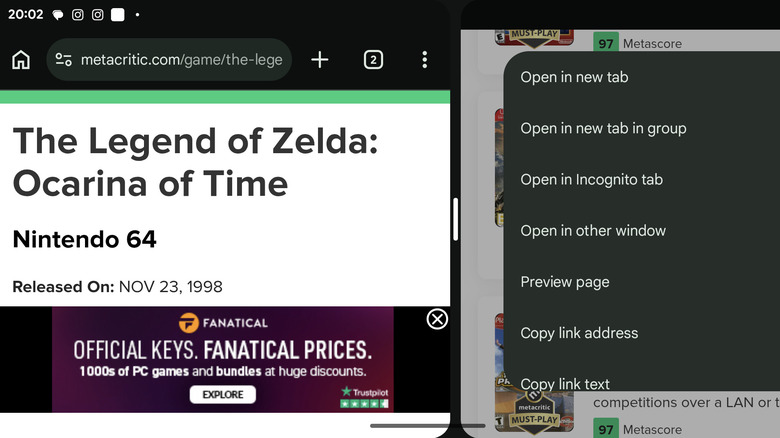
Most people prefer Google Chrome as their browser of choice, whether on mobiles, PCs, tablets, or any other device. Sure, an argument can be made for other browsers like Brave, Opera, and even Microsoft Edge as a viable alternative, but Chrome's widespread compatibility and simple functionality definitely make it an attractive prospect that anyone would want to download on their Android device. One such unique perk is the browser's innate support for split-screen mode, letting you browse two tabs at once with this hidden Google Chrome feature you need to start using.
Firstly, you need to enable split-screen on your Android device. One half of your device should be running Chrome. From here, select the three-dot icon on the top right of Chrome to open the so-called "kebab" menu. Select "New window," and Chrome will open in the other half of the screen, regardless of which app was running on it. Another way to use this feature is to long-press on any link in Chrome and select "Open in other window." It's a simple way to browse two tabs on Chrome simultaneously and can aid your multitasking endeavors considerably.
Draft a reply while looking at the email for more convenience
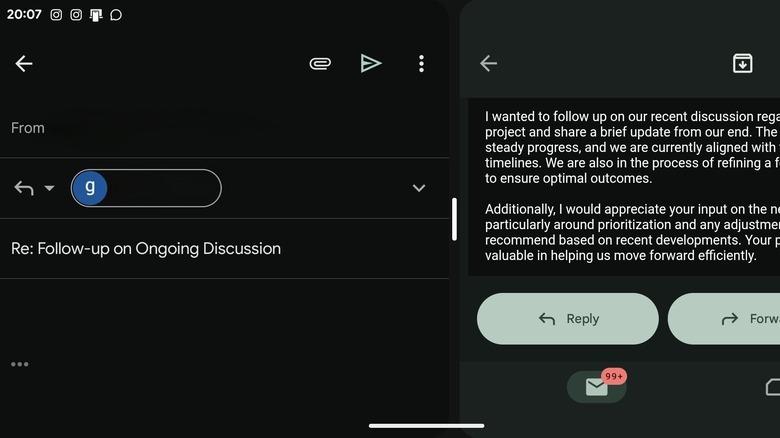
Most working professionals are well aware of the frustrations they have to face while jotting down a draft in Gmail. Usually, trying to give a contextual response to a mail involve a lot of back and forth between the email body and your draft, which turns this simple act into a mind-numbing and needlessly lengthy affair. Instead of dealing with this problem, a far better solution is to use split-screen and keep both the mail you're replying to and the draft body on one screen.
Once you've selected the option to write an email, swipe up to open your recent apps and select this draft body for one half of the screen. The option to project Gmail with the mail body on the other half should appear, making it far, far easier for you to give a quick, contextual reply. If you're using a Samsung device, then you'll have to take the extra step of selecting Gmail from the available list of options to project it twice on your Android device. It's a simple and useful way to make your professional communication swift and succinct.