

Can You Mount Ring Stick Up And Outdoor Cameras Upside Down?
We may receive a commission on purchases made from links.
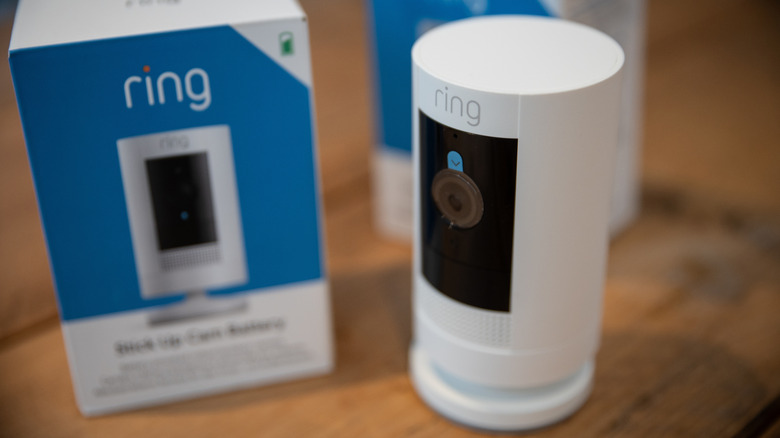
Ring cameras, lights, and sensors are some of the most popular surveillance devices on the market, making them a common choice for homeowners looking for peace of mind. The Ring Outdoor Cam and Ring Stick Up Cam are two budget-friendly products in the greater Ring family, and they're easy to install, too. But "easy" doesn't mean you should rush through any part of the initial setup, especially if you plan on mounting a cam to a wall or ceiling.
If you accidentally mount a Ring Outdoor Cam or Stick Up Cam upside-down, you won't be able to rotate the video in the Ring app. Mounting either of these devices incorrectly may also impede the accuracy of the cams' built-in motion-detection. Both cameras include mounting hardware, but the plate and accessories provided are meant for use on a flat wall. To properly mount one of these Ring cams to a ceiling, you'll want to purchase the Add-On Mount for Stick Up Cam. Compatible with second and third generations of the Stick Up Cam, the kit comes with everything you need to get your Ring cam rigged up in only a few minutes. There's even a telescopic arm that you can adjust to achieve the perfect viewing angle. Ring also recommends using the Add-On Mount for more versatile placement on walls.
Generally speaking, Ring cams (and other smart home surveillance products) tend to perform best when connected to a strong Wi-Fi network. Before you start drilling holes, it's a good idea to set up your Ring cam first, confirming it's actually connected and operational, and only then move it to the final location.
The Ring app allows you to rotate the view for some Ring cameras, but not all of them
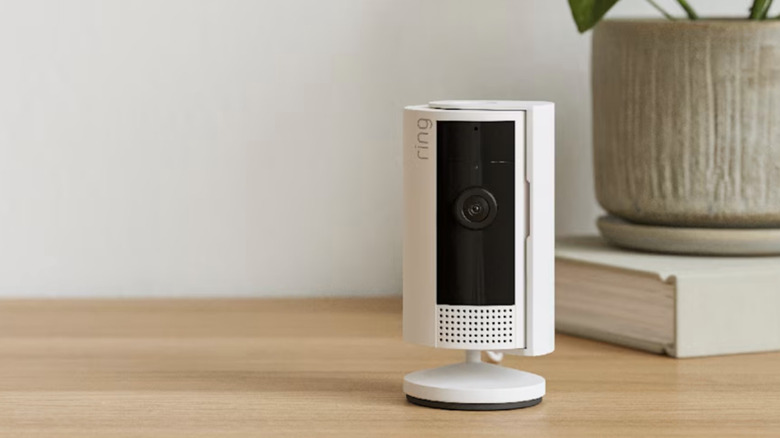
Both the Ring Outdoor Cam and Ring Stick Up Cam are managed by the Ring app, but not all Ring devices are treated equally by the companion software. For example, there are numerous indoor and outdoor Ring cams that can be mounted upside-down without issue, but only if the device supports the Rotate View option. To figure this out, launch the Ring app, tap the menu icon, then tap Devices. Select your Ring product, go to Device Settings, then Video Settings. If you can't find a Rotate Video option on the Video Settings screen, your Ring cam doesn't support the function.
If the option is available, once you tap it, you'll be prompted to readjust your Ring cam's video orientation. Once configured, you should also readjust any Customizable Motion Zones that were programmed to your cameras. And while we're on the subject, we should also mention that only the Ring Pan-Tilt Indoor Cam has motion-tracking capabilities. That said, those looking for automated or manual pan-tilt-zoom (PTZ) functionality may want to consider one of these security cameras that don't require a subscription.