

4 Common Samsung Galaxy Phone Problems (And How To Fix Them)
Samsung earned the top spot in our ranking of the best major smartphone brands, with its Galaxy lineup standing proud and tall against the likes of Apple and Google. However, just like any tech giant, its products don't come without problems.
While Samsung has a reputation for making reliable phones that customers love — even going so far as to be considered the best Android phone brand in terms of customer satisfaction — a few odd software glitches and hardware constraints can still cause unwanted problems. For example, Samsung phones have become infamous for bad battery drain after a major update. Some of these issues do require the manufacturer to apply fixes or get the optimization right, so you can't necessarily solve them on your own — but other glitchy quirks, like the Moisture Detected notification for older devices, can benefit from a few workarounds. Of course, if you discover new issues, it's recommended to use the Samsung Members app to report problems so that Samsung can collect data and provide any advice if applicable.
Battery drain after an update
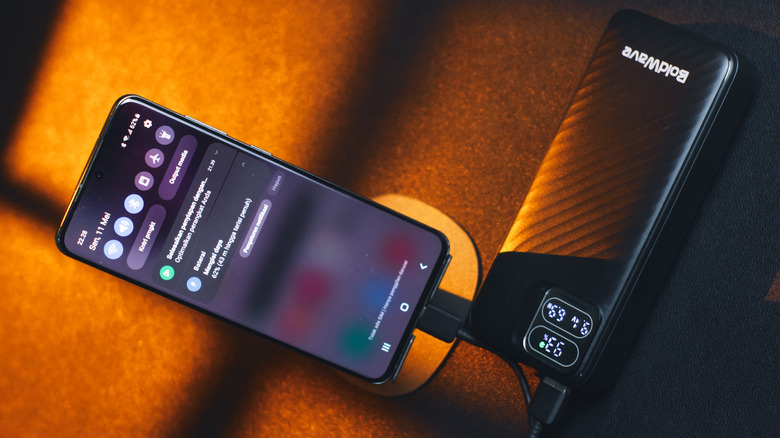
Post-update battery drain seems to plague many Samsung Galaxy users. Often, this happens after an update has finished. You'll see reports on Reddit, Samsung Community forums, and YouTube about it after a major update has gone through. Part of the reason is likely that the update might not be optimized for all devices, but that's not the only factor. Oftentimes, post-update battery drain can stem from your device needing to recalibrate its power management options with the new software, and as a result, re-learn your usage patterns (which is how adaptive battery works and why it can extend your Android phone's battery life).
Users recommend waiting a week to see if the battery drain persists, since that is enough time for your phone to fix itself. But to be on the safe side, it is recommended to be careful with third-party apps, since they aren't always as well-optimized or compatible with the new software, which can cause your device to drain faster than it should. The best fix is to use those apps sparingly to help reduce their background activity.
The Moisture Detected error persists
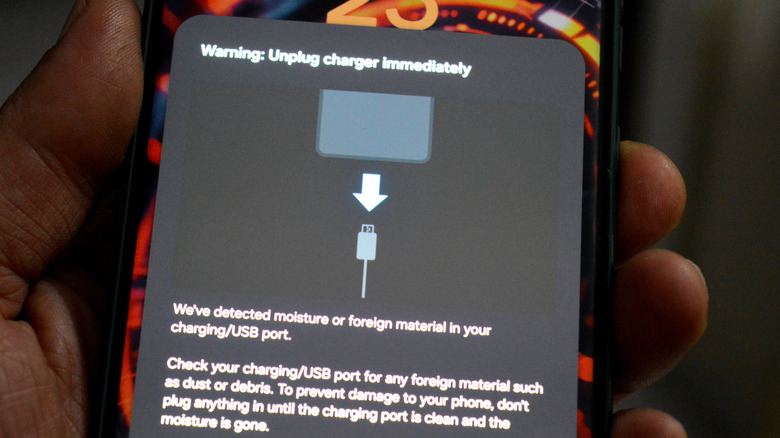
The Moisture Detection notification is a safety feature built into Samsung devices with an IP68 or higher water resistance rating. If water seeps into the USB port, a sensor sends an alert indicating that moisture or foreign matter has been detected, and the notification won't clear until the port has been properly cleaned or dried.
This is one of the reported issues that have kept phones from charging, and sometimes, this alert still hasn't gone away after hours of drying — though this usually isn't the case. If the notification is persisting when you think your port is dry, start by examining the opening closely with a flashlight to make sure no water remains.
If you are absolutely certain this is a software glitch, restarting your phone can resolve the issue. Failing that, disabling the fast charging option under Settings > Battery > Charging settings > Fast charging may help. Another method is to try clearing cache for the phone's USB settings under Settings > Apps > USBSettings > Clear cache. If the USBSettings app isn't shown, make sure Show system apps is enabled under the Filter and sort options (the three horizontal lines with a down arrow) in the main Apps list. If none of that works, you may need to replace your charger and ensure that you aren't charging your device in a moist environment.
Inconsistent animations in One UI
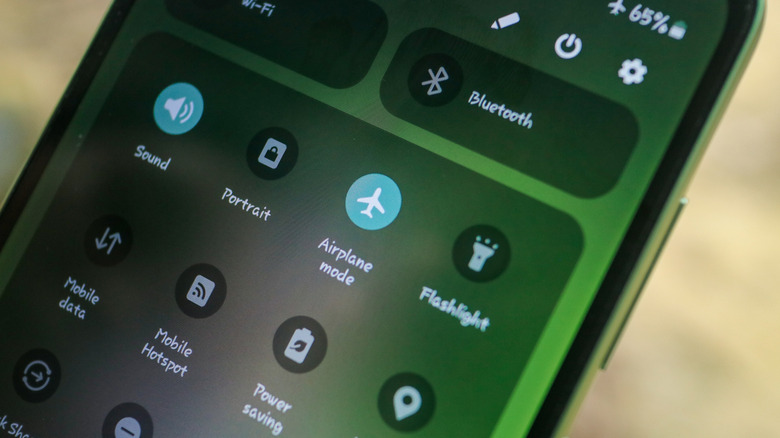
You'll notice this mainly in the quick panel or on your home screen, where the animation either doesn't appear or is noticeably laggy. When this happens, it is usually attributed to a system bug after an update, to the cache filling up, or to custom theming from Good Lock using Theme Park conflicting with the animations. The one potential fix is to clear your system cache by entering Recovery mode and selecting Wipe cache partition (if you still have that option available to you, since Samsung has removed some of the options in newer phones). To access Recovery mode, turn your phone off, then press and hold the volume up and power buttons at the same time until the Samsung logo appears.
For the Good Lock theme issue, try removing the custom theme and using a default option to see if the animation issues are fixed. Also, check if any modules need to be updated. Samsung often pushes a new Good Lock update to devices that have recently received a new One UI version since OS updates can cause compatibility issues with some Good Lock modules.
Lastly, sometimes changing your Samsung phone's animation scales can help. To do that, you'll need to enable the hidden "Developer options" menu by going to Settings > About phone > Software information, then tapping the Build number entry seven times in quick succession. Once enabled, select Developer options from the very bottom of your Settings app, then adjust the Window animation scale, Transition animation scale, and Animator duration scale options. You'll likely want to choose a lower value here — for instance, if your default is 1x, change it to 0.5x.
The dreaded green line glitch
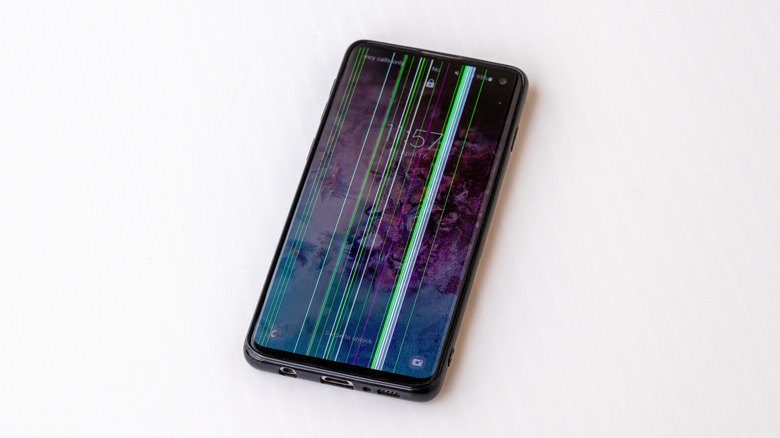
Lastly, we have one of the worst problems Galaxy users might face — it's a single, vertical green line that appears across your screen. What makes this issue a little odd is that there is no known definite trigger or cause on the user's part — you may simply wake your phone after a period of not using it, then notice this line has appeared on your screen. It seems to be mainly a manufacturer's defect on the OLED screen where the line exposes a weak pixel row. Over time, as the phone is used, charging, heat, pressure, and minor impacts can cause that line to appear. Unfortunately, this issue is also not device-specific, as it has plagued many different Galaxy OLED screens.
You might see this on older phones like the Galaxy S20 series, or even older generations of Z Fold and Z Flip devices. Unfortunately, the primary long-term fix is to replace the faulty hardware. Your best option is to contact Samsung to request a screen repair. While India is the primary region where Samsung has shown a willingness to repair outside of warranty windows, you should still check whether the company is willing to service your affected device in your region.