

This Android App Lets You Take Photos That Look Straight Out Of A Compact Camera
These days, AI in smartphones is pretty much the norm. It's what powers most of your apps, including the camera. Yes, your camera app uses AI in ways you might not realize. The Google Pixel camera, in particular, relies on AI to make photos sharper in dim environments and reduce blurriness. On the other hand, the Samsung Galaxy camera taps into AI to capture micro details in photos and edit out objects.
But while all this AI and computational processing do make your photos more picture-perfect, the downside is that you don't get a realistic output of what your camera sensor actually sees. Your photos don't have the actual natural lighting, tone, and overall raw look. If you prefer to keep your photos unprocessed like a true compact camera, there's a recently released Android app you can try.
Called the Viewfinder Mobile (VWFNDR + MBL), this Bayer RAW camera was developed by VWFNDR Camera Co. — a Tokyo-based team that also builds physical compact cameras. What makes it stand out from other camera apps is that it stays true to what your sensor captures. It's free from AI, filters, and heavy processing, so every shot looks much closer to what your eyes and camera see at that moment. VWFNDR + MBL is completely free to download and use, works on any Android phone running at least Android 10, and is lightweight at only 11MB. Let's walk through a more detailed breakdown of how it works and how to use it.
What is VWFNDR + MBL
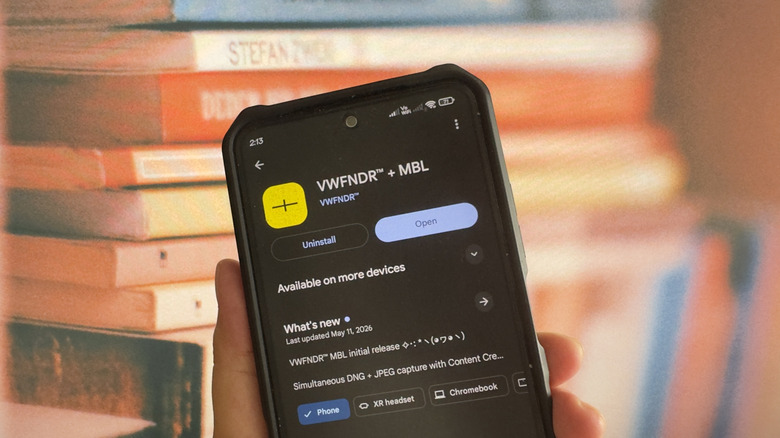
VWFNDR + MBL is an Android app that replaces clunky gadgets, specifically compact cameras. Instead of bringing a separate camera with you, you can just use your phone and still get the same picture quality. Compared to your regular camera app, VWFNDR + MBL works like a still-photo camera. It doesn't record videos and relies solely on your rear camera sensor, meaning you don't have selfie mode.
The app does come with basic camera settings, though. For instance, you can change the aspect ratio, adjust the exposure compensation, and set the exposure mode. It comes with six aspect ratios — 1:1, 7:6, 4:3, 3:2, 16:9, and 2:1. The exposure compensation, on the other hand, will depend on your phone but can range from -2.0 to +2.0 with 1/3 step. For the exposure mode, you have the option between auto, P for ISO priority, S for shutter speed priority, and M for manual exposure. If your mobile has optical image stabilization, the app supports that feature too.
By default, VWFNDR + MBL generates both DNG and JPEG files with every shot. If you have no use for the RAW photos, you can opt to generate just JPEG instead. After taking the picture, the app automatically embeds it with a record built on the open Content Credentials standard from C2PA. This certifies that the image was indeed photographed with a real camera and not AI-generated.
Beyond image format and provenance, VWFNDR + MBL also focuses on minimalism and quick settings access. Unlike regular camera apps, all the settings are laid out right on the same panel as the capture button. You won't have to dig through menus to tweak them. This keeps interactions minimal while shooting, so you can focus and quickly capture the moment.
How to use VWFNDR + MBL
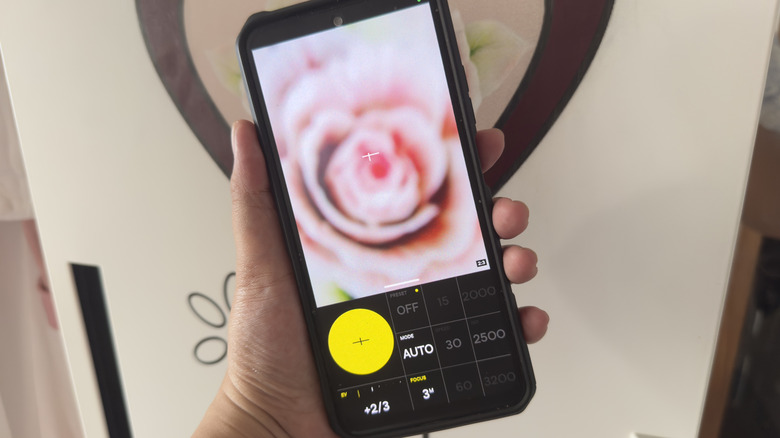
If you're into intentional photography, VWFNDR + MBL is easily one of the essential Android photography apps to install. Using it is pretty straightforward, too. Upon opening the app, you immediately have access to the shutter button and all the camera settings in the control panel. Here, you can adjust the exposure compensation, preset, exposure mode, and focus. You can't zoom in, but changing the aspect ratio can tweak the zoom. By default, the app's aspect ratio is set to 2:3. To choose a new aspect ratio, simply drag the white center handle either upward or downward until the next option appears. It will then snap into place. Once you're ready, just hit the large shutter button. You can press the volume down button to take a picture too.
For convenience, VWFNDR + MBL's control panel is fully customizable. All you have to do is long-press on an element and drag and drop it elsewhere on the panel. Besides the control layout, you can also adjust the app settings. To go into Settings, grab the white handle and drag it all the way up. There's an option here to edit the copyright text (which, by default, shows your phone model), customize which camera setting the volume up button changes, and switch to a different color theme. This is also where you can change the file format to generate only DNG, JPEG, or both.
If you pull the white handle all the way down instead, you'll get to VWFNDR + MBL's built-in gallery. It has all the photos you took with the app, with each one labeled with the camera settings used. You're free to share a photo directly from this gallery or delete all the photos here.